Play Era of Conquest: Kingdom on PC Play Era of Conquest: Kingdom on PC and Mac
Era of Conquest is an open-world strategy game that pulls players into a vast, historically inspired battlefield where alliances are forged, territories are contested, and every decision carries real weight. Spanning a massive 120km by 120km map, the game blends grand-scale warfare with deep tactical systems, inviting players to lead armies, command legendary generals, and carve out dominance across a living, ever-shifting world. Playing Era of Conquest on PC through MuMuPlayer gives you the full scope of that world on a larger screen, making it far easier to manage your empire and coordinate battlefield movements with precision.
Era of Conquest sets itself apart with a genuinely fair competitive structure where no resources or VIP advantages can be purchased, meaning victory comes down entirely to troop composition, skill selection, and strategic teamwork. The game features a robust General system, a Skill Research tree, a Trade House, and intense Battlefield Trials that layer tactical depth into every session. The newest Golden Freedom campaign introduces a fresh spawn-point mechanic and diverse terrain types including Gobi Desert, Mudflats, Grassland, and Swamp, each influencing how arms counters play out in battle. Siege warfare is rendered with real 3D graphics powered by SRP technology, while DOTS technology allows up to 6,000 units to clash on screen simultaneously. Troops also replenish automatically and for free, removing one of the most frustrating resource drains found in traditional strategy games.
When you run Era of Conquest through MuMuPlayer on PC, the advantages of a larger display and mouse-and-keyboard controls become immediately clear. Coordinating troop movements across an enormous map, managing multiple systems like the Trade House and Skill Research panel, and reacting quickly during live siege battles all become noticeably smoother with the precision that a mouse offers over a touchscreen. MuMuPlayer also ensures stable, consistent performance so that large-scale battles with thousands of on-screen units run without disruption, letting you stay focused on strategy rather than fighting your device.
Download Era of Conquest: Kingdom on PC or Mac with MuMuPlayer, get a PC like gameplay along with smart control and high graphics performance.
MuMuPlayer, the top Android emulator for PC and Apple silicon Mac, delivers an optimal gaming experience with minimal RAM usage and high FPS. It also allows you to create multiple instances of the emulator and run several games simultaneously, thanks to its Multi-instance feature. Its advanced emulator features ensure smooth gameplay, even on low-end PCs.
Download and play Era of Conquest: Kingdom on PC or Mac with MuMuPlayer and start enjoying your gaming experience now.
About the Game
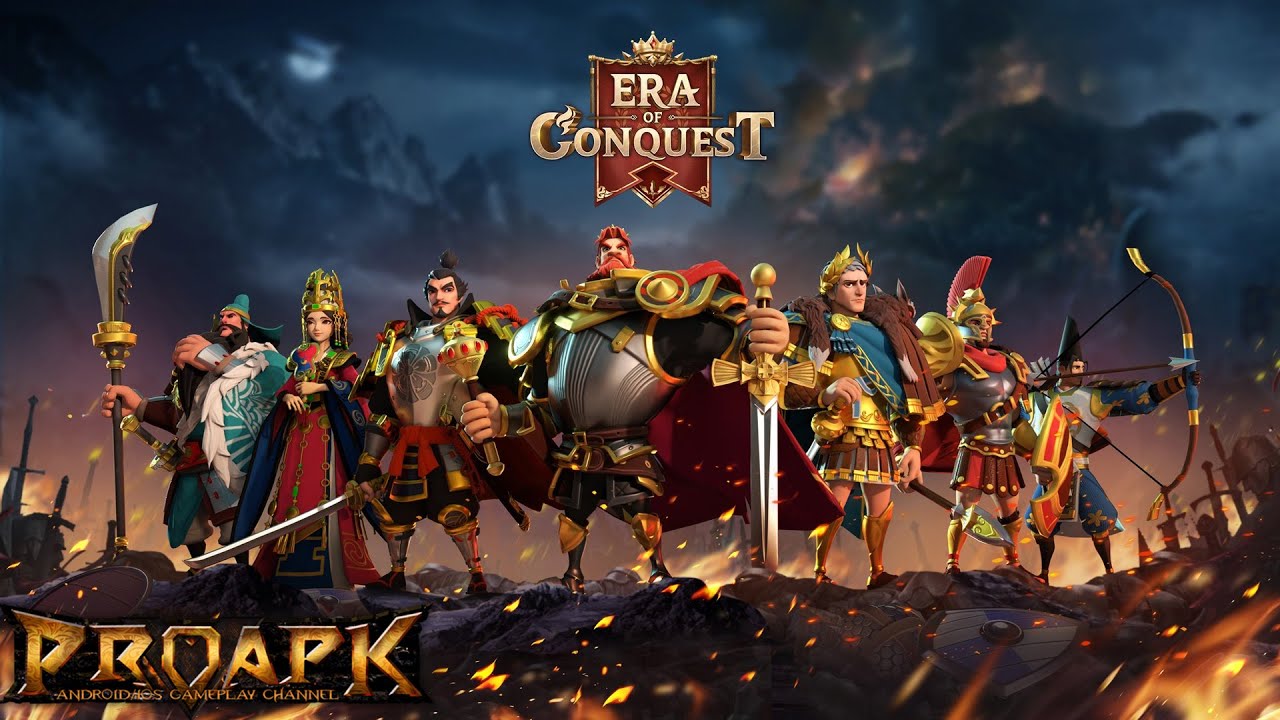
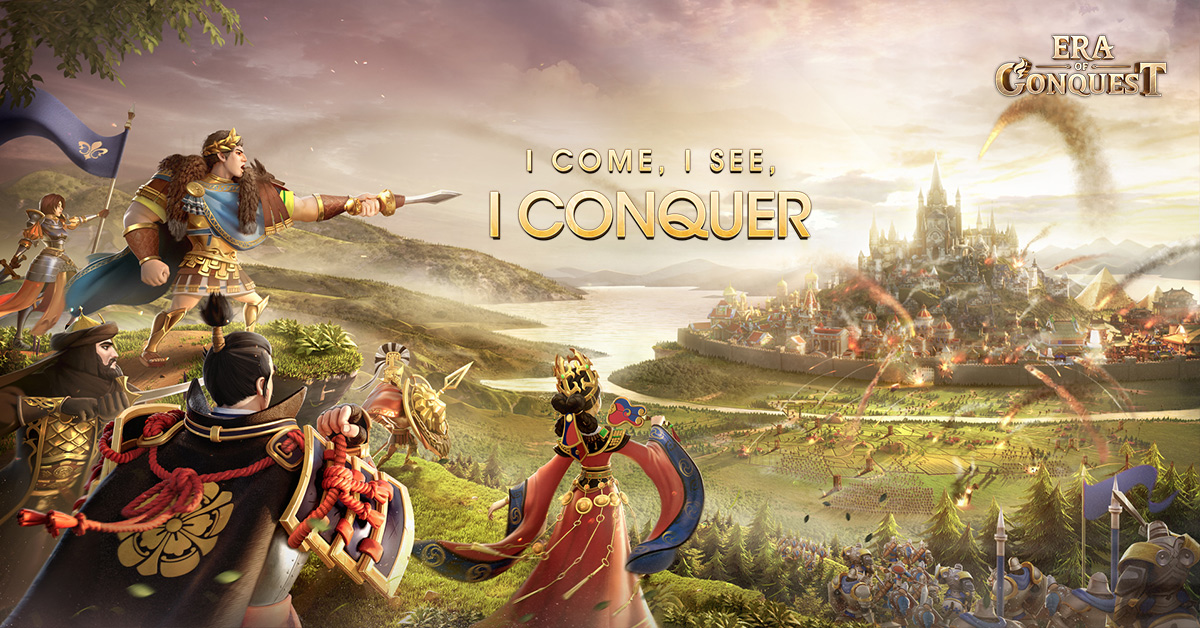
Era of Conquest drops players into a sprawling open-world strategy experience built around territorial warfare, historical inspiration, and competitive multiplayer on a global scale. The game world stretches across a 120km by 120km map, giving players the kind of geographic scope that makes every campaign feel genuinely epic. Whether you are pushing into enemy territory, holding a defensive line, or coordinating a multi-alliance offensive, the sheer scale of the battlefield ensures that no two sessions play out the same way.
One of the game's most distinctive qualities is its approach to fairness. Era of Conquest removes the pay-to-win elements that plague many titles in the strategy genre. There are no purchasable resource packs or VIP tiers that give spending players a structural advantage. Instead, outcomes are determined by how well you understand troop counters, how effectively you allocate your skills, and how well your alliance works together. This creates an environment where a well-coordinated team can genuinely outmaneuver a larger or more established opponent.
The newest content addition, the Golden Freedom campaign, introduces a focused competitive mode where players choose their spawn point and engage in shorter, higher-intensity battles. What makes this mode particularly interesting is the introduction of new terrain types, each with its own strategic implications:
- Gobi Desert: Open and exposed, rewarding faster or longer-range unit compositions
- Mudflats: Slows movement and shifts the value of certain troop types
- Grassland: More neutral ground that rewards balanced army builds
- Swamp: Terrain that punishes certain arms and rewards adaptable commanders
These environments interact directly with the game's arms counter system, meaning terrain awareness becomes as important as raw army strength.
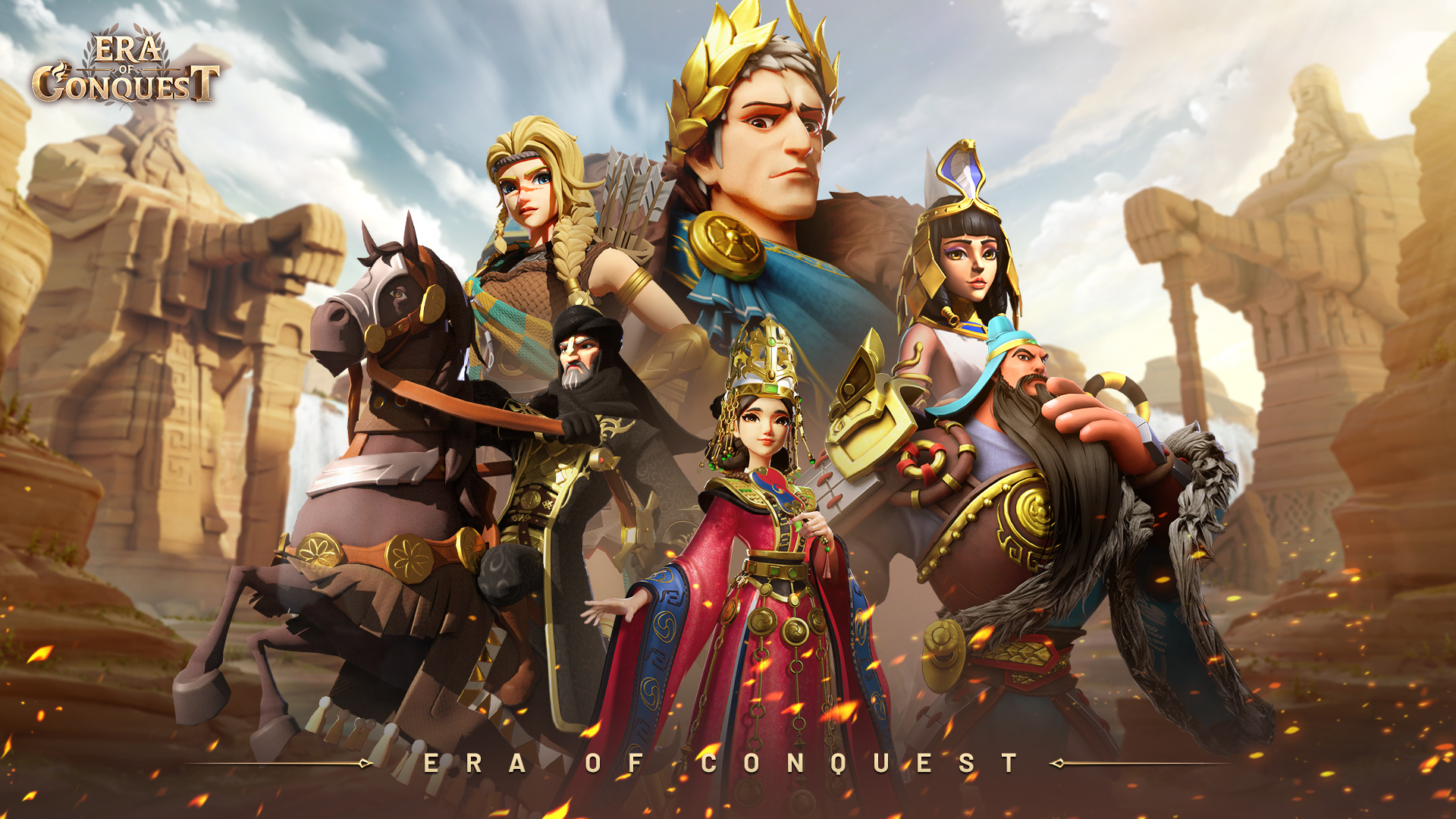
Beyond the campaign, Era of Conquest offers a wide range of gameplay systems that keep progression engaging over the long term. The Skill Research system allows players to customize their battlefield approach by developing specialized abilities over time. The Trade House introduces an economic layer to the game, letting players manage resources and engage with allied economies. Battlefield Trials offer structured competitive challenges for players who want to test their skills in controlled environments. The General system adds another dimension, with hundreds of heroes available to lead your forces, each contributing unique abilities to your strategic setup.
Siege battles are a visual and mechanical highlight of the experience. The game uses SRP technology to deliver genuine real-time 3D rendering during large-scale assaults, while DOTS technology allows up to 6,000 individual units to be active on screen at once without the visual chaos becoming unmanageable. These battles feel consequential and immersive in a way that sets the game apart from more abstracted strategy titles.
Force management is also handled differently here. Troops heal and replenish automatically without requiring players to spend resources or wait out long timers. Recovery rates even accelerate when mobilization begins, keeping the pace of play active and removing one of the most common points of friction in mobile strategy gaming.
For players who want to experience all of this on a larger screen with more precise controls, running Era of Conquest through MuMuPlayer on PC is a natural fit. The broad map, the multi-layered menus, and the fast-paced siege battles all benefit from the visibility and input accuracy that a PC setup provides.
Emulator Features
Highest Android 15 Support Best Compatibility on Mac

With a smart button scheme and image recognition function, provide a more concise UI, and support custom button mapping to meet different needs. With a smart button scheme and image recognition, enjoy a cleaner UI and custom button mapping to fit different gaming needs on Mac.

Run multiple games independently at the same time, easily manage multiple accounts, play games while hanging. Take your Mac gaming further with multiple independent instances, easy account management, and seamless AFK gaming on Apple Silicon Mac.

Break through FPS limit, and enjoy a seamless gaming experience without lag and delay! Break through FPS limits for a seamless, lag-free gaming experience on MacBook, Mac mini, iMac, and Mac Studio.

Get a 3-second startup with 52% less memory usage and 65% more stability. Enjoy 3-second startup, 52% less memory usage, and 65% greater stability on Apple Silicon Mac.
How to Download and Play Era of Conquest: Kingdom on PC and Mac
Installation Guide
Download MuMuPlayer
Download MuMuPlayer and install it on your PC or Mac
Sign-in Google Store
Complete Google sign-in to access the Play Store
Search and Install
Search Era of Conquest: Kingdom in the Play Store
Enjoy Gaming
Enjoy 120 FPS high-def gameplay with big screen
System Requirements
Windows PC
Vulkan / DirectX supported. 4 cores + 4GB RAM recommended. Up to 240 FPS. VT required.
macOS
Recommended: Apple Silicon Mac with 8GB RAM or above. Up to 240 FPS.