
Arknights: Endfield Mac Settings Guide
As the highly anticipated sequel from Hypergryph, Arknights: Endfield continues the series' distinctive art style and deep strategic gameplay. In the vast world of Talos-II, players will lead squads to explore unknown territories, build bases, and tackle various environmental challenges. The game not only inherits the tactical deployment core of its predecessor, but also introduces a brand-new real-time combat system and more open exploration elements, enhancing both strategic depth and operational experience.
If you’re looking to get more information about Arknights: Endfield, feel free to check out the related guides below:
- Arknights Endfield Laevatain Guide – Skills,Builds & Team Synergy
- Arknights Endfield Pre-Launch Prep Guide: Release Time, Preload & Everything to Know
These guides can help you boost your progress and enhance your overall gameplay experience.
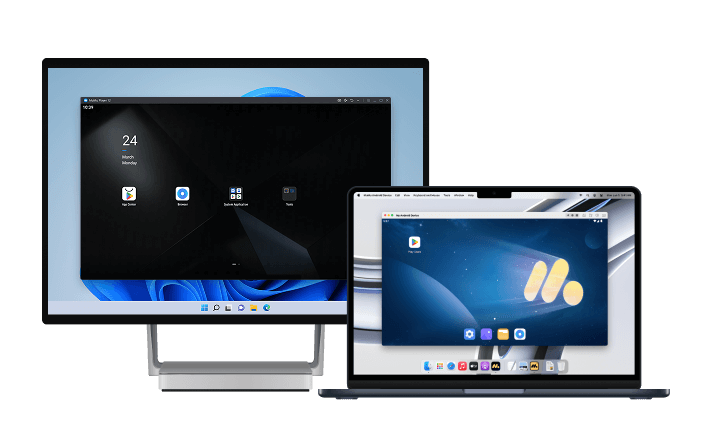
By the way, if you’re already eager to play Arknights: Endfield, we highly recommend playing Arknights: Endfield on PC and Mac with MuMuPlayer for a smoother gameplay experience. MuMuPlayer is the top Android emulator that offers optimal gaming performance with smooth keyboard and mouse controls, high FPS, and multi-instance support.
You could also directly download Arknights: Endfield Mac on MuMuPlayer if you don’t want to miss out on the latest game updates.
Why choose MuMuPlayer to play Arknights: Endfield on Mac?
As a game that requires precise controls and strategic planning, playing Arknights: Endfield on a Mac using the MuMuPlayer can significantly enhance your experience. Its gaming-optimized environment frees you from the limitations of a small mobile screen, allowing you to enjoy the following key advantages:
Precise control with keyboard and mouse, making tactical deployment even more effortless
Use your mouse to precisely select character positions and interact with environmental elements, and quickly unleash skills or switch tactical views with custom keyboard shortcuts. MuMuPlayer offers intuitive key mapping features, allowing you to achieve PC-level precision control in Arknights: Endfield, greatly enhancing your combat and exploration efficiency.
Stable and efficient Mac compatibility, say goodbye to crashes and lag
Specially optimized for macOS systems (including Intel and Apple Silicon chips), MuMuPlayer provides a stable operating environment, effectively resolving common compatibility issues, performance instability, and crashes that often occur when playing through other methods. Your game progress is fully synchronized with the mobile version, allowing seamless switching between different devices.
Complete Guide to Playing Arknights: Endfield on Mac
1. Download and install MuMuPlayer:
Download MuMuPlayer, select the latest installer version that matches your computer system (Windows or macOS), and follow the instructions to complete the installation. It is recommended to install MuMuPlayer on a solid-state drive for faster performance.
2. Install the game:
Launch the MuMuPlayer, locate and open the Google Play Store on the main interface, and log in to your account. Enter "Arknights: Endfield" in the store's search bar, then click Install.
3. Launch and Optimization:
After installation is complete, locate the game icon on the emulator desktop and click it to start the game.
Recommended Settings for Smoothly Running Arknights: Endfield on Mac
1. Optimizing MuMuPlayer Performance Settings
-
Graphics Card Rendering Mode: It is recommended to select the 'DirectX' mode (better compatibility)
-
Display Settings:
-
Maximum Frame Rate: Set to 60fps (balances performance and smoothness)
-
Resolution: Recommended 1920×1080 (optimal image clarity)
-
DPI: 240 or 320
-
-
Performance Settings:
-
Mid-range Mac: Recommended to allocate 2-3 CPU cores and 4GB RAM
-
High-end Mac: Recommended to allocate 4 CPU cores and 6-8GB RAM
-
Note: It is advised not to allocate more than half of your computer's total resources
-
-
Device Simulation: Default device is sufficient; if needed, you can select a higher-end Android phone model
2. Recommended In-Game Graphics Settings
After entering the game, go to 'Settings → Graphics' to adjust:
-
Graphics Quality:
-
MacBook Air/Entry-level M1: Recommended "Low" or "Medium"
-
MacBook Pro/M2 and above: You can try "High"
-
iMac/Mac Pro with dedicated graphics card: Set to "Ultra"
-
-
Frame Rate Limit: Set to 60fps
-
Shadow Quality: Has a significant impact on performance; for lower-end Macs, it is recommended to turn off or set to Low
-
Effect Quality: Adjust according to actual smoothness
-
Anti-Aliasing: For mid-to-high-end Macs, it is recommended to enable to improve image detail
3. Common Issue Solutions
Game Lag: Lower graphics settings, close background applications, ensure your Mac has adequate cooling
Startup Crash: Update the emulator to the latest version, reinstall the game, check system compatibility
Network Latency: Use a wired network connection, disable VPN, check firewall settings
Screen Tearing: Enable Vertical Sync, Adjust Frame Rate Limit
Summary
For Mac players, MuMuPlayer is the best solution for playing Arknights: Endfield Mac. Not only does it address the lack of a native macOS version, but it also enhances the gaming experience with stable performance, full keyboard and mouse support, and high system compatibility. Whether you're executing precise tactical deployments or exploring the vast world of Talos-II, you can enjoy an immersive and smooth adventure on a large screen.
Download MuMuPlayer now and start your big-screen adventure in Arknights: Endfield:
End of Article