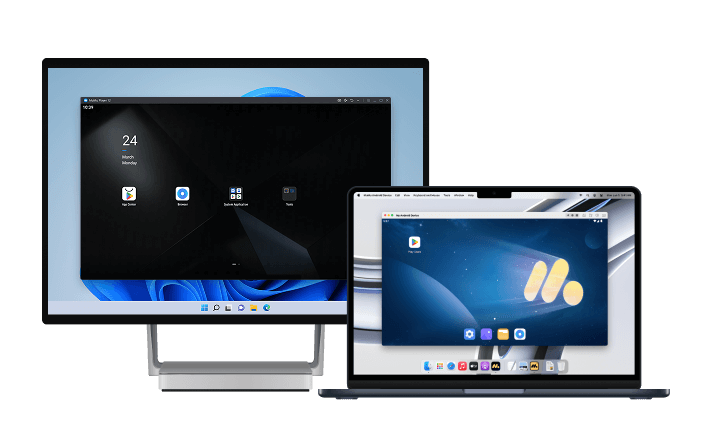

Rainbow Six Mobile PC Settings Guide: How To Play Smooth 120 FPS with MuMuPlayer
There is nothing worse than lining up a perfect headshot on Bank, only to have your battery warning pop up, or your thumb sweat cause a misfire. We all know Rainbow Six is way too complex for a touchscreen. You’ve got destructible walls, tiny peek holes, and gadgets that need precise placement—trying to manage that with virtual joysticks is just asking for a headache. If you really want to climb the ranks and play Siege the way it was meant to be played, you have to get off the phone and onto a desktop. But how do you even play Rainbow Six Mobile on PC? The answer is an emulator, specifically, MuMuPlayer.
If you’re looking to get more information about Rainbow Six Mobile, feel free to check out the related guides below:
- Rainbow Six Mobile vs Rainbow Six Siege Full Side-by-Side Comparison
- Rainbow Six Mobile Tier List (Best Operators to Unlock First)
These guides can help you boost your progress and enhance your overall gameplay experience.
By the way, if you’re already eager to play Rainbow Six Mobile, we highly recommend playing Rainbow Six Mobile on PC and Mac with MuMuPlayer for a smoother gameplay experience. MuMuPlayer is the top Android emulator that offers optimal gaming performance with smooth keyboard and mouse controls, high FPS, and multi-instance support.
You could also directly download Rainbow Six Mobile PC on MuMuPlayer if you don’t want to miss out on the latest game updates.
Tactical Superiority: Why Rainbow Six Mobile Belongs on PC
Migrating Rainbow Six Mobile to a desktop environment isn't just about comfort; it is a fundamental re-engineering of the competitive landscape. When you are holding a pixel-tight angle on a reinforced wall, the hardware you utilize dictates the absolute ceiling of your performance capabilities.
Ditching the touchscreen controls for lethal precision
Touchscreens rely on capacitive digitizers that introduce variable latency and fundamentally lack the tactile certainty of physical switches. In high-stakes scenarios, the "floating" nature of virtual joysticks frequently leads to input drift, where your thumb imperceptibly migrates from the center point, resulting in stalled movement or a botched aim reset at the worst possible moment. Emulation solves this problem by allowing you to use a keyboard and muse which allows for precise control of your operator in Siege.
The bigger screen advantage: Spotting pixels before they spot you
"Pixel peeking" is a cornerstone tactic in Rainbow Six Siege, involving holding a sightline through a minuscule gap to ambush an enemy. On a mobile device, a target at 30 meters might occupy less than 20 pixels of height. While modern phone screens boast high pixel density (PPI), the physical size of the target on your retina is negligible.
Migrating to a 24-inch or 27-inch monitor drastically increases the angular size of these targets. Even at 1080p, the physical magnification allows the human eye to detect subtle contrast changes—such as an enemy operator's helmet shifting against a dark background—that would be imperceptible on a handheld display. Furthermore, you eliminate "occlusion," the phenomenon where your own thumbs block up to 30% of your peripheral vision. A clear viewport is critical for gathering intel on traps, drones, and gadgets camouflaged within the map's complex geometry.
Why 120 FPS isn't just a luxury, it's a competitive necessity
In the domain of tactical shooters, frame rate is the currency of survival. The standard 60 FPS output creates a frame time of approximately 16.67 milliseconds. While acceptable for casual play, this update rate creates a bottleneck in information processing. Increasing the throughput to 120 FPS halves the frame time to roughly 8.33 milliseconds. MuMuPlayer allows you to not have just 120 FPS but 240 FPS through frame interpolation if you have a 240 Hz refresh rate display.
This reduction mitigates "Peeker’s Advantage"—the network delay between a client moving and the server reporting that movement. Higher frame rates allow your client to render the "enemy visible" packet faster, giving you a fractional reaction time buffer. Moreover, at 120Hz, fast-moving targets like a sprinting Ash move across the screen in smaller, more frequent steps, reducing motion blur and allowing your eye to track trajectories with superior fluidity.
Step-by-Step: Installing Mumu Player and Rainbow Six Mobile
Getting this set up is easier than managing a recoil pattern, but you need to do it right to avoid stuttering. Think of the emulator as a console living inside your computer; it needs resources.
- Bios Check: Before you even download anything, restart your PC and hammer that Del or F2 key to enter your BIOS. You need to verify that the Virtualization Technology option is enabled. If this is off, the emulator is forced to use software rendering, which runs about as well as a slideshow.
- Grab the Software: Head over to the official site and grab the MuMuPlayer installed for Windows or macOS.
- Configuration: On the first launch, don't just click "Next" blindly. Go into the settings. Rainbow Six Mobile is hungry. Assign your Android Device container to at least 4 CPU Cores and 8 GB of RAM. This gives the emulator enough headroom to translate instructions without choking your system.
- Lock and Load: Sign in to the Google Play Store inside the emulator and download the Rainbow Six Mobile through the Play Store. If you are in a region where the soft launch isn't active yet, you might need to sideload the APK, but sticking to the Play Store is safer for updates. If you want to download the game officially, in a region where it isn’t currently available, you’ll need to wait for the global launch in February.
The Holy Grail: Configuring Settings for a Stable 120 FPS on Rainbow Six Mobile
This is where matches are won or lost. The default settings of MuMuPlayer target compatibility, not maximum performance. We need to adjust these settings accordingly to obtain the maximum performance. Click on the 3 dots next to your container and select Device Settings. You can tweak the settings from here.
|
Category |
Setting |
Recommended Value |
Technical Rationale |
|
Engine |
Graphics Renderer |
Vulkan |
Minimizes driver overhead; maximizes draw call throughput for Unity Engine. |
|
Engine |
Rendering Mode |
Speed+ / High Perf. |
Prioritizes frame delivery latency over pixel-perfect emulation accuracy. |
|
System |
CPU Allocation |
4 Cores |
Ensures game threads and background OS tasks do not contend for resources. |
|
System |
RAM Allocation |
8 GB |
Prevents memory paging to disk; accommodates game assets and emulator overhead. |
|
Display |
Resolution |
1920x1080 (1080p) |
Standard competitive resolution; optimal balance of clarity and GPU rasterization load. |
|
Display |
Frame Rate |
120 FPS-240FPS |
Reduces frame time to ~8.3ms; mitigates peeker's advantage and motion blur. |
|
Device |
Model Profile |
Asus ROG Phone 6 / Samsung S25 Ultra |
Developer-whitelisted device ID for unlocking "Extreme" frame rate options. |
|
Control |
Mouse Smoothing |
OFF |
Ensures 1:1 raw input mapping for consistent muscle memory development. |
|
OS |
CPU Priority |
High (via Task Mgr) |
Prevents Windows background services from preempting the emulation thread. |
Playing Rainbow Six Mobile on PC & Mac via MuMuPlayer
Let’s be honest: trying to hold a pixel-perfect angle while your thumbs are covering half the screen is a nightmare. If you are tired of losing gunfights because of sweaty touch controls or thermal throttling, moving to an emulator is the only way to level the playing field. MuMuPlayer acts as the bridge here, letting you run the mobile version of Siege on your desktop hardware without needing an expensive rig or having to purchase the PC port.
Why MuMuPlayer Changes the Game on Windows and macOS
Ditching the phone for MuMuPlayer gives you massive advantages over those playing Rainbow Six Mobile on mobile:
- Frame Rates That Actually Keep Up: Phones get hot and throttle performance right when you need it most. MuMuPlayer leverages your PC's cooling and power to sustain a rock-solid 120 FPS. In Rainbow Six Siege, where milliseconds determine who survives the breach, that fluidity is non-negotiable.
- Lethal Precision with Mouse & Keyboard: Siege is a game of angles. Trying to lean-spam and aim with touch controls is an exercise in frustration. This emulator maps those clunky touch inputs to your keyboard and mouse, giving you the mechanical snap to click heads and control recoil patterns that would be impossible on a touchscreen.
- Spotting Danger in 4K: On a 6-inch screen, a distant enemy is just a blurry dot. By scaling the game up to 4K on a proper monitor, you gain a massive intel advantage. You’ll spot traps, drones, and defenders holding tight angles long before they would even render clearly on a mobile display.
- All the Power, None of the Bloat: Unlike some emulators that eat RAM for breakfast, MuMuPlayer’s engine is surprisingly lightweight. It’s optimized to run Rainbow Six Mobile efficiently, meaning you get high-performance gameplay without your PC sounding like it's about to take flight.
Conclusion
Look, mobile gaming has come a long way, but some games just feel like they are bursting at the seams on a handheld device. Mobile Rainbow Six is definitely one of them. By moving your setup to MuMuPlayer, you are essentially removing the hardware handicap. You stop worrying about battery life, overheating, or whether your finger is covering the enemy you're trying to spot. Whether you are on a high-end Windows rig pushing 120 frames or chilling on a MacBook, this setup bridges the gap between "mobile port" and a legit competitive shooter experience. Go set your keybinds, tweak those graphics, and enjoy clicking heads without the hand cramps.
End of Article