
Play GoNoodle - Kids Videos on PC and Mac
Download GoNoodle - Kids Videos on PC or Mac with MuMuPlayer, get a PC like gameplay along with smart control and high graphics performance.
MuMuPlayer, the top Android emulator for PC and Apple silicon Mac, delivers an optimal gaming experience with minimal RAM usage and high FPS. It also allows you to create multiple instances of the emulator and run several games simultaneously, thanks to its Multi-instance feature. Its advanced emulator features ensure smooth gameplay, even on low-end PCs.
Download and play GoNoodle - Kids Videos on PC or Mac with MuMuPlayer and start enjoying your gaming experience now.
About the Game
Videos for elementary school kids that focus on movement, mindfulness, and self-discovery - including popular music, dancing, yoga, deep breathing, mental health, stretching, and more!

Trusted by teachers and used in 90% of US public (and 83% of all US public and private) elementary schools, GoNoodle videos are designed to fuel joy, health, and self-discovery in kids and the adults they love.
Download the app to play favorite kids videos from school, at home!
Sing alongs with Moose Tube - Baby Shark, Jellyfish, Peanut Butter in a Cup, and Boom Chicka Boom
Dance and break-downs of complex topics by Blazer Fresh - Banana Banana Meatball, Wizard of Words, Celebrate, and Don’t Read Like A Robot
Call and response - Pop See Ko and Milkshake
Pop Songs and Throwbacks - Dynamite, JUMP, Larger Than Life, and Bye Bye Bye
And so much more!

NEW VIDEOS EVERY WEEK
Each week, you’ll always find new kids videos to entertain, engage, and motivate. Easily browse and play videos at home, in the car, or anywhere you go.

TYPES OF KIDS VIDEOS ON GONOODLE
Dance
Sports
Exercise
How-tos
Yoga
Stretching
Deep breathing
Mindfulness
Mental Health

SAFE & EASY TO USE
Everything is designed especially for elementary-aged kids (age 5-9). The GoNoodle App only includes content used in school. You can trust your kids are safe with GoNoodle.

QUALITY KIDS' VIDEO CONTENT
GoNoodle was developed by a team of seasoned designers, educators, child development specialists, and researchers. All GoNoodle videos are created by our team of child development experts working with choreographers, athletes and mindfulness experts who specialize in kid content. Kids videos, songs, and more - all designed to help kids learn and be their best!

WAYS TO USE THE GONOODLE KIDS APP:
**GoNoodle on-the-go** Dance in the carpool line, while waiting for dinner, or hanging at a sibling’s soccer game. GoNoodle brings more movement into your everyday places, spaces, and routines.

**GoNoodle to get something done** Fold the laundry, finish typing an email, or snag a moment of peace while kids play GoNoodle. GoNoodle helps days run smoothly by pacing your routine and adding activities parents feel good about!

**GoNoodle together** Have a family dance-off, do sibling yoga, or groove to your favorite kids songs! GoNoodle makes the time you have with your kids more colorful, silly, music-filled, and happy.
Emulator Features

With a smart button scheme and image recognition function, provide a more concise UI, and support custom button mapping to meet different needs.
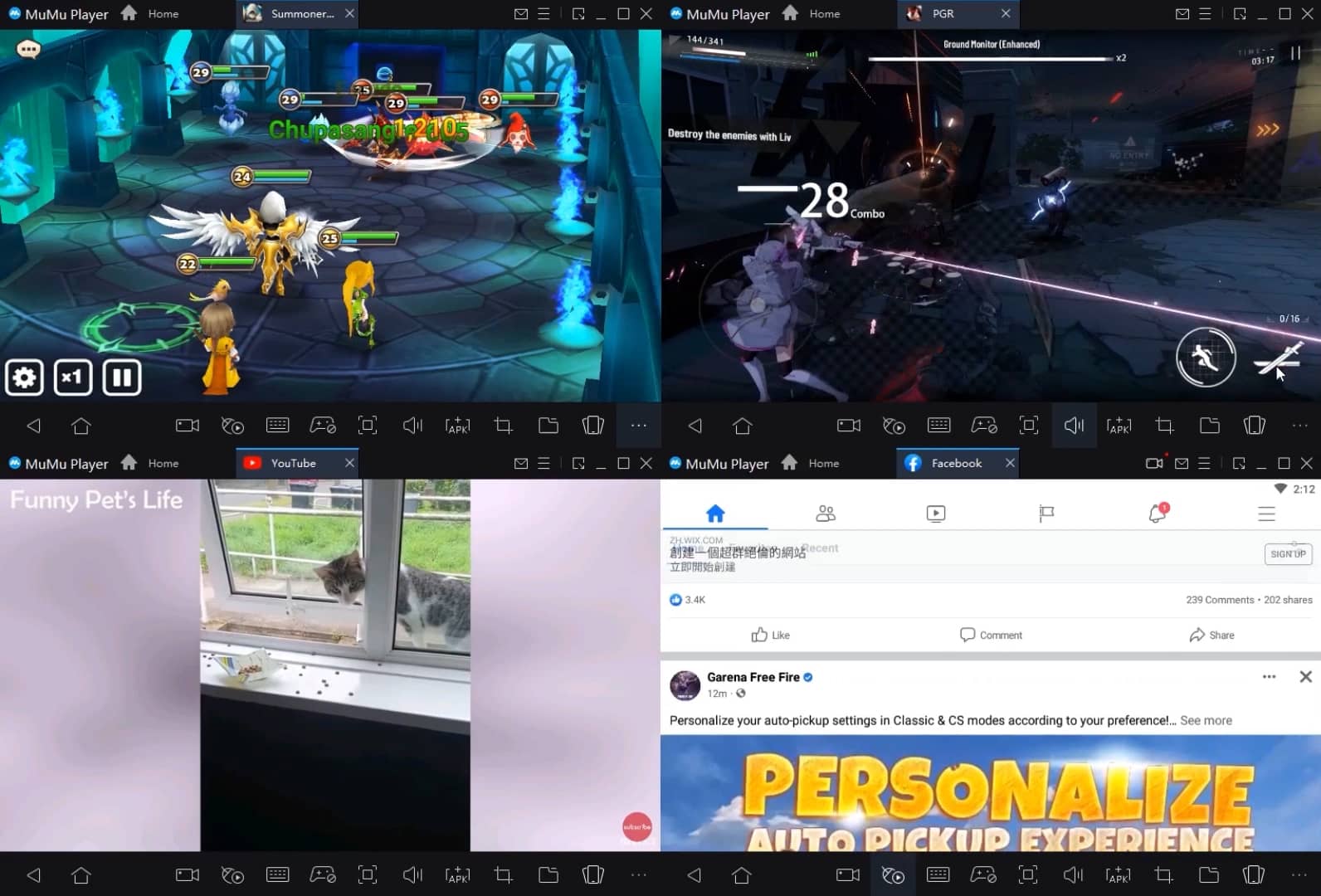
Run multiple games independently at the same time, easily manage multiple accounts, play games while hanging.

Break through FPS limit, and enjoy a seamless gaming experience without lag and delay!

Get a 3-second startup with 52% less memory usage and 65% more stability.
How to Download and Play GoNoodle - Kids Videos on PC and Mac
Installation Guide
① Download and install MuMuPlayer on your PC or Mac. It will identify automatically your current system and download the latest version.
② Start MuMuPlayer and complete Google sign-in to access the Play Store, or do it later.
③ Search GoNoodle - Kids Videos in the Play Store.
④ Complete Google sign-in (if you skipped step 2) to install GoNoodle - Kids Videos.
⑤ Once installation completes, click the GoNoodle - Kids Videos icon on the home page to start the game.
⑥ Enjoy playing GoNoodle - Kids Videos on your PC or Mac with MuMuPlayer.
Installation Guide
Recommended computer configuration
For Windows:4-core CPU, 4GB RAM, i5 OS, GTX950+ graphics card
For macOS: 4-core CPU, 4GB RAM
Recommended Android Device performance settings
Graphics renderer mode
Vulkan and DirectX both supported
Performance Settings
Recommended performance settings: 2 cores, 2GB. >>Click here to learn>>How to adjust performance settings
Recommended Android Device Display Settings
Resolution Settings
Go to Device Settings > Display > Resolution Settings to adjust your device's resolution as needed.
FPS Settings
MMuMuPlayer supports up to 240 FPS. >> Click here to learn>>how to enable high FPS mode
Recommended to enable VT
Enabling VT will significantly improve emulator performance, reduce screen freezing, and make games run more smoothly. >>Click here to learn>>How to enable VT