
Play ODIN : Valhalla Rising on PC and Mac
Download ODIN : Valhalla Rising on PC or Mac with MuMuPlayer, get a PC like gameplay along with smart control and high graphics performance.
MuMuPlayer, the top Android emulator for PC and Apple silicon Mac, delivers an optimal gaming experience with minimal RAM usage and high FPS. It also allows you to create multiple instances of the emulator and run several games simultaneously, thanks to its Multi-instance feature. Its advanced emulator features ensure smooth gameplay, even on low-end PCs.
Download and play ODIN : Valhalla Rising on PC or Mac with MuMuPlayer and start enjoying your gaming experience now.
About the Game
This is a place I can never reach alone
[Guild Dungeon] updated for areas only allowed for guilds!
Join forces with your guild members to challenge more powerful boss battles.

We, who are bigger than the party, share the joy of victory [Raid system] and
[Guild Auction System] has been added, allowing you to look for opportunities to acquire higher-level equipment!

A new server to welcome new warriors and a bountiful event for growth!
We invite you to the overwhelming myth of Odin: Valhalla Rising.


▣ Introduction to the game▣
■ MMORPG, challenging the realm of God
Realization of realistic graphics through motion capture, 3D capture, etc.
More perfect, more beautiful with Unreal Engine 4!
Free open field without loading in a seamless way

■ The beginning of the adventure towards the realm of the gods
Nordic mythology worldview with details on a vast scale
Adventure in 4 mythical continents such as Midgard and Jotunheim!
The emergence of various races such as giants, dwarfs, alves, and humans

■ Exploring the realm of God in my own way
Strategic play using terrain features such as wall climbing and swimming
Find a class that suits you with a clear division of roles!
Complete your own battle style with linked skills and conditional skills

■ Warriors, occupy the realm of the gods
Confront the gods and monsters in Norse mythology!
Overwhelming scale boss raid
Massive RvR to take over Valhalla


▣Odin: Valhalla Rising Official Channel▣
* Official website: https://odin.kakaogames.com
* KakaoTalk Channel: http://pf.kakao.com/_UxgmKK
* Official Community: https://cafe.daum.net/odin

==================================
[Access right information]
- [Optional] Save photos/media/files: Used to download resources, save game data, and save screenshots of customer centers, communities, and play.

[How to withdraw access rights]
* Android 6.0 or higher:
- Withdrawal by access right: Device Settings > Apps > More (Settings and Controls) > App Settings > App Permissions > Select the corresponding access right > Choose to agree or withdraw access
- Withdrawal by app: Device settings > Apps > Select the app > Select permission > Select consent or withdraw access

* Under Android 6.0:
Since it is impossible to revoke each access right due to the nature of the operating system, it can be withdrawn only when the app is deleted. We recommend that you upgrade your Android version to 6.0 or higher.
Emulator Features

With a smart button scheme and image recognition function, provide a more concise UI, and support custom button mapping to meet different needs.
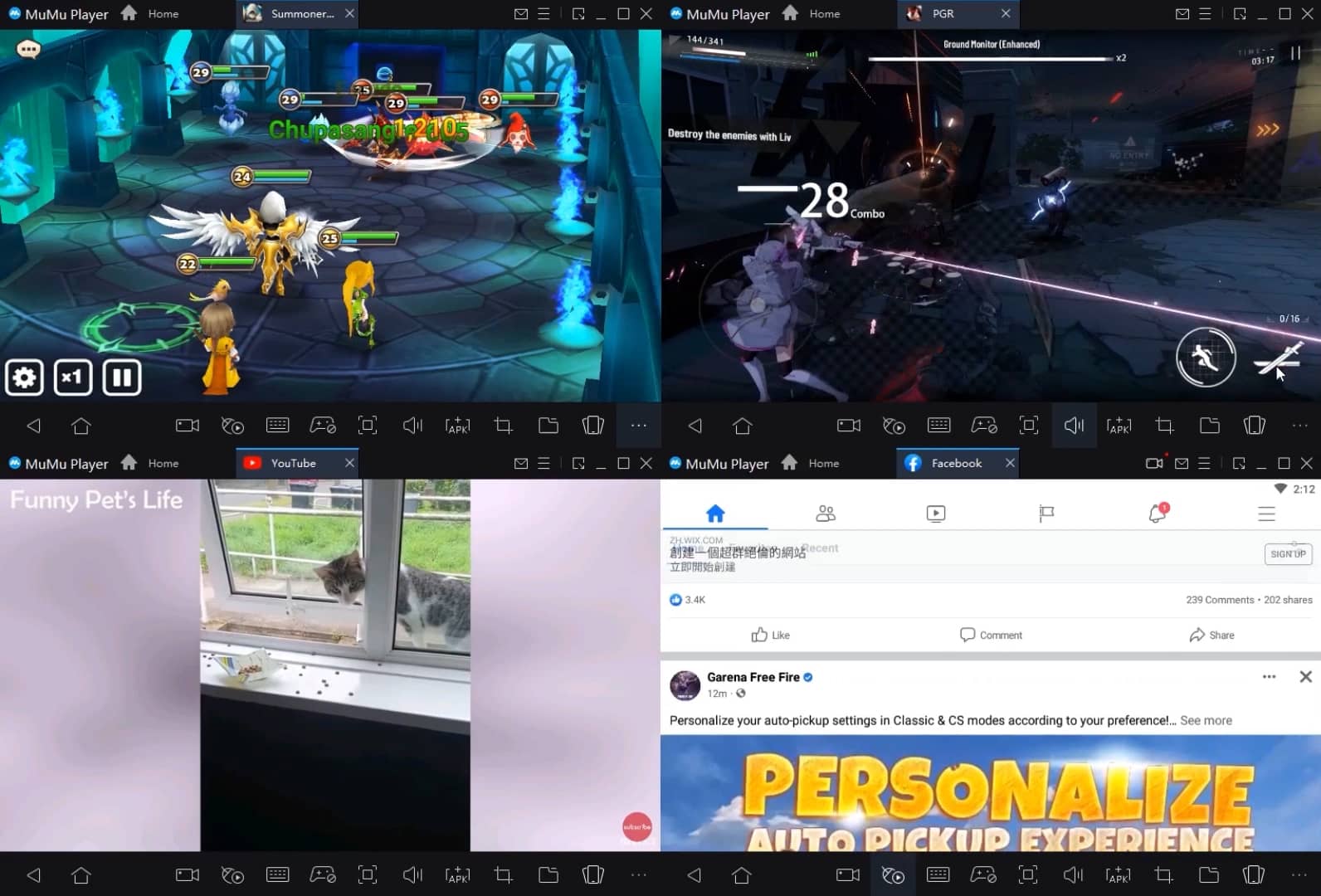
Run multiple games independently at the same time, easily manage multiple accounts, play games while hanging.

Break through FPS limit, and enjoy a seamless gaming experience without lag and delay!

Get a 3-second startup with 52% less memory usage and 65% more stability.
How to Download and Play ODIN : Valhalla Rising on PC and Mac
Installation Guide
① Download and install MuMuPlayer on your PC or Mac. It will identify automatically your current system and download the latest version.
② Start MuMuPlayer and complete Google sign-in to access the Play Store, or do it later.
③ Search ODIN : Valhalla Rising in the Play Store.
④ Complete Google sign-in (if you skipped step 2) to install ODIN : Valhalla Rising.
⑤ Once installation completes, click the ODIN : Valhalla Rising icon on the home page to start the game.
⑥ Enjoy playing ODIN : Valhalla Rising on your PC or Mac with MuMuPlayer.
Installation Guide
Recommended computer configuration
For Windows:4-core CPU, 4GB RAM, i5 OS, GTX950+ graphics card
For macOS: 4-core CPU, 4GB RAM
Recommended Android Device performance settings
Graphics renderer mode
Vulkan and DirectX both supported
Performance Settings
Recommended performance settings: 2 cores, 2GB. >>Click here to learn>>How to adjust performance settings
Recommended Android Device Display Settings
Resolution Settings
Go to Device Settings > Display > Resolution Settings to adjust your device's resolution as needed.
FPS Settings
MMuMuPlayer supports up to 240 FPS. >> Click here to learn>>how to enable high FPS mode
Recommended to enable VT
Enabling VT will significantly improve emulator performance, reduce screen freezing, and make games run more smoothly. >>Click here to learn>>How to enable VT

