
Play Cheech and Chong Bud Farm on PC and Mac
Download Cheech and Chong Bud Farm on PC or Mac with MuMuPlayer, get a PC like gameplay along with smart control and high graphics performance.
MuMuPlayer, the top Android emulator for PC and Apple silicon Mac, delivers an optimal gaming experience with minimal RAM usage and high FPS. It also allows you to create multiple instances of the emulator and run several games simultaneously, thanks to its Multi-instance feature. Its advanced emulator features ensure smooth gameplay, even on low-end PCs.
Download and play Cheech and Chong Bud Farm on PC or Mac with MuMuPlayer and start enjoying your gaming experience now.
About the Game
Far out man!

Welcome to the official Cheech and Chong Bud Farm mobile weed game, your marijuana and cannabis gaming headquarters. Come back in time to the 1970s, in the early days of Bud Farm, where Cheech and Chong have stumbled across a sleepy little town in California, in a time when pot, weed, Mary Jane or kush were in their infancy, and when no one had ever heard of CBD (cannabidiol).

Cheech and Chong find themselves stranded in the tiny hamlet of Hierba Verde (“Green Herb”). With nothing to be found, they start their own hemp and cannabis business, and stumble backwards into a lucrative marijuana empire. With the crooked mayor in their back-pocket, the boys are on their way to striking it rich and living out their days lying on a beach like sun-kings. Unfortunately for them, Stadanko is bent on putting them in jail for life. With the help a freaky cast of supporting characters, Cheech and Chong will chase their dreams of weed fame and fortune, while staying one step ahead of Stadanko.

Cheech and Chong Bud Farm is a free-to-download and play hemp and marijuana lifestyle app, but some game items can be purchased for real money. A network connection is not required, but you will have limited access to in-game functions.

Counter-culture games have gained in popularity with a growing number of countries that have legalized the use medical cannabis and a policy of decriminalization of marijuana. Several regions have also legalized recreational cannabis.


The general decriminalization of the cannabis industry has spawned an interesting “weed culture” movement. Over 1,200 slang names have been identified for marijuana and hashish, with terms like pot, bud, Pineapple Express, baby, ace or Christmas tree topping the list of "good" cannabis synonyms. Weed (in reference to the 1936 movie “Reefer Madness”), dank and dope are not that far behind. The list of terms associated to weed in popular culture is long as well: 420, aunt Mary, blunt, catnip, chronic, doobie, roach or skunk have all become mainstream terms.


Privacy Policy:
http://www.ldrlygames.io/privacy-policy/


Terms of Service:
http://www.ldrlygames.io/terms-conditions/
Emulator Features

With a smart button scheme and image recognition function, provide a more concise UI, and support custom button mapping to meet different needs.
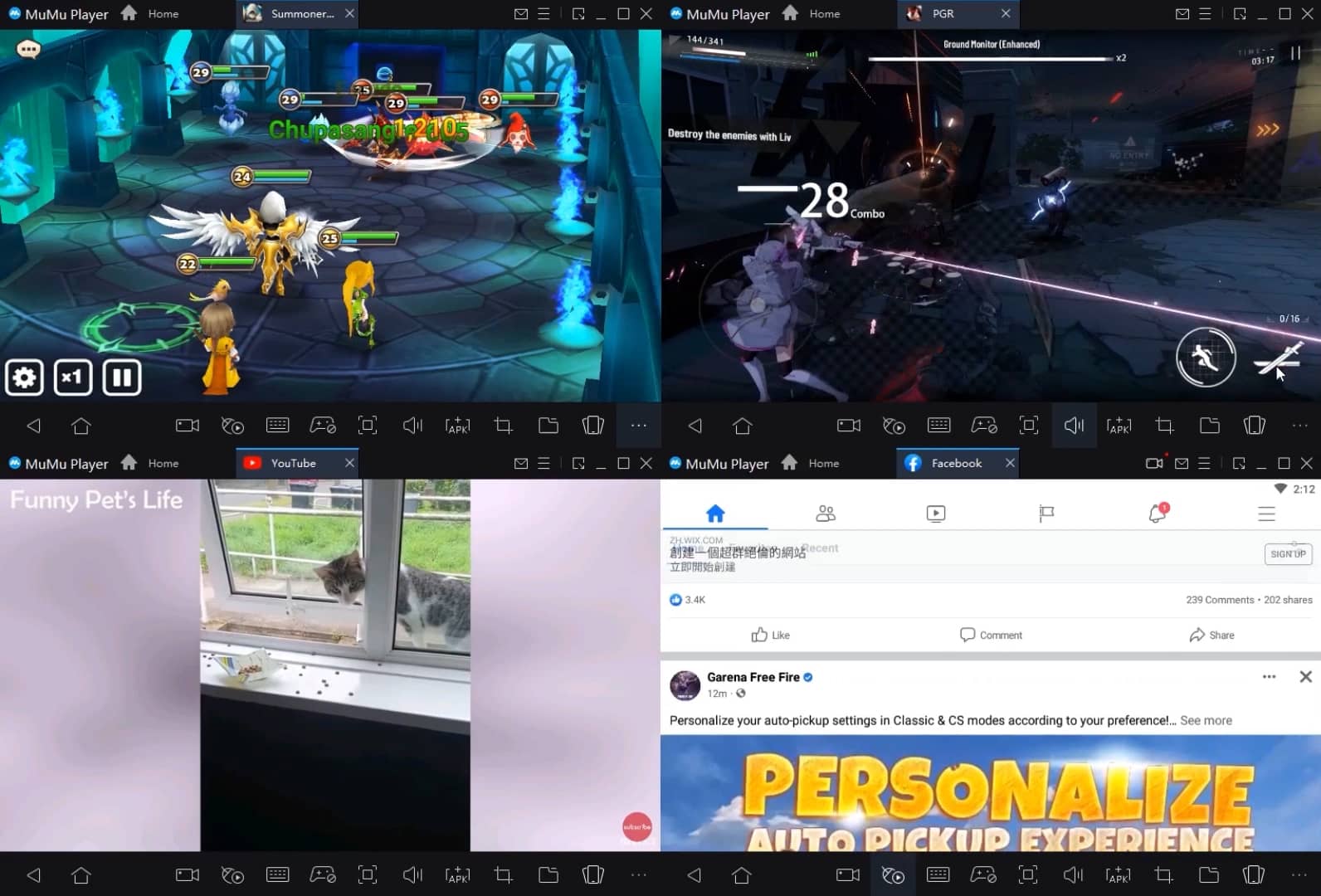
Run multiple games independently at the same time, easily manage multiple accounts, play games while hanging.

Break through FPS limit, and enjoy a seamless gaming experience without lag and delay!

Get a 3-second startup with 52% less memory usage and 65% more stability.
How to Download and Play Cheech and Chong Bud Farm on PC and Mac
Installation Guide
① Download and install MuMuPlayer on your PC or Mac. It will identify automatically your current system and download the latest version.
② Start MuMuPlayer and complete Google sign-in to access the Play Store, or do it later.
③ Search Cheech and Chong Bud Farm in the Play Store.
④ Complete Google sign-in (if you skipped step 2) to install Cheech and Chong Bud Farm.
⑤ Once installation completes, click the Cheech and Chong Bud Farm icon on the home page to start the game.
⑥ Enjoy playing Cheech and Chong Bud Farm on your PC or Mac with MuMuPlayer.
Installation Guide
Recommended computer configuration
For Windows:4-core CPU, 4GB RAM, i5 OS, GTX950+ graphics card
For macOS: 4-core CPU, 4GB RAM
Recommended Android Device performance settings
Graphics renderer mode
Vulkan and DirectX both supported
Performance Settings
Recommended performance settings: 2 cores, 2GB. >>Click here to learn>>How to adjust performance settings
Recommended Android Device Display Settings
Resolution Settings
Go to Device Settings > Display > Resolution Settings to adjust your device's resolution as needed.
FPS Settings
MMuMuPlayer supports up to 240 FPS. >> Click here to learn>>how to enable high FPS mode
Recommended to enable VT
Enabling VT will significantly improve emulator performance, reduce screen freezing, and make games run more smoothly. >>Click here to learn>>How to enable VT

