Keyboard, Mouse, and Gamepad Mapping Guide
MuMuPlayer supports keyboard, mouse, and gamepad key mapping on Windows, macOS, and Windows on ARM devices, allowing you to play Android games with precise, PC-style controls.
You can choose between official cloud mapping schemes or create fully customized control layouts to match your playstyle.
This guide explains how to use, customize, and manage key mapping schemes across all supported platforms.
1. Supported Platforms
MuMuPlayer provides a consistent key mapping experience on:
- Windows (x64)
- macOS (Apple Silicon)
- Windows on ARM
Key mapping features, editing workflows, and scheme management are largely identical across platforms.
2. Use Cloud Mapping Schemes
For selected games, MuMuPlayer offers official cloud mapping schemes that are ready to use.
- Launch a game in MuMuPlayer
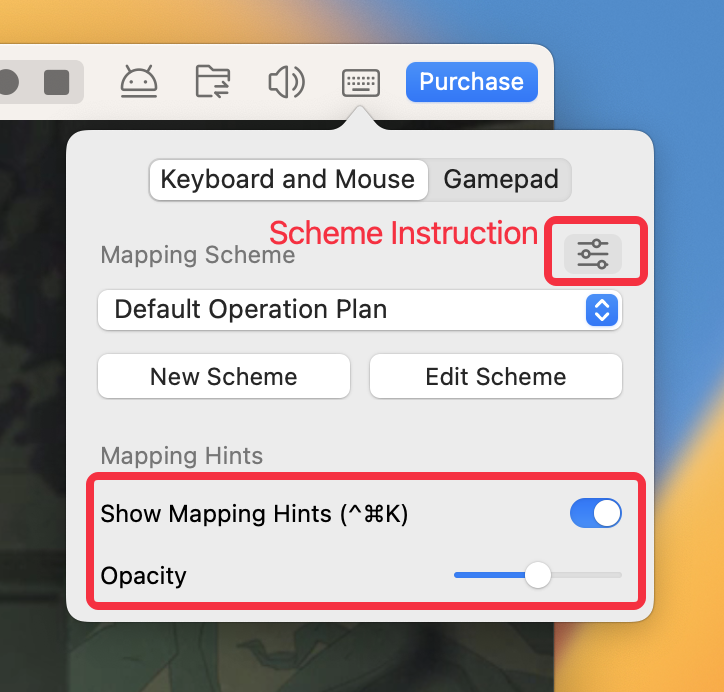
- Click the Keyboard Mapping icon on the Android device frame to open the overlay
- Select a cloud scheme from the list
- Switching schemes applies changes immediately
- Some games (e.g. Magic Awakened) support multiple cloud schemes
Gamepad Cloud Schemes
- Switch to the Gamepad tab
- Select a gamepad scheme to activate it
Edit Cloud Schemes
- Click Edit Scheme to fine-tune an existing scheme
- Saving changes will automatically create a new customized scheme
3. View Scheme Instructions & Mapping Hints
In the mapping overlay, you can:
- Enable or disable Show Mapping Hints
- Adjust hint Opacity
To learn more about a scheme:
- Click the Scheme Instruction icon in the upper-right corner
- Open the Scheme Management window to view detailed explanations
4. Create a New Key Mapping Scheme
- Open the mapping overlay
- Click New Scheme
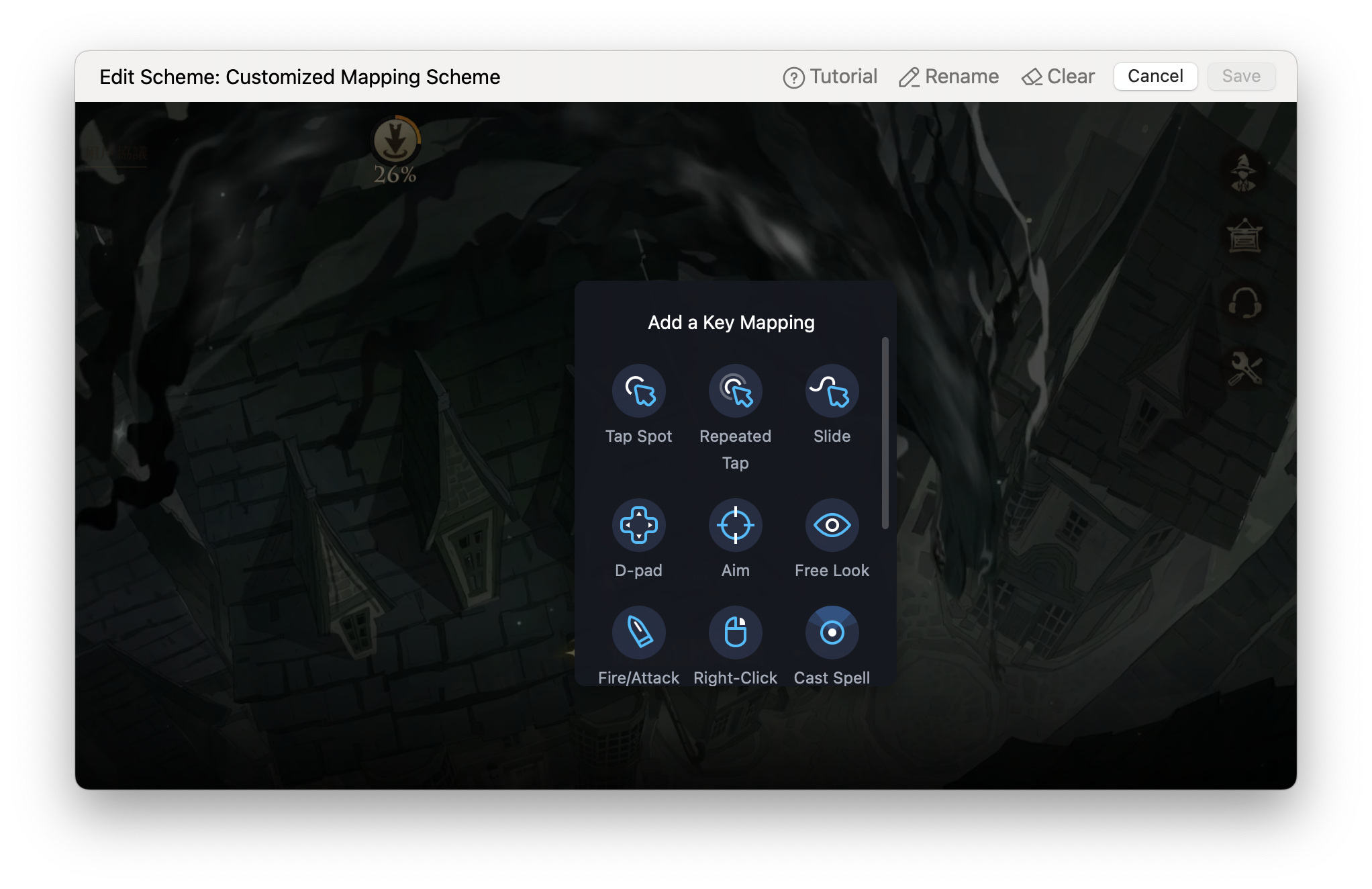
- Enter the key mapping edit page
- Right-click to open the key panel
- Select a key type, press a keyboard key or gamepad button to assign it, then place it on the screen
5. Create a New Key Mapping Scheme
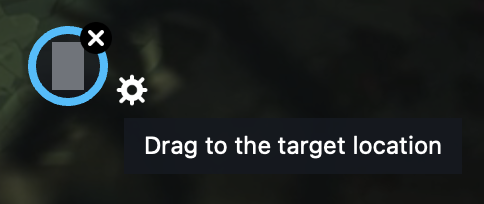
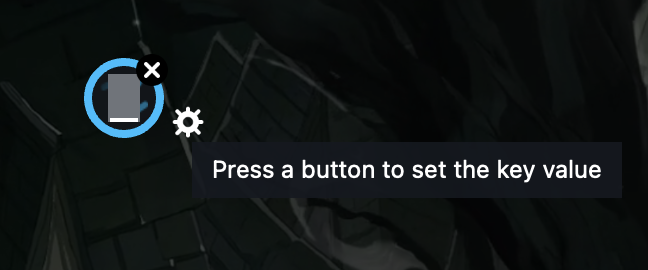
① Tap Spot
Simulates a single tap at a fixed position when the assigned key is pressed.
② Repeated Tap
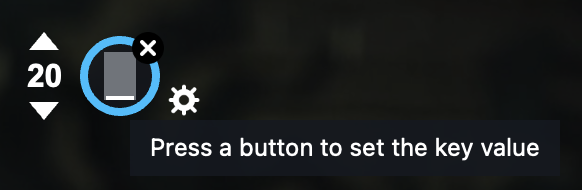
Simulates multiple taps at the same location.
- Triggered by holding the key or after a key press
- Tap count is customizable
③ Slide
Simulates swipe gestures for movement or skill activation.
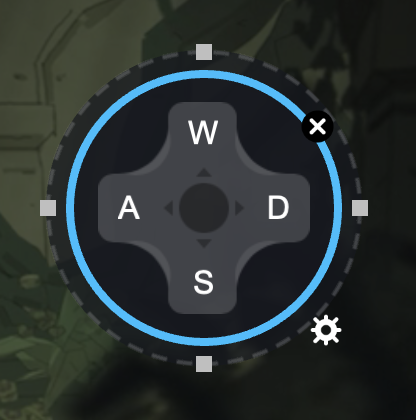
④ D-pad
Controls directional movement (up, down, left, right).
- Default keys: W / A / S / D
- Supports click or swipe actions
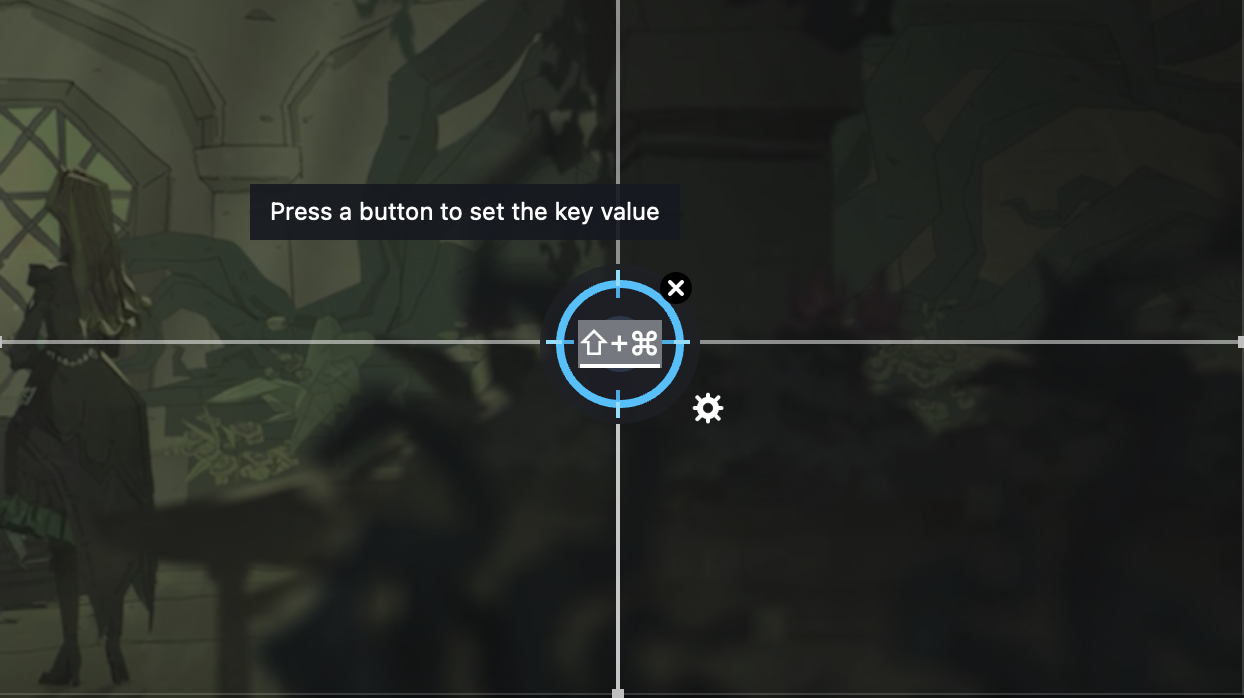
⑤ Aim Key
Uses mouse movement to control camera or viewpoint.
- Adjustable X/Y range
- Customizable sensitivity
- Optional auto-reset when cursor exits the range
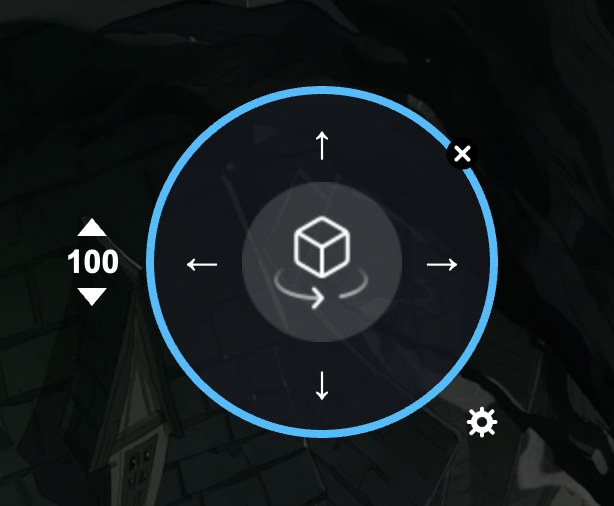
⑥ Free Look
Controls view direction using assigned keys.
⑦ Fire/Attack
Used together with the Aim Key.
- Place on the in-game attack button
- Triggered by left mouse click
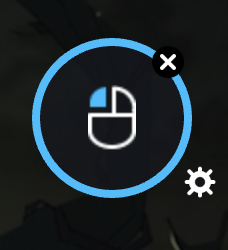
⑧ Right-Click Walking
Click or long-press the right mouse button to move the character toward the cursor location.
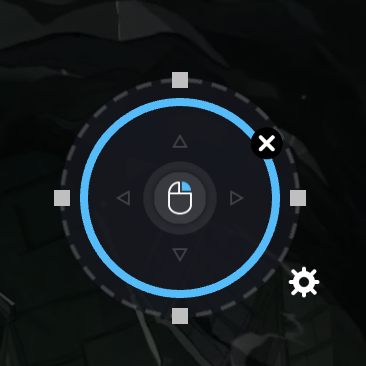
⑨ Cast Spell
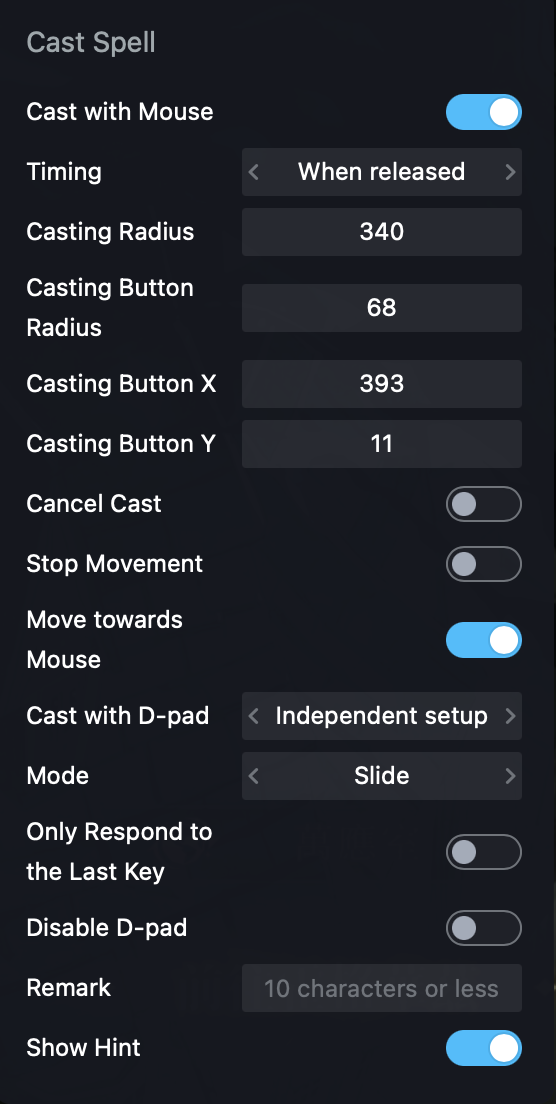
Advanced skill casting based on mouse position, with flexible options:
- Cast with mouse
- Casting timing (press / release / manual)
- Casting radius & button radius
- Cancel cast
- Stop movement after casting
- Move toward mouse after casting
- Direction control modes (arrow keys / independent / disabled)
- Operation modes: Slide / Tap / PC Mode
- Optional hints and remarks
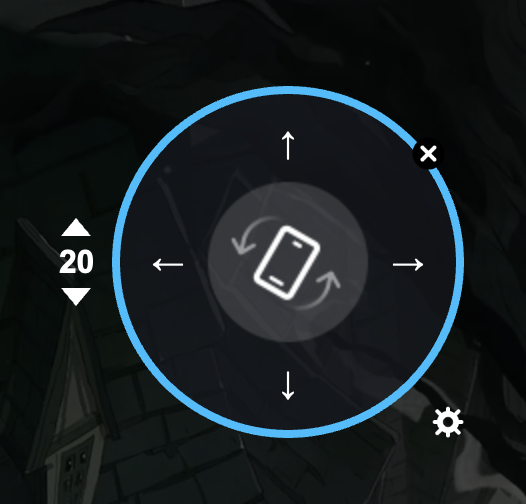
⑩ G-Sensor
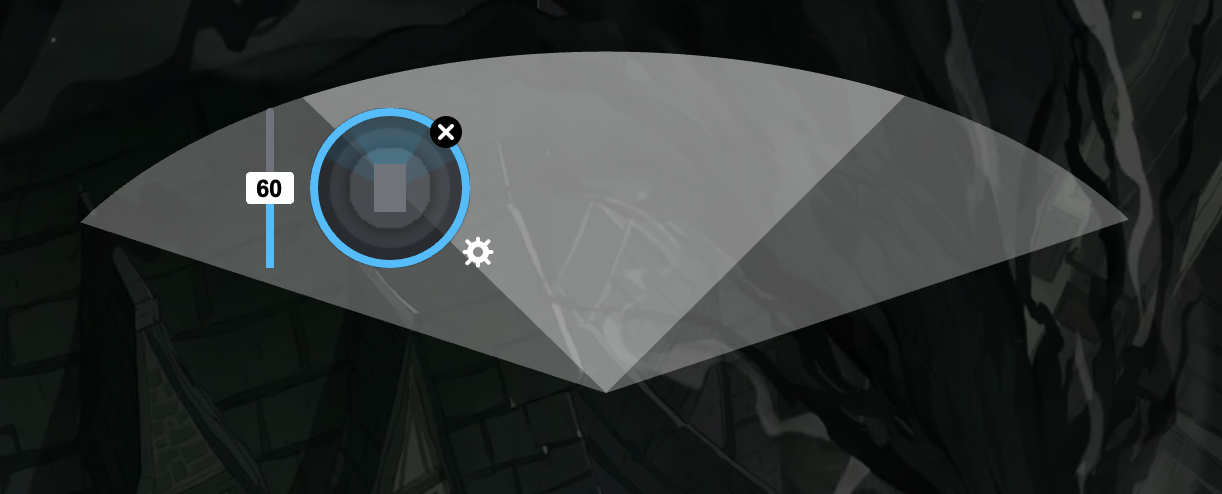
Simulates device tilting (up / down / left / right) using assigned keys.
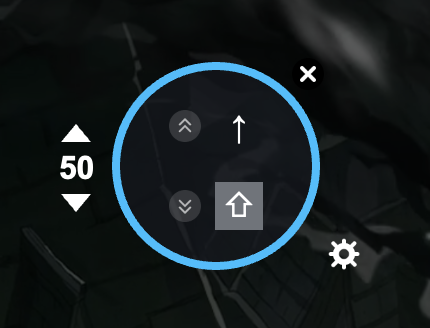
⑪ Scroll
Simulates scrolling actions.
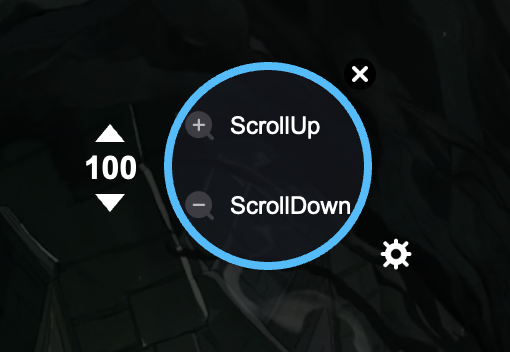
⑫ Zoom
Simulates zoom-in and zoom-out operations.
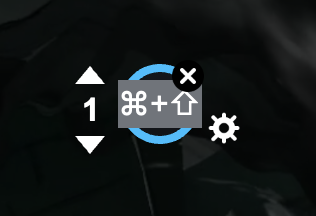
⑬ Observe
Allows free camera observation independent of movement direction.
6. Gamepad Key Types
- Tap Spot / Repeated Tap: Same behavior as keyboard & mouse
- Left Joystick: Controls character movement (place on the in-game directional pad)
- Right Joystick: Controls camera or viewpoint
- Cast Spell: Same configuration options as keyboard & mouse
7. Adjust Mapping Sensitivity
You can adjust sensitivity settings directly within the mapping overlay to optimize movement, aiming, and camera control for different games.
8. Export & Import Key Mapping Schemes
Export Schemes
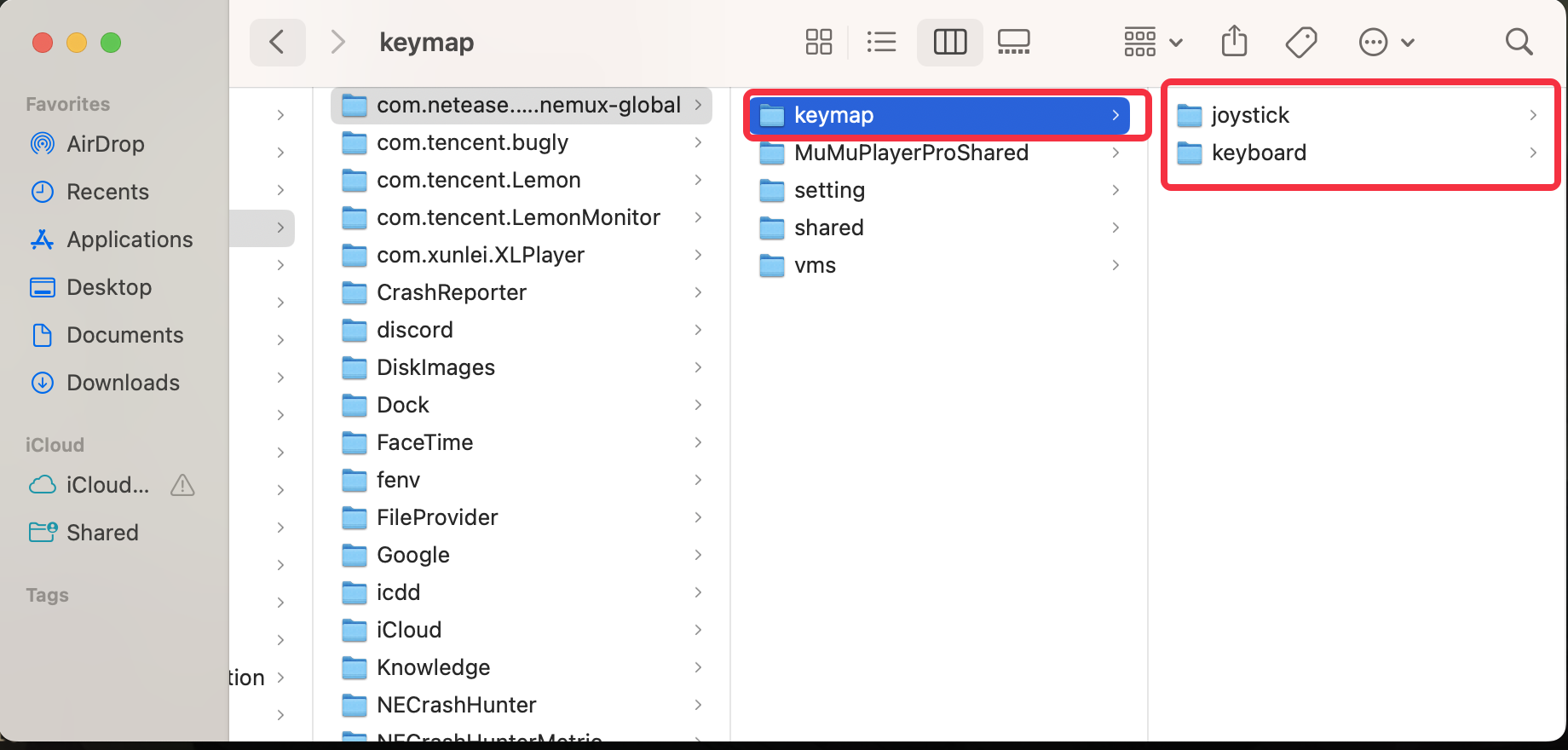
- Open Tools > Shared Folder
• On Windows / Windows ARM: open the shared folder from File Explorer
• On macOS: open it in Finder
- Locate the keymap folder
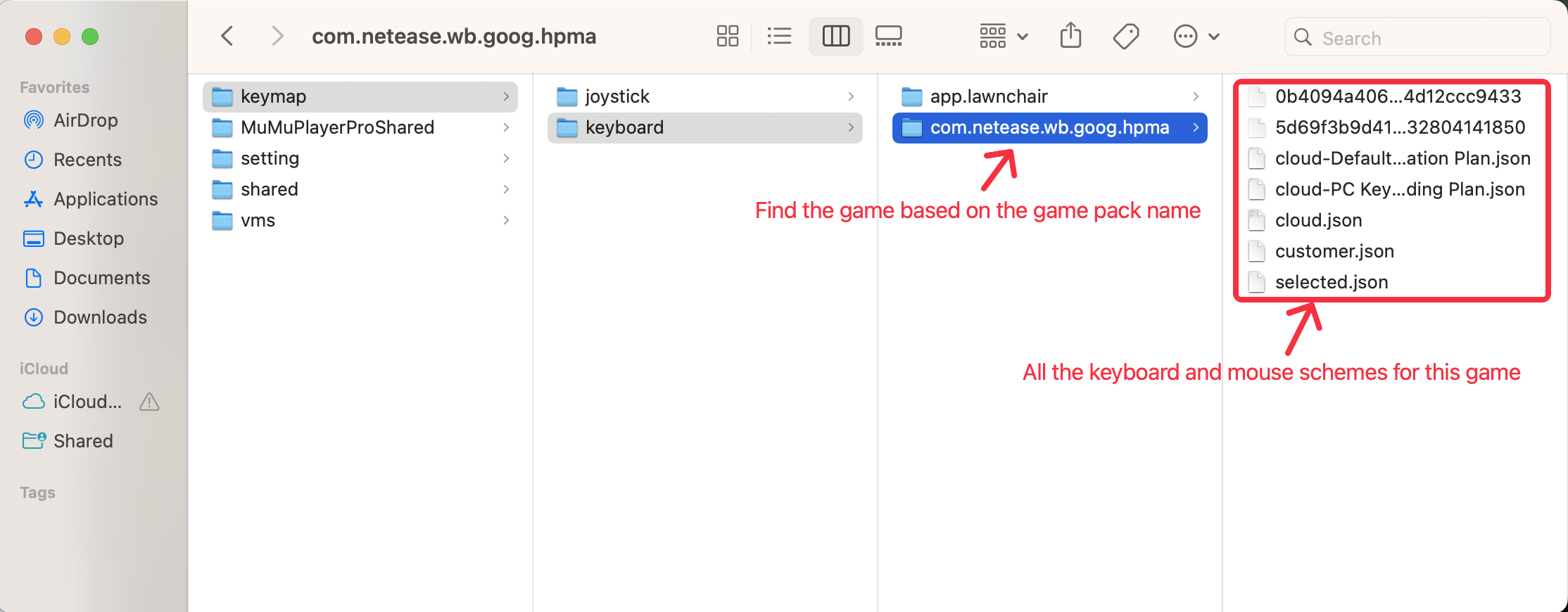
• keyboard → Keyboard & mouse schemes
• joystick → Gamepad schemes
- Find the game folder by its package name
- Copy the desired scheme files
Import Schemes
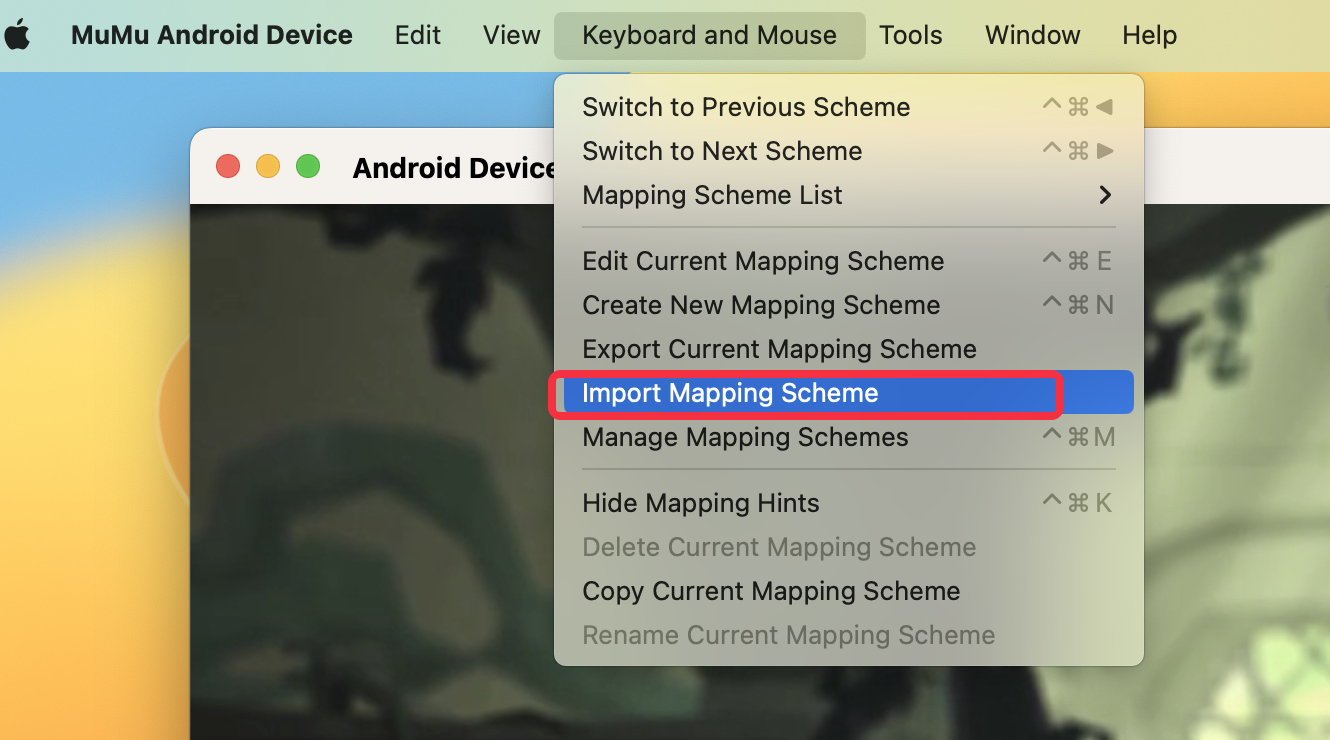
- Click Keyboard and Mouse > Import Mapping Scheme from the top menu
- Select the scheme file to import it
9. Get Help & Support
If you have questions or encounter issues with key mapping on Windows, macOS, or Windows on ARM:
- Join the official MuMuPlayer Discord community
- Contact the support team for further assistance
End of Article