
MuMuPlayer
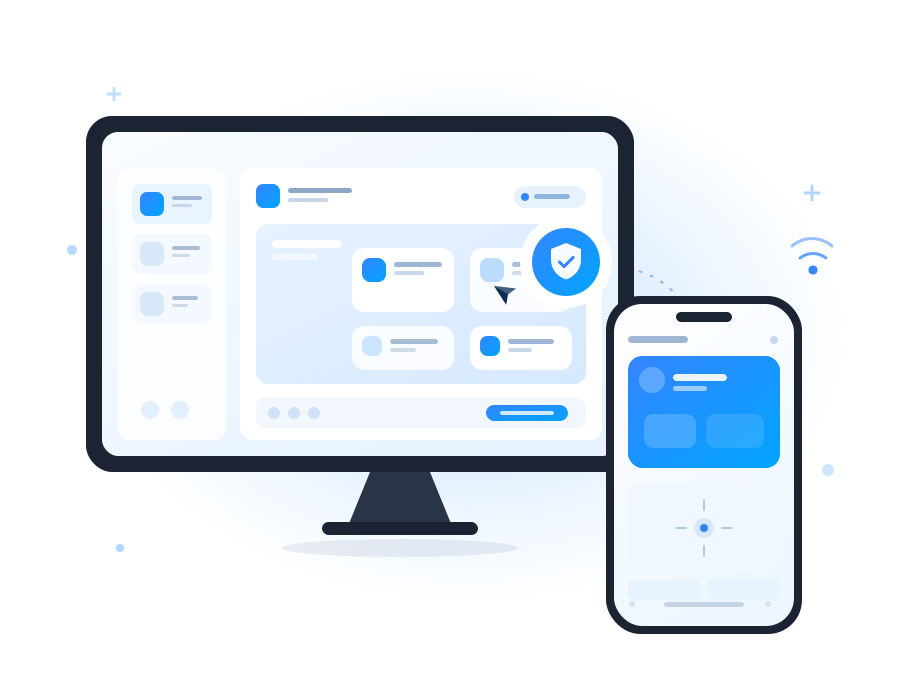
Control your Windows PC from your phone
MuMuPlayer Mobile is the official companion app for MuMuPlayer on Windows. Sign in and remote-control your PC from anywhere.
- Official companion app
- Secure connections
- Designed for MuMuPlayer
How it works
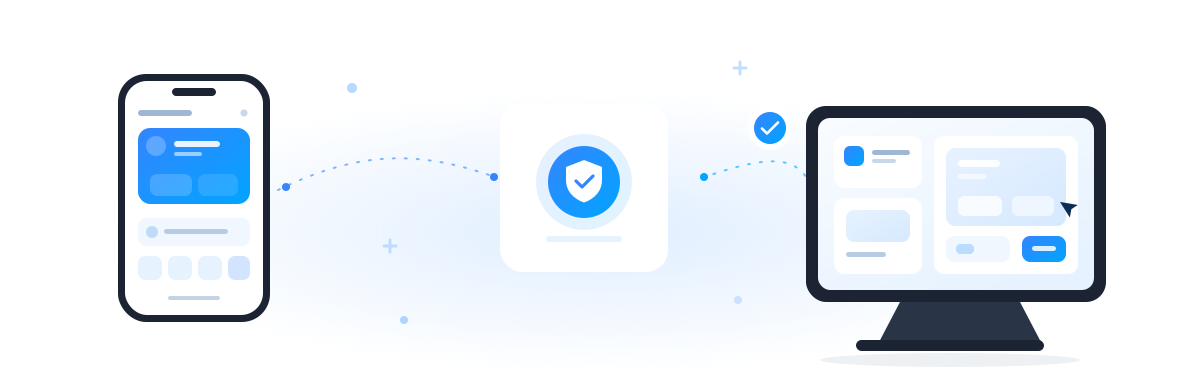
Remote control in three steps
Sign in, connect, and start controlling your Windows PC.
-
Sign in
Sign in with Google, or with your email and verification code.
-
Connect
Connect to your Windows PC running MuMuPlayer.
-
Control
Start controlling your Windows PC remotely from your phone.
Key features
Everything you need to stay in control
Designed to work seamlessly with MuMuPlayer.
-
Official companion app
An official MuMuPlayer app with secure connections and privacy protection.
-
Remote control
Remotely control your Windows PC directly from your phone.
-
Designed for MuMuPlayer
Simple, intuitive controls.
-
Proprietary transmission
Responsive control, high frame rates, and high-quality visuals.
Stay in control of your Windows PC wherever you are.
Google user data
How MuMuPlayer uses Google user data
What we ask for, why we need it, and what we never do with it.
MuMuPlayer Mobile is the phone app that signs in to MuMuPlayer on your Windows PC and lets you control that PC remotely. Signing in with Google is one of the ways to create an account and sign in.
When you sign in with Google, we request only the basic scopes openid, email and profile, and we receive only your Google account identifier, email address, display name and profile picture. We use them solely to create your account, authenticate you and link your Google account. We do not access Gmail, Drive, Contacts, Calendar, YouTube or Photos.
We do not use Google user data for advertising, do not sell or share it with advertising platforms, data brokers, information resellers or attribution providers, and do not use it to track you across applications or websites. Our use and transfer of information received from Google APIs adheres to the Google API Services User Data Policy , including the Limited Use requirements.
We do not use Google APIs, or any AI feature we may offer, to create, generate, host or distribute non-consensual intimate imagery (NCII) or other sexually explicit content. You can read how we store and delete this data in our Privacy Policy.
Support
Frequently asked questions
Which phone systems does MuMuPlayer support?
MuMuPlayer supports iOS and Android. Other systems, such as pure HarmonyOS, are not supported yet.
How do I connect the app to my Windows PC?
- Install the latest MuMuPlayer on your Windows PC.
- Open the Remote Control tab in the main window and select Log in and allow remote control. Complete the verification to enable remote control.
- Sign in to the app on your phone with the same account (the email you used on your PC). Your phone connects to MuMuPlayer on your PC automatically.
My PC is on, but the app shows “PC offline.” What should I do?
Check the following in order:
- Make sure the MuMuPlayer app on your PC is running. Check the taskbar, system tray, or Task Manager for the MuMuPlayer process.
- Open the Remote Control tab in the main window and confirm that Allow remote control is turned on and the app is connected to the server.
- Make sure MuMuPlayer on your PC and the app on your phone are signed in to the same account (the same email), and check whether the session on your PC has expired.
How do I switch between running MuMuPlayer instances?
In full-screen remote control, swipe up or down on the toolbar on the right (or swipe left or right along the bottom) to quickly switch the MuMuPlayer instance you are controlling.
Why does the synchronizer stop after I exit remote control?
The synchronizer sends touch operations from your phone to multiple MuMuPlayer instances. When you exit full-screen remote control (for example, when you return to the device list), your phone can no longer send touch commands, so there is nothing to synchronize.
If you want to operate and synchronize on your PC, remote into the PC desktop and use the built-in synchronizer in MuMuPlayer.