
Play TP-Link Tether on PC Play TP-Link Tether on PC and Mac
TP-Link Tether, developed by TP-Link Corporation Limited, is a powerful network management tool that transforms how you interact with your home network. Designed for convenience, this app lets you oversee and configure your TP-Link Router, xDSL Router, or Range Extender directly from your mobile device. Now, by playing TP-Link Tether on PC with MuMuPlayer, you can enjoy the full scope of network administration on a larger screen, making every adjustment and security check clearer and more comfortable than ever before.
This utility packs essential features into an intuitive interface. You can quickly set up your network's SSID and password, manage Internet or VDSL/ADSL settings, and block unauthorized users attempting to access your devices. The app also includes robust parental controls with scheduled access and URL-based filtering, client device permission management, and a helpful tool to find the optimal placement for your range extender. Additionally, you can schedule LED off times and manage multiple TP-Link devices simultaneously from a single dashboard.
MuMuPlayer elevates the TP-Link Tether experience by bringing its full toolkit to your desktop. Managing complex parental control schedules or reviewing a long list of connected client devices is significantly more efficient with a mouse and keyboard on a full-sized monitor. The stable performance of MuMuPlayer ensures your network management sessions are smooth and uninterrupted, allowing you to keep your home network secure and optimized without being limited to a small phone screen.
Download TP-Link Tether on PC or Mac with MuMuPlayer, get a PC like gameplay along with smart control and high graphics performance.
MuMuPlayer, the top Android emulator for PC and Apple silicon Mac, delivers an optimal gaming experience with minimal RAM usage and high FPS. It also allows you to create multiple instances of the emulator and run several games simultaneously, thanks to its Multi-instance feature. Its advanced emulator features ensure smooth gameplay, even on low-end PCs.
Download and play TP-Link Tether on PC or Mac with MuMuPlayer and start enjoying your gaming experience now.
About the Game
TP-Link Tether is the essential companion application for anyone using TP-Link networking hardware, offering a streamlined method to access and control your devices from a mobile interface. Whether you are setting up a new Router, an xDSL Router, or a Range Extender, the app simplifies the entire process. From the initial configuration to ongoing daily management, Tether replaces complicated web-based setups with a clean, user-friendly design that displays your device status, online clients, and their access privileges at a glance. Running TP-Link Tether on PC through MuMuPlayer enhances this experience by providing a spacious display where every network detail is clearly visible, making it easier to monitor your digital environment.
Setting up your network hardware is one of the app's core strengths. You can configure your wireless network's SSID and password without navigating through dense menus, and adjust Internet or VDSL/ADSL settings with guided steps. The interface is designed to be approachable even for users who are not deeply technical, while still offering the depth that experienced users expect. Once your network is live, Tether helps you maintain a secure environment by identifying every connected device. You can instantly see who is on your network and block any unauthorized users with a simple tap, protecting your bandwidth and personal data from intruders.
Parental control features are deeply integrated into the app, giving guardians powerful tools to manage how children access the internet. You can create custom schedules that limit internet availability during homework hours or bedtime, ensuring a healthy balance between online and offline activities. Beyond time-based restrictions, the URL-based filtering system allows you to block specific websites or categories of content, creating a safer browsing space for younger family members. Managing these permissions is straightforward, and when you use MuMuPlayer to run Tether on your computer, setting up detailed schedules and filtering rules becomes a much faster task with a physical keyboard and mouse.
Client device management extends to every gadget connected to your network. Tether provides a clear overview of all online devices, letting you assign specific access permissions to each one. You can prioritize certain devices, limit others, or simply keep an eye on what is connected at any given moment. This level of control is particularly useful in households with many smart home products, gaming consoles, and personal computers. The ability to manage most TP-Link devices simultaneously from a single app consolidates your network oversight, removing the need to juggle multiple management platforms.
For users with a Range Extender, Tether includes a specialized tool that helps you pinpoint the best physical location for the device. By analyzing signal strength and providing real-time feedback, the app guides you to place your extender where it can most effectively eliminate dead zones and boost coverage. Additionally, you can automate hardware behaviors, such as scheduling the LEDs on your router to turn off at a specific time each night. This small but thoughtful feature prevents unwanted light pollution in bedrooms or living areas without requiring manual intervention.
Using TP-Link Tether on a PC via MuMuPlayer unlocks practical advantages that align perfectly with the app's management-focused purpose. A larger monitor provides a comprehensive view of your network map and connected clients, reducing the need to scroll through lists. Copying complex passwords, typing URLs for filtering, and adjusting parental control schedules are all more efficient with a full keyboard. MuMuPlayer's stable emulation environment ensures that your connection to the router remains responsive during critical configuration changes, making it a reliable platform for both initial setup and long-term network administration.
It is important to note that a firmware upgrade is required for your TP-Link device to be compatible with the app; you can visit the official TP-Link support page to download the latest version for your specific hardware. Additionally, Tether does not function when your mobile device or PC is connected to the guest network, and more device models are being added to the supported list continuously. If you encounter any issues, the TP-Link support portal provides resources to help you find your hardware version and resolve common problems. By combining TP-Link Tether with MuMuPlayer, you gain a desktop-class control center for your entire home network, merging convenience with powerful oversight.
Emulator Features
Highest Android 15 Support Best Compatibility on Mac
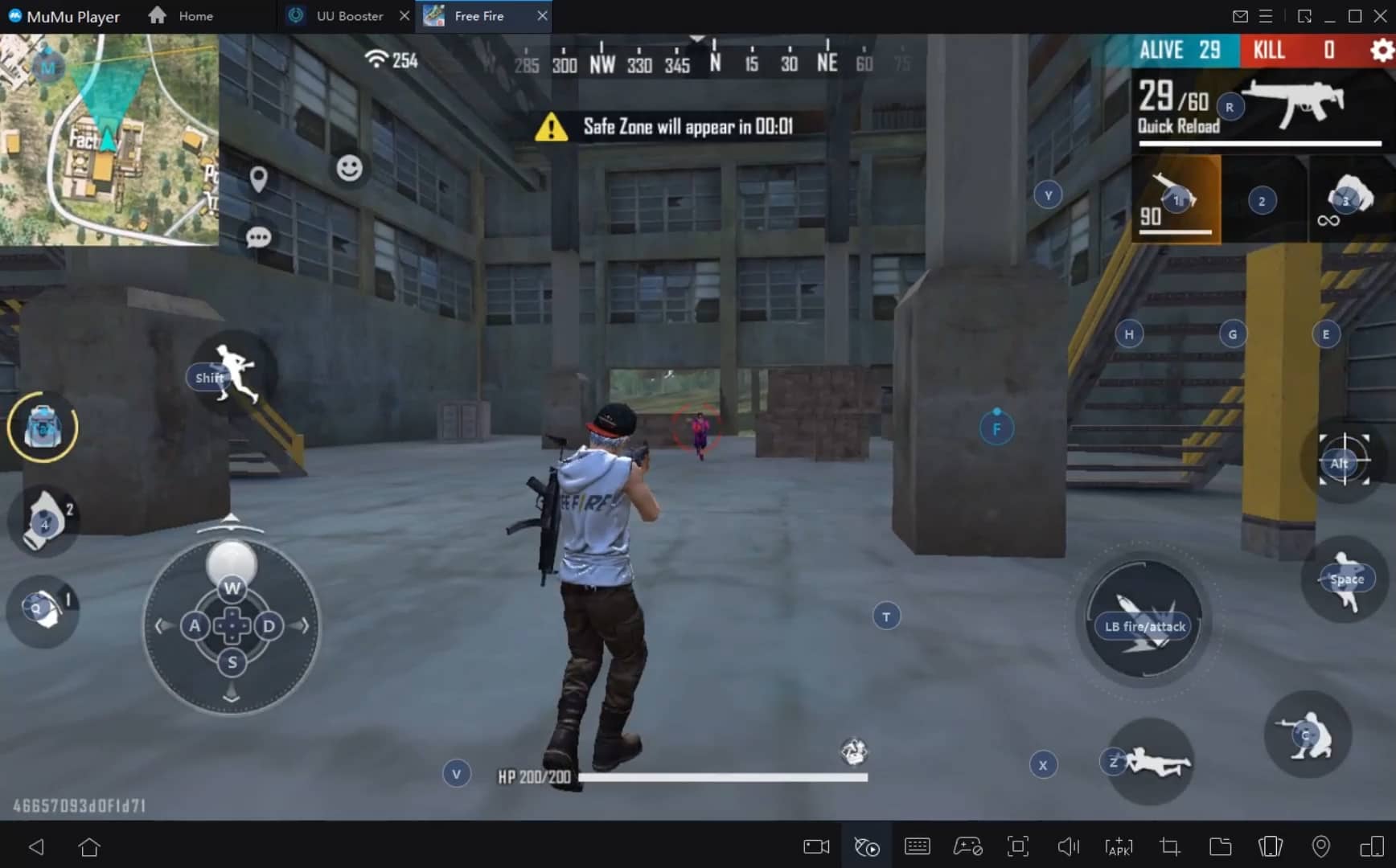
With a smart button scheme and image recognition function, provide a more concise UI, and support custom button mapping to meet different needs. With a smart button scheme and image recognition, enjoy a cleaner UI and custom button mapping to fit different gaming needs on Mac.
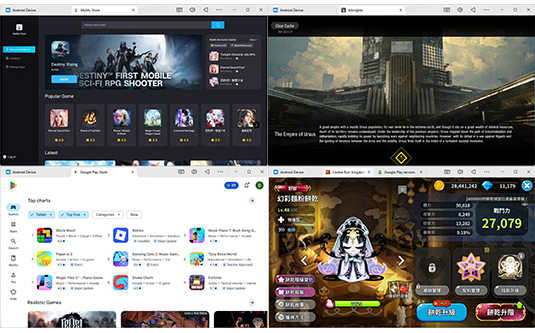
Run multiple games independently at the same time, easily manage multiple accounts, play games while hanging. Take your Mac gaming further with multiple independent instances, easy account management, and seamless AFK gaming on Apple Silicon Mac.
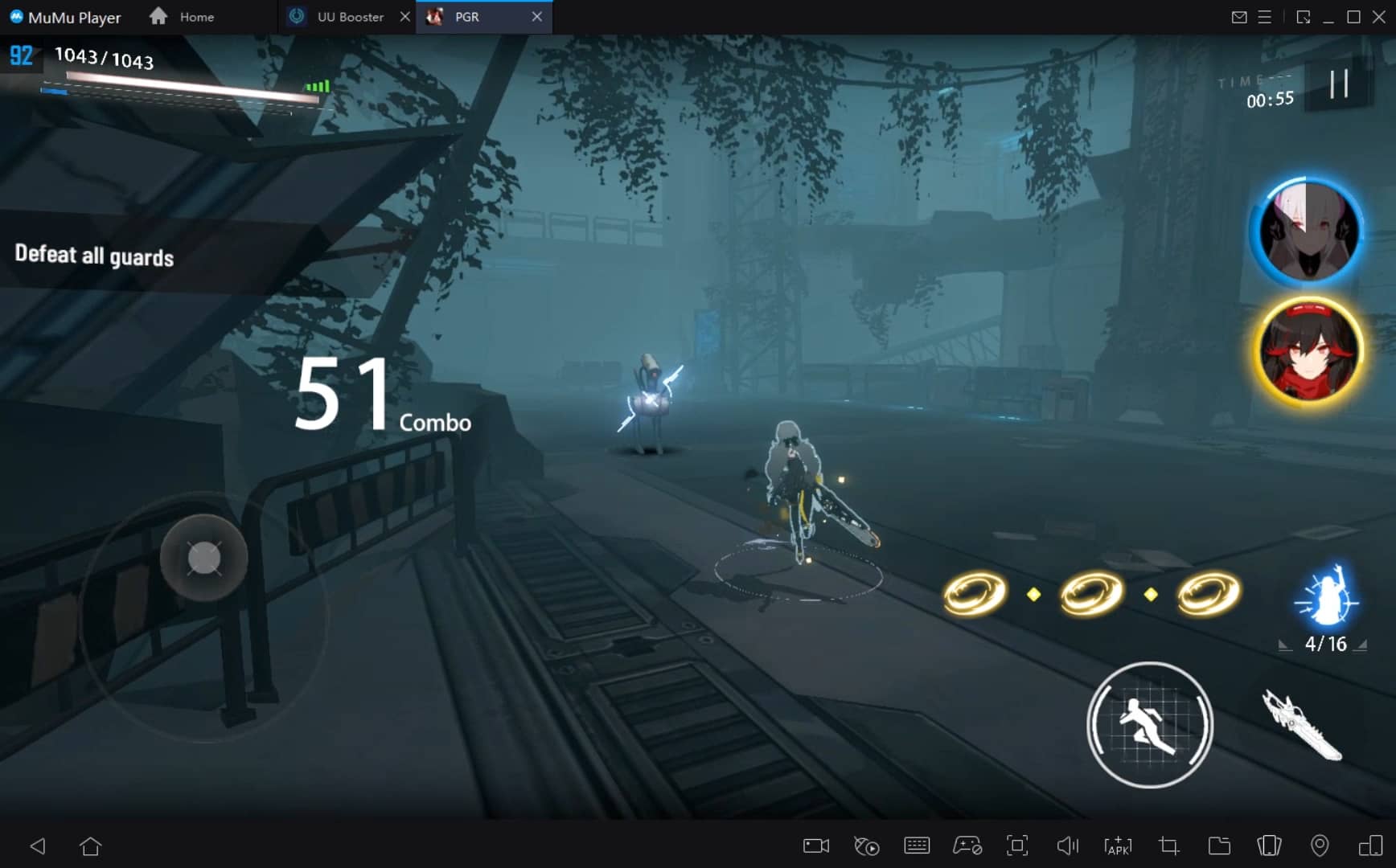
Break through FPS limit, and enjoy a seamless gaming experience without lag and delay! Break through FPS limits for a seamless, lag-free gaming experience on MacBook, Mac mini, iMac, and Mac Studio.
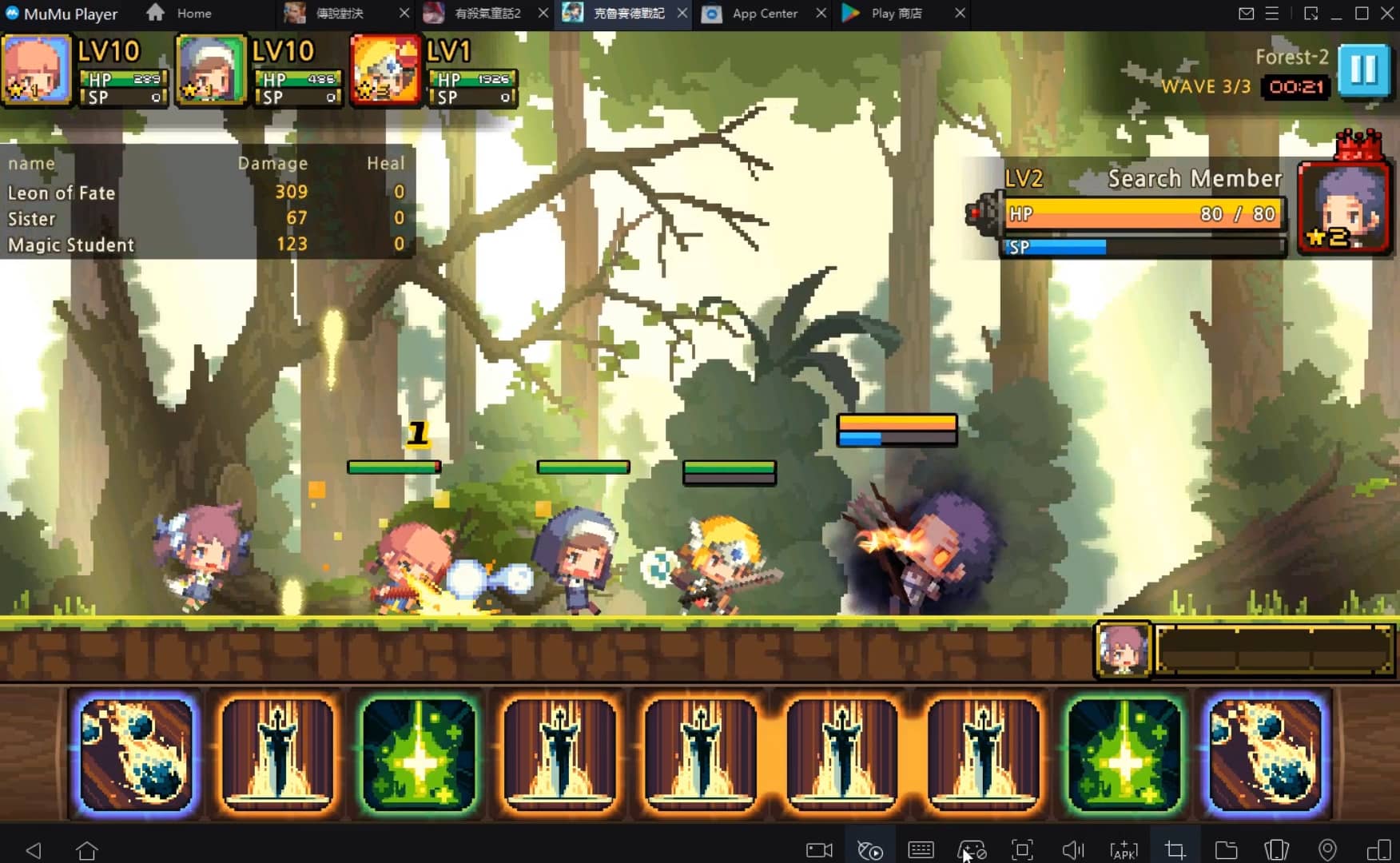
Get a 3-second startup with 52% less memory usage and 65% more stability. Enjoy 3-second startup, 52% less memory usage, and 65% greater stability on Apple Silicon Mac.
How to Download and Play TP-Link Tether on PC and Mac
Installation Guide
Download MuMuPlayer
Download MuMuPlayer and install it on your PC or Mac
Sign-in Google Store
Complete Google sign-in to access the Play Store
Search and Install
Search TP-Link Tether in the Play Store
Enjoy Gaming
Enjoy 120 FPS high-def gameplay with big screen
System Requirements
Windows PC
Vulkan / DirectX supported. 4 cores + 4GB RAM recommended. Up to 240 FPS. VT required.
macOS
Recommended: Apple Silicon Mac with 8GB RAM or above. Up to 240 FPS.