Android Gaming on Mac mini: How to Run Mobile Games
Mac mini has recently attracted renewed attention as demand grows for compact desktop computers that can handle development tasks, AI workloads, and everyday entertainment. As more users consider Mac mini for a wider range of daily activities, mobile gaming has become part of the conversation.
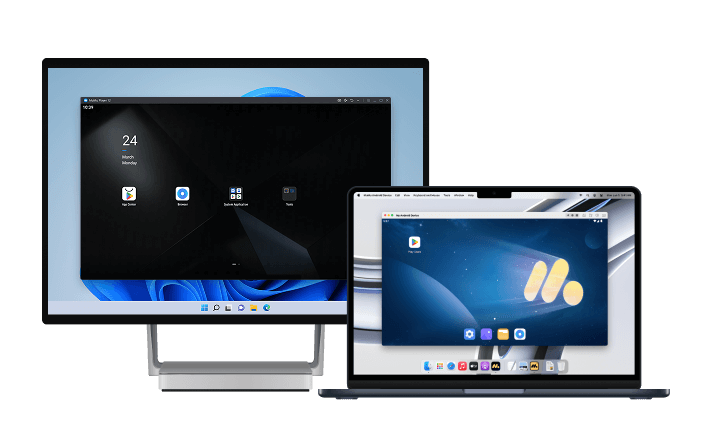
This raises a practical question: Can Mac mini run Android games? While macOS does not natively support Android games and apps, a compatible Android emulator can provide an Android environment on Mac mini, allowing users to play supported mobile games on a larger screen.
This article introduces Android game compatibility on Mac devices, the types of games that may run well, and how to play them with an Android emulator.
Can I Play Android Games on Mac mini?
Yes. You can play many Android games on Mac mini by using an Android emulator.
Android games are designed for the Android operating system, while Mac mini runs macOS. Because the two systems use different application environments, Android games generally cannot be installed directly like standard Mac applications. An emulator bridges that gap by running a virtual Android device inside macOS.
Apple's current Mac mini lineup features the M6 and M5 Pro, both based on Apple silicon. MuMuPlayer for Mac is designed for Apple Silicon Macs. Actual performance and compatibility still depend on the Mac mini’s chip, unified memory, macOS version, emulator version, and the requirements of the individual game.
For most users, an Android emulator is the simplest way to run mobile games on Mac mini without switching to a separate Android phone or tablet.
What Android Games Can You Play on Mac mini?
Mac mini can be used to run Android games across several categories, although compatibility may vary by title, game version, emulator settings, and developer restrictions.
High-FPS Games
High-FPS games, such as PUBG MOBILE, place greater demands on graphics performance and benefit from a larger display, smoother frame rates, and keyboard-and-mouse controls. Users may need to adjust resolution, frame rate, and rendering settings according to their Mac mini configuration.
RPG & Open-World Games
RPG and open-world games, such as NTE: Neverness to Everness and Genshin Impact, are well suited to a larger screen. A desktop display makes it easier to explore detailed environments, read menus, view maps, and manage combat controls. Performance settings may need to be adjusted for demanding titles.
Gacha Games
Gacha games, such as Azur Lane and SD Gundam G Generation ETERNAL, often include detailed character screens, battle interfaces, and lengthy daily activities. Playing on Mac mini can make these elements easier to view and provide more room for custom keyboard and mouse controls.
Strategy Games
Strategy games, such as Clash Royale and Whiteout Survival, benefit from precise controls and a clear view of the battlefield. Keyboard and mouse mapping can make it easier to manage units, resources, cards, and other in-game actions.
Casual & Simulation Games
Casual and simulation games, such as Township and Royal Kingdom, are suitable for longer, more relaxed sessions. These games generally have moderate hardware requirements and can be played on a larger display while users handle other desktop tasks.
Specific compatibility may vary, so users should check the latest MuMuPlayer game resources and test individual titles on their Mac mini.
Why Play Android Games on Mac mini?
Mac mini gives players access to a large library of Android games, including many free-to-play titles, without requiring a separate Android device. A larger screen provides a more comfortable view of game maps, characters, and menus, while keyboard, mouse, and gamepad support can offer more precise controls.
Players can also enjoy longer sessions without relying on their phone’s battery, switch between games and other desktop tasks, and use multi-instance or background gaming features for supported titles. These benefits make Mac mini particularly suitable for RPG, strategy, simulation, casual, and idle games.
For game developers and testers, an Android emulator provides a convenient way to test games in a virtual Android environment, check different configurations, and use ADB debugging alongside other development tools.
Android Emulator for Mac mini
An Android emulator is the main way to run mobile games on Mac mini. When choosing one, users should check macOS support, Apple Silicon compatibility, game compatibility, graphics performance, control mapping, and multi-instance support.
For Mac mini users looking for an Android emulator, MuMuPlayer for Mac provides an Android environment designed for Apple Silicon Macs.
Why Choose MuMuPlayer for Mac mini?
MuMuPlayer for Mac is built for users who want to run Android games and applications on Apple Silicon Mac devices, including supported Mac mini models.
Its main advantages include:
- Apple Silicon support: MuMuPlayer for Mac is designed for Apple Silicon Macs and is not currently intended for Intel-based Mac devices.
- Large-screen gaming: Users can play Android games in a resizable desktop window or on a larger external display.
- Keyboard and mouse controls: Custom mapping can convert touch controls into keyboard and mouse inputs.
- Gamepad support: Supported controllers can be used for compatible games.
- Multi-instance operation: Users can run multiple Android devices or game environments at the same time.
- Game and APK installation: Games can be installed through the Play Store inside the emulator or by using compatible APK files.
- Developer tools: The Mac version includes features related to ADB and Android development workflows.
MuMuPlayer for Mac offers a 7-day free trial for eligible Mac devices that have not previously used the service. After the trial ends, continued use requires a membership. Users should check the official product page for the latest pricing, supported devices, and availability before downloading.
How to Play Android Games on Mac mini?
Step 1: Download MuMuPlayer for Mac
Download MuMuPlayer for Mac from the official website and complete the installation on your Mac mini.
Step 2: Sign in to Google Play and Install Your Game
Launch MuMuPlayer, sign in to Google Play, search for your preferred Android game, and install it in the emulator.
Step 3: Launch and Play Your Game
Start playing games on your Mac mini with a larger screen. You can also adjust settings such as keyboard and mouse controls, resolution, frame rate, and graphics quality based on your needs for a smoother experience.
FAQs about Android gaming on Mac mini
Can I install Android games on Mac mini?
Yes, but Android games are usually installed through an Android emulator rather than directly onto macOS. With MuMuPlayer for Mac, users can install games through Google Play or use compatible APK files.
Can Mac mini run mobile games?
Yes. Mac mini can run many mobile games through a compatible Android emulator. Performance depends on the Mac mini model, Apple silicon chip, memory, macOS version, emulator settings, and the game itself.
Is there a free Android emulator for Mac mini?
MuMuPlayer for Mac provides a 7-day free trial for eligible Mac devices that have not previously used the service. It is not a permanently free service after the trial period. Pricing and membership terms may change, so users should verify the latest information on the official MuMuPlayer website.
Can I play Android games on an M6 or M5 Pro Mac mini?
M5 Pro and M6 Mac mini models should be checked against the latest MuMuPlayer system requirements and compatibility information. Apple’s current Mac mini specifications list Apple silicon configurations, while MuMuPlayer’s Mac version is designed for Apple Silicon devices. However, support for the Mac itself does not guarantee that every Android game will work.
Can I play Android games with a keyboard and mouse?
Yes, if the emulator and game support control mapping. MuMuPlayer for Mac provides keyboard and mouse mapping for supported games. Competitive games may have separate rules regarding emulator use, so players should check the game developer’s policy.
Conclusion
Mac mini cannot run Android games natively, but a compatible Android emulator can turn it into a practical platform for mobile gaming. Larger displays, keyboard and mouse controls, gamepad support, multitasking, and multi-instance operation make Mac mini especially appealing for RPG, strategy, simulation, casual, and idle games.
Ready to play Android games on Mac mini? Download MuMuPlayer for Mac, install your favorite games, and customize your controls for a more comfortable desktop gaming experience.
End of Article