
ARES: THE IRON VANGUARD PC Settings for Smooth Gameplay
ARES: THE IRON VANGUARD is a fast-paced sci-fi action RPG where split-second parries and perfect-dodges decide whether you survive a boss encounter or restart from the checkpoint. The game demands precision, and playing on mobile can mean missed inputs, overheating devices, and battery anxiety during long co-op raids. Running it on PC through an emulator solves these problems, but only if your settings are dialed in correctly.
Discover more tips and guides for ARES: THE IRON VANGUARD:
Controls and Key Mapping for Precision Combat
The suit-switching system is ARES's signature mechanic. You equip two suits with different weapons and abilities, then swap between them mid-combo to chain skills and cover weaknesses. On touchscreen, this means frantic thumb gymnastics. On PC with proper key mapping, it becomes a deliberate, expressive part of your playstyle.
Map your suit swap to a key you can hit without moving your fingers from movement or attack inputs. Mouse side buttons work exceptionally well here. If you are using keyboard only, Q or E are natural choices, but avoid reaching across the keyboard during intense moments.
- Assign primary attack to left mouse button or a comfortable key like J.
- Map secondary skills to keys within easy reach: 1, 2, 3, 4 for the first suit; Shift+1, Shift+2, or dedicated keys for the second suit after swapping.
- Put dodge on spacebar or right mouse button. You will use this constantly.
- Set block or parry to a key you can press reactively. Tab or a mouse thumb button works well.
- Reserve F or G for ultimate abilities and Goliath/Valkyrie deployment. These have longer cooldowns and do not need instant access.
Consider creating separate control profiles for each class combination. Engineer with drone management plays differently from Hunter with dual blades, and your key layout should reflect that. Most emulators let you save and switch profiles instantly.
If you own a gamepad, ARES supports controller input well. The analog stick gives smoother movement for hoverboard traversal, and trigger-based suit swapping feels natural. However, mouse and keyboard still win for precise camera control during aerial Valkyrie segments and for quickly targeting specific enemy weak points.
Balancing CPU, Memory, and Resolution for Long Sessions
ARES: THE IRON VANGUARD is currently in open beta with a full launch planned for 2026. Based on the Google Play Store requirements of Android 11 and 4GB RAM minimum, the game is not lightweight. On PC emulator, you should treat it as a moderately demanding title.
Allocate at least 4GB of RAM to your emulator instance. The suit-switching system keeps two full loadouts in memory simultaneously, and co-op raids add network overhead that increases RAM usage. Going below 4GB causes stutter when swapping suits or when the Goliath mech spawns with its additional geometry and effects.
For CPU allocation, two physical cores or four virtual cores is the practical minimum. ARES uses multiple threads for physics, audio, and network, but single-thread performance matters most for frame consistency. If your emulator lets you choose between performance cores and efficiency cores on hybrid processors, lock it to performance cores only.
| Setting | Recommended Value | Why It Helps |
|---|---|---|
| Emulator RAM | 4GB or higher | Prevents stutter during suit swaps and mech deployment |
| CPU Cores | 4 cores (performance preferred) | Maintains stable frame pacing in co-op |
| Render Resolution | 1080p native | Clear enemy tells without excessive GPU load |
| Display DPI | 320 or emulator default | Affects UI scaling and touch-target accuracy |
| Background Apps | Closed | Co-op raids need consistent network and CPU priority |
Resolution scaling deserves special attention. Running at 1440p or 4K looks sharp in screenshots but creates input lag on many systems due to increased frame buffer pressure. Stick to 1080p for competitive play, especially if you are learning parry timing against new bosses.
Fixing Lag, Stutter, and Unexpected Crashes
Even with good hardware, ARES can misbehave. The open beta status means optimization is ongoing, and certain combinations of settings trigger problems that are not immediately obvious.
If you experience hitching every few seconds, check your emulator's disk allocation. ARES streams in new areas aggressively during hoverboard traversal, and slow storage creates micro-stutters that feel like network lag. Move your emulator to an SSD if possible, or at least ensure 20GB of free space on your drive for temporary cache files.
Audio desync during co-op raids usually indicates CPU throttling. The game processes voice chat, positional audio, and combat effects simultaneously. Lower your emulator's CPU allocation slightly and close background browser tabs with video content. Counterintuitively, giving the emulator 100% CPU access can cause Windows scheduler conflicts that hurt performance.
- Disable Windows Game Mode if you notice frame drops every 30-60 seconds. It interferes with emulator timing.
- Update your graphics drivers. ARES uses modern rendering features that benefit from recent driver optimizations.
- Turn off emulator features you do not use. Recording, streaming overlays, and real-time translation all consume resources.
- Check your network stability. Co-op raids show a connection quality indicator; yellow or red bars mean you will see enemy attacks delayed or out of sync.
- Restart the emulator completely after extended sessions. Memory leaks in beta builds are common, and a fresh instance clears accumulated cruft.
Crashes during Goliath deployment or Valkyrie sequences often relate to shader compilation. These sequences use unique rendering paths. The first time you trigger them, expect a brief freeze. If the freeze becomes a crash, reduce graphics settings one notch and try again. The game caches shaders after first use, so subsequent deployments should be smooth.
Keeping Your Setup Stable for Serious Play
Once you have found settings that work, document them. Screenshot your graphics panel and export your key mapping. ARES will receive updates throughout its open beta and into full launch, and patch notes rarely warn about settings resets.
Build a pre-session routine. Close unnecessary applications, check that your emulator is running the performance power plan, and verify your network connection with a quick speed test. Five minutes of preparation prevents an hour of frustration when a raid boss desyncs at 10% health.
Monitor your system during actual play, not just in menus. Use your emulator's built-in FPS counter or an overlay like MSI Afterburner. Watch for thermal throttling on laptops, which manifests as sudden drops to 30 FPS after 20-30 minutes of play. A cooling pad or simply elevating the laptop for airflow solves this.
The suit-switching system rewards muscle memory. Consistent frame rates and predictable input timing let you internalize combo chains that cross class boundaries. When your Warlord shield-bash flows seamlessly into Hunter blade flurries without dropped inputs, you know your PC setup is doing its job.
How to Play ARES: THE IRON VANGUARD on PC and Mac
- Download MuMuPlayer on your PC or Mac.
- Launch MuMuPlayer, then search for ARES: THE IRON VANGUARD in Google Play or MuMuStore.
- Download and install the game from the store. If the game cannot be found in the store, you can download the APK on your computer and drag it directly into MuMuPlayer.
- After installation, open the emulator desktop and launch the game.
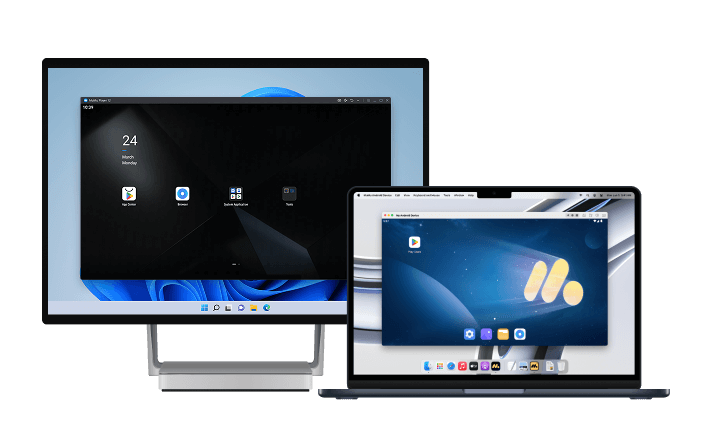
MuMuPlayer has been well optimized for ARES: THE IRON VANGUARD PC on both Windows and Mac, making it easier to enjoy character growth, team building, and longer adventure sessions with a larger screen, smoother sessions, and more comfortable controls. Try it now and experience the game in a more stable desktop setup.
What to Adjust First
If you are launching ARES: THE IRON VANGUARD on PC for the first time, prioritize in this order: stable 60 FPS cap, responsive dodge and suit-swap keys, then graphics quality. A blurry texture never killed a run, but missing a parry because of input lag or frame stutter absolutely will.
Test your setup in solo content before committing to multiplayer raids. The training dummy does not care if you drop to 45 FPS, but your strike team will notice if you miss a critical interrupt on a boss charge attack. Get comfortable with your layout, then take it live.
ARES rewards players who invest in mastery. The PC version through emulator removes the hardware limitations that hold back mobile players, giving you the tools to execute at your skill ceiling. Set it up right, and the solar system's defense depends only on your reflexes.
End of Article