
CookieRun Classic PC Settings Guide: Best Setup to Play on PC with MuMuPlayer
CookieRun Classic brings back the original running adventure that started the beloved CookieRun series. Players guide adorable Cookies through fast-paced stages, collecting Jellies, avoiding obstacles, and escaping the Witch's Oven using simple jump-and-slide controls. Along the way, you can collect Cookies, Pets, and Treasures while competing for high scores in the League.
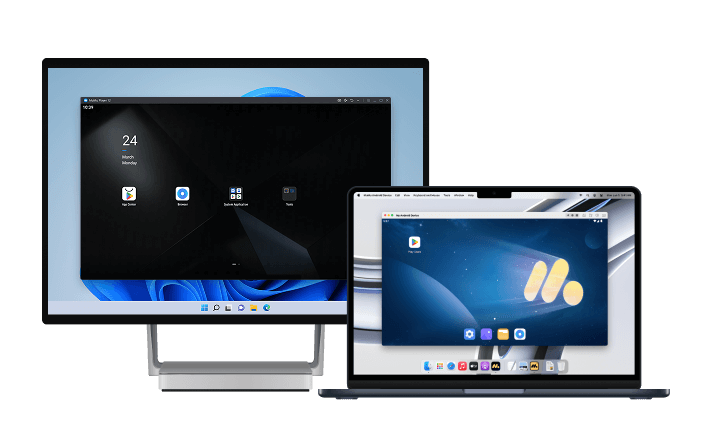
Although CookieRun Classic is designed for mobile devices, playing on a PC offers a more comfortable and responsive experience. A larger display makes it easier to spot obstacles and Jellies, while keyboard controls provide greater precision during fast-paced runs. With the MuMuPlayer optimized version, you can enjoy CookieRun Classic PC on both Windows and Mac with smooth performance and customizable controls.
Minimum Requirements to Play CookieRun Classic on PC
Since CookieRun Classic does not currently have an official PC version, you'll need an Android emulator such as MuMuPlayer to play the game on your computer.
Here are the recommended specifications for a smooth gaming experience:
| Component | Recommended Specification |
|---|---|
| Operating System | Windows 7 or above |
| CPU | Intel i5-7500 or above, 4 cores or more, VT enabled |
| Graphics Card | GTX 950 or above |
| RAM | 4GB or more |
| Storage | 2GB available installation space and 1.5GB available system disk space |
| Graphics API | DirectX 11.0 or OpenGL 4.x |
For better performance during long play sessions, it's recommended to allocate additional CPU cores and memory whenever your system allows.
How to Play CookieRun Classic on PC with MuMuPlayer
- Download MuMuPlayer on your PC or Mac.
- Launch MuMuPlayer, then search for CookieRun Classic in Google Play or MuMuStore.
- Download and install the game from the store. If the game cannot be found in the store, you can download the APK on your computer and drag it directly into MuMuPlayer.
- After installation, open the emulator desktop and launch the game.
MuMuPlayer has been well optimized for CookieRun Classic PC, making it easier to enjoy character growth, team building, and longer adventure sessions with a larger screen, smoother sessions, and more comfortable controls. Try it now and experience the game in a more stable desktop setup.
Customize Keyboard & Mouse Controls for CookieRun Classic
One of the biggest advantages of playing CookieRun Classic on MuMuPlayer is the ability to customize your keyboard and mouse controls. Unlike mobile devices, where you are limited to touchscreen inputs, MuMuPlayer allows you to create a personalized control layout that matches your own playstyle.
Whether you're aiming for higher League scores, completing daily runs, or simply enjoying the game's fast-paced action, custom key mapping can make every run feel smoother and more comfortable.
Create Your Own Key Mapping Layout
MuMuPlayer includes a built-in key mapping editor that lets you customize your controls in just a few clicks.
Open the key mapping menu while the game is running to view your current layout. From there, you can drag, reposition, or assign new keyboard shortcuts to different on-screen buttons. Once you've finished editing, simply save the layout and start playing immediately.
Because every player has different habits, there's no single "best" layout. You can freely experiment until you find a setup that feels the most natural.
Customize Every Important Action
CookieRun Classic is easy to learn, but precise timing becomes increasingly important as stages become faster and more challenging.
With MuMuPlayer, you can assign your preferred keys for common actions such as:
- Jump
- Slide
- Menu navigation
- Confirm buttons
- Other on-screen interactions
For example, many players prefer placing the Jump and Slide actions on nearby keyboard keys so they can react more quickly when obstacles appear in rapid succession. Others may choose keys that better match their typing habits for greater comfort during long play sessions.
Since key mapping is fully customizable, you can adjust your layout whenever your preferences change.
Save and Switch Between Different Layouts
Different players often have different control preferences. Some prefer a compact layout with all important actions grouped together, while others like to spread frequently used keys farther apart to reduce accidental inputs.
MuMuPlayer lets you save your customized control setup, making it easy to keep a layout that works best for you. If you decide to try a different arrangement later, you can quickly edit your key mapping again without affecting your game progress.
This flexibility allows you to continually refine your controls as you become more familiar with CookieRun Classic.
Best CookieRun Classic PC Settings
Optimizing your emulator settings can help deliver smoother gameplay, quicker input response, and a more comfortable experience during extended play sessions.
Emulator Performance Settings
For stable performance, use the following recommendations:
- Enable VT (Virtualization Technology)
- Select High Performance Mode
- Allocate at least 4 CPU cores
- Allocate at least 4GB RAM
- Enable dedicated GPU rendering when available
These settings help improve emulator responsiveness and reduce performance drops during gameplay.
Graphics & Resolution Settings
Recommended settings include:
- Emulator Resolution: 1920 × 1080
- Display Mode: Full Screen
- Graphics Quality: High
Playing at 1080p provides a clearer view of the running path, making obstacles, Jellies, and stage details easier to recognize on a larger display.
Frame Rate Settings
Depending on your PC hardware, you can choose the frame rate that best matches your system.
60 FPS
Provides a stable experience suitable for most players.
90 FPS
Offers smoother animations for players with more capable hardware.
120 FPS
Recommended for high-performance systems that can maintain consistently smooth gameplay.
Customize Keyboard & Mouse Controls for CookieRun Classic
One of the biggest advantages of playing CookieRun Classic on MuMuPlayer is the ability to customize your controls. Since the game's core gameplay revolves around accurate jump and slide timing, personalized key mapping can make every run feel more comfortable and responsive.
Edit Your Key Mapping
Open MuMuPlayer's built-in key mapping editor to view and adjust your control layout.
You can assign keyboard shortcuts to different actions, reposition buttons, and create a layout that matches your preferred playstyle.
Customize Controls to Match Your Playstyle
CookieRun Classic features simple controls, making it easy to create an efficient keyboard setup.
For example, you can assign convenient keys for actions such as:
- Jump
- Slide
- Menu navigation
- Confirm and interaction buttons
If you prefer a different layout, simply modify the key bindings and save your personalized configuration. You can also update your layout later whenever your preferences change.
Enjoy More Precise Controls
Keyboard input provides consistent and accurate timing, especially during fast-paced runs where quick reactions are essential.
Compared with touchscreen controls, playing on a keyboard can help you:
- React more quickly to incoming obstacles
- Perform jump and slide actions with greater consistency
- Maintain a smoother rhythm during long runs
- Play comfortably during extended gaming sessions
Whether you're chasing a higher League score or collecting more Jellies, customizable controls can make the overall experience more enjoyable.
Why Play CookieRun Classic on PC and Mac with MuMuPlayer
Playing CookieRun Classic on MuMuPlayer offers more than just a larger screen.
Larger Display
A bigger screen makes it easier to track obstacles, spot Jellies, and appreciate the colorful Cookie world throughout each run.
Stable Performance
MuMuPlayer delivers smooth gameplay with optimized emulator performance, helping you enjoy responsive controls and stable frame rates.
Comfortable Long Play Sessions
Play without worrying about battery life or your mobile device heating up during extended gaming sessions.
Flexible Keyboard & Mouse Support
Customizable keyboard controls let you tailor your setup to your own preferences, making every run feel more natural and comfortable.
FAQ for CookieRun Classic on PC
Can I play CookieRun Classic on PC?
Yes. Since CookieRun Classic is available on mobile platforms, you can play it on a Windows PC using an Android emulator such as MuMuPlayer.
Can I play CookieRun Classic on Mac?
Yes. MuMuPlayer also supports Mac devices, allowing you to enjoy CookieRun Classic with a larger display and keyboard controls.
What are the best PC settings for CookieRun Classic?
For most users, enabling VT, selecting High Performance Mode, allocating at least 4 CPU cores and 4GB RAM, and using a 1920 × 1080 resolution provide an excellent balance between performance and visual quality.
Can I customize keyboard controls in CookieRun Classic?
Yes. MuMuPlayer includes a built-in key mapping editor that allows you to customize keyboard controls, adjust key layouts, and create a setup that best fits your playstyle.
Conclusion
CookieRun Classic delivers an enjoyable running adventure with simple controls, collectible Cookies, Pets, and Treasures, and competitive League gameplay. By optimizing your emulator settings and taking advantage of MuMuPlayer's customizable keyboard controls, you can enjoy smoother performance, more precise inputs, and a more comfortable gaming experience.
Whether you're aiming for higher scores or simply exploring the Cookie world, play CookieRun Classic on PC and Mac with MuMuPlayer for a smoother and more enjoyable adventure.
End of Article