
The eFootball 2025 November update tightens match flow where it matters. Half‑time stamina now reflects real roles, restarts are cleaner, and the shot gauge shows true power. That changes how you press, when you swap legs, and which finishes you trust. If your build‑up stalled on throw‑ins or goal kicks, or if shots felt off, this patch smooths those edges so your patterns translate into chances.

To enjoy the best audio-visual performance, we recommend playing eFootball™ 2026 on PC or Mac with MuMuPlayer ! For more guides, please review the link below:
- How to Get Fabio Capello in eFootball 2026(New Manager Guide)
- eFootball 2026 Tier List - Best Players Ranked (2025)
- eFootball 2026 Beginne's Guide - Learn the Basics Fast
For more updates or guides, welcome to bookmark MuMuPlayer page!You could also directly download the MuMuPlayer if you are missing any of the latest information for the game.
What changed in v5.1.0
Custom Stadium adds Goal Projection and Kickoff Projection, plus small UI refinements. Ranking Events now require Courtesy Rating A, which improves match quality. Data updates touch selected Italian clubs and Eintracht Frankfurt, with new‑season sets for Ligue 2 BKT and the AFC competitions.

On‑pitch fixes land in three places: stamina recovery scales by role at half‑time, seamless restarts no longer fumble the pickup, and Smart Assist’s shot gauge matches actual strike power. A mobile feint glitch after Quick Stop is also resolved.
How those tweaks affect match flow
Energy management is more honest after the break. Wide sprinters tire faster under repeat runs; central creators can carry more minutes if they pace themselves. Sub by task, not name: refresh a flank first, then decide whether to protect your between‑the‑lines hub. Clean restarts speed the first pass, so a quick throw‑and‑bounce or short goal kick can beat an unset press. With a truthful shot meter, you commit earlier—low bar for near‑post snaps, full bar for driven efforts from the D.
Attacking patterns that keep producing chances
Central combinations through an AMF hub remain direct and repeatable. Keep the AMF on the half‑turn, 10–15 meters ahead of your pivot, and aligned diagonally to the striker. The staple pattern is pivot → hub → nine (set) → hub → release into the channel when the near center‑back steps. On the flank, build a triangle with winger, full‑back, and near‑side midfielder. If the defender shows the line, trigger the underlap; if he shows inside, trigger the overlap. Deliver low cutbacks to the spot or the edge of the six. With two forwards, make the defense choose: one drops, one bends a run across the near center‑back’s blind side, and a third player (AMF or oncoming eight) plays the release while the hand‑off is messy.

Which drills sharpen timing under pressure
Run a 5v2 rondo in a 12×12 grid with a target striker behind one side. When a defender jumps, bounce and split to the target on the ground; return for a quick finish. On the flank, rotate winger/full‑back/midfielder in a 15×20 channel and rehearse underlap vs overlap based on the full‑back’s body show. For switching discipline, play 6v6+2 neutrals on a half pitch with three vertical lanes; if you cannot break through in three passes, reset, switch across the back, and rebuild on the weak side.
Smart Assist after v5.1.0
Use assistance for first‑touch direction and simple exits; it trims heavy rebounds and pulls you away from the sideline trap. Switch to manual for disguise and tight passing lanes—a reverse ball or bent diagonal often needs full control. The updated meter helps you trust finish power, but manual aim still pays off at sharp angles or when the keeper moves late.
Camera, HUD, and visibility
Pick a tele/zoomed‑out angle that shows the ball carrier, nearest runner, and next receiver in one frame. Keep motion blur off, sharpness moderate, and frame pacing steady; predictable delivery beats peak FPS for timing one‑touch plays.
MuMuPlayer: play eFootball on PC with smooth, low‑latency control

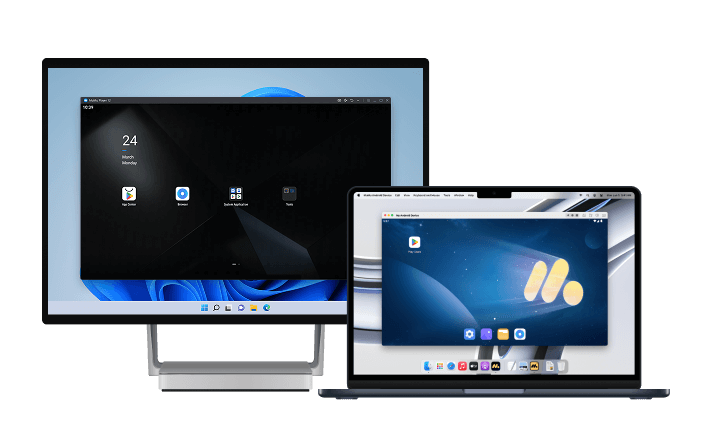
MuMuPlayer runs Android games on Windows and macOS with a clean, ad‑free interface, high‑definition output, Smart Controls for keyboard/mouse/gamepad, and “Unlimited Multi‑instance” for parallel sessions. The platform highlights high‑FPS rendering (up to 240 FPS) and GPU‑focused graphics tech that can drive 4K, which suits timing‑sensitive football play. These tools support a clear view, stable inputs, and repeatable one‑touch sequences.
Key mapping settings for gameplay
Keyboard template (balanced)
● Movement: WASD (analog mode)
● Sprint/Dash: Left Shift
● Short Pass: J
● Through Pass: K
● Shoot: L
● Lob/Cross: I
● Player Switch: E
● Match‑Up/Contain: Q
● Press/Second Defender: R
● Skill moves: map right‑stick to arrow keys or mouse
● Keeper charge: Space
● Pause/Menu: Esc
Gamepad template (XInput)
● Left Stick: movement
● RT/R2: Sprint/Dash
● A/Cross: Short Pass
● Y/Triangle: Through Pass
● B/Circle: Shoot
● X/Square: Lob/Cross
● LB/L1: Player Switch
● RB/R1: Press/Second Defender
● LT/L2: Match‑Up/Contain
● Right Stick: skill moves
● View/Menu: Pause
Tips
Keep sprint on a modifier you can hold while passing. Bind two nearby keys for tactical toggles you use most (compactness/width or line height). Save two profiles: one for central combinations, one for wide overloads.
Best MuMuPlayer settings for different PC builds
Entry systems (stable 60 FPS, medium visuals)

● Performance preset: 2 cores, 2 GB RAM; renderer: start with DirectX on older iGPUs/GPUs
● Display: 1280×720 or 1600×900; 60 FPS; V‑Sync on
● Notes: enable VT/VT‑x/AMD‑V in BIOS/UEFI; install on SSD
Mid‑range PCs (1080p balance, low input delay)
● Performance preset: 4–6 cores, 6–8 GB RAM; renderer: try Vulkan first, fall back to DirectX if micro‑stutter appears (both APIs are supported)

● Display: 1920×1080; 60 FPS for stability; consider 90 if your monitor/game remain steady
● Notes: disable GPU overlays; keep motion blur off
High‑refresh rigs (1440p, 120 FPS target, even frametime)
● Performance preset: 6–8 cores, 8–12 GB RAM; renderer: prefer Vulkan unless a title runs better on DirectX
● Display: 2560×1440; set emulator FPS to 120 and keep V‑Sync on for clean pans
● Notes: MuMuPlayer can enable high‑FPS mode up to 240 FPS; support varies by game and uses more resources—lower the cap if stutter appears.

High‑FPS and VT recommendations
MuMuPlayer’s help center explains how to enable high‑FPS mode (Settings Center → Display → set frame rate above 60) and notes that not all games support it at all times, especially right after updates. It also recommends enabling CPU virtualization (VT) for better responsiveness.
Play eFootball 2026 on PC or Mac with MuMuPlayer!
For the ultimate gaming experience, we suggest you download eFootball 2026 on MuMuPlayer - the best Android emulator. This emulator offers several advantages:
- Smooth Gaming Experience: Experience eFootball 2026 with minimal lag and stunning graphics.
- Smart Controls: Customize your keyboard and mouse settings for precise control.
- Multi-Tasking: Run multiple apps simultaneously without affecting performance.
- Mac-Compatible: Specifically designed for mobile gamers and tailored for macOS.
Conclusion
The patch rewards simple, repeatable football. Build around a steady hub, rotate wide to move the block, and trigger the third‑man release before the defense resets. Clean restarts bring the first pass on time; a truthful shot meter turns hesitation into decisions. Keep assistance for first touch, switch to manual for tight passing lanes, and use a wide, stable view to read space early. On PC, MuMuPlayer’s high‑definition output, Smart Controls, and multi‑instance tools support crisp inputs and fast pattern work; align FPS targets with your hardware, enable VT, and save control profiles that match how you attack.
Install MuMuPlayer, use a 1080p/60 FPS profile with V‑Sync on, map your keys once, and run a quick test match to confirm stability before ranked play.