
Use Magisk (the root manager) on Mac: How to download with MuMuPlayer for Mac
Want to use Magisk on your Mac? This guide will show you how to download Magisk on Mac with MuMuPlayer for Mac. Magisk is an open-source application that can help you root your Android device and allows you to install modules of different functions to personalize your mobile phone, such as customizing the fonts and the status bar, removing ads, and so on. In this way, your journey with your Android devices can be much more colorful than before!
If you haven't installed MuMuPlayer yet and want to use Magisk on your Mac, please download MuMuPlayer first:
Many MuMuPlayer for Mac users need to use Magisk but may not know how to set it up. Follow the steps below to get started.
1. Before you download Magisk
(1) Select the Android device where you wanna download and install Magisk, click on "Settings";

(2) In the "Data" tab, switch the "System Disk Mode" to "Writable"; and in the "Device" tab, turn on the Root Access. And then restart your emulator;


2. Download Magisk through Kitsune Mask
(1) Download and install Kitsune Mask on your device: https://github.com/HuskyDG/magisk-files/releases;
(2) Open Kitsune Mask and click on "Install" on the right of Magisk bar.

(3) Choose "Direct Install(modify/system directly)";
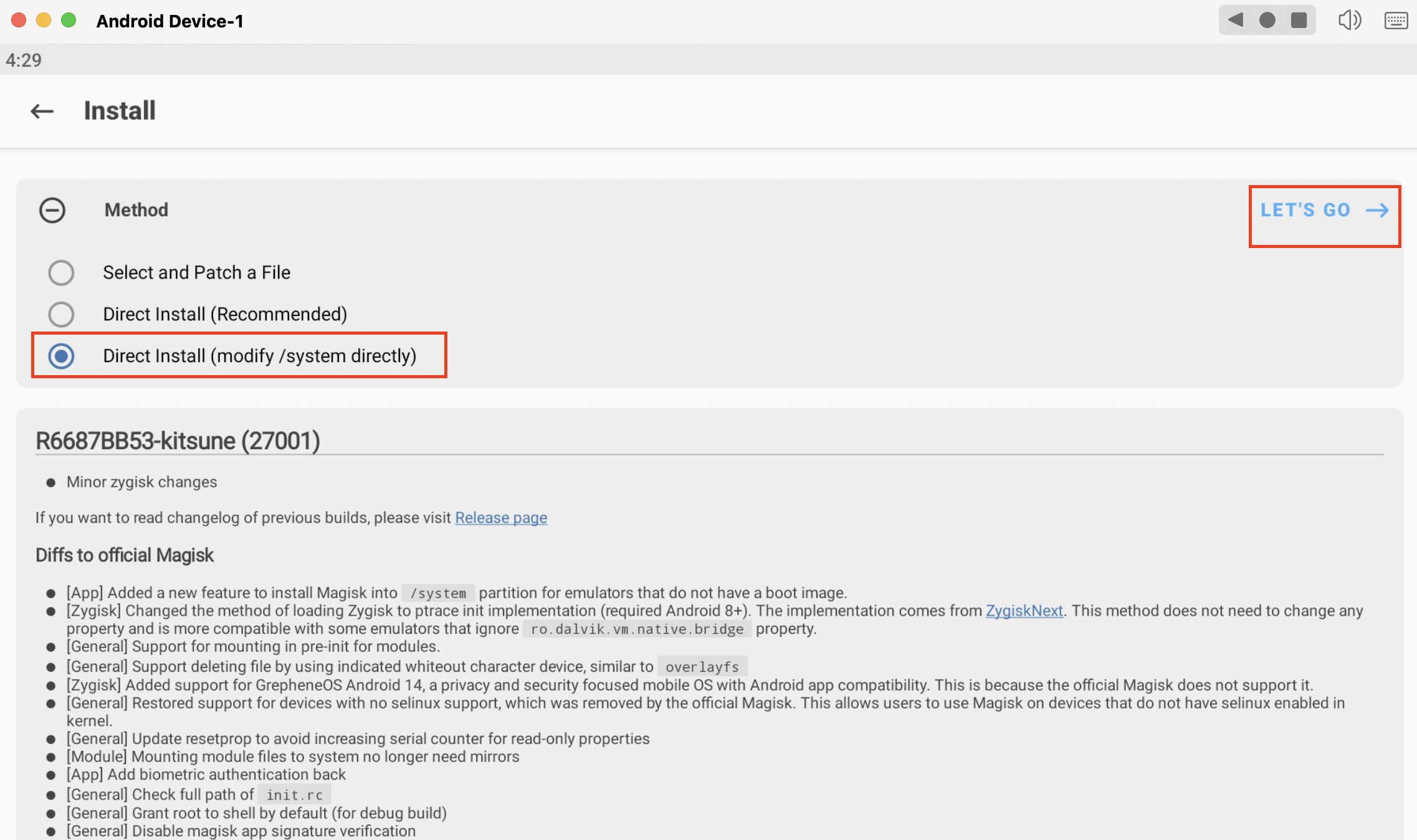
Note: If you didn't see this option, you can restart Kitsune Mask and try again.
(4) After the installation, you will be informed "All done!" on the bottom line of the screen. Then you need to restart the emulator yourself;
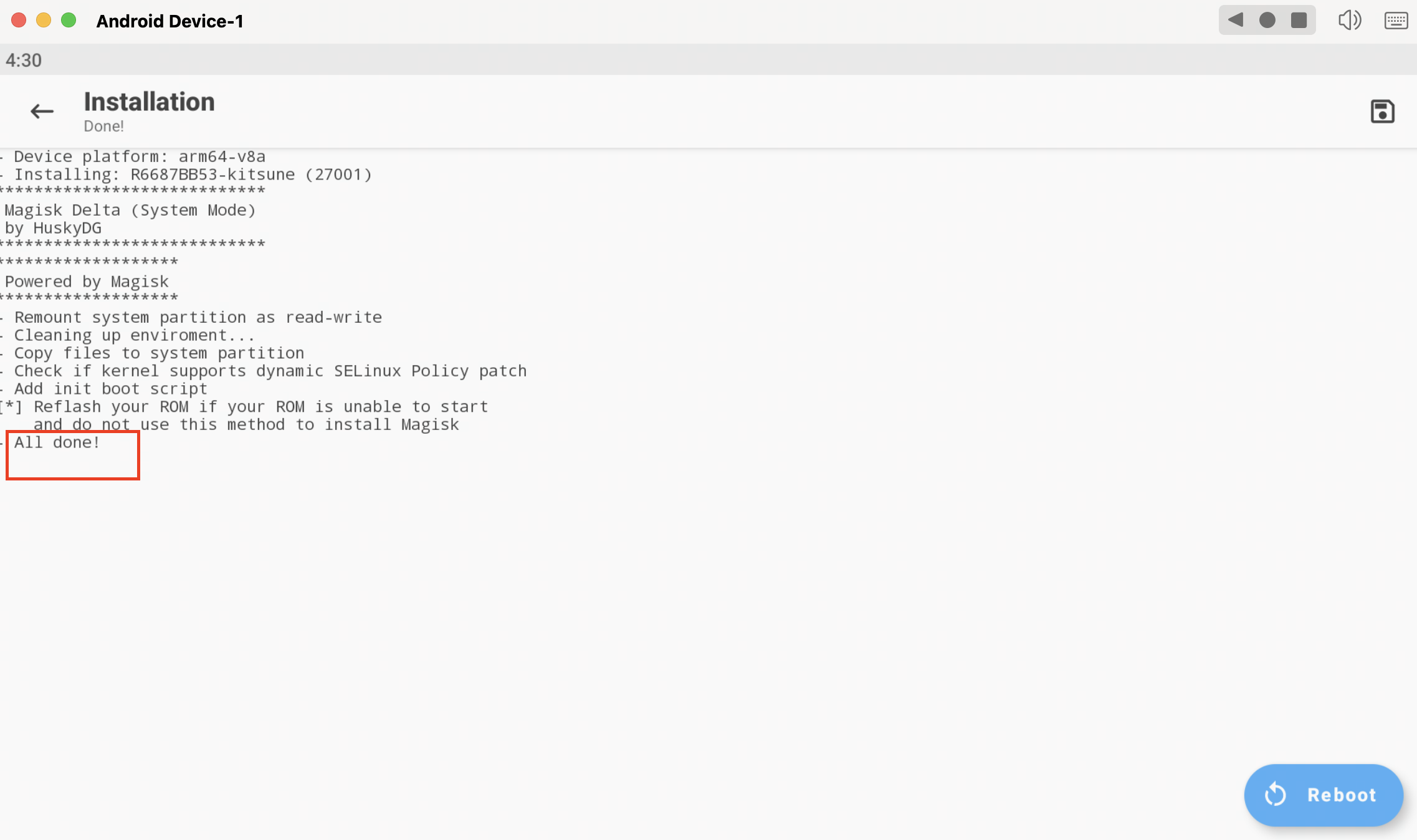
Note: The "Reboot" function will not work in MuMuPlayer for Mac.
(5) After you restart your emulator, there will be an abnormal state message when you open Kitsune Mask.

(6) Then you need to download "Root Explorer". You can download the apk from here (https://rootexplorer.co/download-apk/) and install it on your Android Device in MuMuPlayer for Mac.

(7) Enter the Root Explorer, follow the "/system/xbin" to delete the "su" file, and then follow "system/app" to delete the "SuperUser" file. Then you need to restart MuMuPlayer for Mac. And you have successfully downloaded Magisk!


Note: 1. The su file deleted in this tutorial comes with MuMuPlayer for Mac, the deletion can not be withdrawn, and all the su used in the future are Magisk's su, SuperUser status are managed by Magisk, you can go to Magisk to adjust the settings in detail.
2. If you are prompted to fix the operating environment, please upgrade MuMuPlayer for Mac to the latest version.
And that's how you download Magisk, the root manager, on MuMuPlayer for Mac. Should you have any further questions, please contact us.
【About MuMuPlayer for Mac】
MuMuPlayer for Mac is a Mac-compatible Android emulator specifically designed for mobile gamers, tailored for macOS and is the first to adapt to the Apple Silicon Mac. It allows users to experience mainstream mobile games and applications on a large screen on Mac, providing a smooth gaming experience of up to 240 frames per second. Its diverse functions, such as multi-instance operation and intelligent keyboard and mouse controls, cater to various gaming needs, making gaming effortlessly enjoyable.
End of Article