Play eFootball™ on PC and Mac
Download eFootball™ on PC or Mac with MuMuPlayer, get a PC like gameplay along with smart control and high graphics performance.
• Cross-platform support: Enjoy seamless gameplay on both eFootball™ PC and eFootball™ Mac with full Windows and macOS compatibility.
• Stunning visuals: Experience the game in up to 240 FPS with Unreal Engine 4, delivering ultra-smooth motion and crisp details on the big screen.
• Precision controls: Dominate the field with keyboard, mouse, or controller support, featuring customizable key mappings and macros for perfect passes and shots.
• Lag-free performance: Eliminate mobile overheating and frame drops with MuMuPlayer's advanced VT technology and memory optimization.
• Efficient grinding: Maximize your training with Multi-Instance and background AFK features to complete daily tasks and build your dream team faster.
Ready to elevate your eFootball™ experience to the next level? Whether you're on eFootball™ PC or eFootball™ Mac, MuMuPlayer delivers big screen experience and high FPS smoothness that mobile devices can't match. Download MuMuPlayer now and dive into the thrilling world of competitive football!
About eFootball™ - Game Overview
■ "eFootball™" - An Evolution from "PES"
It's an all-new era of digital soccer: "PES" has now evolved into "eFootball™"! And now you can experience the next generation of soccer gaming with "eFootball™"!

[Ways of Playing]
■Start Off With Your Favorite Team
Whether it's a club or national side from Europe, the Americas, Asia, or elsewhere around the world, begin a new game with the team you support!

■ Sign Players
After creating your team, it's time to get some signings in! From current superstars to soccer legends, sign players and take your team to new heights!

■ Playing Matches
Once you have built a team with your favorite players, it's time to take them to the field.
From testing your skills against the AI, to competing for ranking in Online Matches, enjoy eFootball™ the way you like!

■ Player Development
Depending on Player Types, signed players can be further developed.
Level up players by putting them in matches or using in-game items, then spend the Progression Points acquired to increase Player Stats.

In case you prefer to customize a player to fit your personal preferences, you have the option to allocate the Progression Points manually.
When in doubt about how to develop the player, you can use the [Recommended] function to automatically allocate his Points.
Develop your players to your exact liking!
eFootball™ PC - MuMuPlayer Emulator Features
Highest Android 15 Support Best Compatibility on Mac

With a smart button scheme and image recognition function, provide a more concise UI, and support custom button mapping to meet different needs. With a smart button scheme and image recognition, enjoy a cleaner UI and custom button mapping to fit different gaming needs on Mac.

Run multiple games independently at the same time, easily manage multiple accounts, play games while hanging. Take your Mac gaming further with multiple independent instances, easy account management, and seamless AFK gaming on Apple Silicon Mac.

Break through FPS limit, and enjoy a seamless gaming experience without lag and delay! Break through FPS limits for a seamless, lag-free gaming experience on MacBook, Mac mini, iMac, and Mac Studio.

Get a 3-second startup with 52% less memory usage and 65% more stability. Enjoy 3-second startup, 52% less memory usage, and 65% greater stability on Apple Silicon Mac.
How to Download and Play eFootball™ on PC and Mac
Installation Guide
Download MuMuPlayer
Download MuMuPlayer and install it on your PC or Mac
Sign-in Google Store
Complete Google sign-in to access the Play Store
Search and Install
Search eFootball™ in the Play Store
Enjoy Gaming
Enjoy 120 FPS high-def gameplay with big screen
System Requirements
Windows PC
Vulkan / DirectX supported. 4 cores + 4GB RAM recommended. Up to 240 FPS. VT required.
macOS
Recommended: Apple Silicon Mac with 8GB RAM or above. Up to 240 FPS.
eFootball™ PC - MuMuPlayer FAQs
1. Can I play eFootball™ on PC?
You can play eFootball™ on PC smoothly using MuMuPlayer, the dedicated Android emulator optimized for sports games. It delivers high frame rates up to 240 FPS and supports Ultra HD resolution for silky-smooth animations and stunning visual clarity on the big screen, while also offering seamless keyboard, mouse, and controller support with customizable key mappings to ensure precise passes, shots, and defensive maneuvers.
2. Why choose MuMuPlayer for eFootball™?
MuMuPlayer stands out as the best emulator for eFootball™, offering up to 240 FPS ultra-smooth gameplay and precise keyboard/mouse/controller support with customizable mappings. It features lightweight memory optimization and stable performance, eliminating mobile overheating and frame drops for an immersive experience.
3. What are the system requirements for eFootball™ on PC/Mac?
For Windows:4-core CPU, 4GB RAM, i5 OS, GTX950+ graphics card
For macOS: 4-core CPU, 4GB RAM
4. How to play eFootball™ on Mac?
MuMuPlayer is the best Mac emulator for eFootball™. First, download and install MuMuPlayer for Mac. Launch the emulator, search for eFootball™ in MuMu Store, download and install the game. Finally, customize your control scheme (keyboard/mouse/controller) and start playing.
Get more news, guides and redeem codes about eFootball™
eFootball 2026 March Update Explained: New Live Campaigns, Player Ratings & Meta Changes
Top 5 Long Ball Counter Formations in eFootball 2026 - Fabio Capello LBC Tactics
eFootball 2026 5.2.1: New DMF Best Builds & Training Guide
eFootball Tournament Guide: Winning Strategies to Dominate Matches
eFootball Possession Meta: 4‑2‑2‑2 Formation Tips
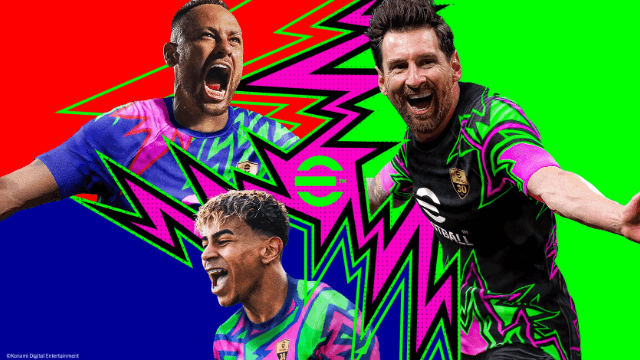
eFootball 2026 Player Skills Guide - Complete Breakdown
eFootball 2026 Link-Up Guide – Best Tactics Explained
Japanese Stars Pack Review (eFootball 2026) - Stats, Best Uses & Should You Pull?