
Play DISGAEA RPG on PC and Mac
Download DISGAEA RPG on PC or Mac with MuMuPlayer, get a PC like gameplay along with smart control and high graphics performance.
MuMuPlayer, the top Android emulator for PC and Apple silicon Mac, delivers an optimal gaming experience with minimal RAM usage and high FPS. It also allows you to create multiple instances of the emulator and run several games simultaneously, thanks to its Multi-instance feature. Its advanced emulator features ensure smooth gameplay, even on low-end PCs.
Download and play DISGAEA RPG on PC or Mac with MuMuPlayer and start enjoying your gaming experience now.
About the Game
DISGAEA brought to mobile!

The Netherworld, a place deeper than the deepest ocean and darker than the darkest cave. It's a chaotic world ruled by demons, monsters, and Overlords. No one knows quite where to find it. But now this dark place will open to all the players. Enter the Netherworld, try to raise the Strongest Overlord on a strange but exciting adventure.

※ GAME FEATURES

■ Protagonists from the series reunite
Protagonists like Laharl, Flonne, Etna, Adell, Mao, Valvatorez and Killia from the whole series reunite and start an adventure filled with laughter and tears!

■ Original stories and music
In the Netherworld, everyone's moral compass is a little different from humans. Unfold the exciting stories of your favorite characters and go through their ups and downs with background music from the series. The “Netherworld History” is for DISGAEA fans to relive their favorite plots once more and for newcomers to learn about the series' previous stories.

■ Over-the-Top Battle Systems
The game uses a turn-based combat system. Assemble your dream team to your deepest desires! Amusing battle options like “Team Attack”, “Tower”, and “Throw” make the game truly strategical and hilarious.

■ Deal tons of damage
Awaken and upgrade characters all the way up to the max level of 9999. Grant characters with many skills & magic with enhancements and deal tons of damage to your enemies!

■ Classic elements from the series
Everything you love about DISGAEA is now brought to mobile. Call the “Dark Assembly” to unlock various content, travel the infinite “Item World” to upgrade your equipment, and challenge the “Overlord’s Tower” for fiendish rewards!

■ Play Anytime, Anywhere
Auto-Battling at up to 4x speed! Enjoy the epic battle at any time and any place!
Emulator Features
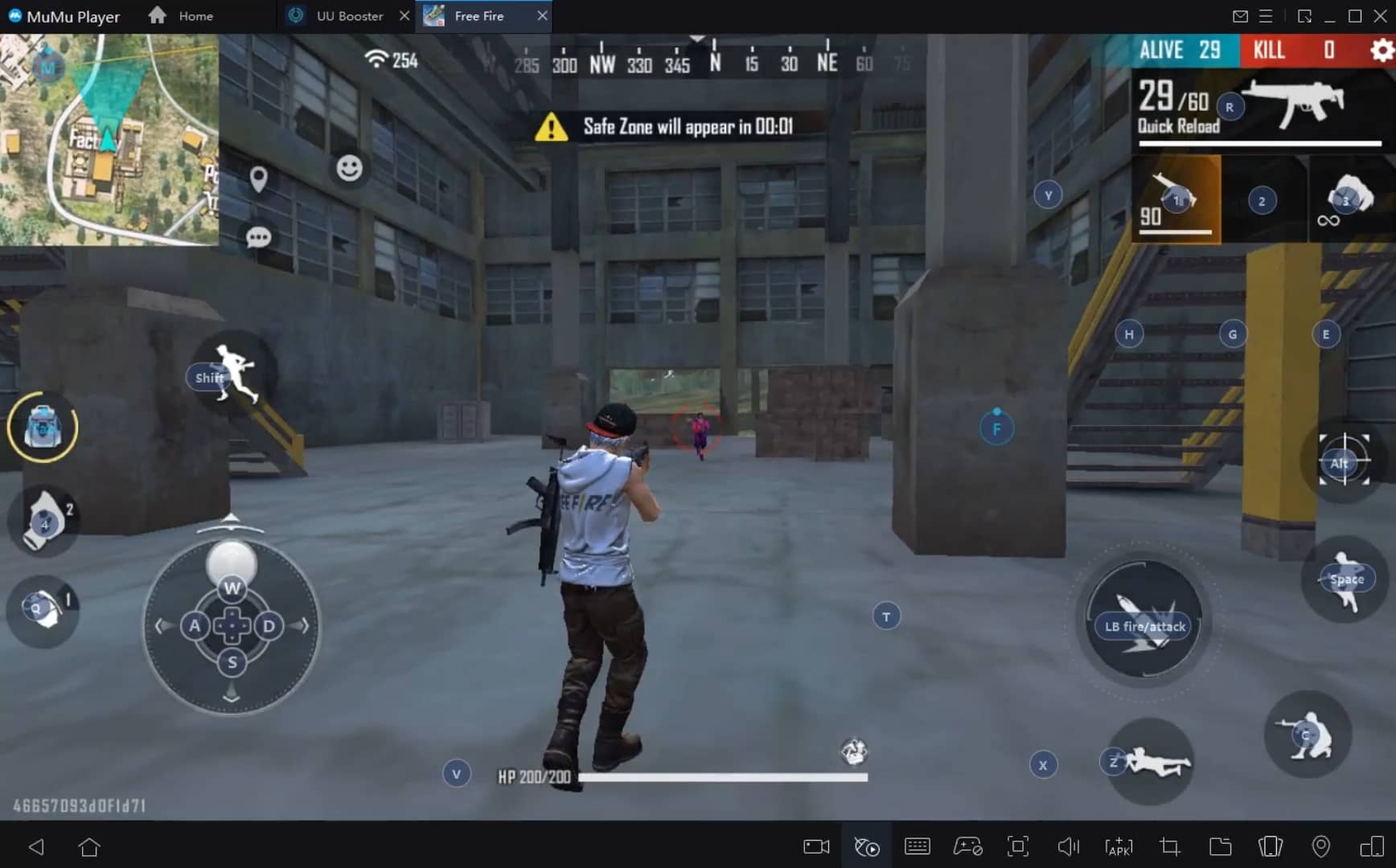
With a smart button scheme and image recognition function, provide a more concise UI, and support custom button mapping to meet different needs.
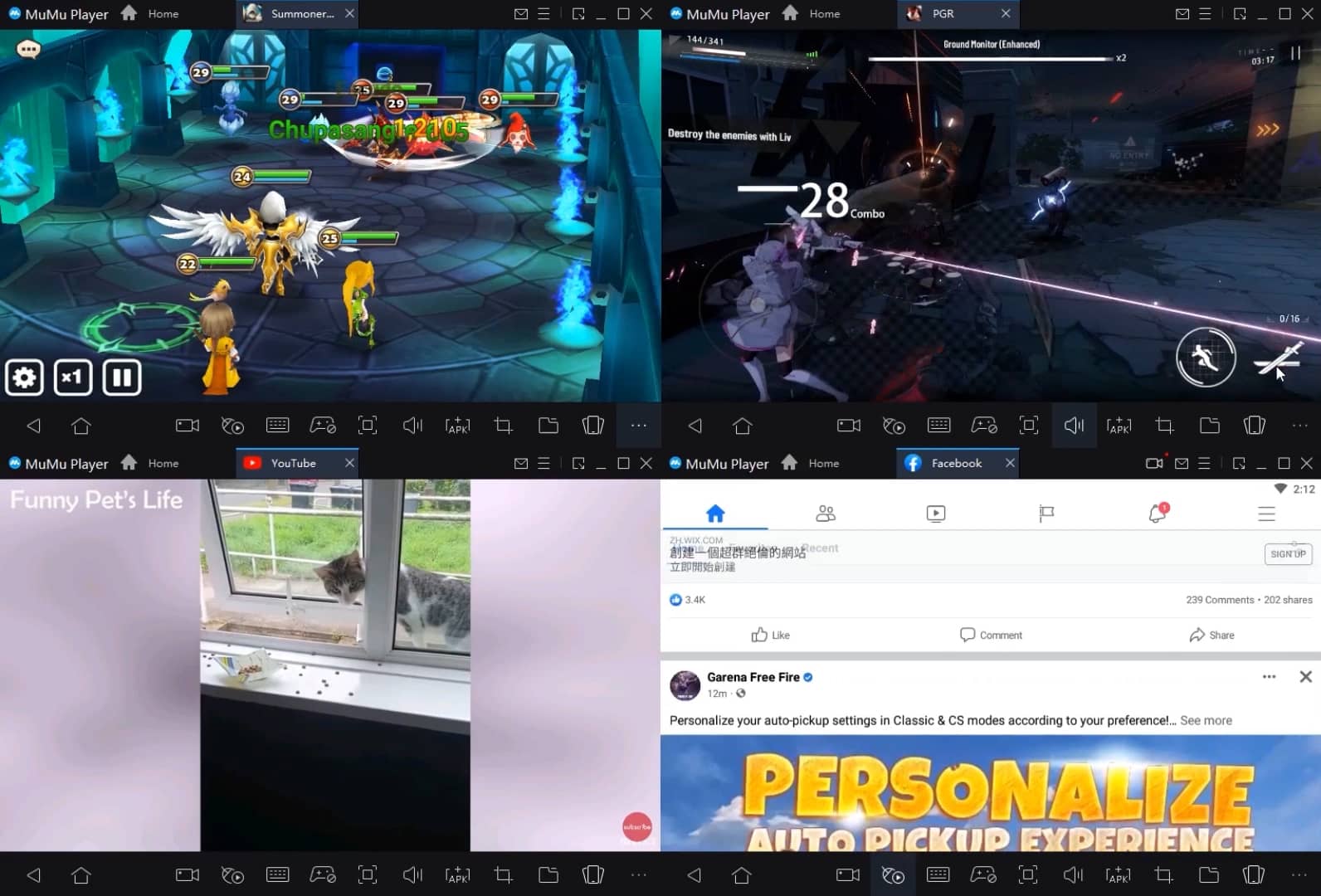
Run multiple games independently at the same time, easily manage multiple accounts, play games while hanging.
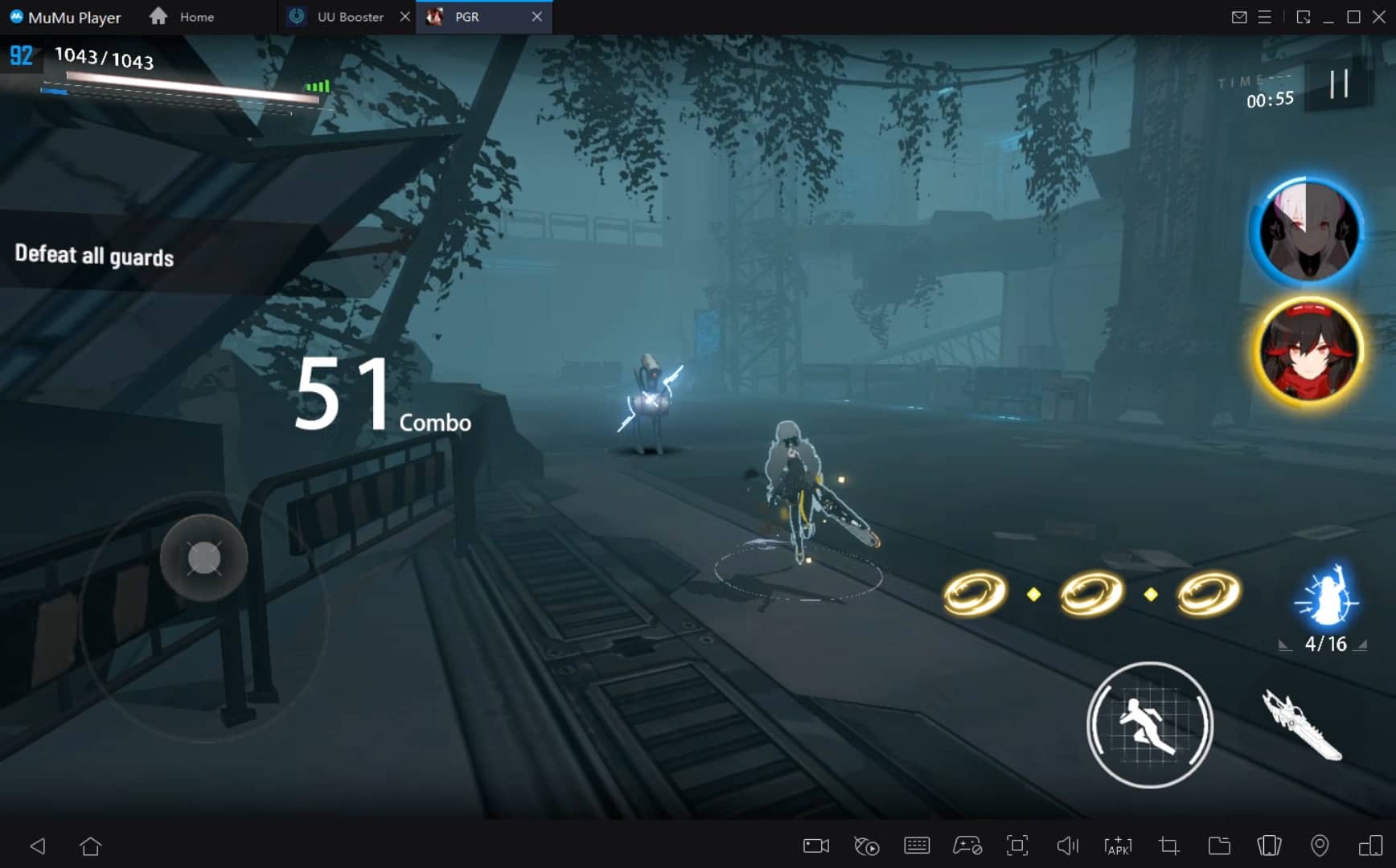
Break through FPS limit, and enjoy a seamless gaming experience without lag and delay!
Get a 3-second startup with 52% less memory usage and 65% more stability.
How to Download and Play DISGAEA RPG on PC and Mac
Installation Guide
① Download and install MuMuPlayer on your PC or Mac. It will identify automatically your current system and download the latest version.
② Start MuMuPlayer and complete Google sign-in to access the Play Store, or do it later.
③ Search DISGAEA RPG in the Play Store.
④ Complete Google sign-in (if you skipped step 2) to install DISGAEA RPG.
⑤ Once installation completes, click the DISGAEA RPG icon on the home page to start the game.
⑥ Enjoy playing DISGAEA RPG on your PC or Mac with MuMuPlayer.
Recommended Configuration for MuMuPlayer
Recommended computer configuration
For Windows:4-core CPU, 4GB RAM, i5 OS, GTX950+ graphics card
For macOS: 4-core CPU, 4GB RAM
Recommended Android Device performance settings
Graphics renderer mode
Vulkan and DirectX both supported
Performance Settings
Recommended performance settings: 2 cores, 2GB. >>Click here to learn>>How to adjust performance settings
Recommended Android Device Display Settings
Resolution Settings
Go to Device Settings > Display > Resolution Settings to adjust your device's resolution as needed.
FPS Settings
MuMuPlayer supports up to 240 FPS. >> Click here to learn>>how to enable high FPS mode
Recommended to enable VT
Enabling VT will significantly improve emulator performance, reduce screen freezing, and make games run more smoothly. >>Click here to learn>>How to enable VT
Get more news, guides and redeem codes about DISGAEA RPG
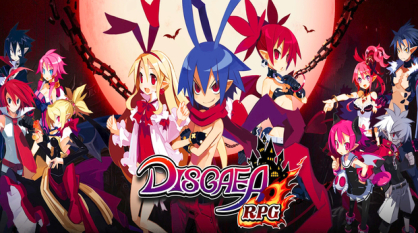
How to Play DISGAEA RPG on PC with MuMu Player

eFootball 2026 Playstyle Guide for Forwards – Scoring Tips
eFootball 2026 Beginne's Guide - Learn the Basics Fast
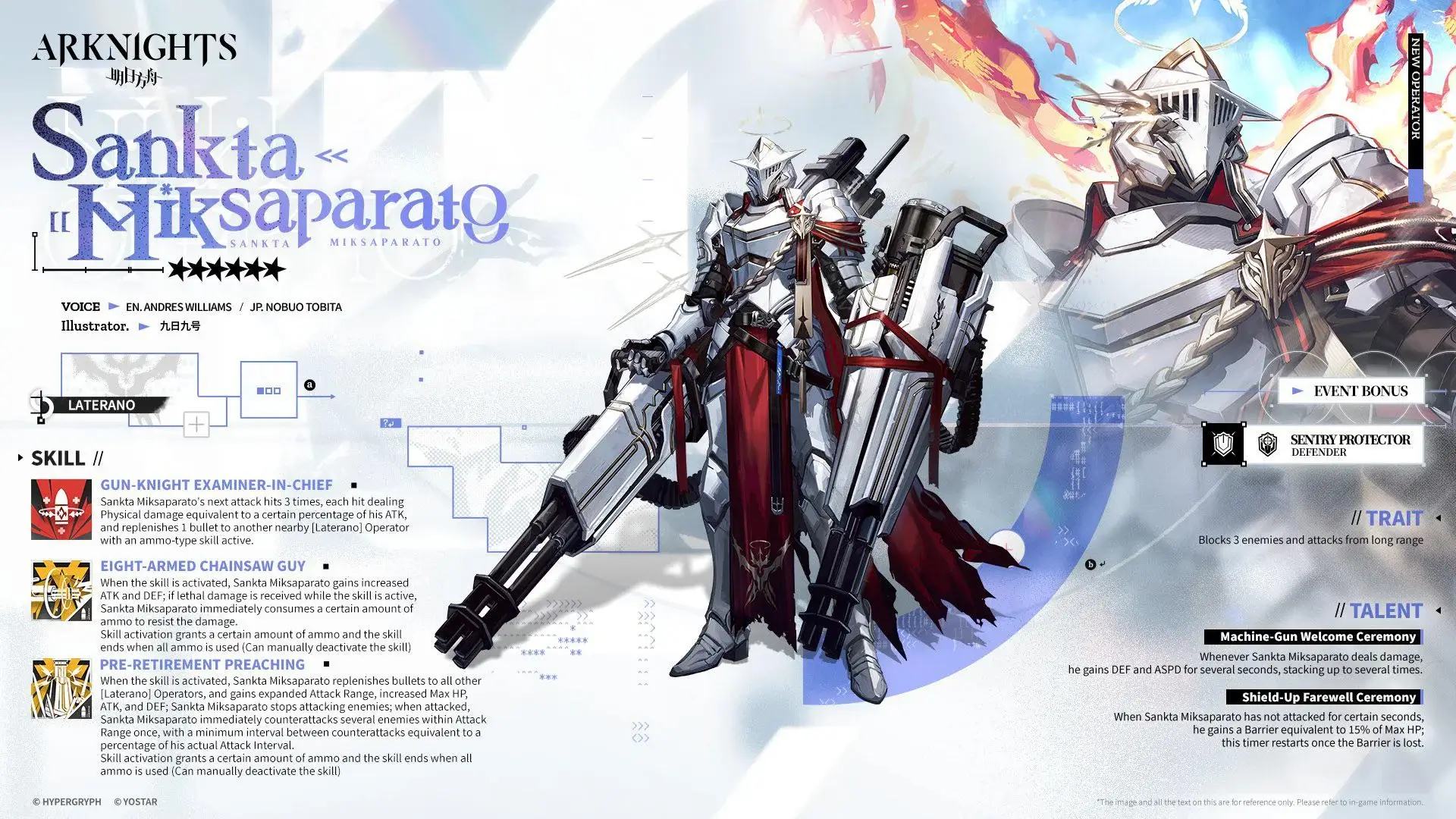
Arknights Sankta Miksaparato Build and Skill Guide: How to Maximize the New Defender
Arknights New Side Story Event “The Masses' Travels”: New Stages, Operators, and Rewards Await
Ragnarok Twilight Beginner Guide: Essential Tips & Early Progression
Ragnarok Twilight Career Guide: How to Master the Careers Efficiently
Ragnarok Twilight Redeem Codes (October 2025) – Free Rewards, Zeny, and Costumes