How to use the developer support function?
MuMuPlayer for Mac can assist developers in application development and debugging. We currently support managing Android devices through the Command-Line Tool, connecting to Android devices via ADB, and conveniently modifying network connection and flight mode status, etc. You can refer to the following documentation to make the most of MuMuPlayer for Mac! (Note: Please update to version 1.5.4 or above to use.)
Functional Entry and Introduction
Developer-related functions are located on the top menu bar of MuMuPlayer for Mac and each Android device.
Open MuMuPlayer for Mac and click on "Developer" to find "Open Command-Line Tool" for controlling MuMuPlayer for Mac and multiple Android devices.

On each Android device, click "Developer". In addition to the Command-Line Tool, you can also find controls for the current individual Android device: "Open ADB", “Restore/Disconnect from the Network,” “Enable Flight Mode,” etc., as well as a shortcut to “Open Developer Settings” on the current individual Android device.
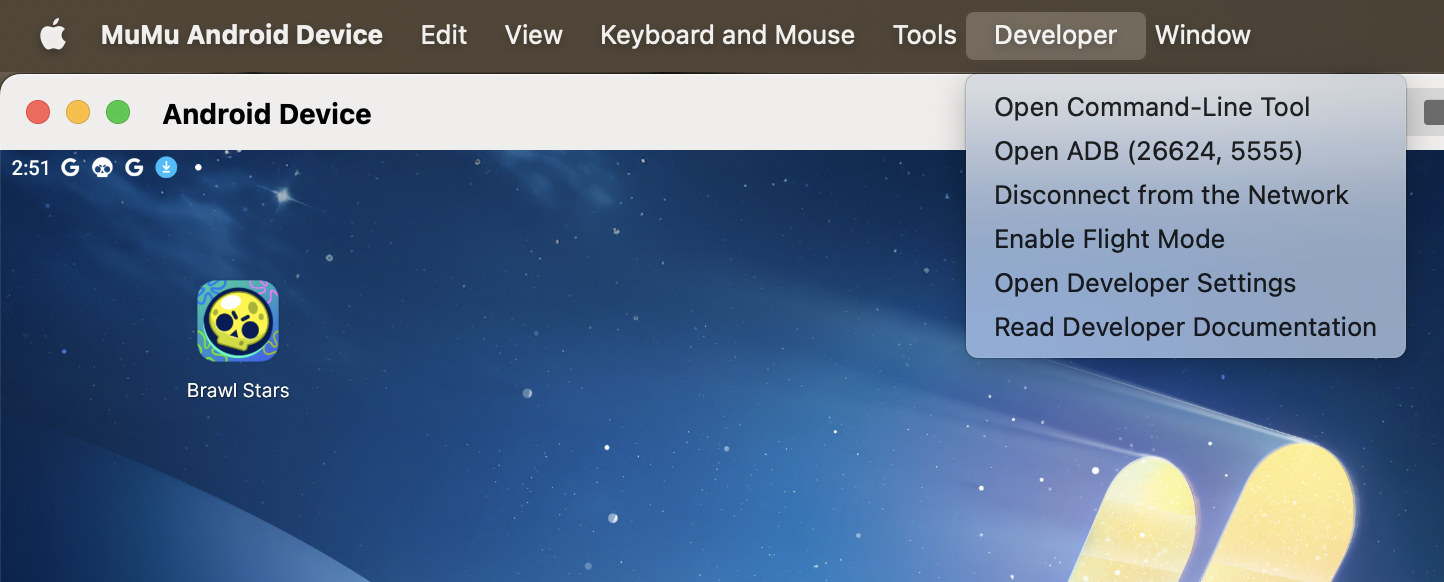
Under both menus, you can find “Read Developer Documentation" for the most up-to-date documentation on developer features.
Specific Features
1. Open Command-Line Tool
1. Where to find Command-Line Tool
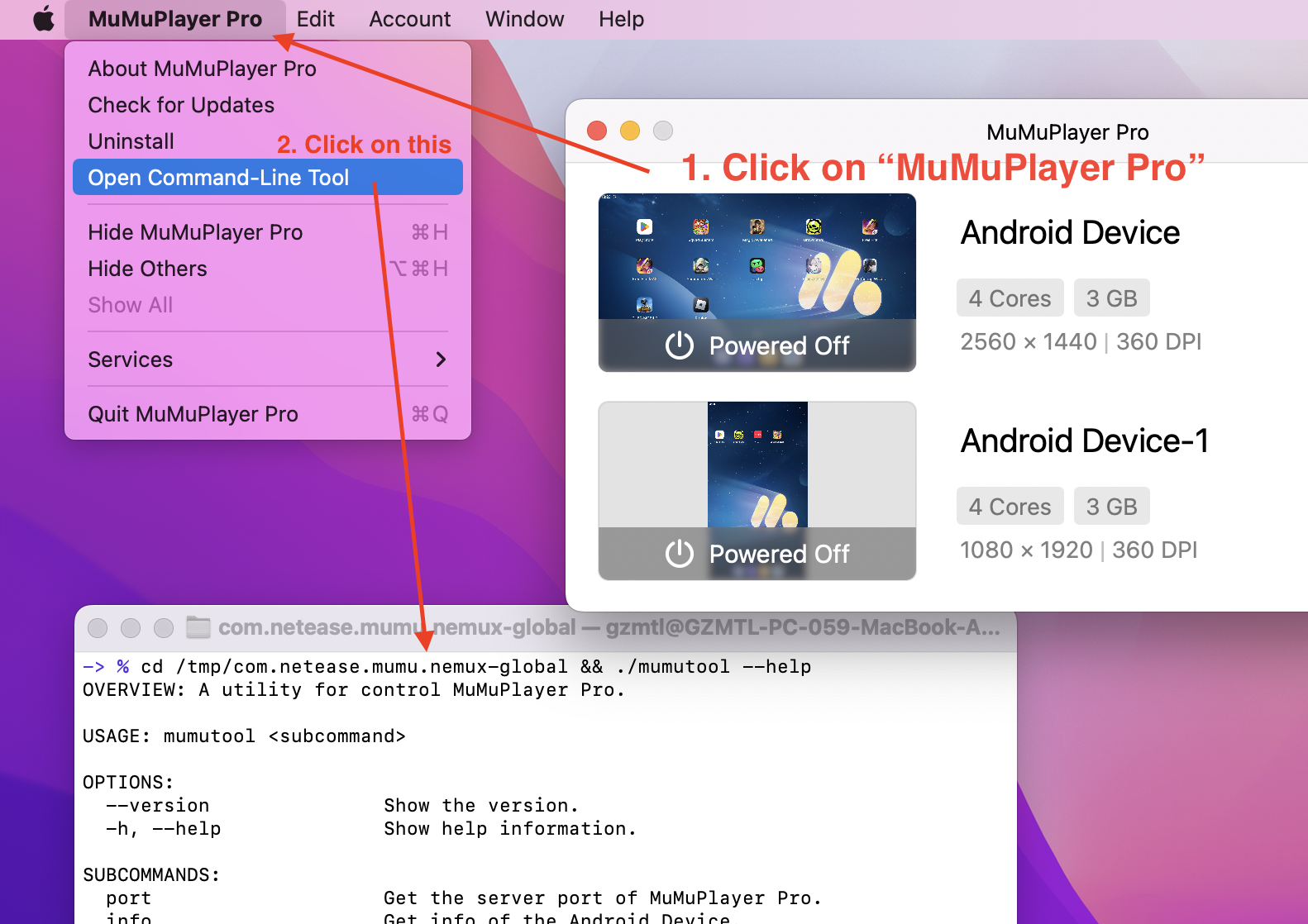
(1) Open MuMuPlayer for Mac.
(2) Click on the top menu bar "MuMuPlayer for Mac".
(3) Click on "Open Command-Line Tool".
In the Command-Line Tool window, you can input and execute commands.
2. How to use Command-Line Tool
(1) Get the server port of MuMuPlayer for Mac
· Command:
./mumutool port
· Tips:
If the server port of MuMuPlayer for Mac cannot be obtained, then all the following functions will be unavailable.
(2) Get info of the Android Device
· Command:
./mumutool info <device>
· Parameters:
<device>: Select the Android Device.
· Example:
./mumutool info 0 Get info of NO.0 Android Device
./mumutool info 0,2 Get info of NO.0 and NO.2 Android Device
./mumutool info all Get info of all Android Devices
(3) Create an Android Device
· Command:
./mumutool create [--type <type>] [--setting <setting>]
· Parameters:
<type>: Select the type of Android Device to create. (values: tablet, phone)
<setting>: Select the updated config for the Android Device.
· Example:
./mumutool create --type phone Create an Android Device of a phone type
./mumutool create --setting '{"vmCpuCount":1,"vmMemoryOfMB":1024}' Create an Android Device of 1 Core, 1GB
./mumutool create --setting /path/file.json Create an Android Device by configuring a json file
* Config Tips:
Boss Key: "bossKeyEnable" : true
Customized ADB Port: "customAdbPort" : 16384,
Notch Display : "displayCutout" : 0,
Dynamic Frame Rate: "dynamicFpsEnable" : false
When MuMuPlayer for Mac is running in the background, it will automatically reduce the frame rate to : "dynamicFpsLimitToLow" : 15
Confirmation when exit: "exitConfirmEnable" : true
FPS Counter: "fpsShowEnable" : false
GPU Fast Math: "gpuFastMathEnable" : false
GPU Model: "Adreno (TM) 640"
Latitude: "locationLatitude": "23.11",
Longitude: "locationLongtitude": "133.32",
Meters Elevation: "locationMetersElevation": "",
Device MAC Addresses: "macAddress" : "92:79:16:57:58:12"
Brand: "phonePropBrand" : "Redmi"
IMEI: "phonePropIMEI" : "869874032137430"
Model: "phonePropMiit" : "23078RKD5C"
Name: "phonePropModel" : "K60 Ultra"
Graphics Enhancement: "renderQualityEnable" : false
DPI: "resolutionDPI" : 240
Display Size: "resolutionWidthHeight" : "1600x900"
Android Device id: "simulationProps" : "android_id=123456"
System Disk Mode: "systemWritable" : false
MuMu Mouse Cursor Style: "trackCursorEnable" : false
ADB: "usingNormalADBPort" : true
Handle Vibration Amplitude: "vibrationAmplitude" : 0.59999999999999998
Handle Vibration Duration Correction: 0
Handle Vibration Duration Ratio: 0.80000000000000004
CPU: "vmCpuCount" : 3
Memory: "vmMemoryOfMB" : 3072
Device Name: "vmName" : "Android Device"
Root Access: "vmRootEnable" : false
Auto Window Rotation: "windowAutoRotationEnable" : true
Custom ADB Port number: "customAdbPort":12345
Tips: Some changes will take effect on the next launch.
*Detailed information in file.json:
{
"bossKeyEnable" : true,
"customAdbPort" : 16384,
"displayCutout" : 0,
"dynamicFpsEnable" : false,
"dynamicFpsLimitToLow" : 15,
"exitConfirmEnable" : true,
"fpsShowEnable" : false,
"gpuFastMathEnable" : false,
"gpuPropModel" : "Adreno (TM) 640",
"locationLatitude" : "23.11",
"locationLongtitude" : "133.32",
"locationMetersElevation" : " ",
"macAddress" : "92:79:16:57:58:66",
"maxFpsLimit" : 144,
"phonePropBrand" : "Redmi",
"phonePropIMEI" : "869874032137430",
"phonePropMiit" : "23078RKD5C",
"phonePropModel" : "K60 Ultra",
"renderQualityEnable" : false,
"resolutionDPI" : 240,
"resolutionWidthHeight" : "1600x900",
"systemWritable" : false,
"trackCursorEnable" : false,
"usingNormalADBPort" : true,
"vmCpuCount" : 3,
"vmMemoryOfMB" : 3072,
"vmName" : "Android Device",
"vmRootEnable" : false,
"windowAutoRotationEnable" : true
"customAdbPort":12345
}
(4) Clone/Delete/Open/Close/Restart the Android Device
· Command:
Clone: ./mumutool clone <device>
Delete: ./mumutool delete <device>
Open: ./mumutool open <device>
Close: ./mumutool close <device>
Restart: ./mumutool restart <device>
· Parameters:
<device>: Select the Android Device.
· Example:
./mumutool clone 0 Clone NO.0 Android Device
./mumutool delete 0,2 Delete NO.0 and NO.2 Android Device
./mumutool open all Open all Android Devices
./mumutool close 0 Close NO.0 Android Device
(5) Config the Android Device
· Command:
./mumutool config <device> [--setting <setting>]
· Parameters:
<device>: Select the Android Device.
<setting>: Select the updated config for the Android Device.
· Example:
./mumutool config 0 --setting '{"vmCpuCount":1,"vmMemoryOfMB":1024}' Config the setting of NO.0 Android Device to 1 Core, 1 GB
./mumutool config 0,2 --setting /path/file.json Config the setting of NO.0 and NO.2 Android Device by configuring a json file
· Tips:
For "Config Tips"and"Detailed information in file.json", you can refer to "(3) Create an Android Device".
(6) Control the Android Device
①About the App
· Command:
./mumutool control <device> [--action <action>] [--package <package>] [--path <path>]
· Parameters:
<device>: Select the Android Device.
<action>: Select the action to be triggered by the Android Device. (values: open_app, close_app, install_apk, uninstall_app, app_status)
<package>: Select the Android package bundle ID for the Android Device. Required for actions: open_app, close_app, uninstall_app, app_status.
<path>: Select the apk/apks/xapk file path to install on the Android Device. Required for actions: install_apk.
· Example:
./mumutool control 0,2 --action install_apk --path /path/QooApp.apk Install apk for NO.0 and NO.2 Android Device
./mumutool control 0 --action open_app --package com.qooapp.qoohelper Open apk for NO.0 Android Device
./mumutool control 0 --action close_app --package com.qooapp.qoohelper Close apk for NO.0 Android Device
./mumutool control 0 --action uninstall_app --package com.qooapp.qoohelper Uninstall apk for NO.0 Android Device
./mumutool control 0 --action app_status --package com.qooapp.qoohelper App status in NO.0 Android Device
· Tips:
You need to run the corresponding emulator for your command to take effect.
②About Tools
· Command:
./mumutool control <device> [--action <action>] [--type <type>]
· Parameters:
<device>: Select the Android Device.
<action>: run_tool
· Example:
./mumutool control 0 --action run_tool --type goBack Activate "Go Back" on NO.0 Android Device
./mumutool control 0 --action run_tool --type goHome Activate "Go Home" on NO.0 Android Device
./mumutool control 0 --action run_tool --type showActivity Activate "Open recent Apps" on NO.0 Android Device
./mumutool control 0 --action run_tool --type showVolumePanel Show Volume on NO.0 Android Device
./mumutool control 0 --action run_tool --type addVolume Increase volume by 1 on NO.0 Android Device
./mumutool control 0 --action run_tool --type reduceVolume Decrease volume by 1 on NO.0 Android D
End of Article