How to enable graphics enhancement?
MuMuPlayer for Mac has optimized high-performance graphics for specific games, including "Genshin Impact." To activate graphics enhancement settings for supported games, follow these steps to elevate your gaming experience.
Activating Enhanced Graphics in "Genshin Impact":
1. Set the game's graphics to high quality. For "Genshin Impact," navigate to "Settings" > "Graphics," set "Image Quality" to "Custom." Then adjust each setting to high.
2. Open the Android Device settings. Switch to "Display," set the display size to 2560×1440 and check the option for "Graphics Enhancement." Finally, restart the Android Device to apply the settings.
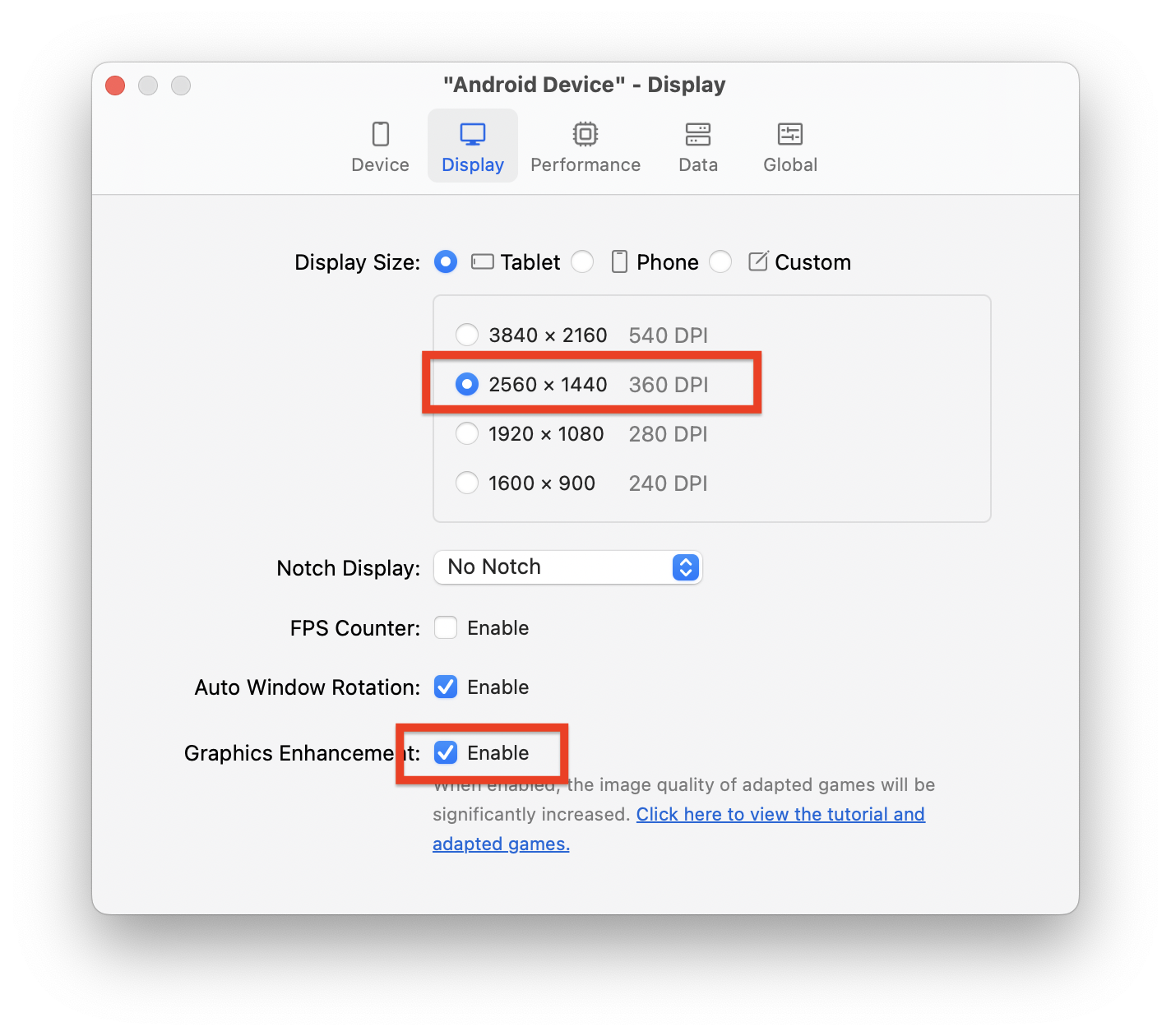
If you enable graphics enhancement, please consider the following:
1. Graphics enhancement will increase system resource usage.
2. Game updates may render high-performance settings ineffective, potentially causing unusual visuals. In such cases, disable the graphics enhancement. After the release of an updated version of MuMuPlayer for Mac, this issue can be resolved. Then update the emulator and re-enable high-performance graphics to restore the enhanced experience.
End of Article