How to use gesture navigation on MuMuPlayer?
Gesture navigation on MuMuPlayer for Mac
MuMuPlayer for Mac is designed from the perspective of Mac devices and adapts to users' common touchpad usage habits. It provides default gesture navigation.
· Swipe down with two fingers on the desktop - Pull down the notification panel
· Swipe up with two fingers on the desktop - Open the drawer to view all applications
· Swipe left or right with two fingers on the desktop - Switch desktop pages
· Double-tap with two fingers on the middle of the touchpad - Activate multitasking
· Double-tap with two fingers on the left side of the touchpad - Switch to the previous application
· Double-tap with two fingers on the right side of the touchpad - Switch to the next application
If you have any recommended gesture operations, feel free to join our Discord community and consult with our official support team for assistance.
Gesture navigation on MuMuPlayer for Windows ARM
MuMu Player (Windows ARM) now supports Full-Screen Gesture Controls. Follow the guide below to master them quickly.
I. Supported Full-Screen Gestures
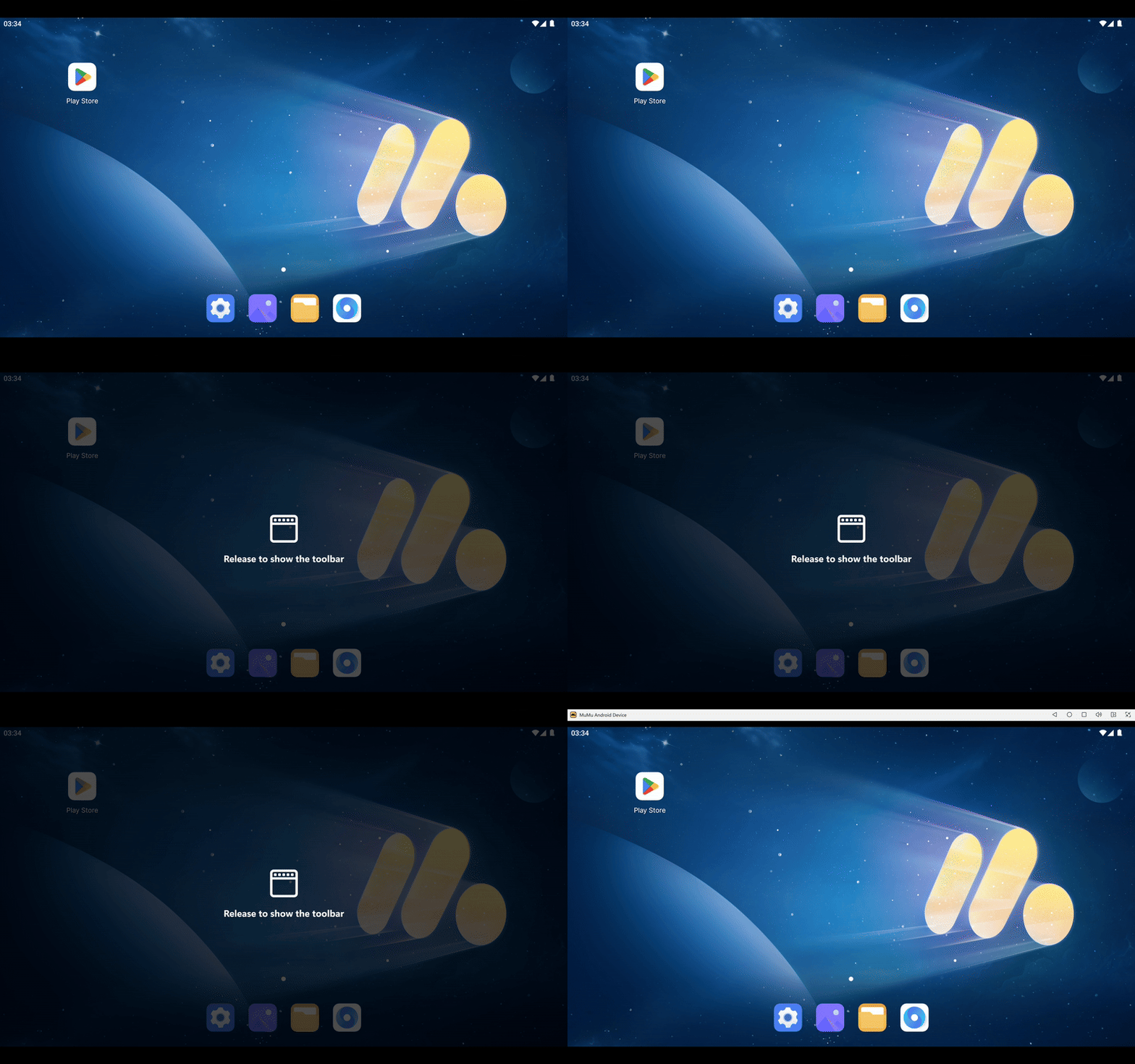
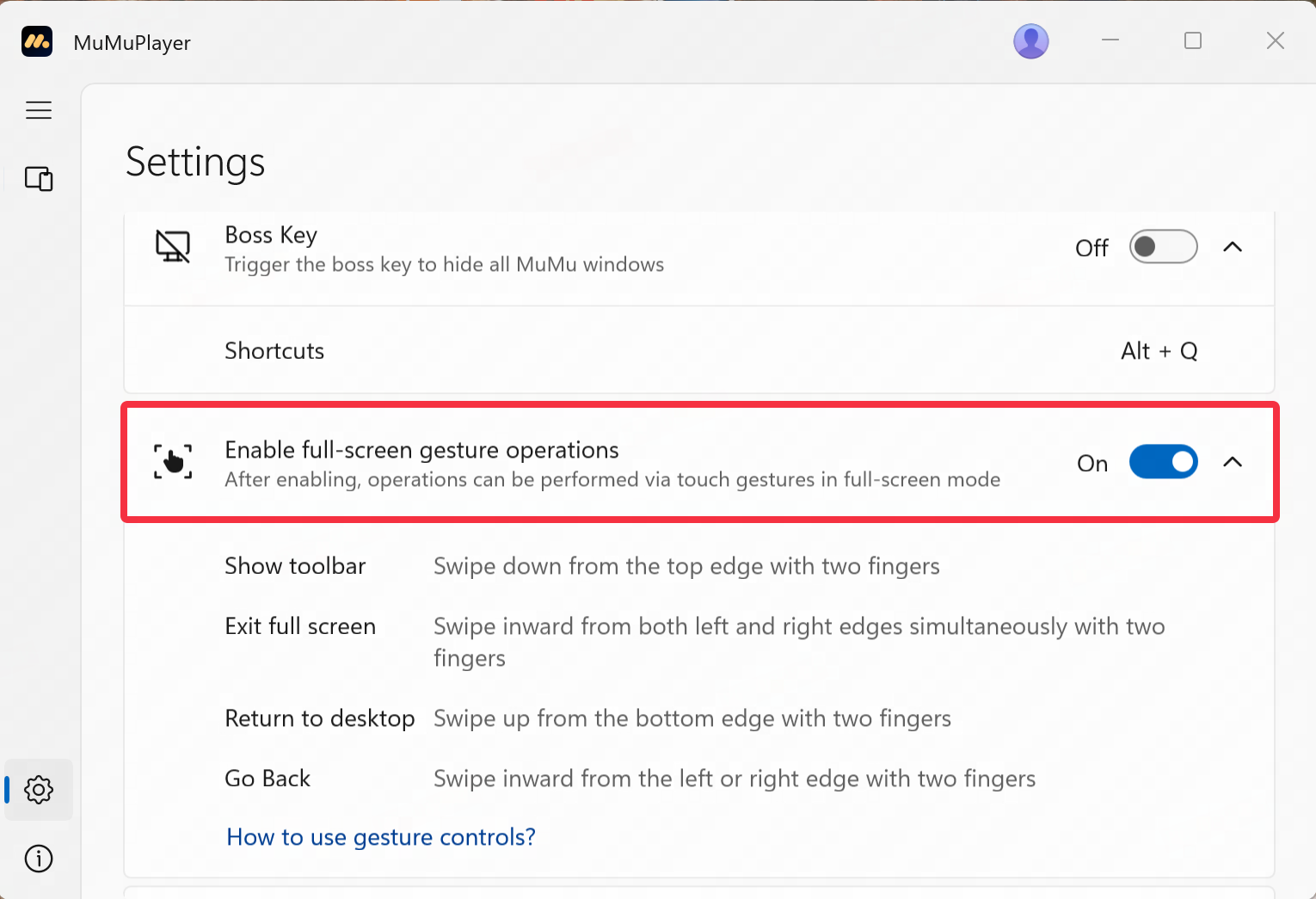
1. Show Toolbar
Touch the top edge of the screen with two fingers and swipe down to reveal the Android system toolbar.
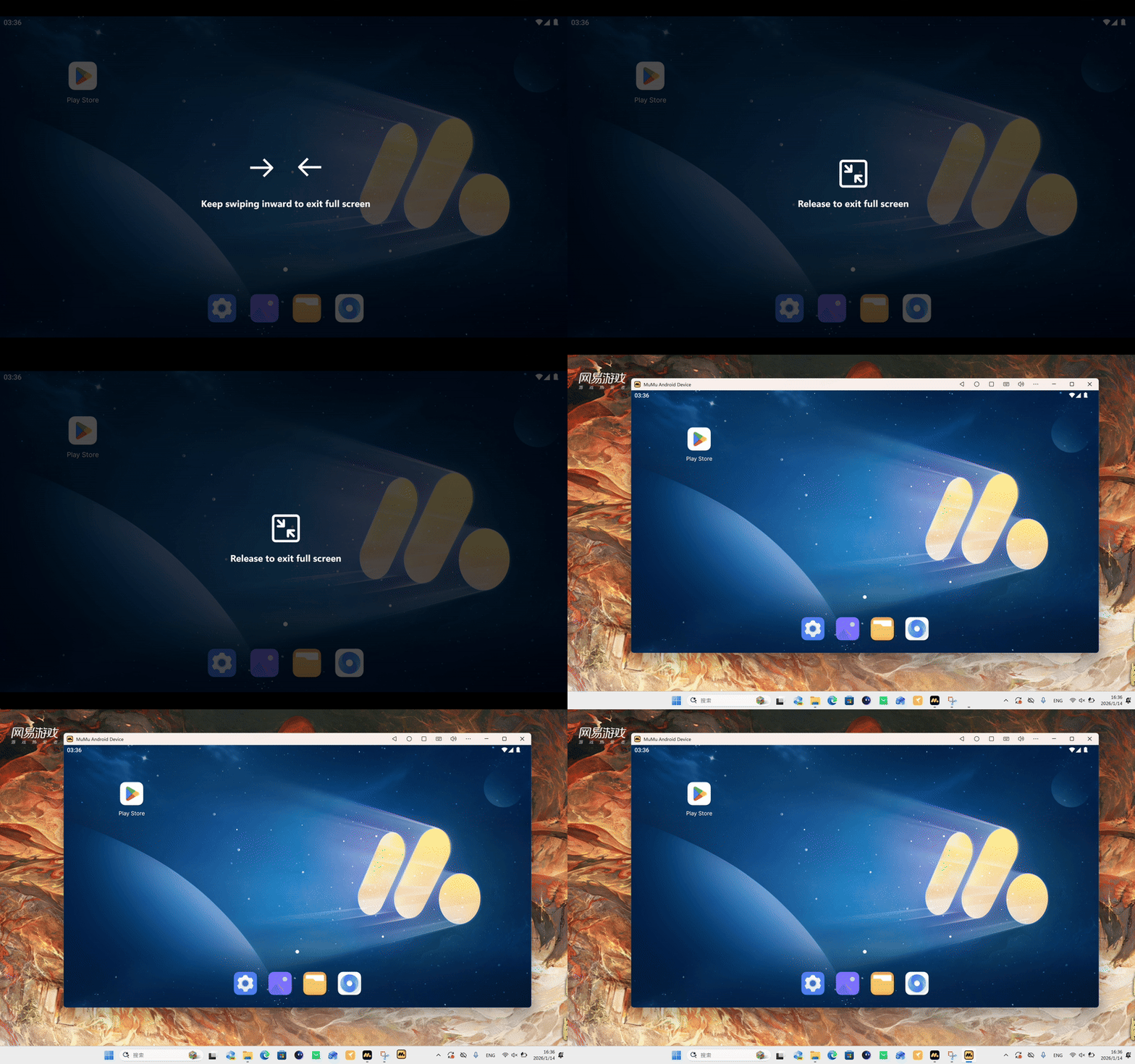
2. Exit Full Screen
Touch the left and right edges of the screen simultaneously with one finger on each hand, then swipe towards the center of the screen to exit full-screen mode.
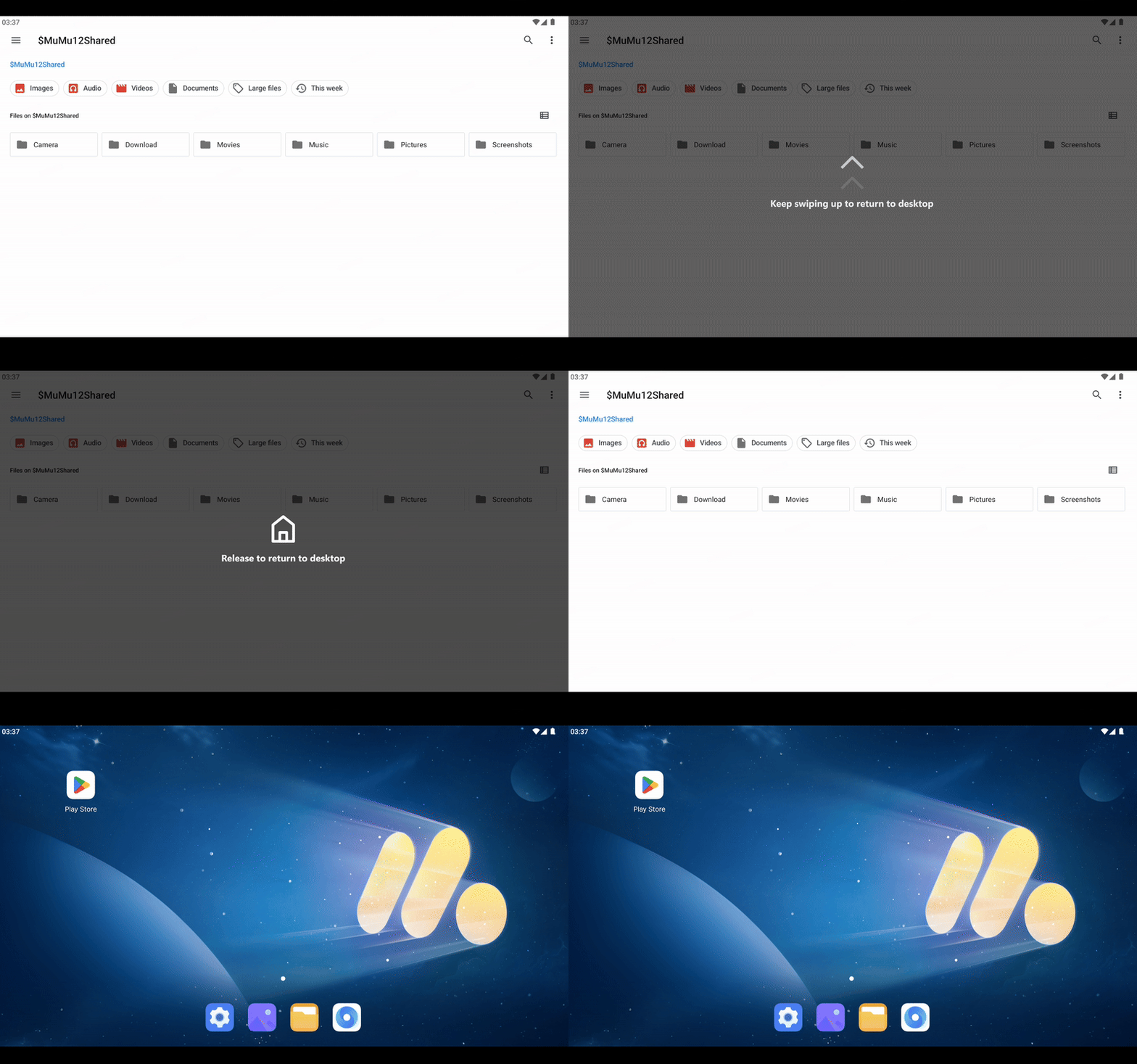
3. Return to Home Screen
Touch the bottom edge of the screen with two fingers and swipe up to return to the Android home screen.
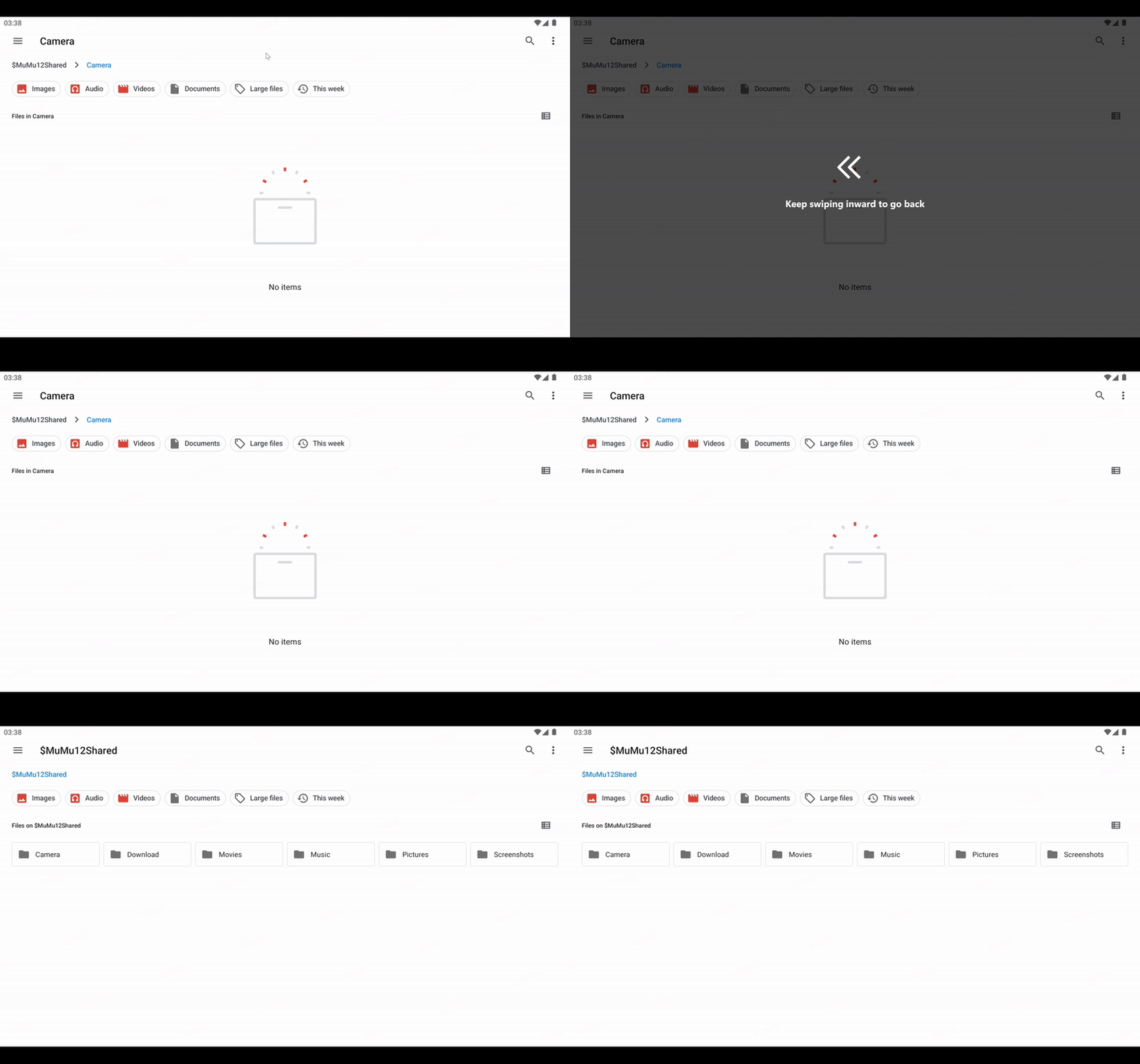
4. Go Back (Return to Previous Page)
Touch the left or right edge of the screen with two fingers and swipe inward to return to the previous interface.
II. Full-Screen Gesture Toggle
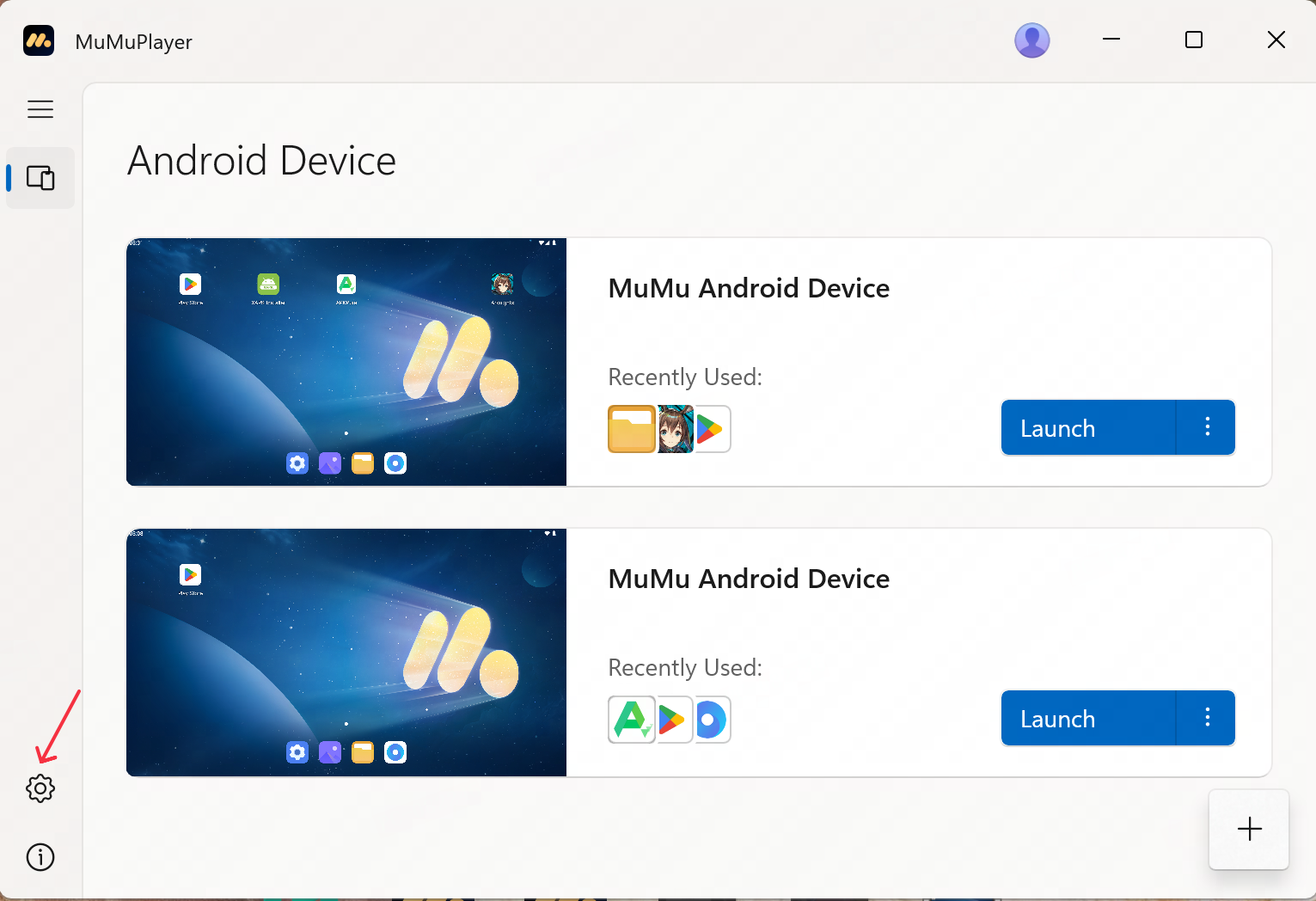
Click the gear icon in the bottom-left corner of the MuMu Player (Windows ARM) main interface to enter Settings. Scroll down to find the "Enable full-screen gesture operation" option and click the toggle switch on the right to turn the feature on or off.
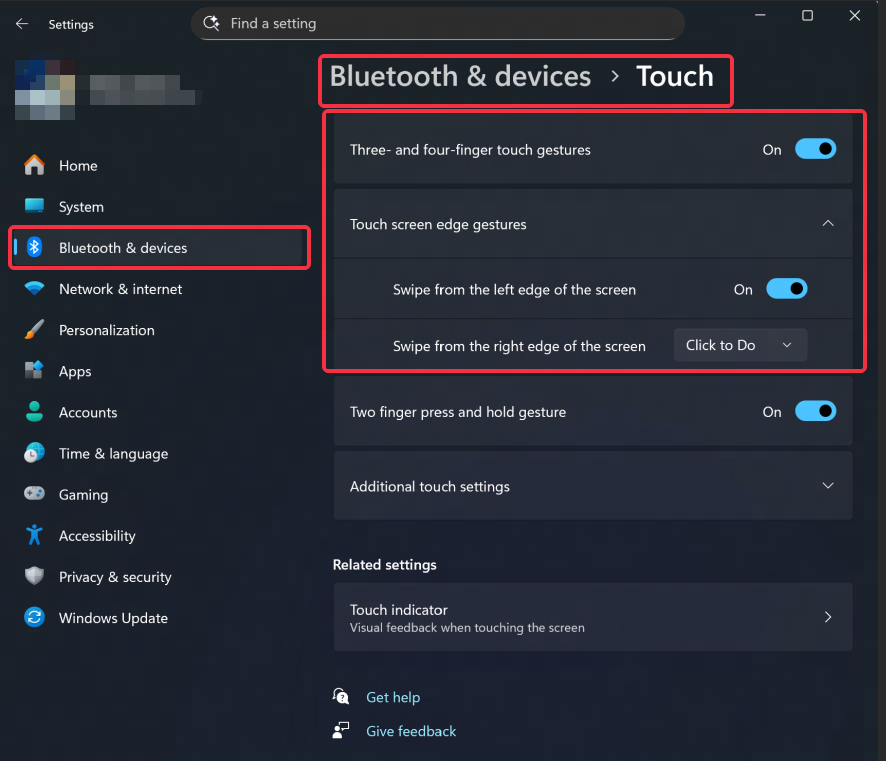
Single-finger vertical or side swiping currently conflicts with Windows system gestures. If necessary, please disable the conflicting gestures through your Windows system settings.
End of Article