How to Launch MuMuPlayer as Administrator?
When launching MuMuPlayer or MuMuPlayer(ARM), you may see a pop‑up message: “MuMuPlayer will be launched with administrator privileges. Do you want to continue?” If this occurs, follow the steps below to enable administrator rights.
For Windows
Steps to Run MuMuPlayer as an administrator
1. Put the installation package on another disk, and then open and run it. If it does not work, please refer to step 2.
2. Enable permissions.
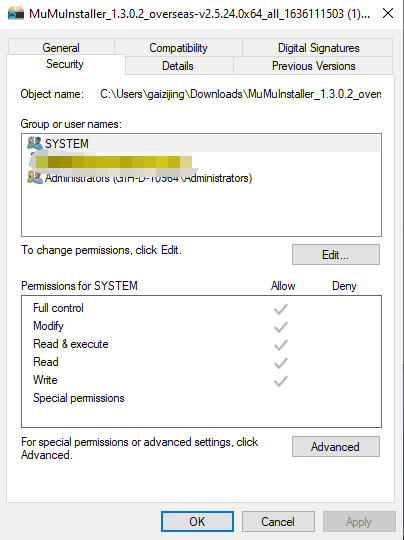
2.1 Right-click the installation package: "Properties"-"Security".
2.2 Allow "full control" in the system to see if it can be installed normally; if not, please refer to step 3.
3. Run the installer directly
After clicking "Start" on the computer, enter "%tmp%" in the input box and press "Enter", find the exe file starting with nemu in the folder and install it directly.
For Windows (ARM)
Steps to Run MuMuPlayer(ARM) as an administrator
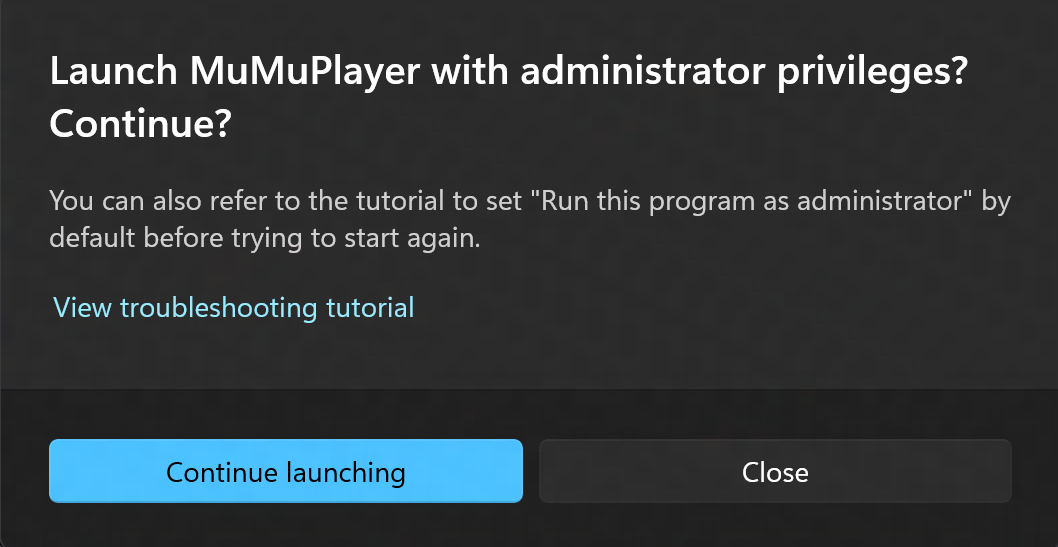
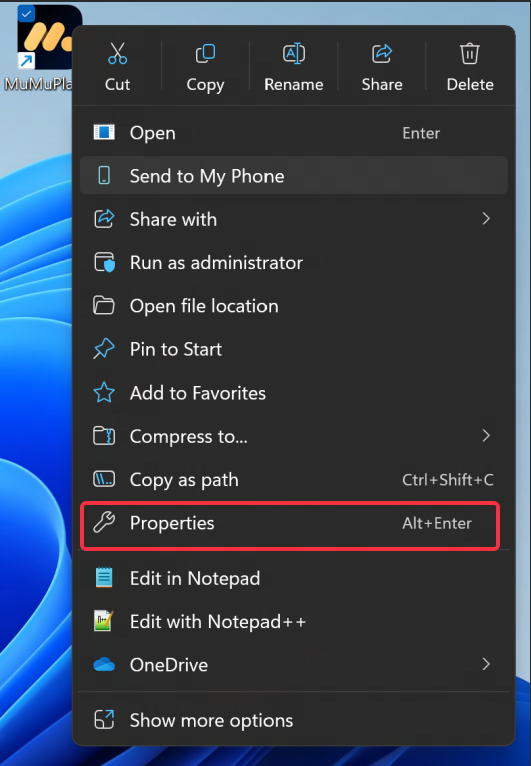
1. Open the Properties window of MuMuPlayer (ARM)
Right‑click the MuMuPlayer (ARM) icon on your desktop and select Properties.
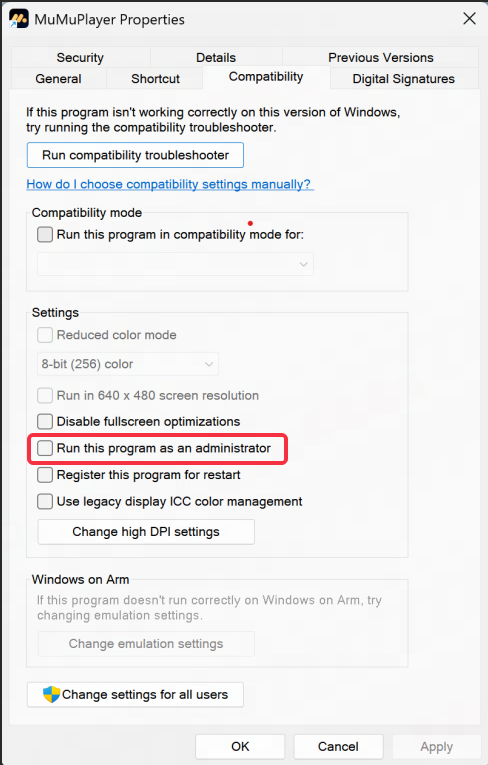
2. Grant administrator privileges
In the Properties window, go to the Compatibility tab, check the box for Run this program as an administrator, then click OK. Double‑click the icon to launch MuMuPlayer (ARM) with administrator rights.
End of Article