How to fix the DNS resolution failure when MuMuPlayer downloads/updates?
When some users download and install MuMuPlayer, they may encounter a prompt saying DNS resolution failure. Users who encounter this problem can refer to the following solutions:
Click https://nstool.netease.com/ to check whether the network IP address and DNS address are in the same state or city.
1. If they are different, save the changes, restart the computer, and try again. The method for querying and changing the DNS address is as follows:
(1) Query the DNS address: Press "Win+R", enter "CMD" and press Enter to open the command window, enter "ipconfig /all", and find the DNS address of the current network in the "DNS server" line, as shown in the figure below: "10.224.112.2";
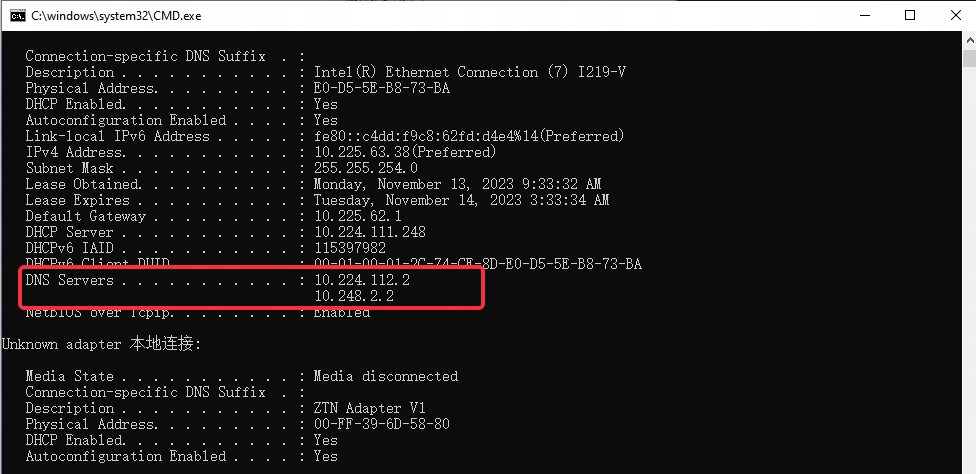
(2) Change the DNS address: In the computer's network connection area, right-click on "Open Network and Internet Settings", click on "Change Adapter Options", select the connected network (if the connected network is wired, click "Ethernet"; if the connected network is wireless, click "Wi-Fi"), right-click the network and select "Properties", scroll down in "Network" to find "Internet Protocol Version 4 (TCP/IPv4)", double-click to open the properties window, select "Use the following DNS server addresses", and fill in the "Preferred DNS server" field.
2. If the issue persists, you can try changing the computer's DNS address to 114.114.114.114, 223.5.5.5, 101.226.4.6, or 223.6.6.6 in sequence. After making the changes, press "Win+R" - enter "CMD" and press Enter to open the Command window - enter "ipconfig /flushdns" - click "Enter", then restart the emulator (or emulator installation package) and try again.
Note: Campus network users can change the computer's DNS settings to the school's DNS address and try again after restarting the computer.
End of Article