MuMuPlayer File Transfer Tutorial
MuMuPlayer provides you with the File Transfer feature to enable file communication between Android shared folders and computer shared folders. Here is a tutorial on how to import files from your computer to Android, and export files from Android to your computer.
1. Function Introduction
Click the "Main Menu" button in the upper-right corner and find "Shared Folder" under "More Tools."
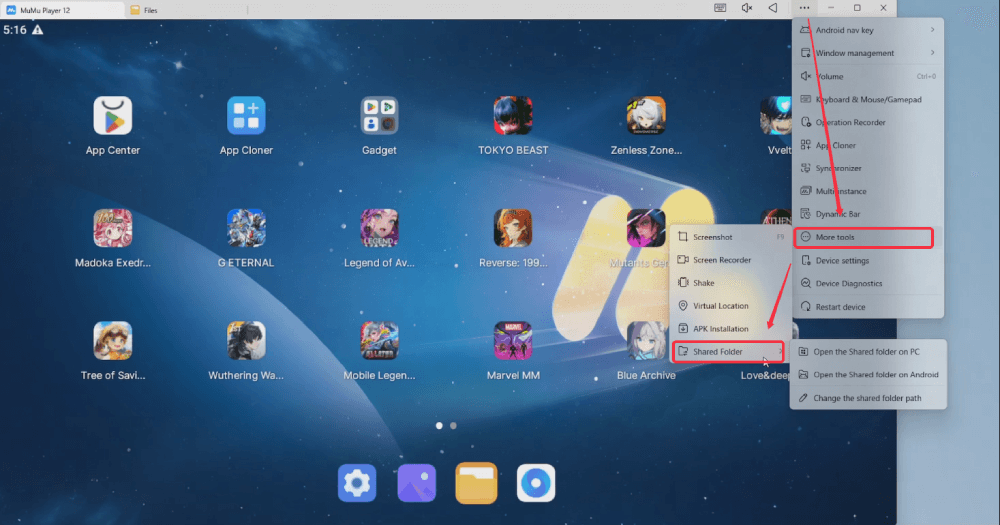
You will see [Open the Shared folder on PC] and [Open the Shared folder on Android]. When a file is placed in one of the paths, it can be found in the other path. Simply click to open the Shared Folder on either your PC or Android device.
When you click the input box, you can select the full path for easy copying.
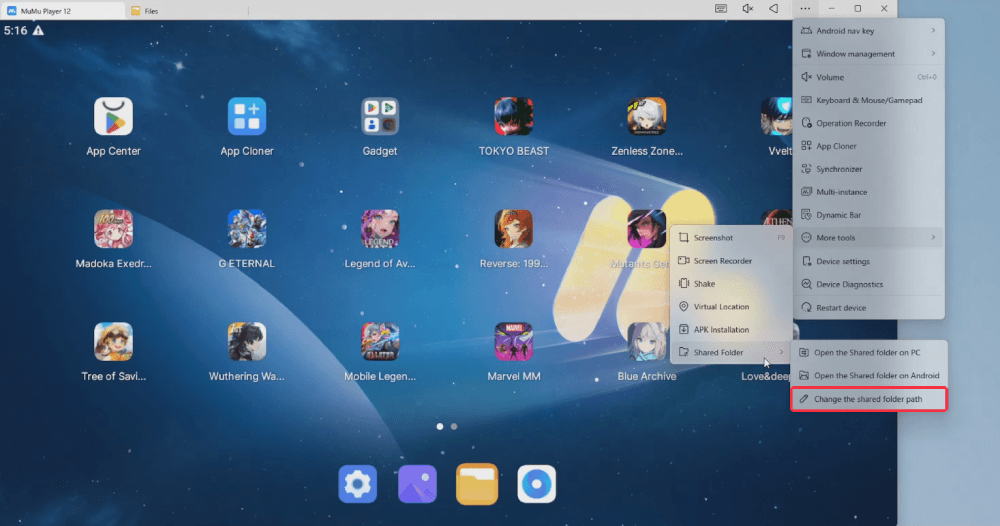
Note: You can click the [Change the shared folder path] button to customize the folder path.
2. File Import/Export Tutorial
(1) Import computer files into the emulator
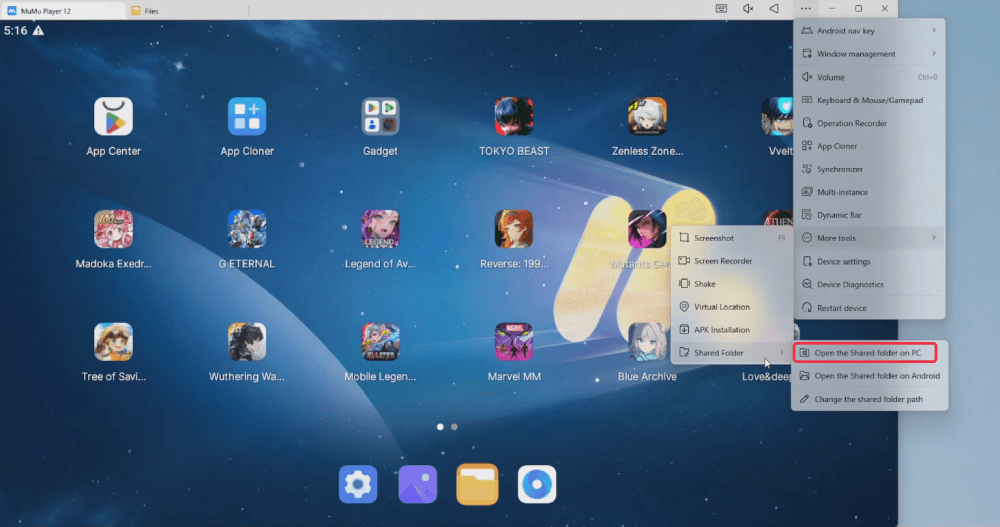
Step 1: Click the "Main Menu" button in the upper-right corner and go to "Shared Folder" under "More Tools." Then click the [Open the Shared folder on PC] button and copy or move the files you want to import into the emulator to this folder.
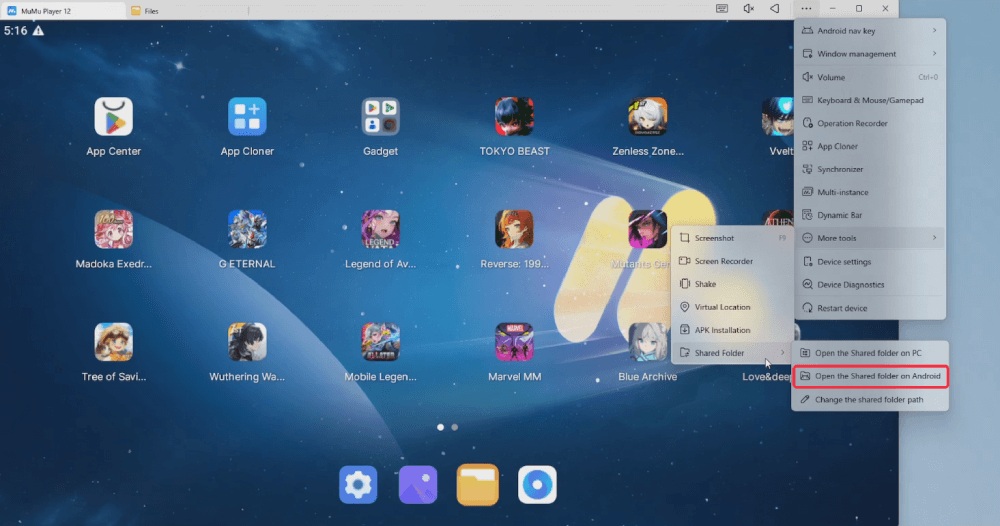
Step 2: Click the [Open the Shared folder on Android] button, and you can find the imported files.
If you need to save the file to another Android path, you can refer to the following steps:
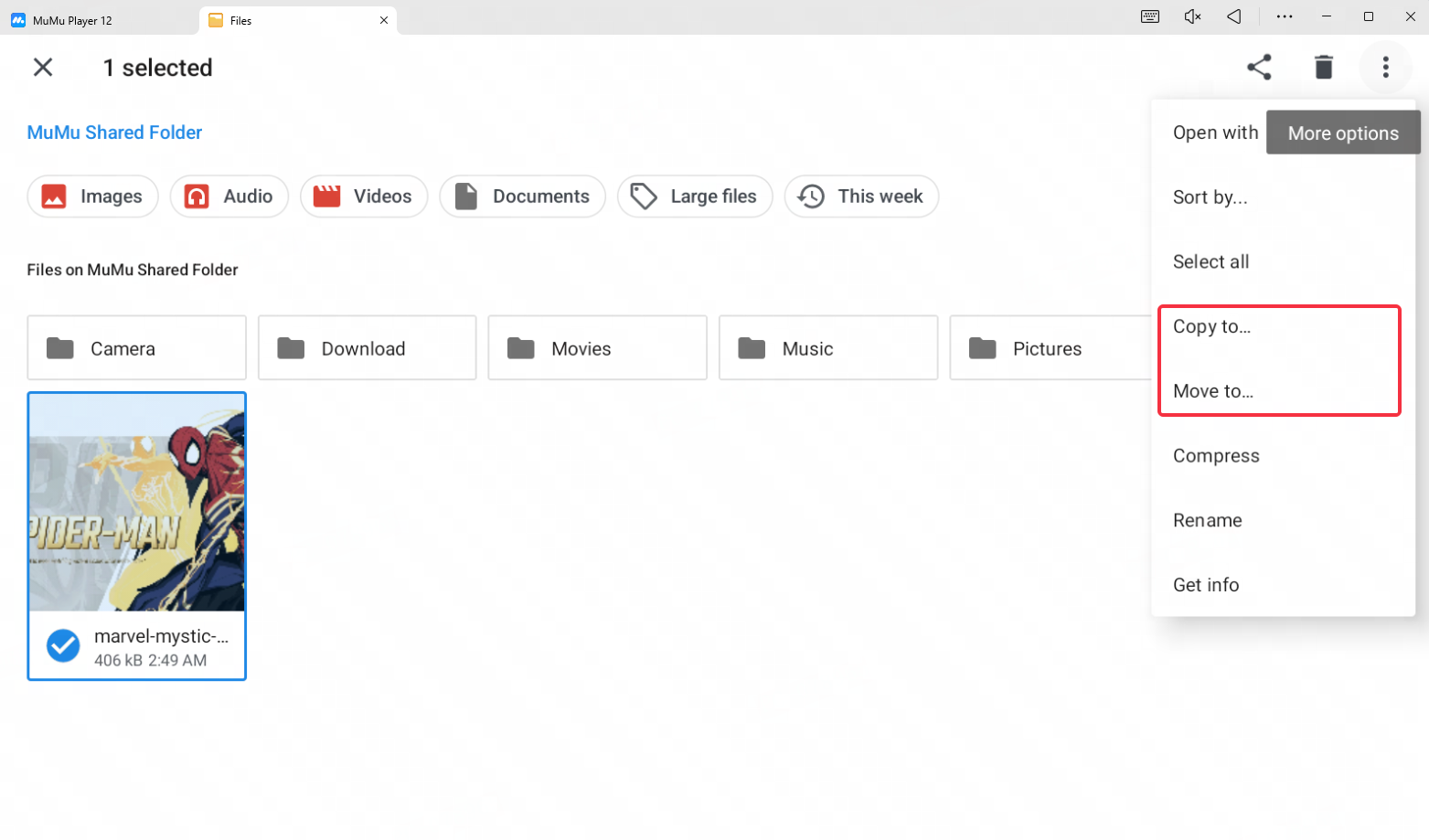
First, right-click the file you want to move, then click the button in the right corner to find [Copy to...] or [Move to...].
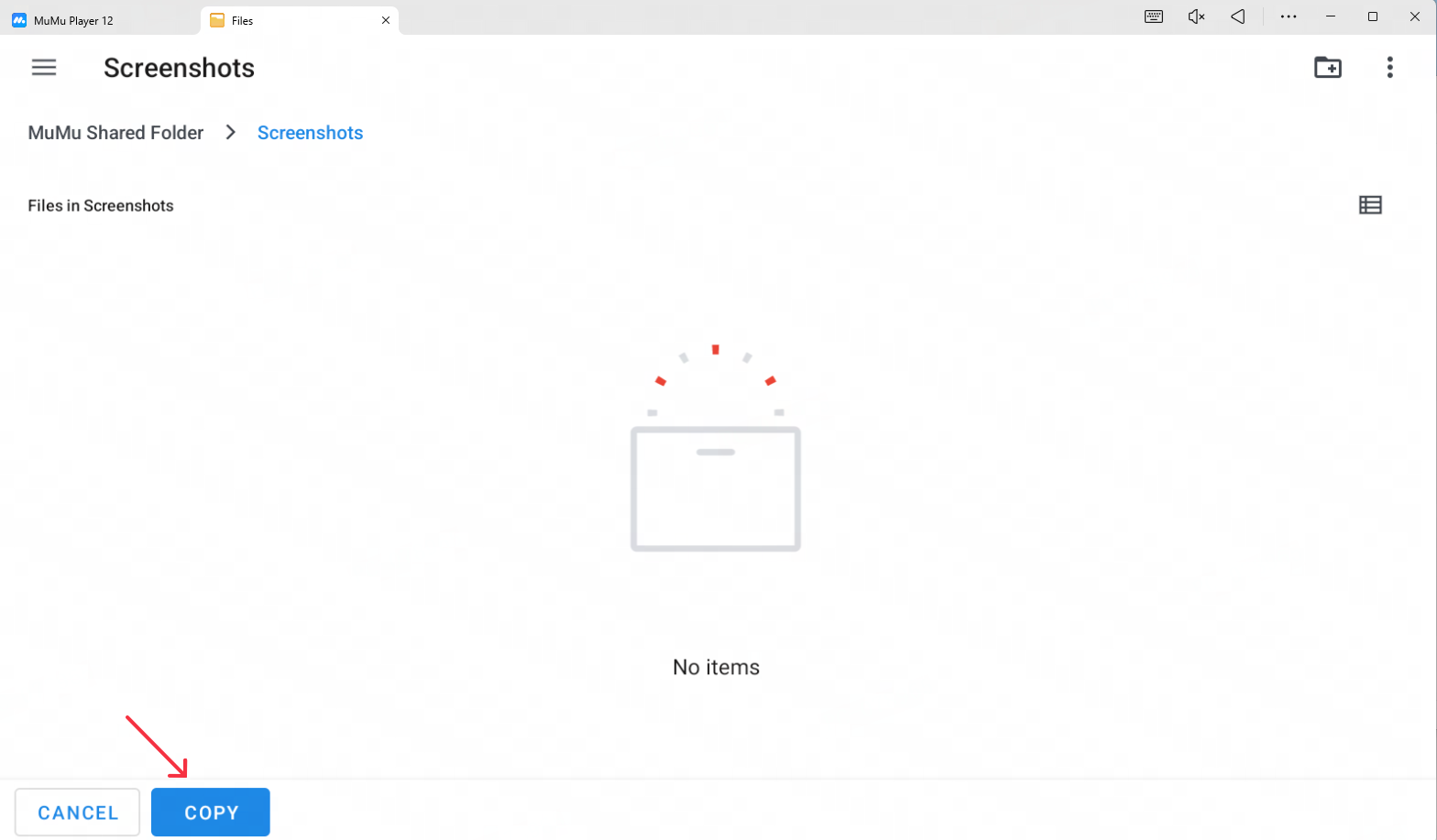
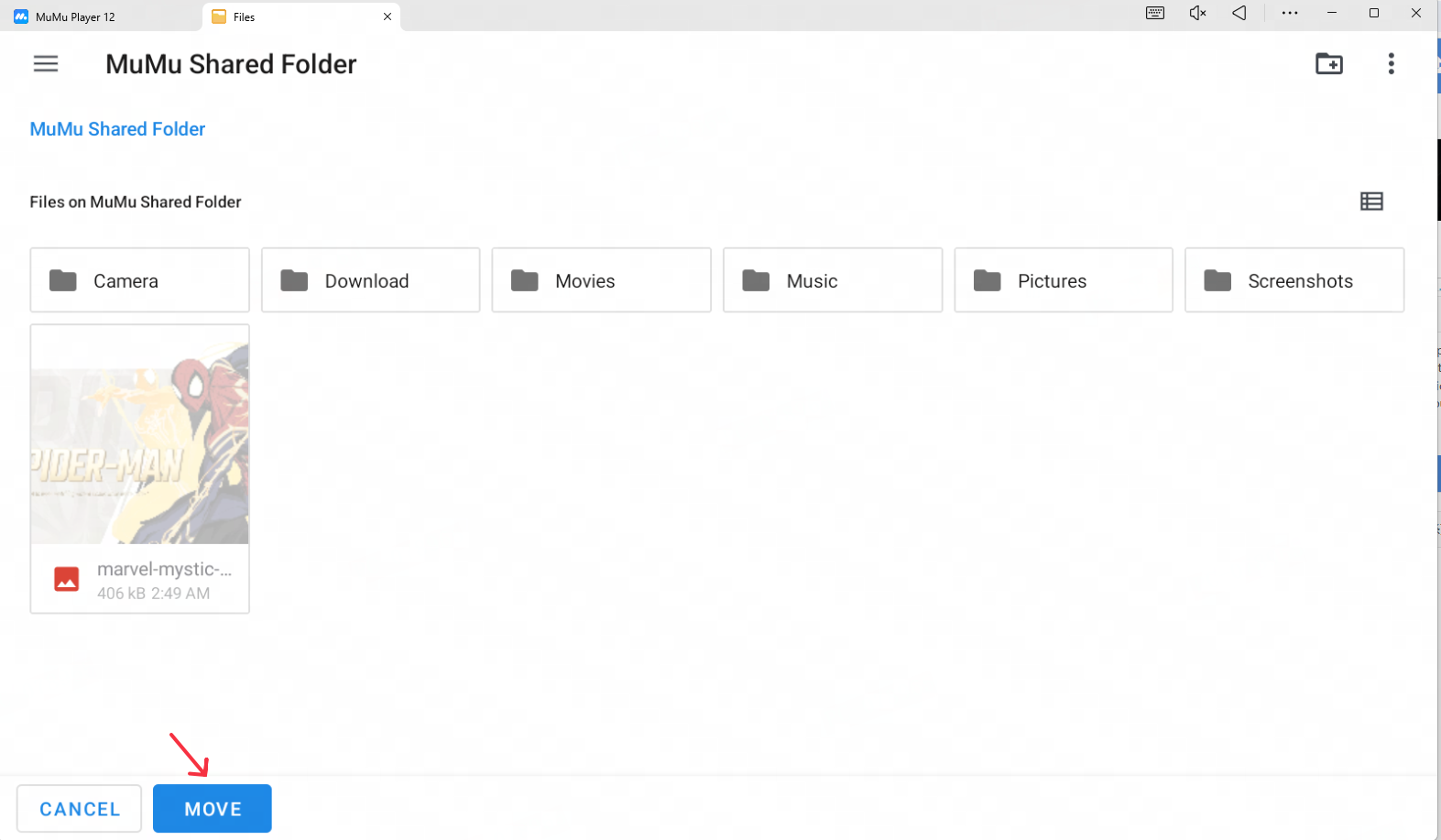
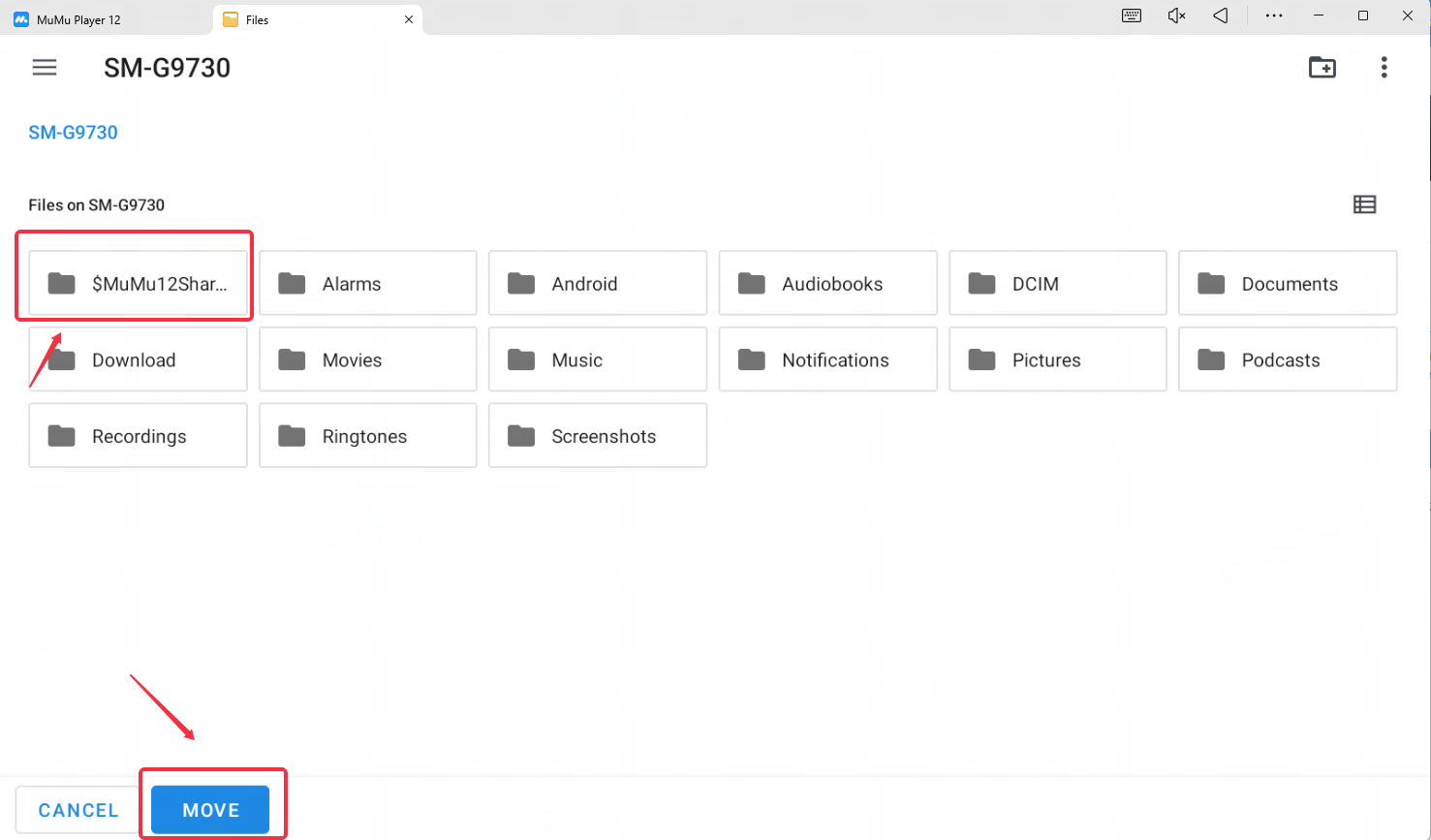
Second, Select the target path to complete the copy or move.
(2) Export the files in the emulator to the computer
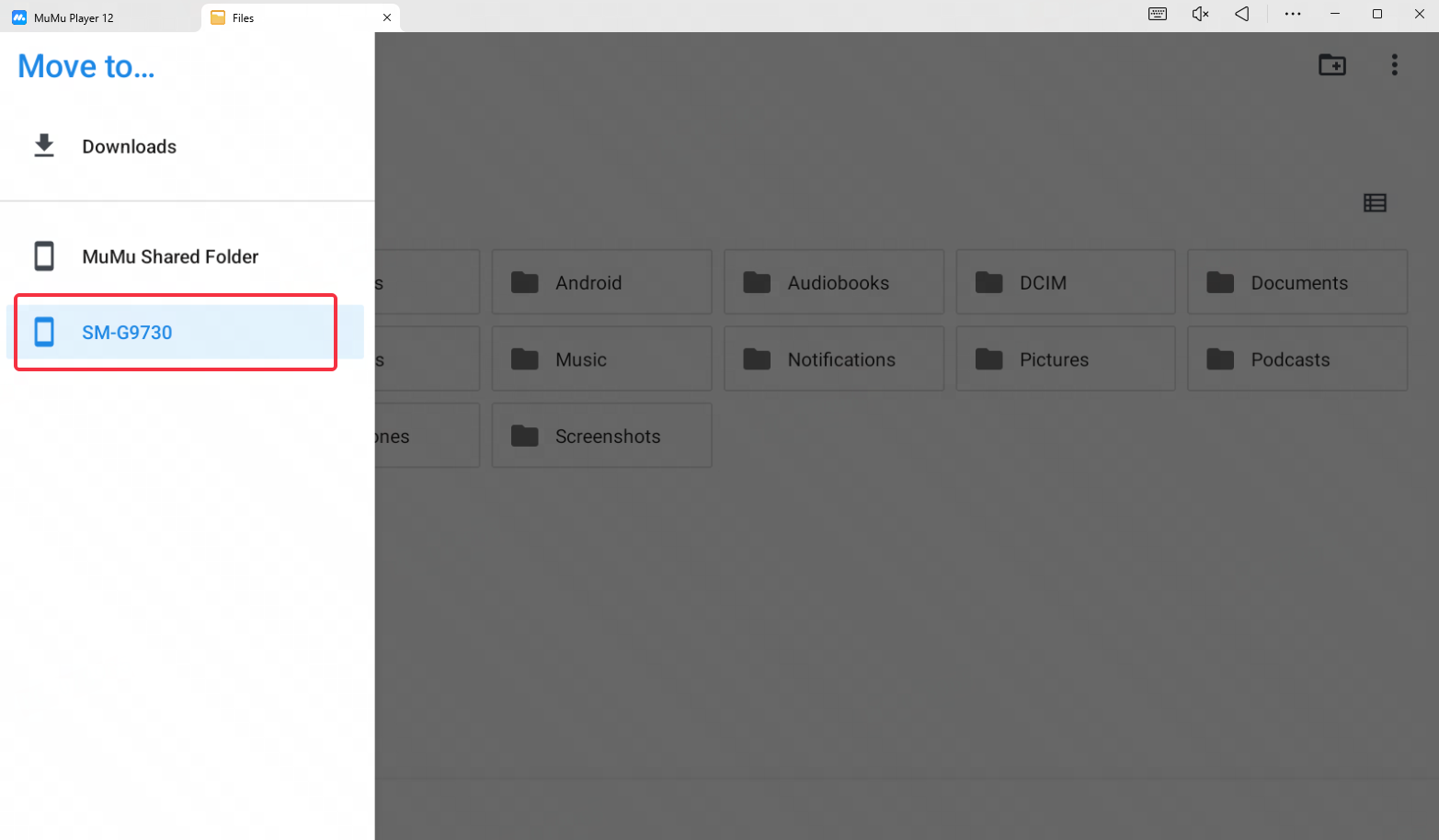
Step 1: First, save the files in the emulator that need to be exported to the computer to the Shared Folder on Android. As with the above copy or move operation, select the target path as [Android shared path] $MuMu12Shared.
Step 2: Click [Open the Shared folder on PC] to find the exported file.
End of Article