How to fix graphics card driver crashes in MuMuPlayer?
How to Fix the "Failed to Initialize Graphics Components" Error in MuMuPlayer?
When launching MuMuPlayer, you may see the message "Failed to initialize graphics components." This error is usually caused by an issue with the graphics driver, an outdated driver version, or missing or corrupted graphics components. Follow the methods below in order.
Method 1: Restart Your Computer
Save any work in progress and restart your computer, then launch MuMuPlayer again. If the error persists, proceed to the next method.
Method 2: Update Your Graphics Driver
- Press Win+X and open Device Manager.
- Expand Display adapters to check your computer's graphics card model.
- Visit the official website of your graphics card manufacturer to download and install the latest stable graphics driver. If your computer has both integrated and dedicated graphics, we recommend updating both drivers to the latest versions.
- After installation, restart your computer and launch MuMuPlayer again.
For detailed instructions on updating drivers for different graphics cards, see How to Update Your OpenGL or Graphics Driver Version.
Method 3: Install or Repair DirectX 11
If your graphics driver is already up to date, the system's graphics components may be missing or corrupted. Follow the tutorial to install or repair DirectX 11. After completing the installation or repair, restart your computer and launch MuMuPlayer again.
For detailed instructions, see How to Install DirectX 11.
Method 4: Reinstall MuMuPlayer Over the Existing Installation
If your graphics driver is already up to date, MuMuPlayer's graphics components may be missing or corrupted. Try reinstalling MuMuPlayer over the existing installation:
- Completely exit MuMuPlayer and all running Android devices.
- Download the Latest Version of MuMuPlayer.
- Run the installer and reinstall MuMuPlayer to the original installation directory. Do not manually delete the existing installation directory.
- After installation, restart MuMuPlayer.
Reinstalling MuMuPlayer over the existing installation will not actively delete data from your existing Android devices. For detailed instructions, see How to Reinstall MuMuPlayer.
Method 5: Reinstall Your Graphics Driver
If MuMuPlayer still fails to launch after updating the graphics driver, try completely uninstalling and reinstalling the graphics driver. Before proceeding, confirm your graphics card model and download the corresponding official driver installer in advance.
For detailed instructions, see How to Uninstall and Reinstall Your Graphics Driver.
Method 6: Switch the Graphics Rendering Mode
Go to Device Settings > Performance, switch to another graphics rendering mode, and then restart MuMuPlayer.
Still Not Resolved?
If the issue persists after completing the steps above, open the menu in the upper-right corner of the MuMu Android device and select Problem Diagnosis. Submit the diagnostic information and a screenshot of the error page to online customer support.
For instructions on accessing diagnostic information, click the menu in the upper-right corner of the emulator and select Help Center, then Problem Diagnosis.
How to fix graphics card driver crashes in MuMuPlayer?
If you encounter an abnormal situation where the graphics card driver crashes when using MuMuPlayer, you can refer to the following steps to switch the graphics card rendering mode or update the graphics card driver and restart the emulator to try.
Click "SettingS", in "Performance", switch the graphics card rendering mode setting of MuMuPlayer, that is, switch the graphics card rendering mode currently used by the emulator to another mode, and restart the emulator.
Update the graphics card driver, but some users do not know which type their computer graphics card belongs to. For details, please refer to the following steps:
1. Check the graphics card model of your computer
Press "Win+X", select "Device Manager", find "Display Adapter" - your graphics card, and determine whether the computer graphics card is NVIDIA, AMD or Intel (the picture below is for N card users).
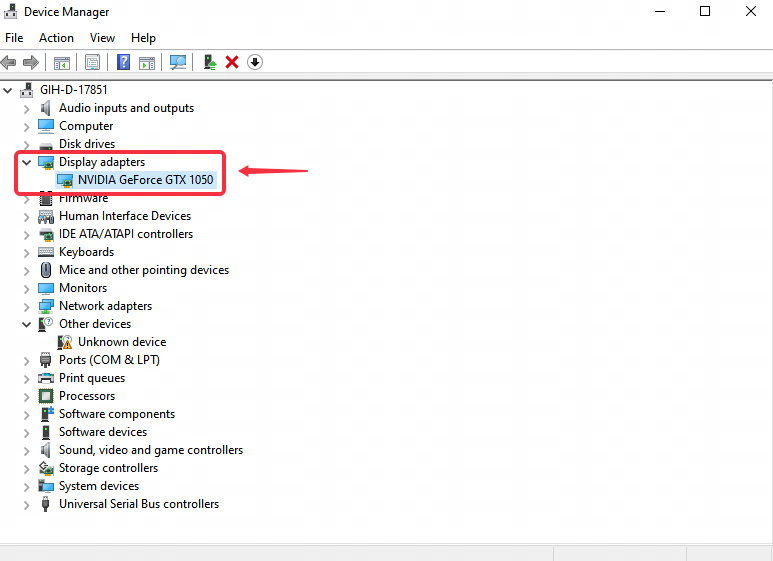
- NVIDIA: N card users
- AMD: A card users
- Intel: I card users
2. How to update the graphics card driver
N card user update driver method
It may be caused by incompatibility between the latest or older versions of the N card driver, which can be resolved by rolling back or updating the graphics card driver, such as version 496 and above.
Driver download steps:
First, visit the NVIDIA official website and search according to your computer graphics card model.
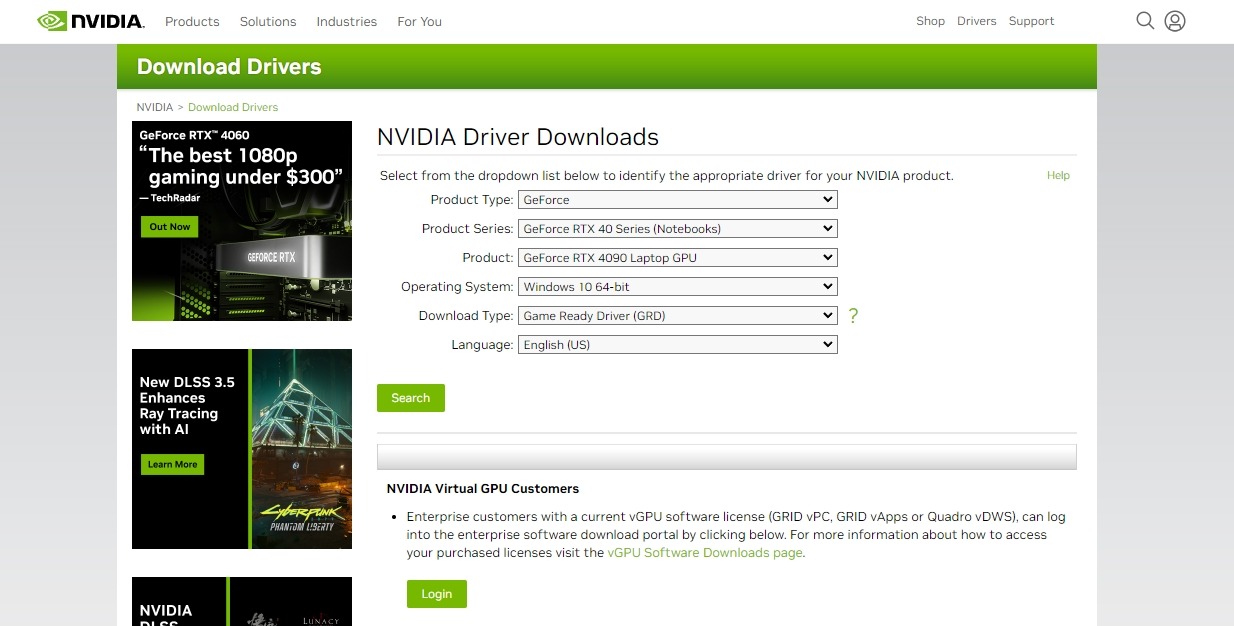
Second, in the driver search results, click to download GEFORCE GAME READY - WHQL version 472.12 or a higher version.
Third, after the download is complete, run the driver installation package. Once the installation is finished, restart your computer to run the game normally.
If it fails, disable the graphics card and enable it again.
Note: If you are using the Win11 system, some graphics card drivers may not support vulkan after updating the driver. It is recommended to use the Win10 system.
If you are still prompted that the graphics card driver is not supported after the update, you need to update the graphics card driver. For example, AMD CPU users need to update the AMD graphics card driver, and Intel CPU users need to update the Intel graphics card driver. The update method is as follows.
A card user driver update method
The AMD graphics card needs to go to the AMD driver official website to obtain the latest version and update it.
Download steps:
Visit AMD graphics driver official website. On the AMD graphics card driver official website page, locate the area highlighted in the red box in the image below, filter the graphics card model according to your computer's configuration, and click Submit after completing the selection;
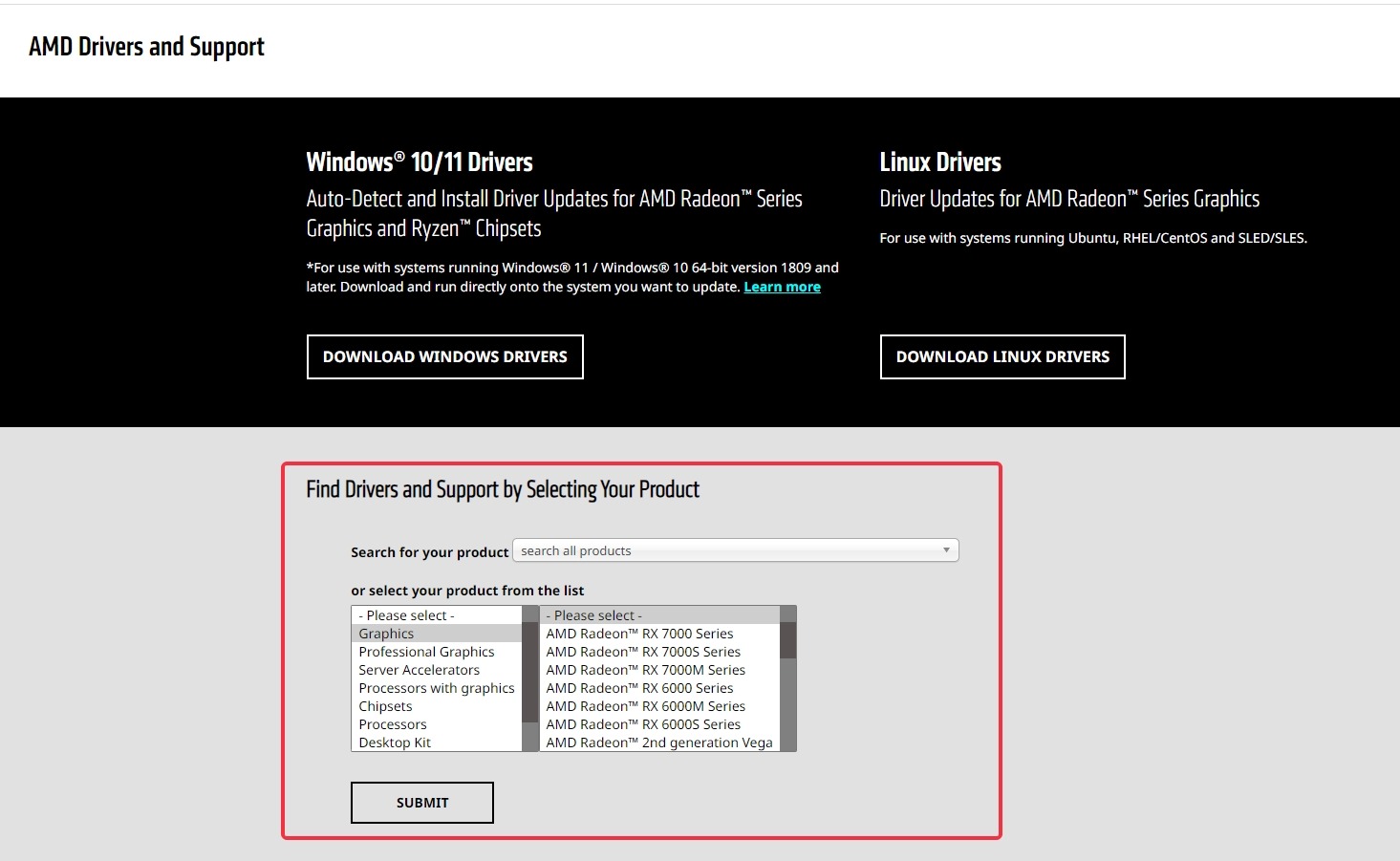
After submission, the page will redirect to the option to obtain the corresponding system version. Select the version that matches your computer's system version to download it.
Method for I card users to update drivers
I card users need to download the driver from the official website of intel and install it.
The download and installation steps are as follows:
Step 1: Go to Intel official website to download the driver
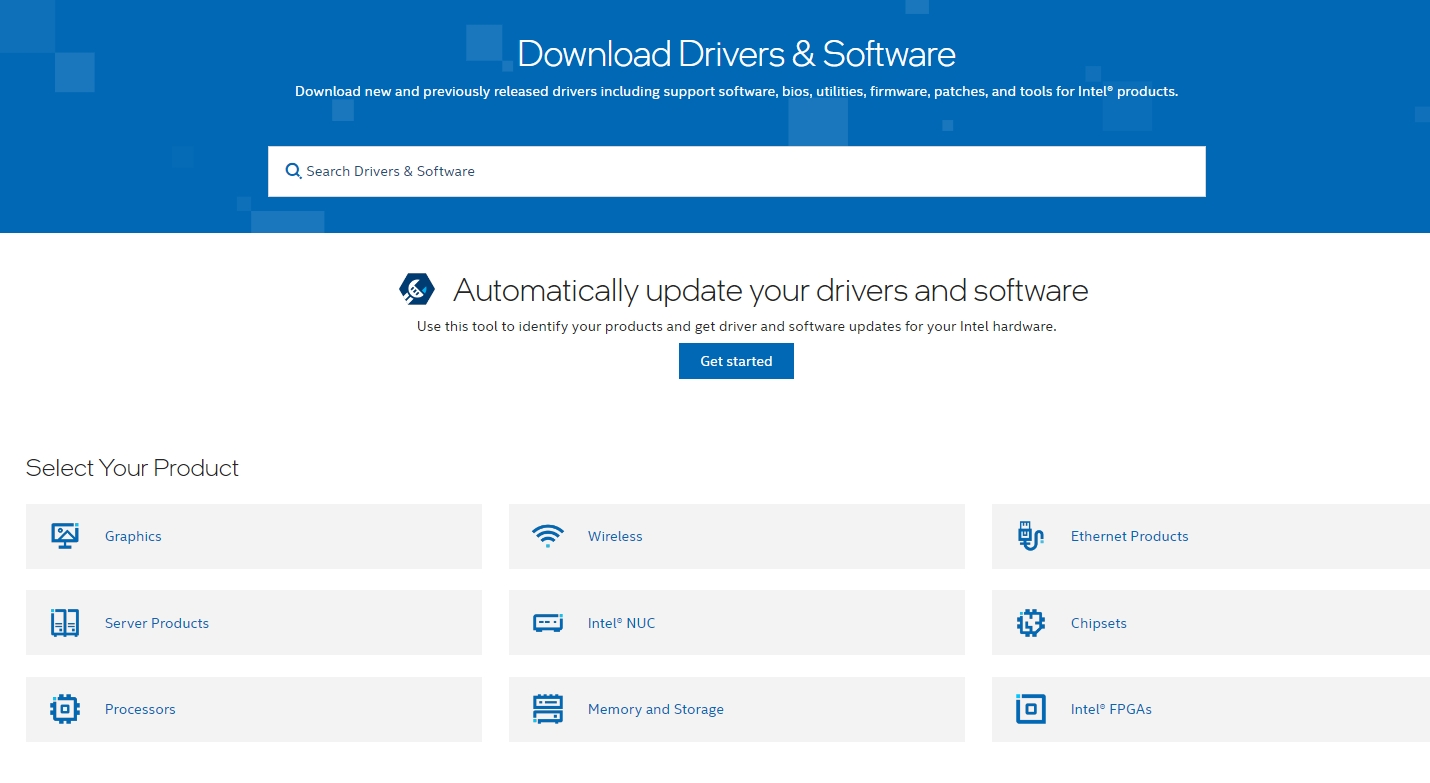
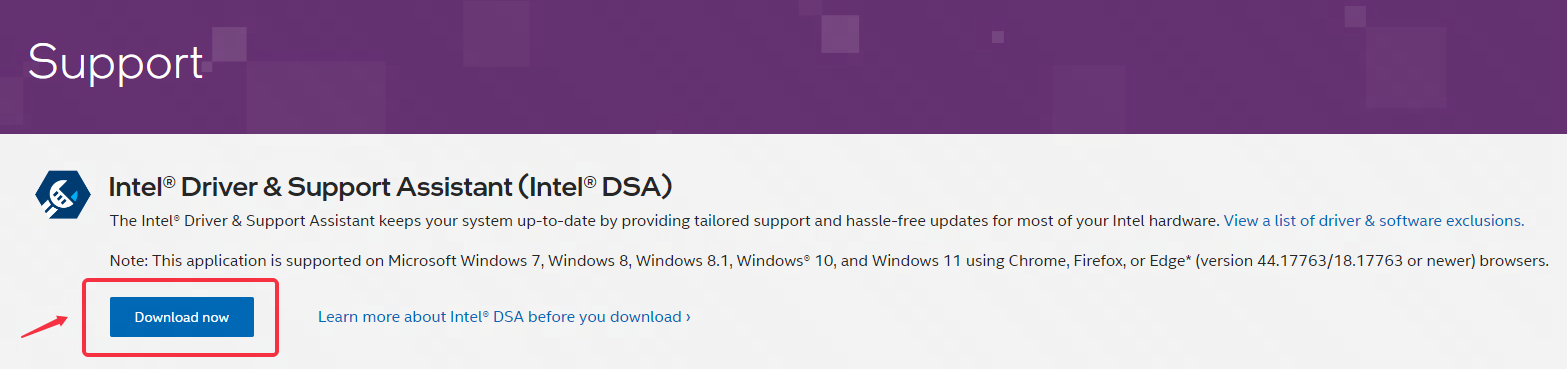
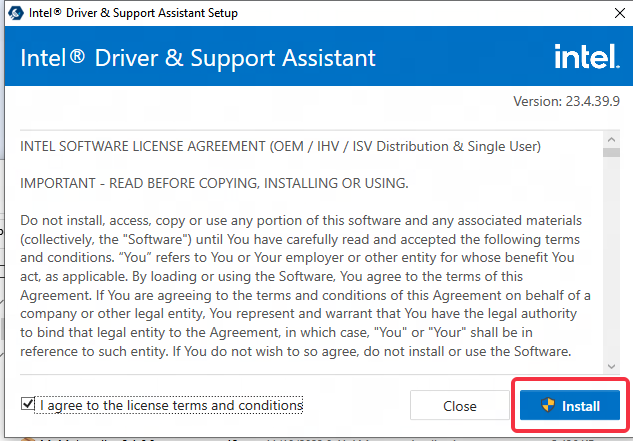
Step 2: Open the downloaded installation package, and the following interface will pop up. Click Install;
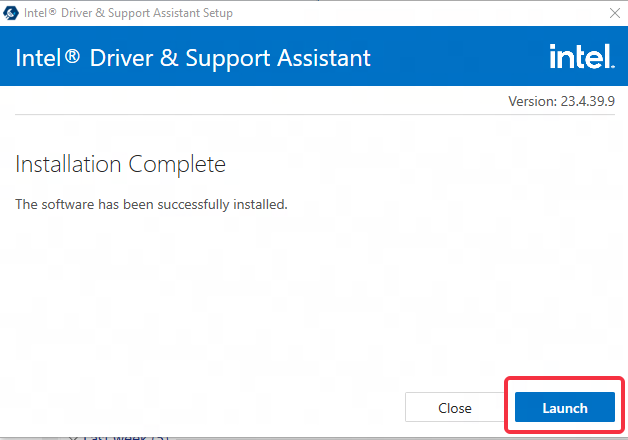
Step 3: After the installation is complete, click "Launch";
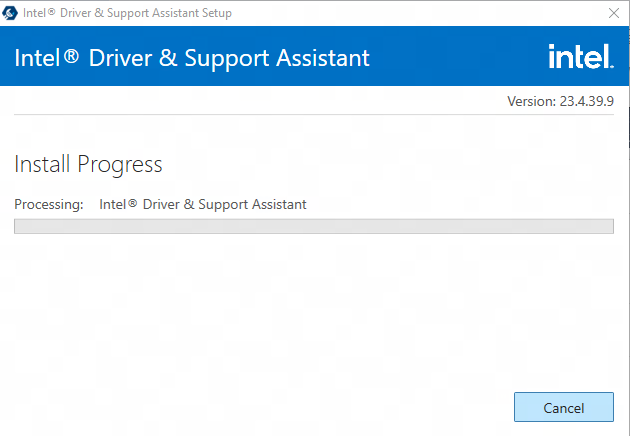
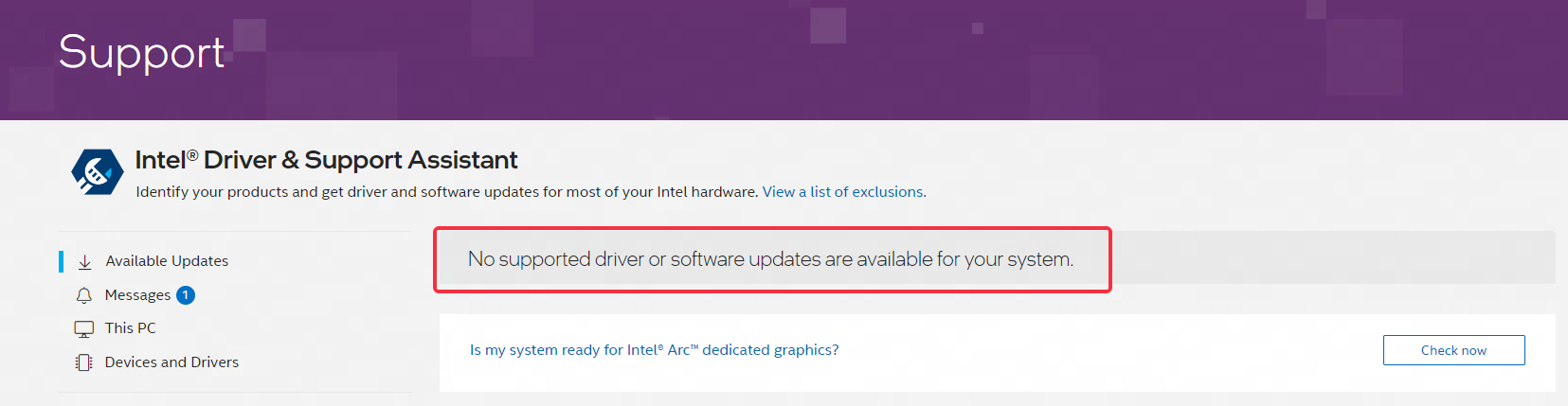
Step 4: The computer will display a window with the following interface, where you can check if there is a driver available to update the current computer system.
3. Turn Off Third-Party Graphics Tools
Some users who launch third-party GPU tools like RTSS (RivaTuner Statistics Server) before starting MuMuPlayer may encounter a GPU driver crash pop-up. Closing these tools and restarting the simulator should fix the issue.
4. Check for Disk Bad Sectors
The disk where MuMuPlayer is installed might have bad sectors, which can cause GPU driver crashes. You can use a disk utility to check for issues. If bad sectors are found, back up your data, repair the disk, and reinstall the simulator.
Note: Disk bad-sector detection is time-consuming. Consider installing the simulator on a different disk path as an alternative.
If the issue persists after trying the above steps, contact customer support for further assistance.
End of Article