How to improve performance when running multiple instances on MuMuPlayer?
When some users use the Multi-instance function of MuMu Player 12, they may encounter situations where they are unsure how to adjust the emulator performance settings to improve the performance of MuMu Multi-instances. Users facing this issue can refer to the following steps:
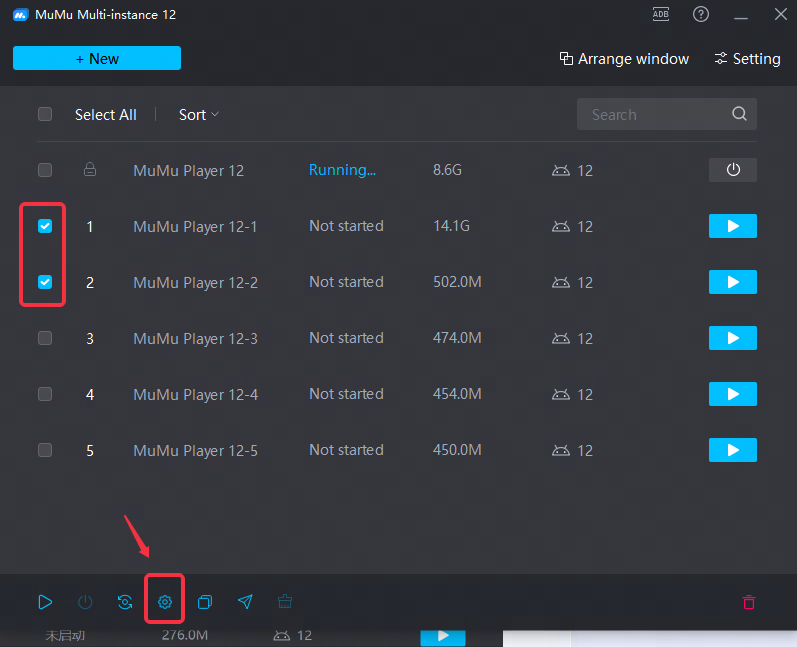
Step 1, open MuMu MultiPlayer 12, select the emulator you want to run, and click "Batch Settings";
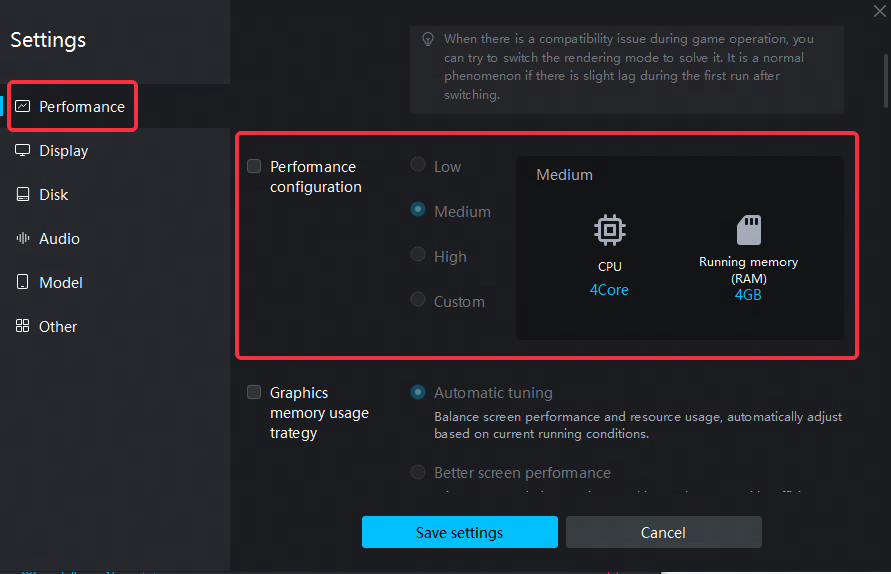
Step 2, click "Performance" to customize the settings, and appropriately reduce the number of processor cores and running memory according to your computer's configuration;
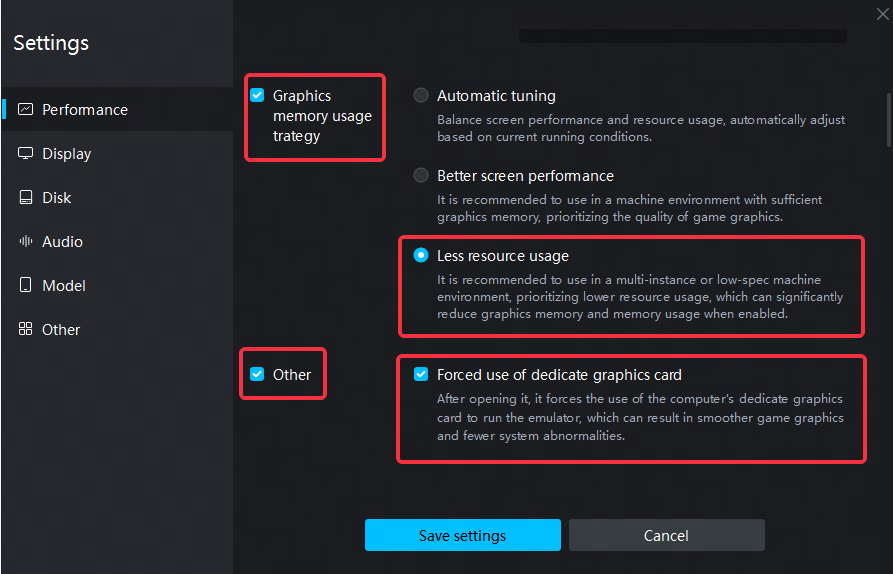
Step 3, click "Graphics memory usage strategy" - select "less resource usage" to reduce graphics memory and memory usage when a single emulator is running;
Step 4, click "Other" - select "Forced use of dedicate graphics card", use dedicate graphics cards to run the emulator, and the screen will be smoother;
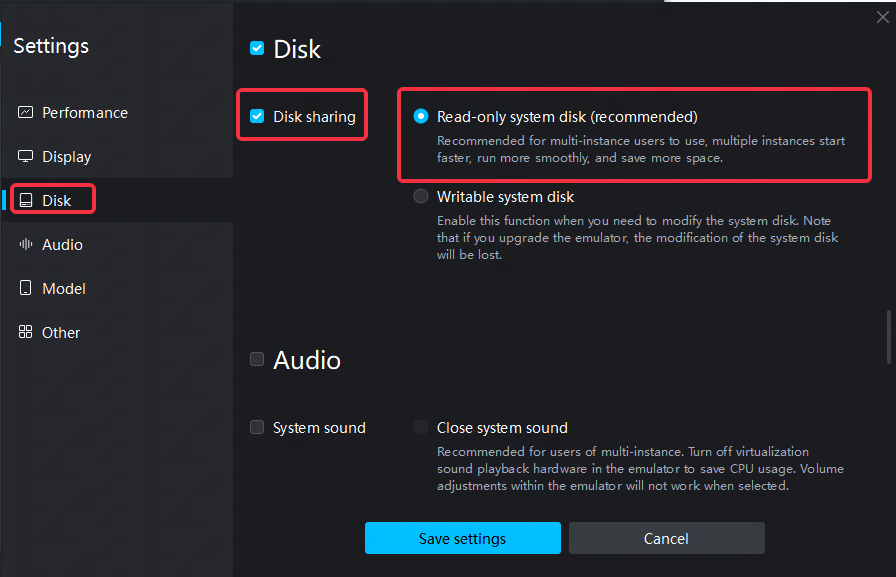
Step 5, Click "Disk" - "Disk Sharing" - Select "Read-only system disk (recommended)" to enable faster startup, smoother operation, and save space;
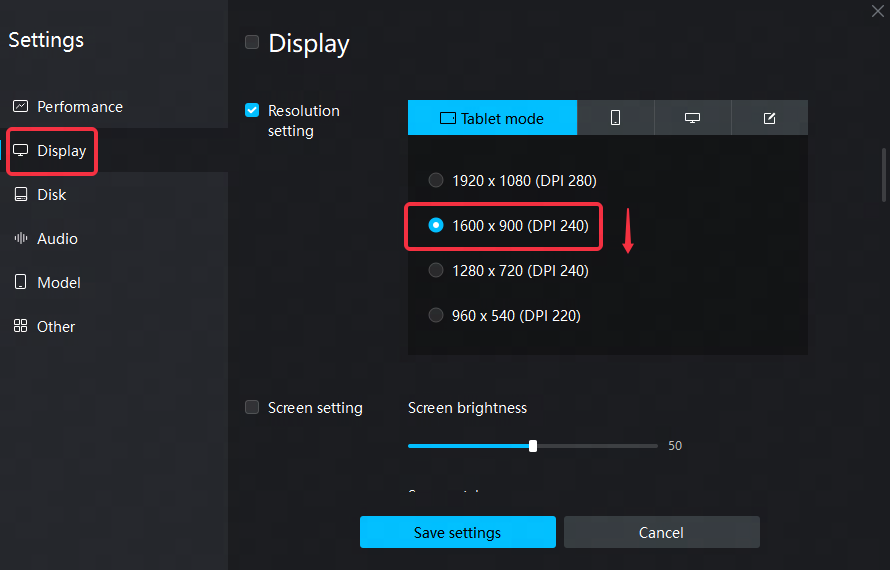
Step 6, Click "Display" - "Resolution Setting" and lower the resolution appropriately;
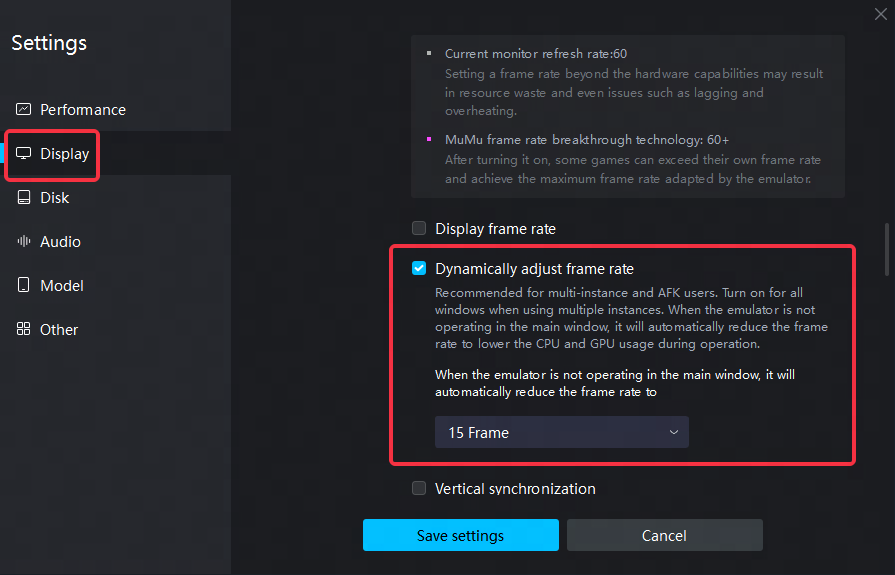
Step 7, Click "Frame Rate Setting" - Select "Dynamically adjust frame rate" to automatically reduce the non-operating window of the emulator to 15 frames, making the emulator in operation run more smoothly;
Step 8, Click "Audio" - Select "Close system sound" to turn off the emulator sound from the system to reduce CPU usage during runtime.
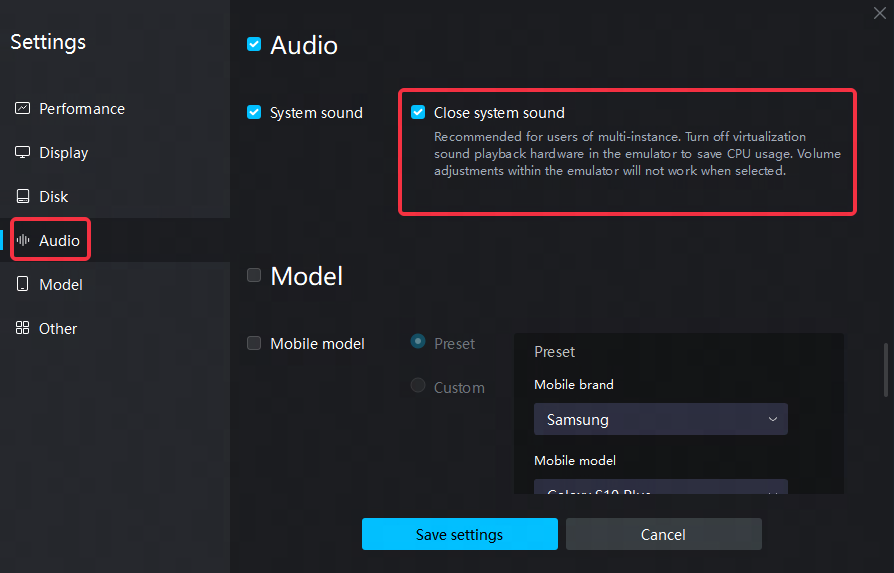
Finally, save the settings and restart the emulator.
End of Article