MuMuPlayer Multi-instance function tutorial
1. What is a Multi-instance?
MuMuPlayer Multi-instance is a management software for controlling multiple emulators, designed to meet the needs of users who want to run several emulators on a single computer. You can create multiple emulators within Multi-instance, use different accounts for the same game or play different games on the emulators, and arrange the windows with one click to enhance your gaming experience.
2. Why use a Multi-instance?
For individual players, whether you are playing multiple accounts in one game or playing different games on your computer, using Multi-instance can significantly improve your gaming experience. By opening more emulators, you can run games in separate emulator windows, monitor the status of all emulators running games, and it becomes easier to leave games running and collect resources, among other benefits.
For studio users, the cost of real devices is high, and using Multi-instance can greatly reduce expenses. MuMuPlayer Multi-instances operate stably, helping studio users to better test games.
3. How to start a Multi-instance?
You can access Multi-instance through the desktop shortcut or the toolbox in the upper right corner of any emulator. You can choose one of these commonly used startup methods. There are two specific ways to operate:
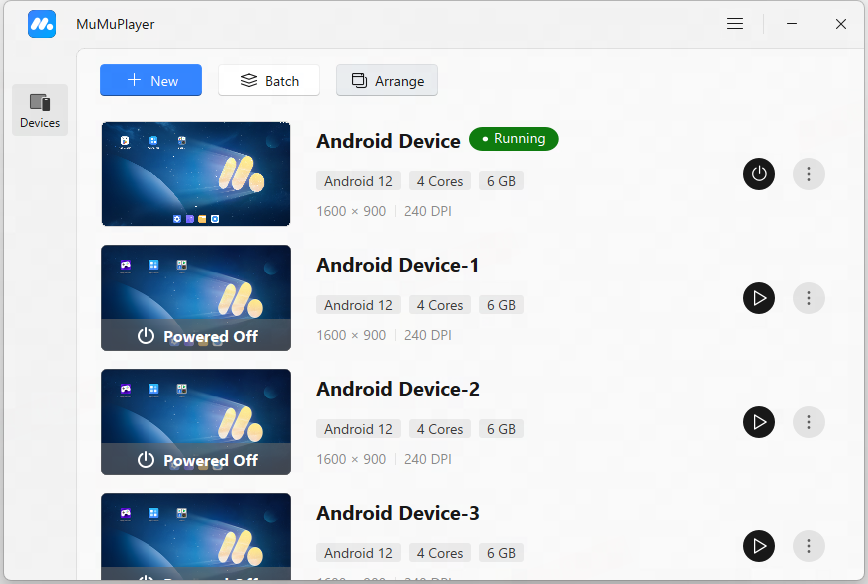
First, use the desktop shortcut to start "MuMuPlayer";
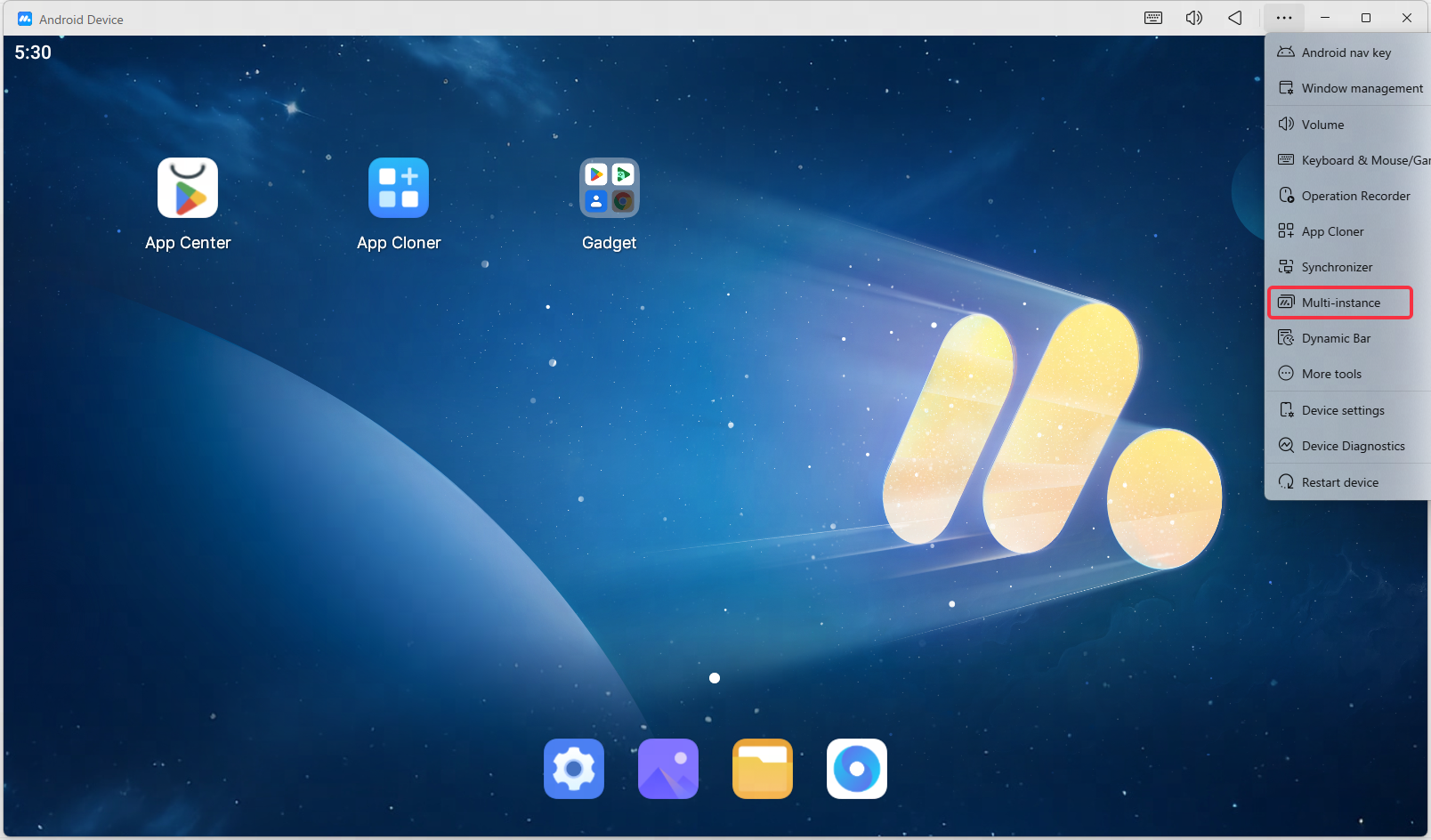
Second, start MuMuPlayer, click the "toolbox" icon in the upper right corner and find "Multi-instance".
4. How to use the Multi-instance function?
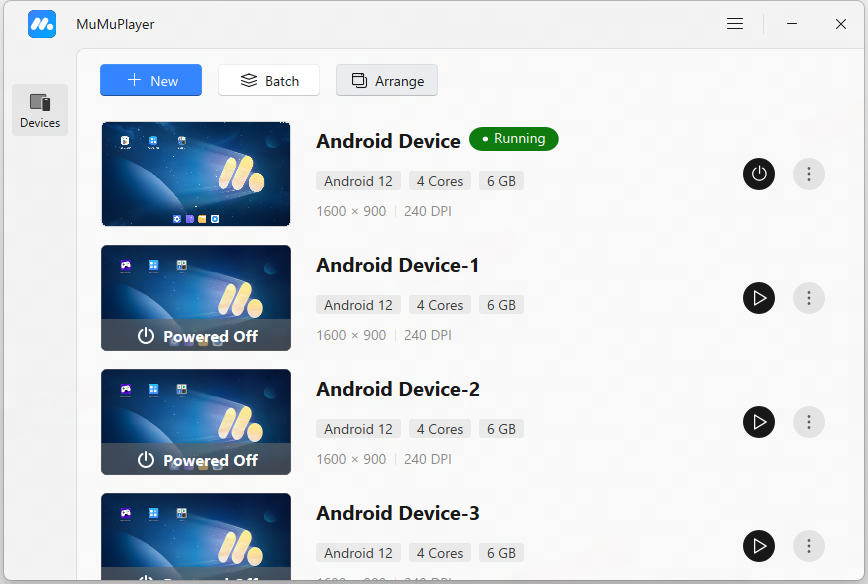
In MuMuPlayer Multi-instance, you can see the number of your current emulators, and you can also create, start/close, copy, backup, set, delete, create shortcuts, batch operations, search, and sort emulators, etc. You can arrange the windows of the running emulators so that the emulators can be evenly distributed on your computer screen.
1. Create new
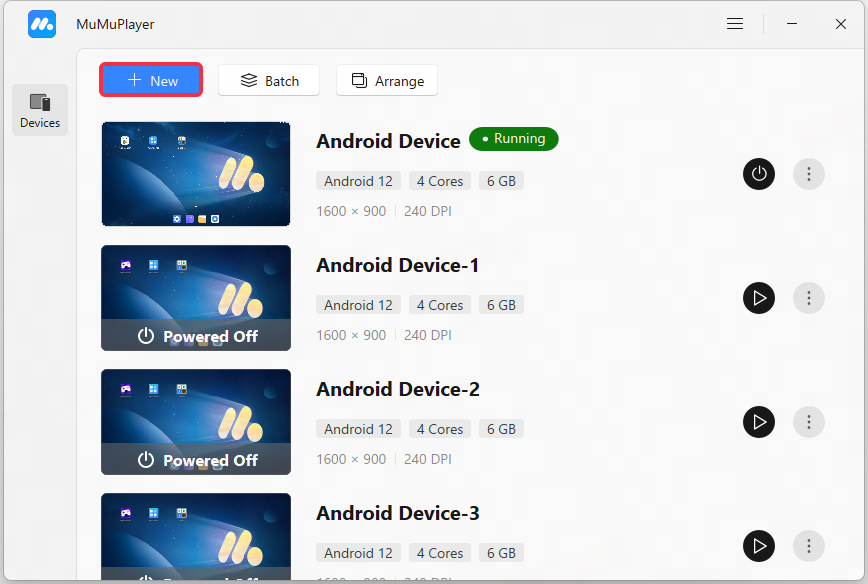
Click "+New", the default configuration will be used to quickly create a new Android emulator in the Multi-instance list;
2. Turn on/off
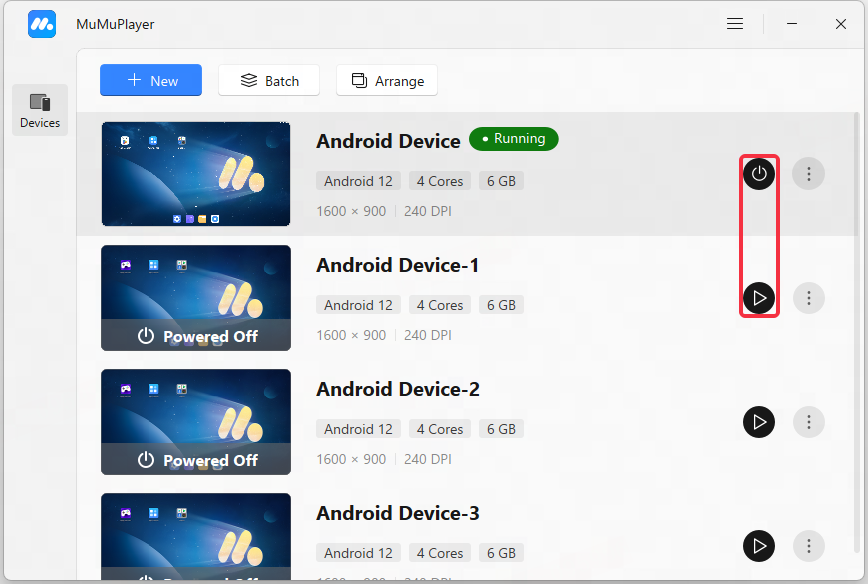
In the Multi-instance list, you can directly close the running emulator or run the not started ones.
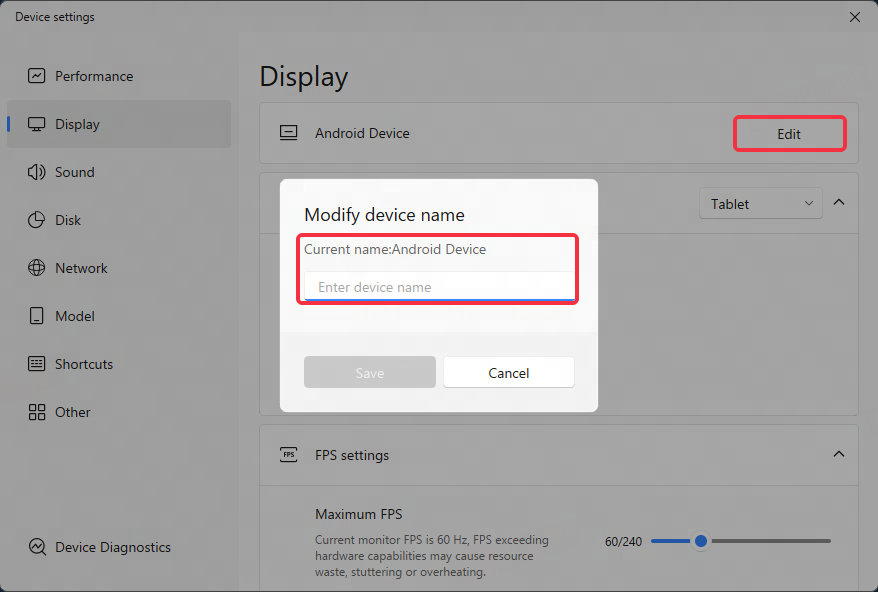
3. Rename
Customize the names of multiple emulators, which is convenient for distinguishing different emulators and managing multiple emulators.
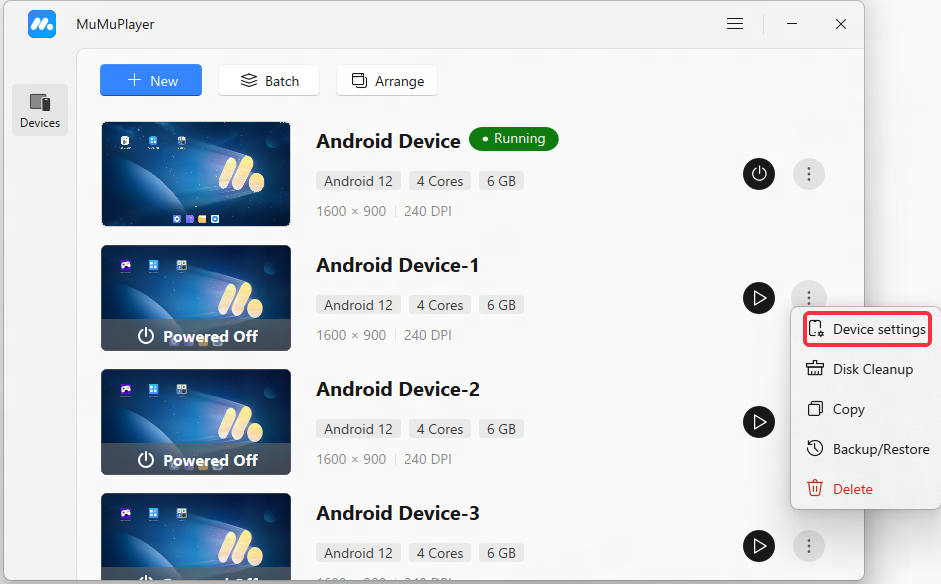
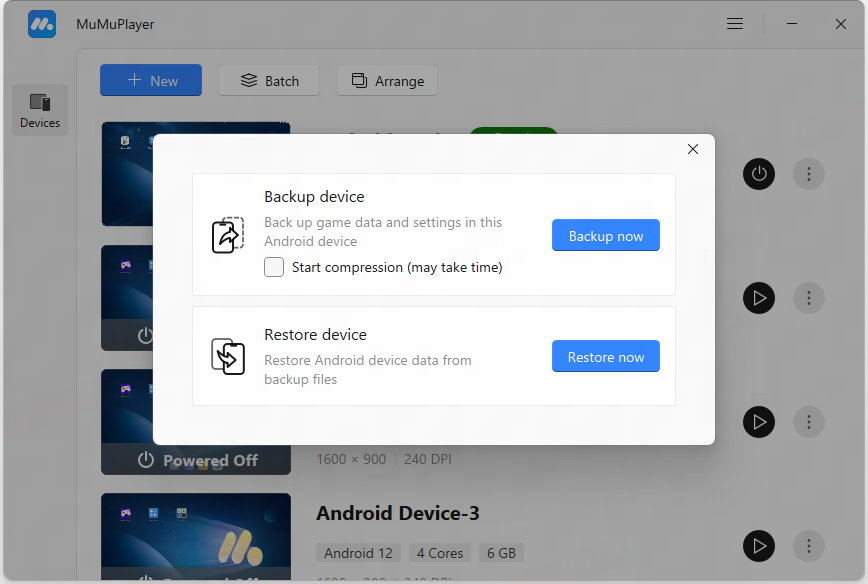
4. Copy, backup, set, delete, and create shortcut startup methods (operable when the emulator is not started)
Device setting: Set performance, display, model, etc. for the emulator;
Copy: Copy all apps and their cached data in the chosen emulator and create a same new emulator;
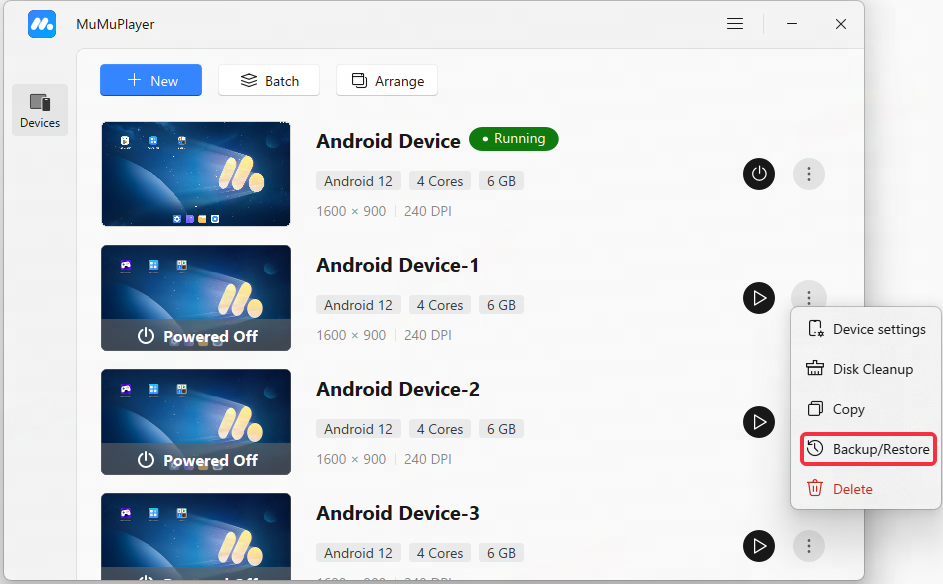
Backup: Back up the data in the chosen emulator to the computer (the file suffix is .mumudata), then you can use the "+New" - "Import" function to re-import the data;
Settings: Set the performance, display, model, etc. of the emulator;
Delete: delete the emulator and emulator data;
5. Batch operation
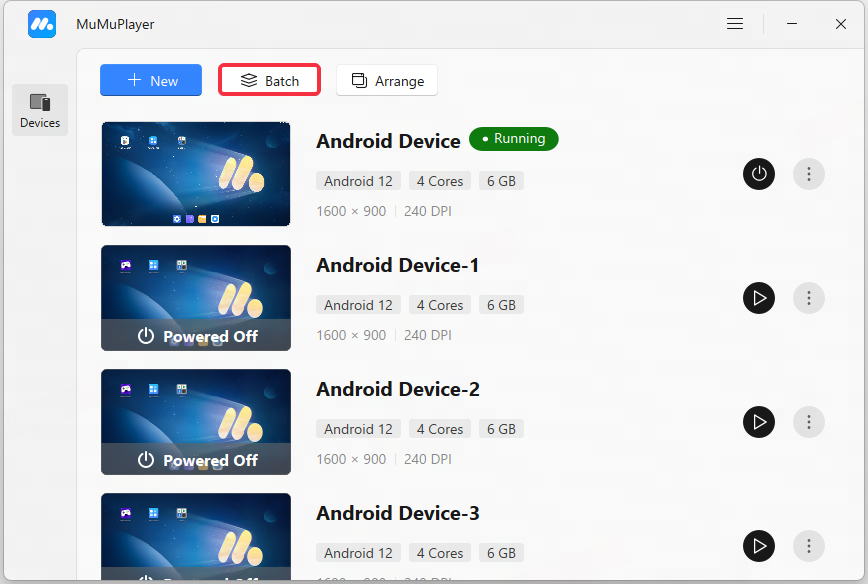
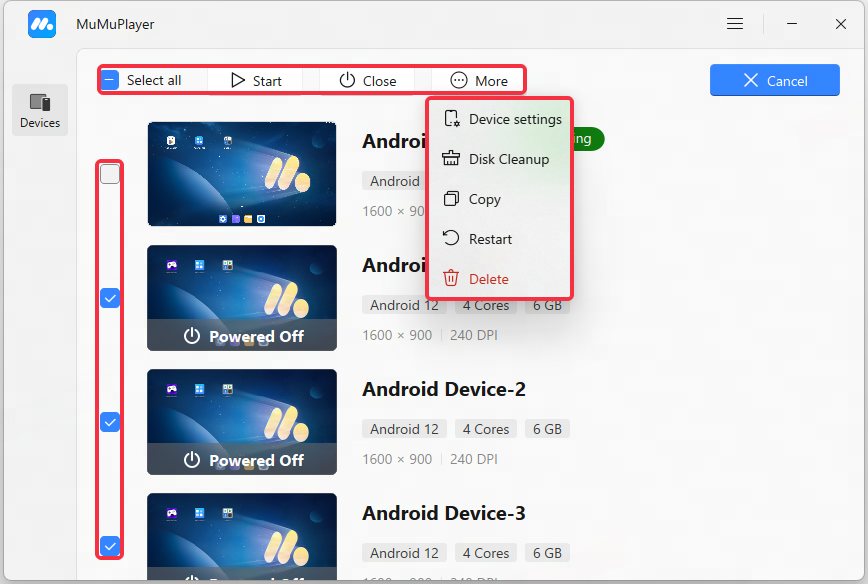
After selecting multiple emulators, you can perform batch operations on the selected emulators, and you can perform the following operations at the same time: start, close, set, copy, send to desktop, delete.
Start: Simultaneously start the selected unstarted emulators;
Close: Close the selected running emulator at the same time;
Settings: Simultaneously make settings changes to the selected unstarted emulators;
Copy: Copy the selected unstarted emulator at the same time;
Restart: Restart the selected emulator at the same time;
Disk Cleanup: Clean up selected emulators at the same time (requires selected emulators to be running);
Delete: Delete the selected unstarted emulator and emulator data at the same time.
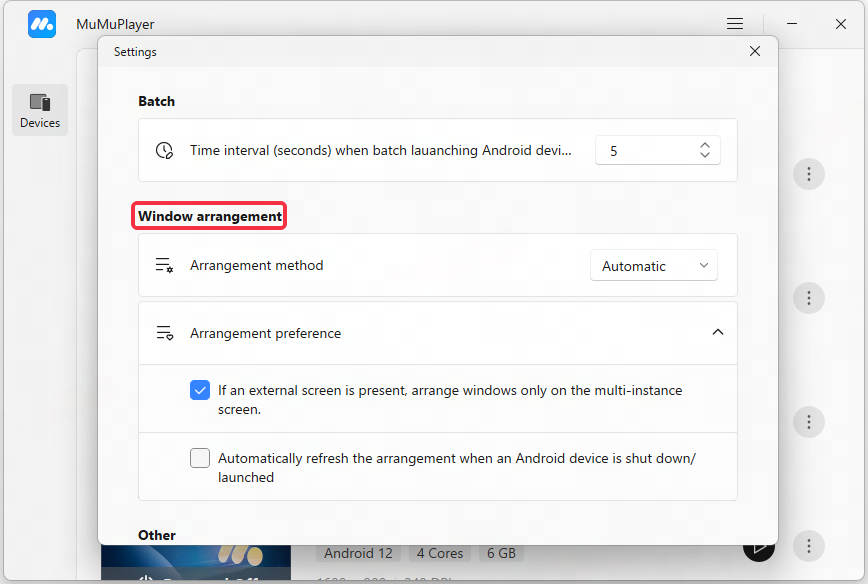
6. Arrange windows
6.1 Automatic arrangement
Based on the number of running emulators and the size of the computer screen, an intelligent algorithm is used for optimal arrangement.
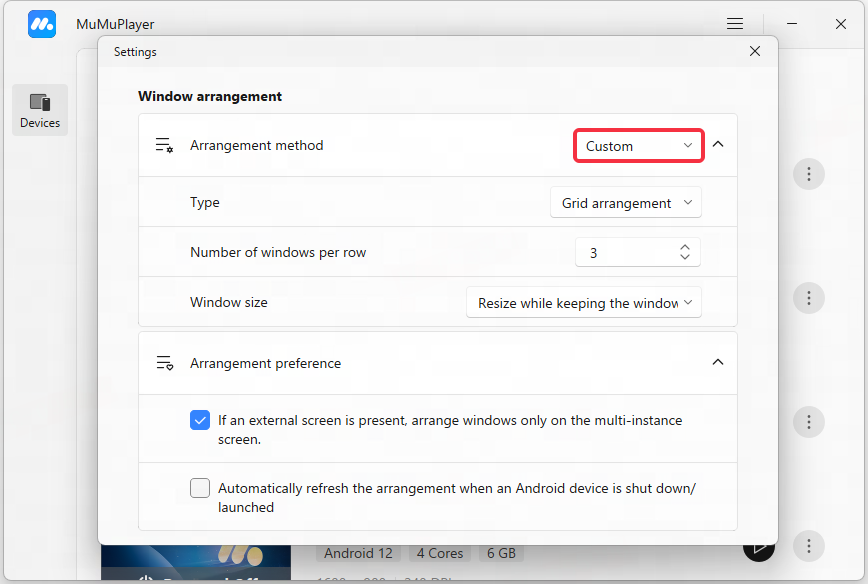
6.2 Custom arrangement
6.2.1 Grid arrangement
You can customize the number of emulators displayed in each row, and select the window size rule to arrange
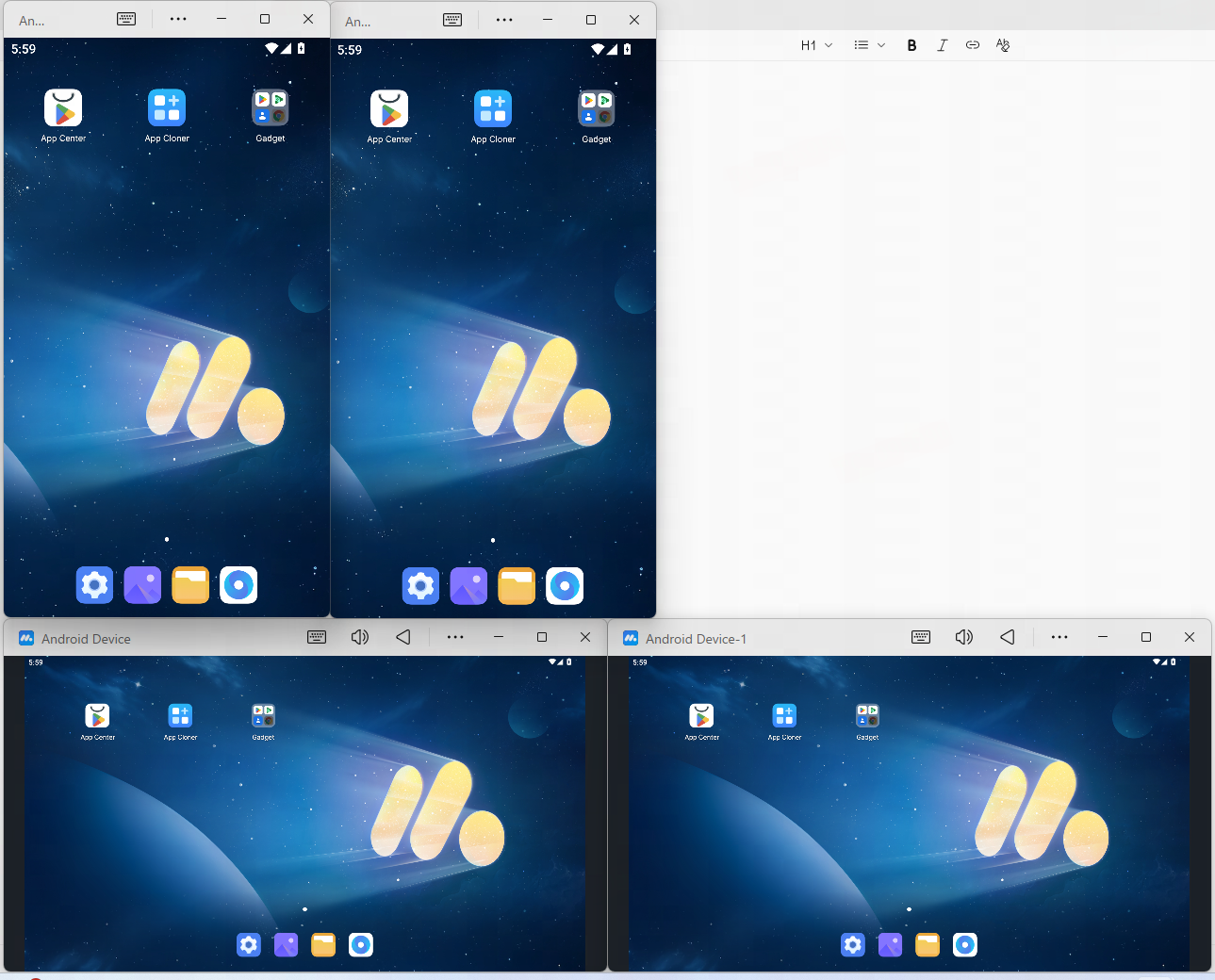
6.2.1.1 Keep the landscape/portrait style to adjust the window size
According to the total number of emulators running/the number of emulators displayed in each row, the total number of displayed rows can be obtained, and the vertical and horizontal screen styles of the window before the arrangement will be retained, and the window size can be adjusted to allow all running emulators to be displayed on the screen;
For example, the total number of running emulators is 4 (including 2 landscape and 2 portrait screens), and when the number of windows in each row is 2, the display effect is as follows:
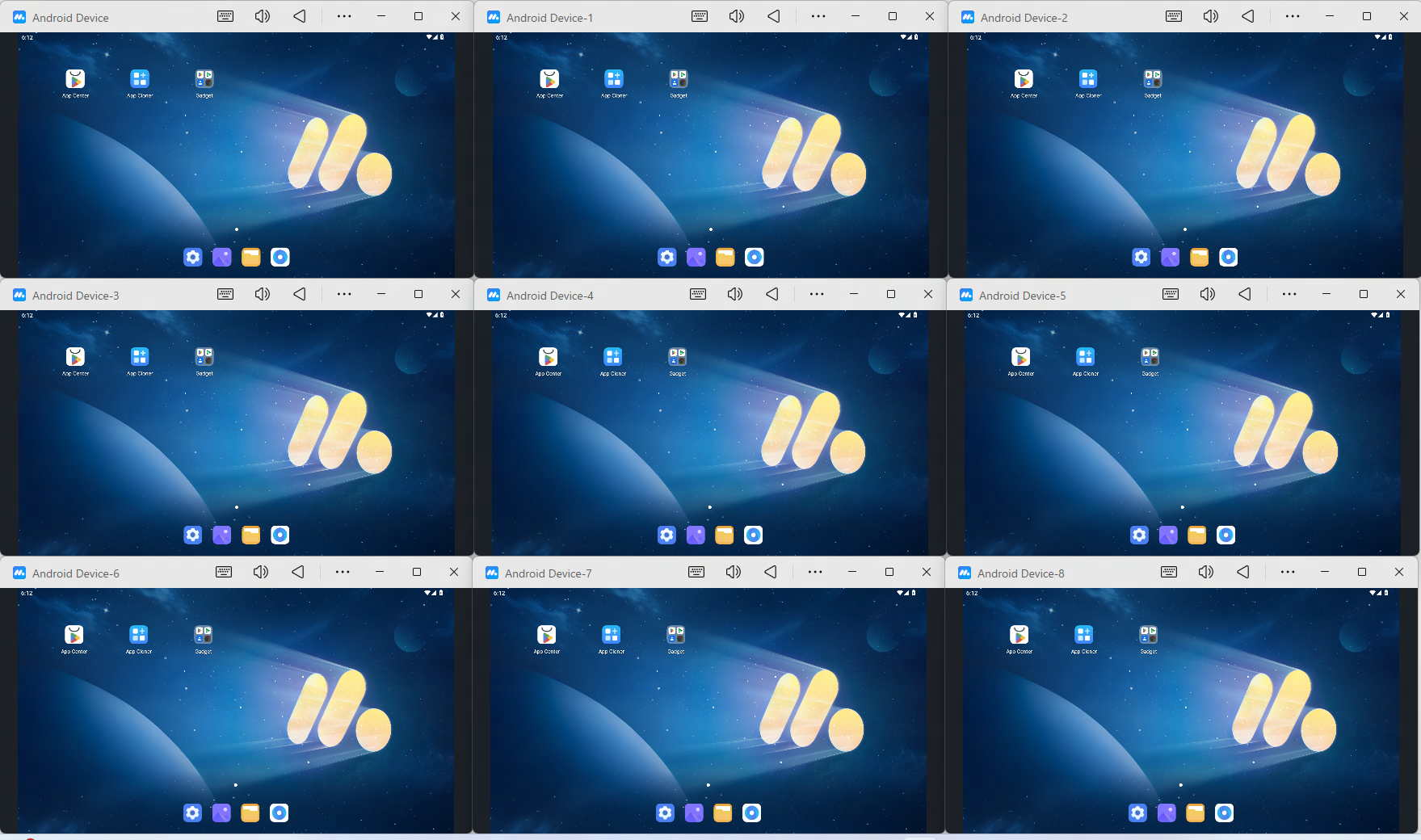
6.2.1.2 Adjust all windows to the same size
According to the total number of running emulators/the number of emulators displayed in each row, the total number of displayed rows can be obtained. Confirming the arrangement will adjust all windows to the same size and display them on the computer screen in the form of grids;
For example, when the total number of running emulators is 9 and the number of windows in each row is 3, the display effect is as follows:
6.2.1.3 Do not adjust the window size
According to the total number of running emulators/the number of emulators displayed in each row, the total number of displayed rows can be obtained. Confirming the arrangement will retain the original size of the window and display it on the computer screen in the form of a grid;
For example, when the total number of running emulators is 4 and the number of windows in each row is 2, the display effect is as follows:
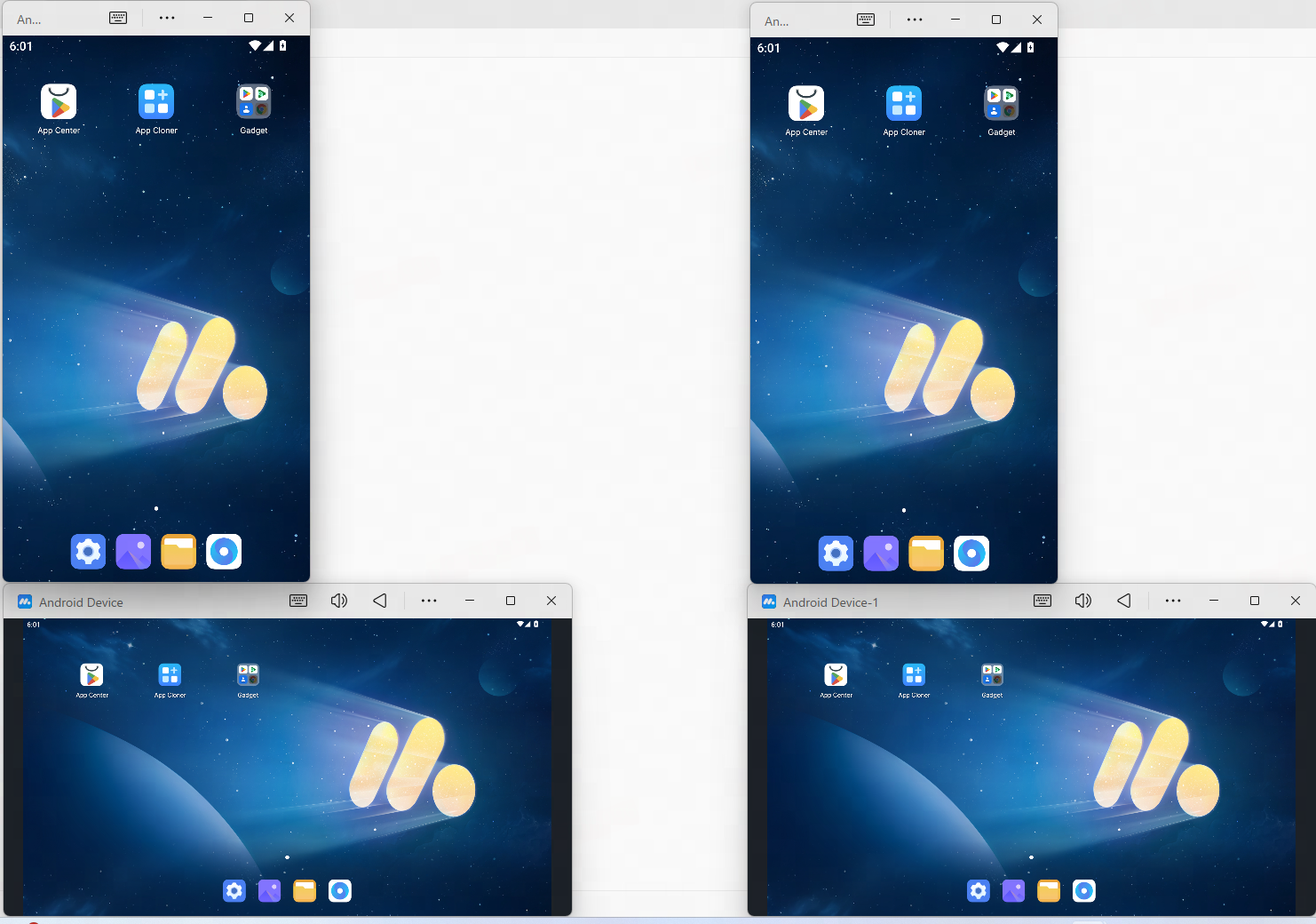
6.2.2, Diagonal arrangement
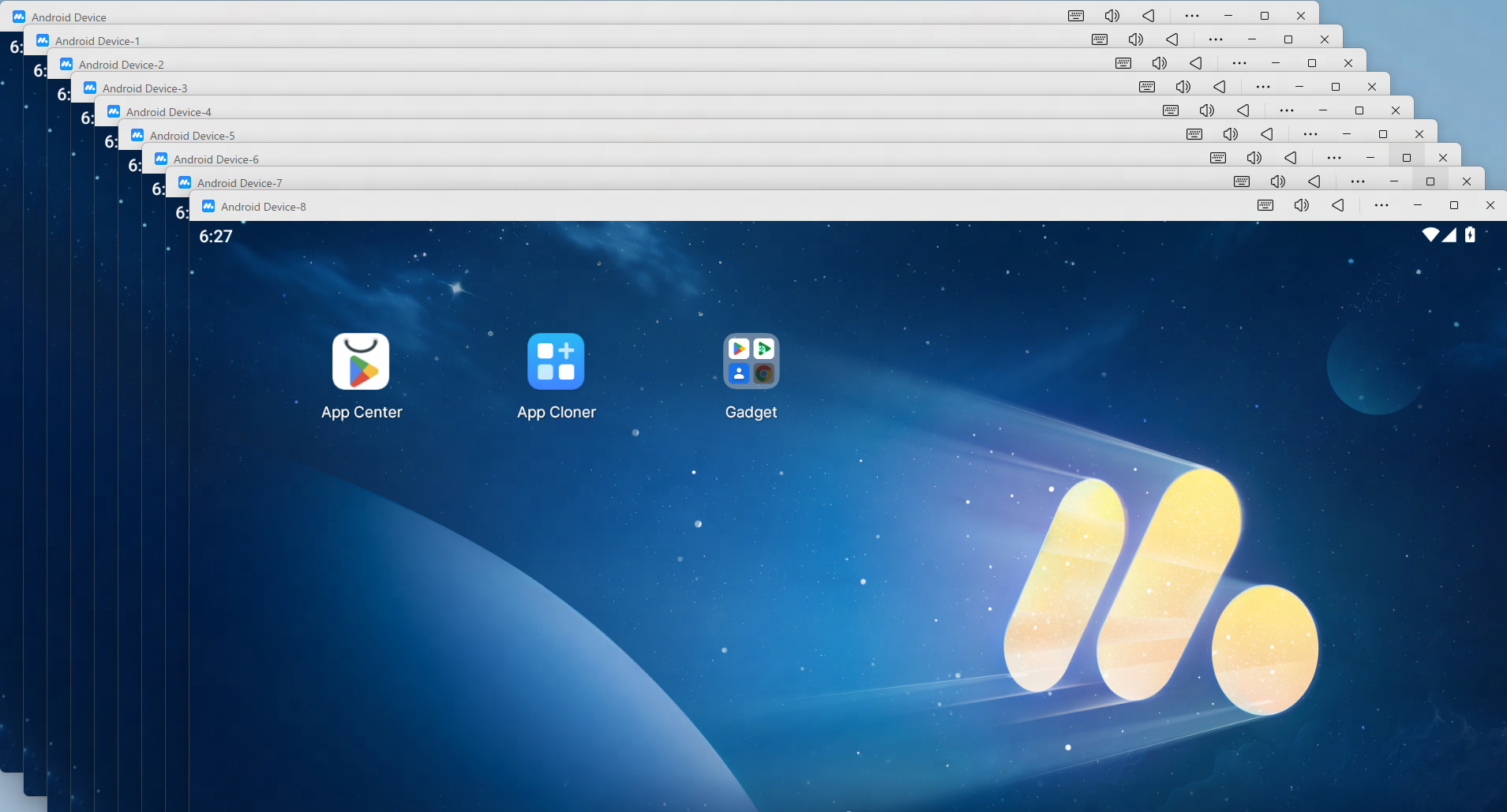
Confirm the vertex to start the arrangement and set the offset distance between the two emulators. Confirming the arrangement will display all the running emulators on the computer screen in a diagonal manner;
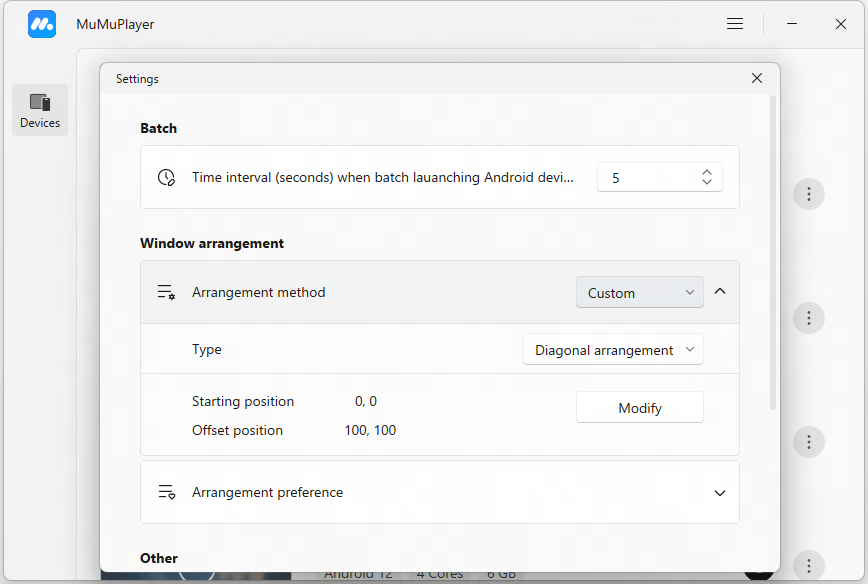
For example, when the total number of running emulators is 9, the starting position is (0, 0), and the offset position is (50, 50), the display effect is as follows:
End of Article