PGSharp Download and Installation Guide
Known Issues:
1. All versions of MuMu Player do not support the Google version of Pokemon Go.
2. Currently, MuMu Player 12 does not support PGsharp. If you need to play, please follow the tutorial below to download MuMu 6.
1. MuMu 6 PGsharp Download and Installation Guide
If you need to download and install PGSharp on MuMu Player, please follow the steps below:
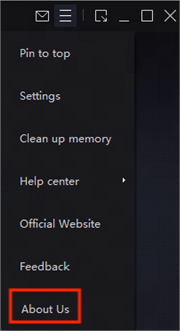
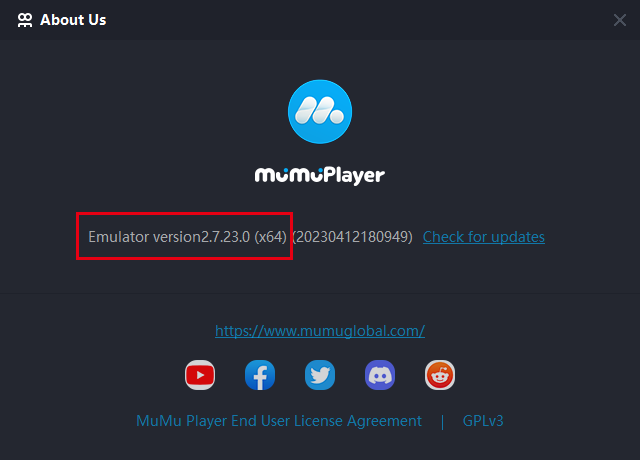
Step 1: Make sure your MuMu Player is the 64-bit version V2.7.23.0. You can click "Menu"→"About Us" to check your version. If you are not using the version above, please uninstall and reinstall the correct version. >>Click here to download
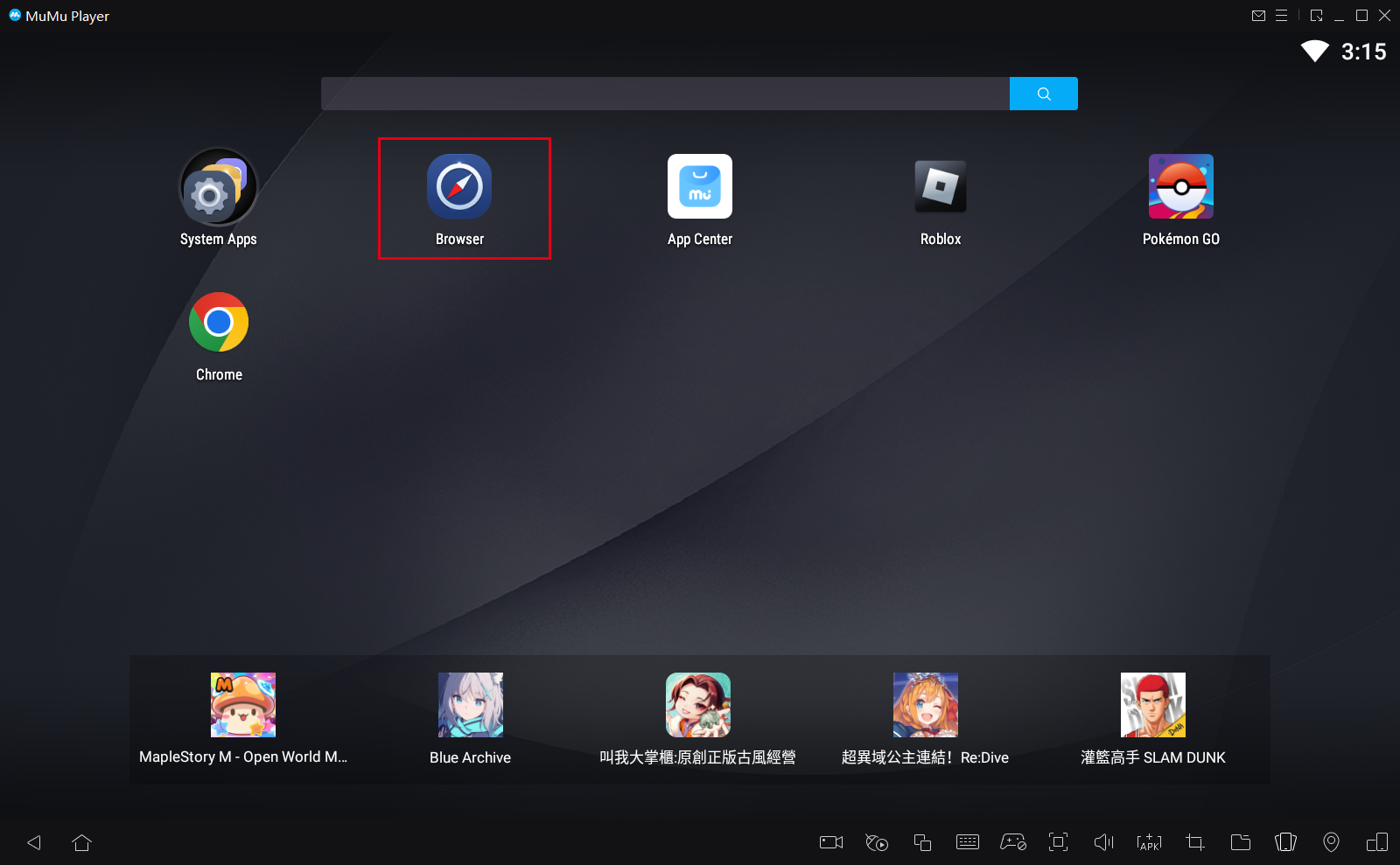
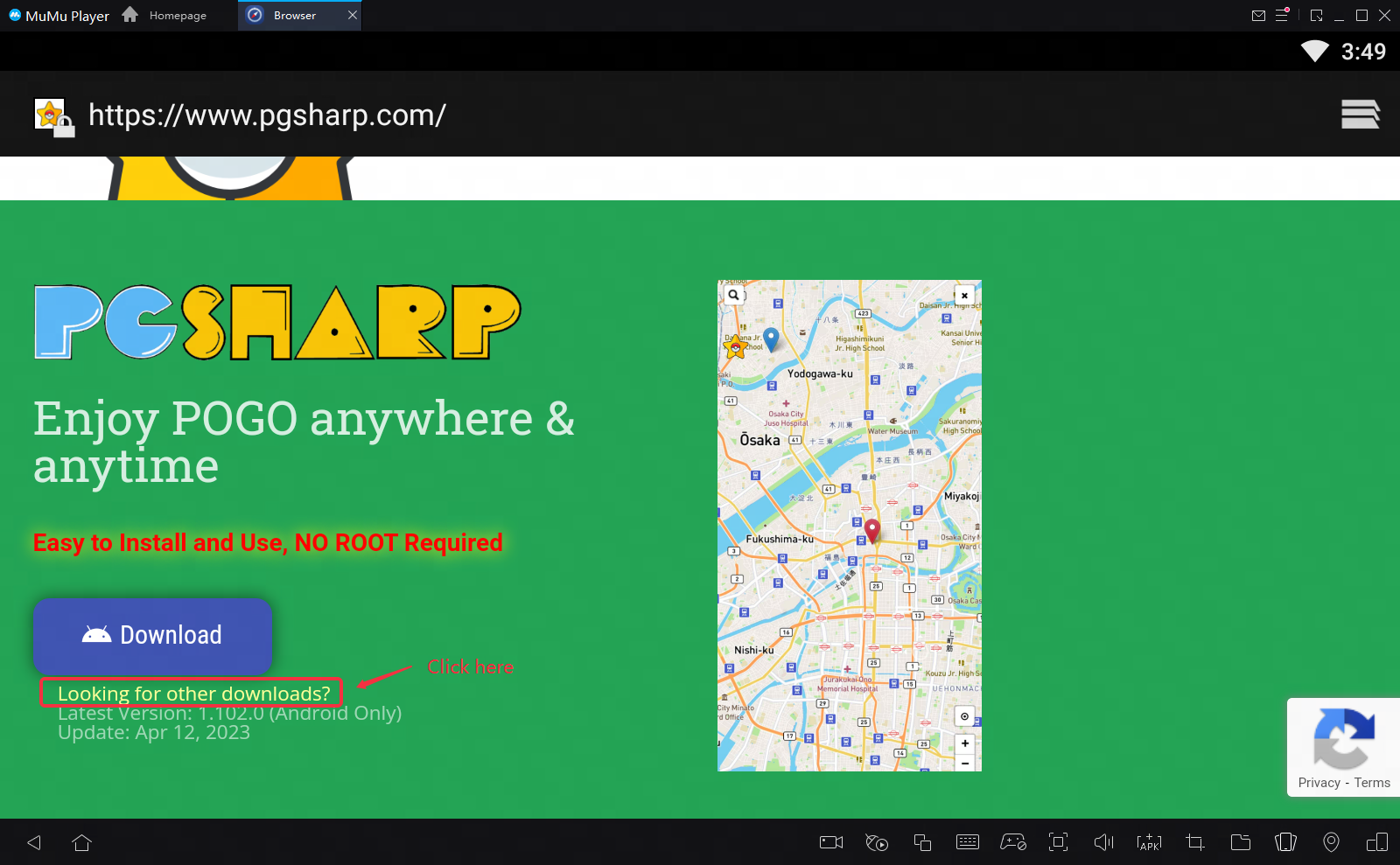
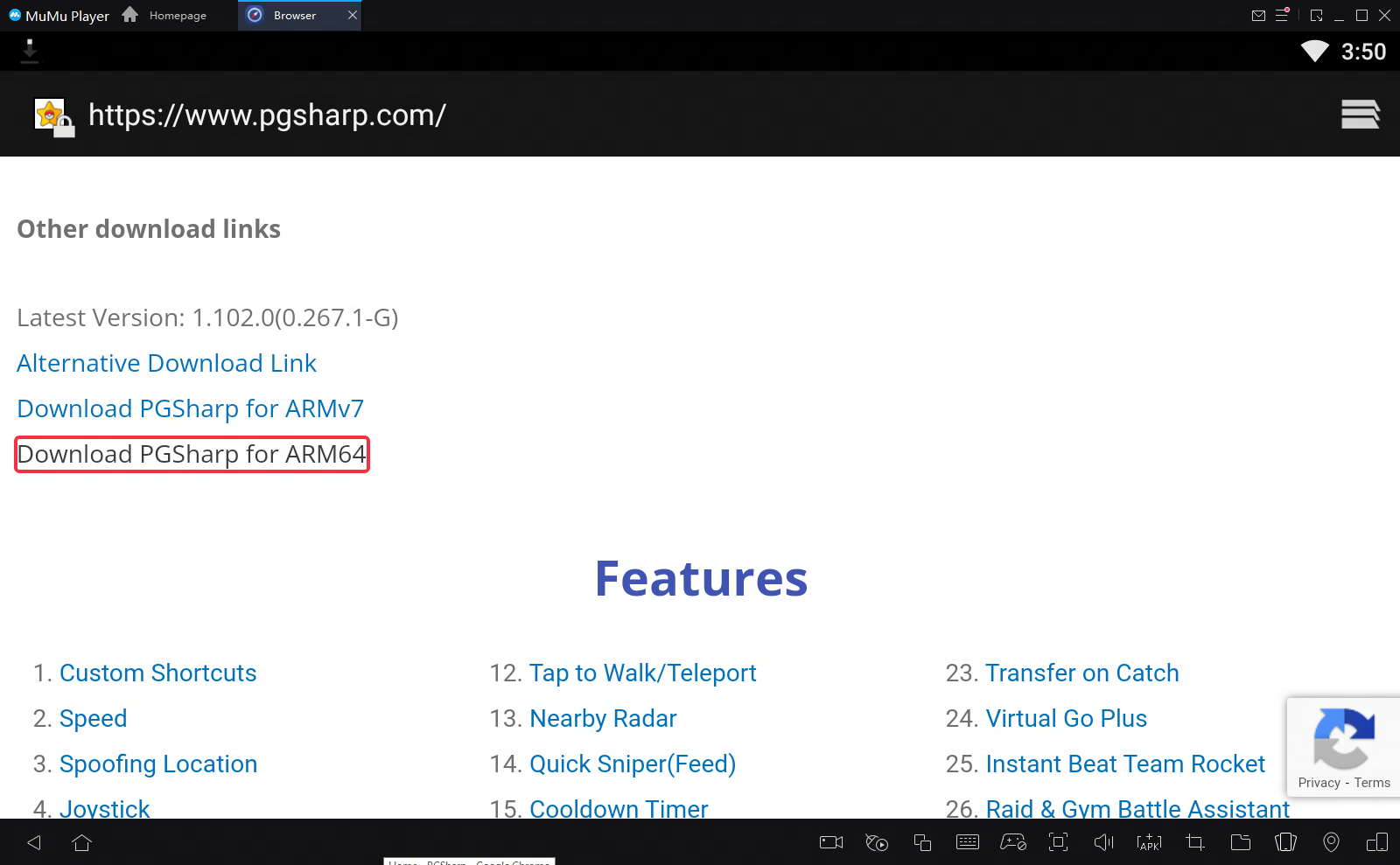
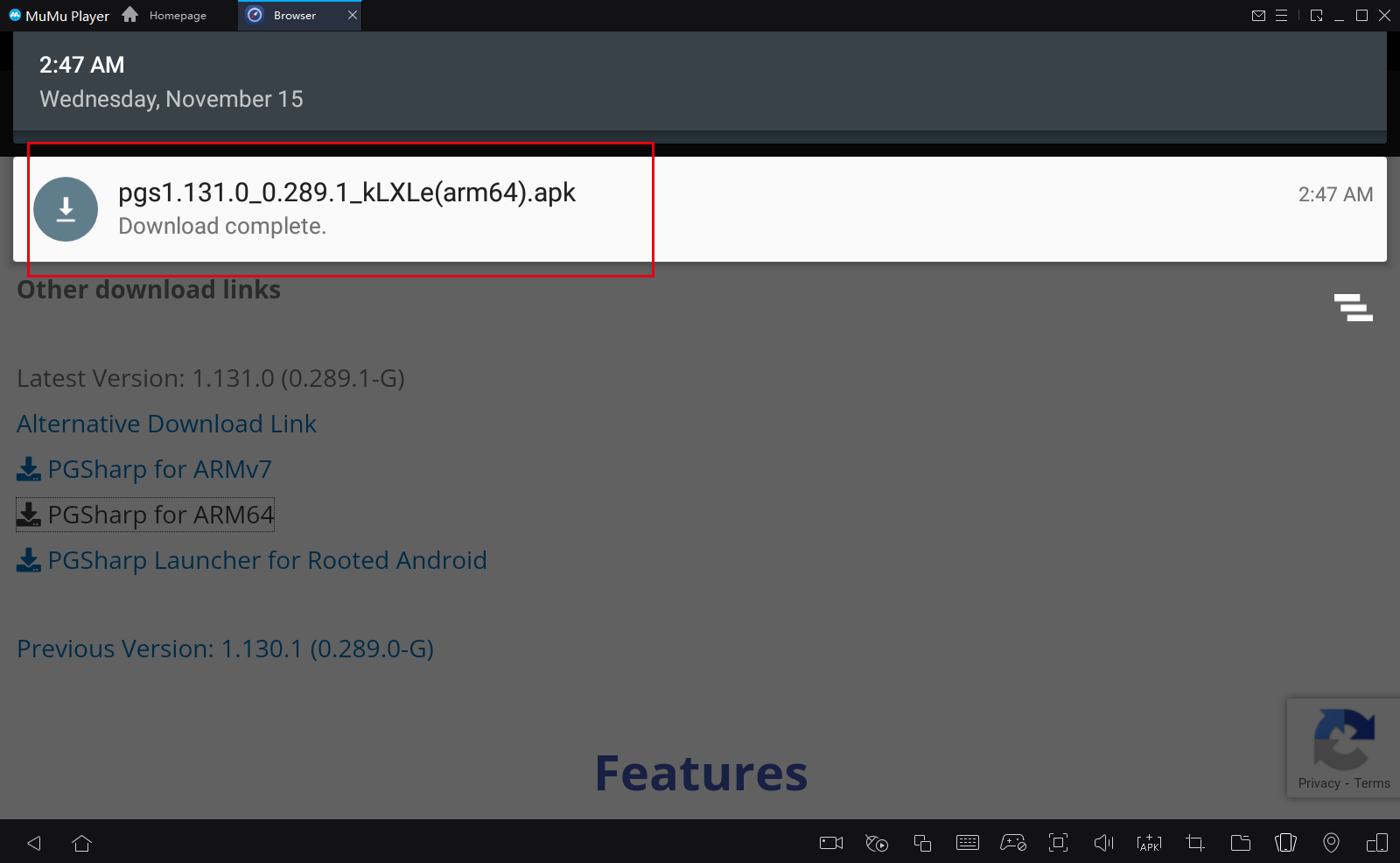
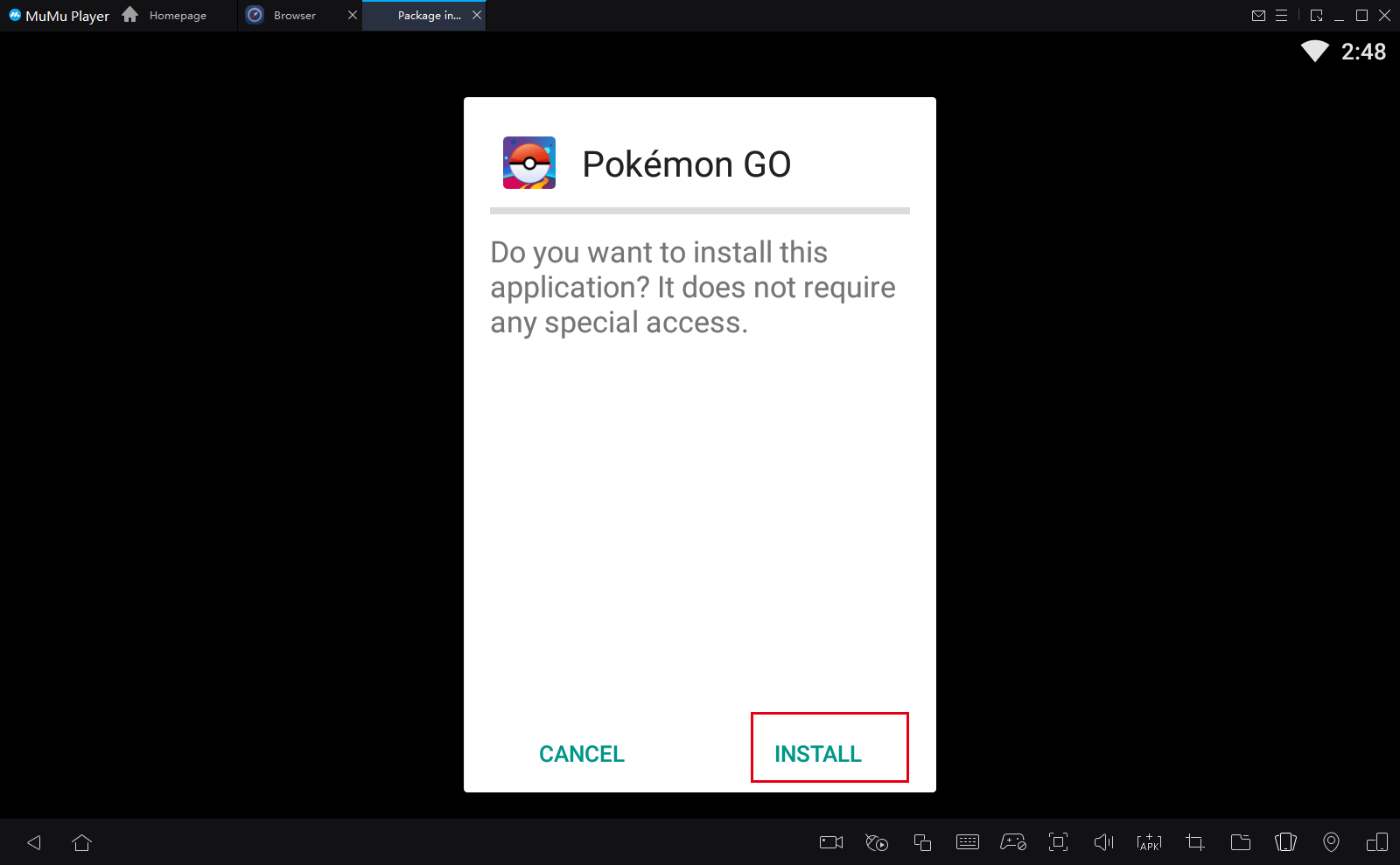
Step 2: Open the PGsharp official website (https://www.pgsharp.com/) in the emulator's browser, find "Looking for other downloads"—"Download PGSharp for ARM64", download the 64-bit installer and install it.
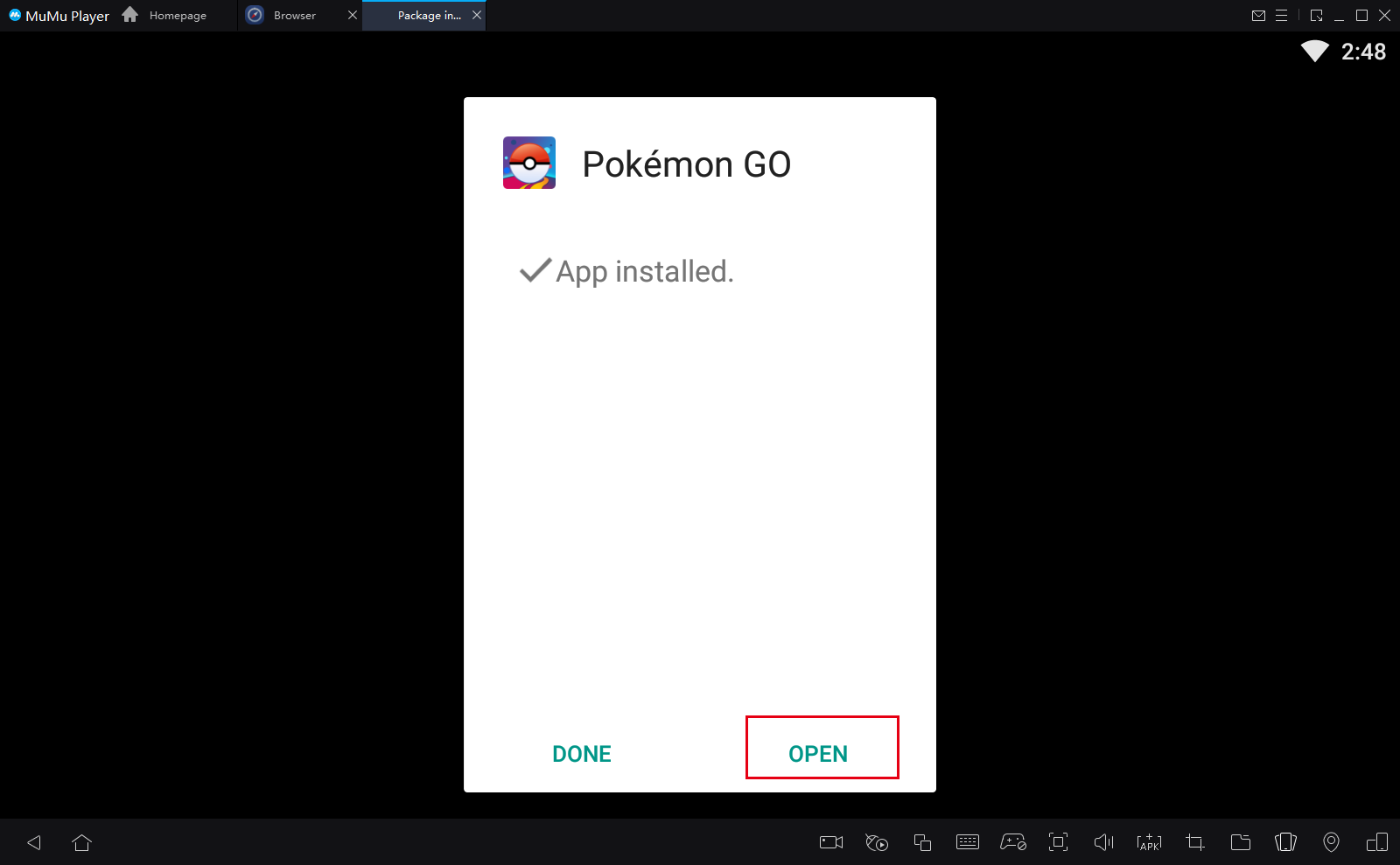
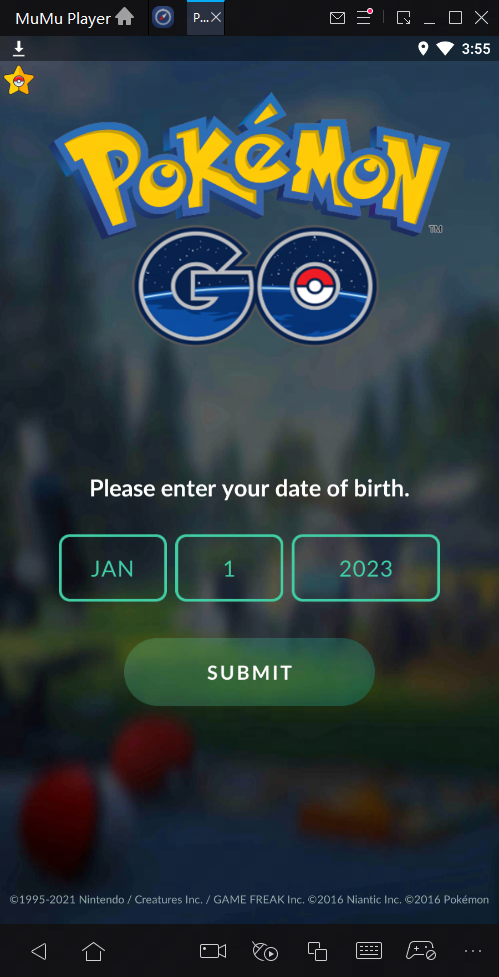
Step 3: After the installation is complete, open PGSharp and select your date of birth. (It is recommended to choose a date before 2000)
Step 4: Choose your login method: (1) Login with Facebook account (2) Login with Google account (3) Login with registered Pokemon Trainer Club member
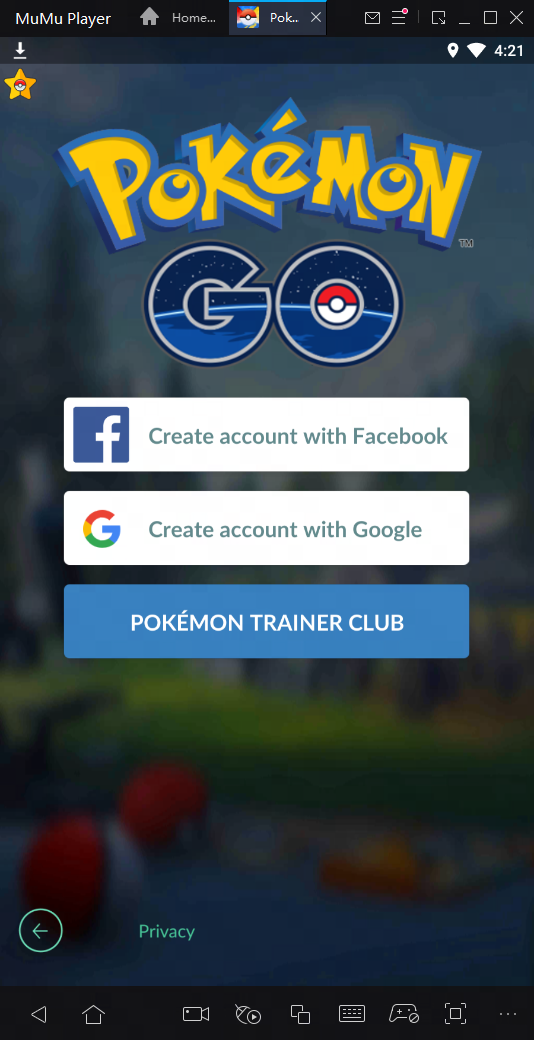
Note: If you encounter problems logging in to your Google account, please try starting the game multiple times and logging in again.
Step 5: If you choose to log in as a Pokemon club member and have not yet registered as a Pokemon Trainer Club member, you need to click "CREATE ONE HERE" to create a new account. Fill in the relevant information and click the email confirmation button to activate the account.
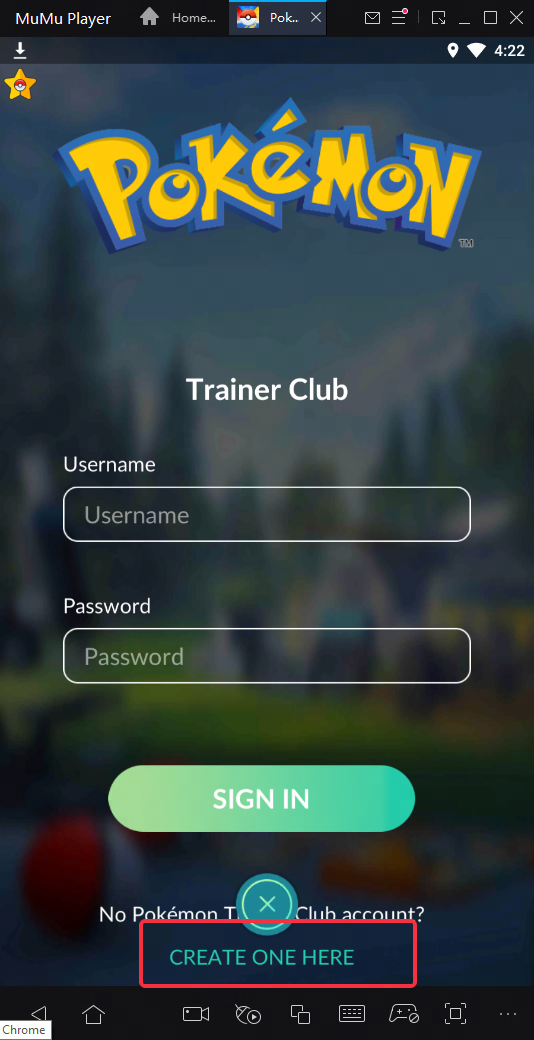
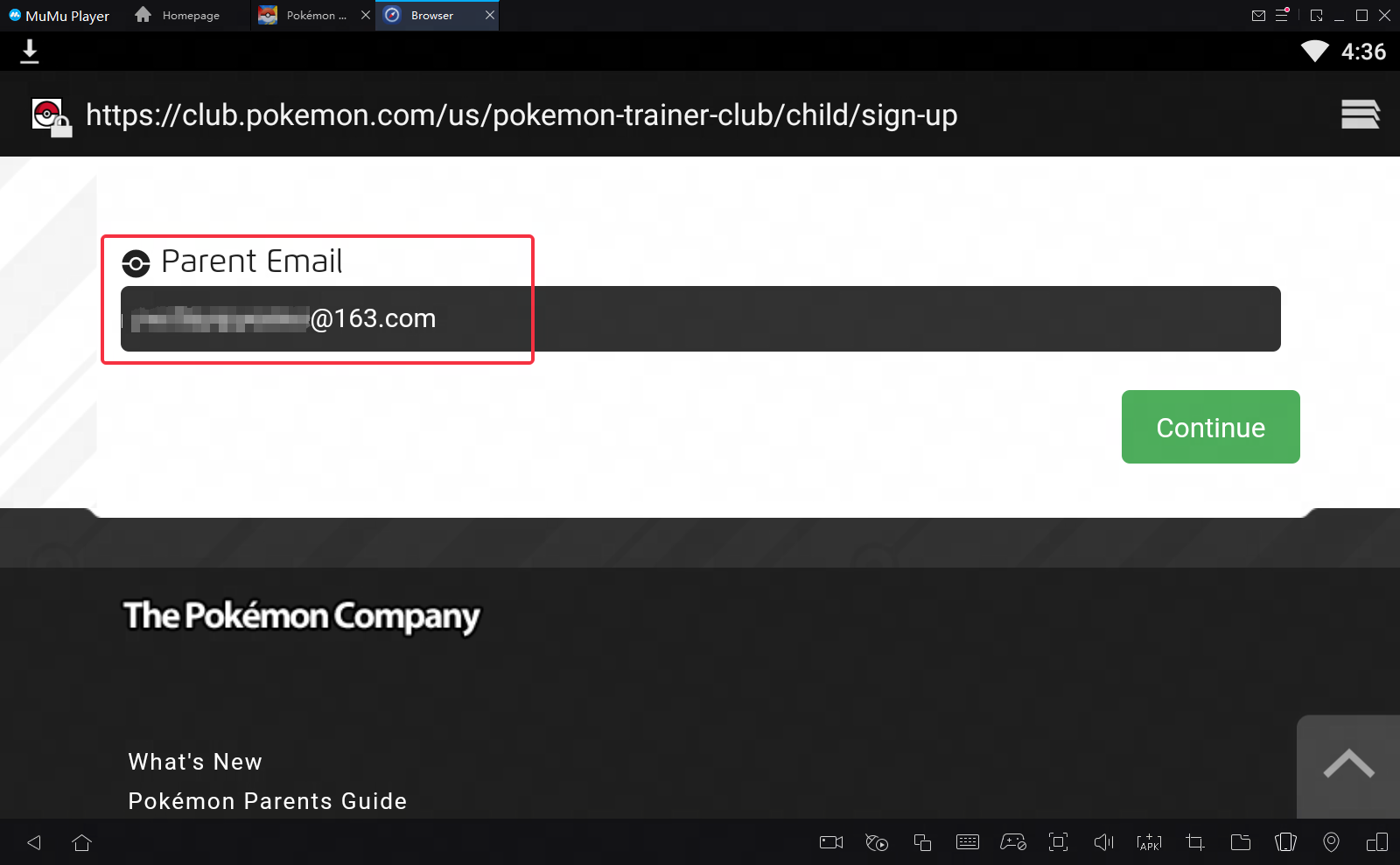
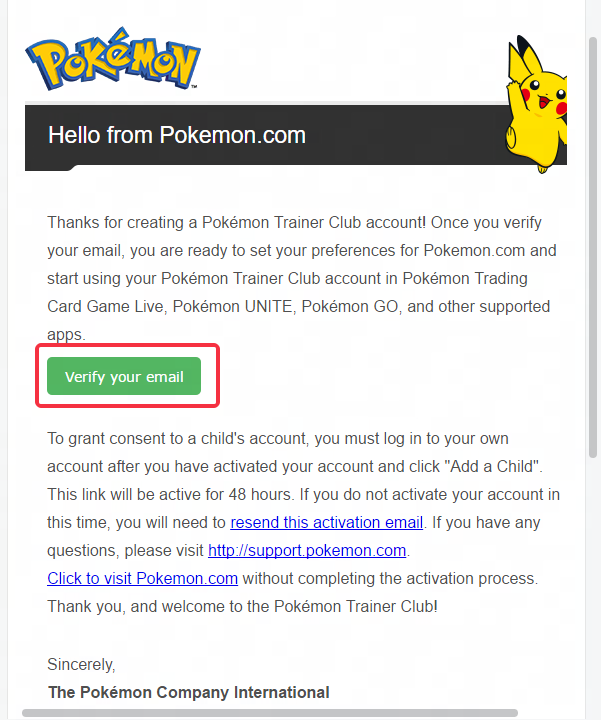
Step 6: Return to MuMu Player and log in to your account again to play normally.
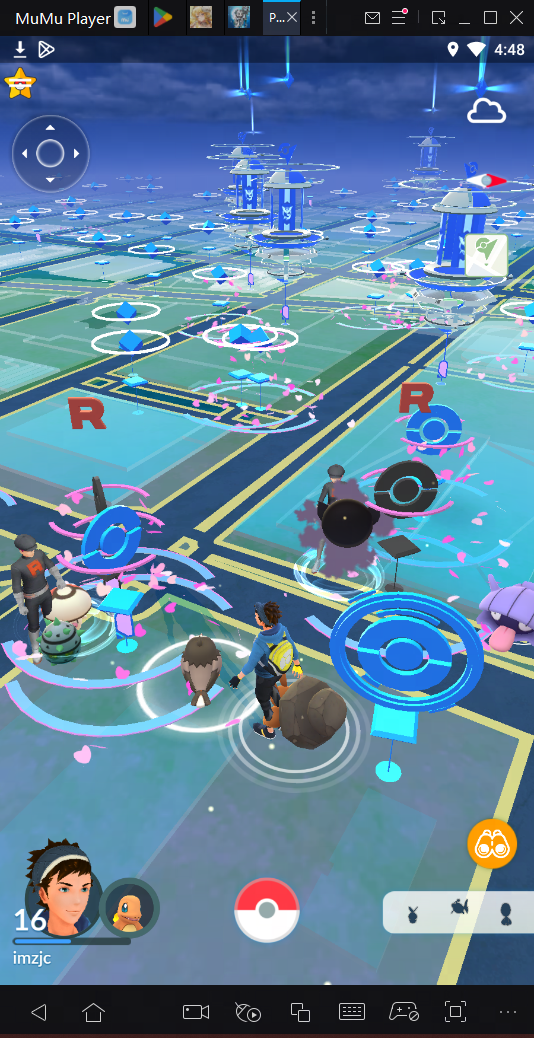
2. How to solve the problem "Access blocked: authorisation error"?
If you encounter the issue displaying "Access blocked: authorisation error", you can follow the steps below to resolve it.
Step 1: Download Google Chrome Browser from the App Center and install it.
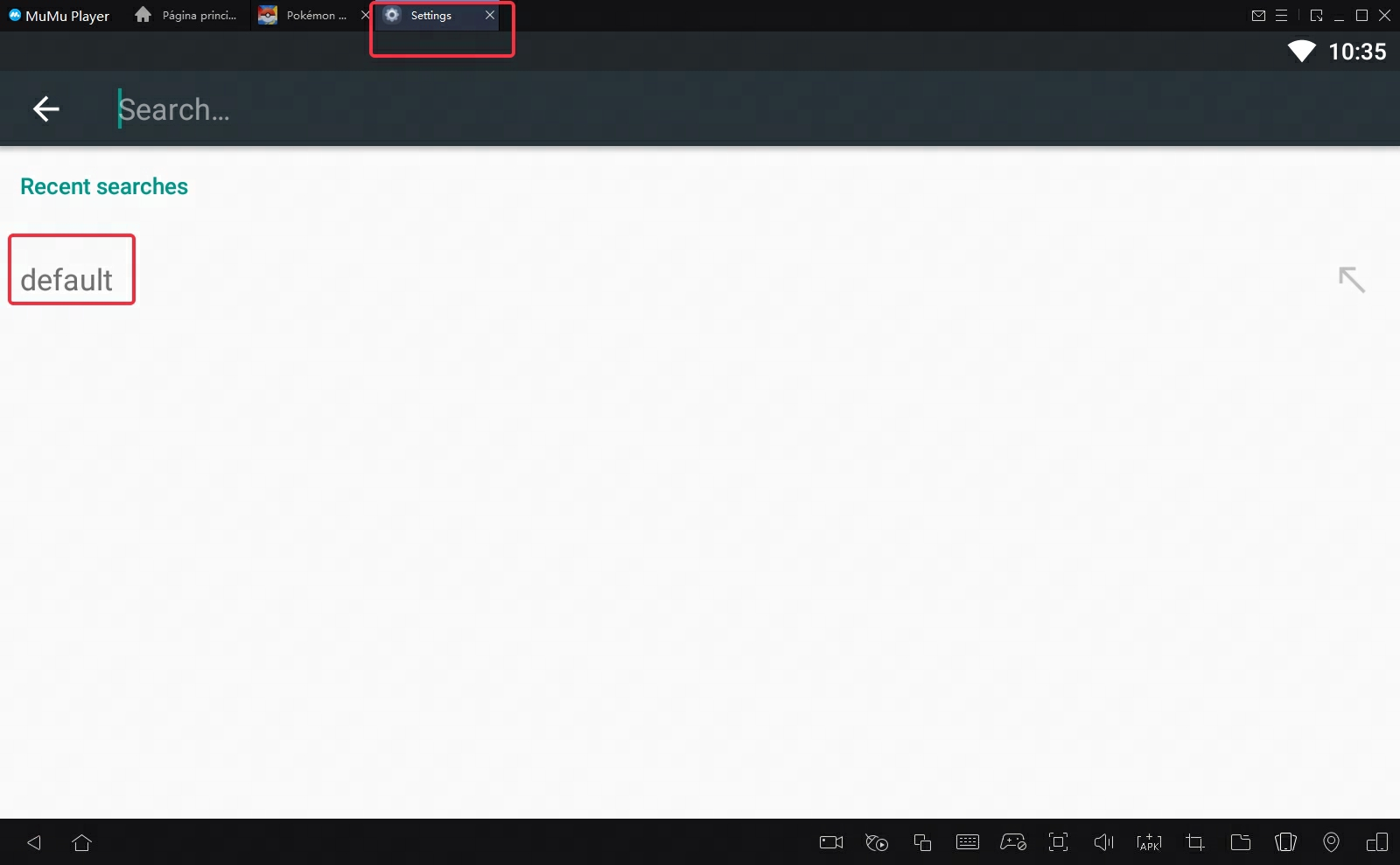
Step 2: Click "Settings" on the desktop, search for "default"
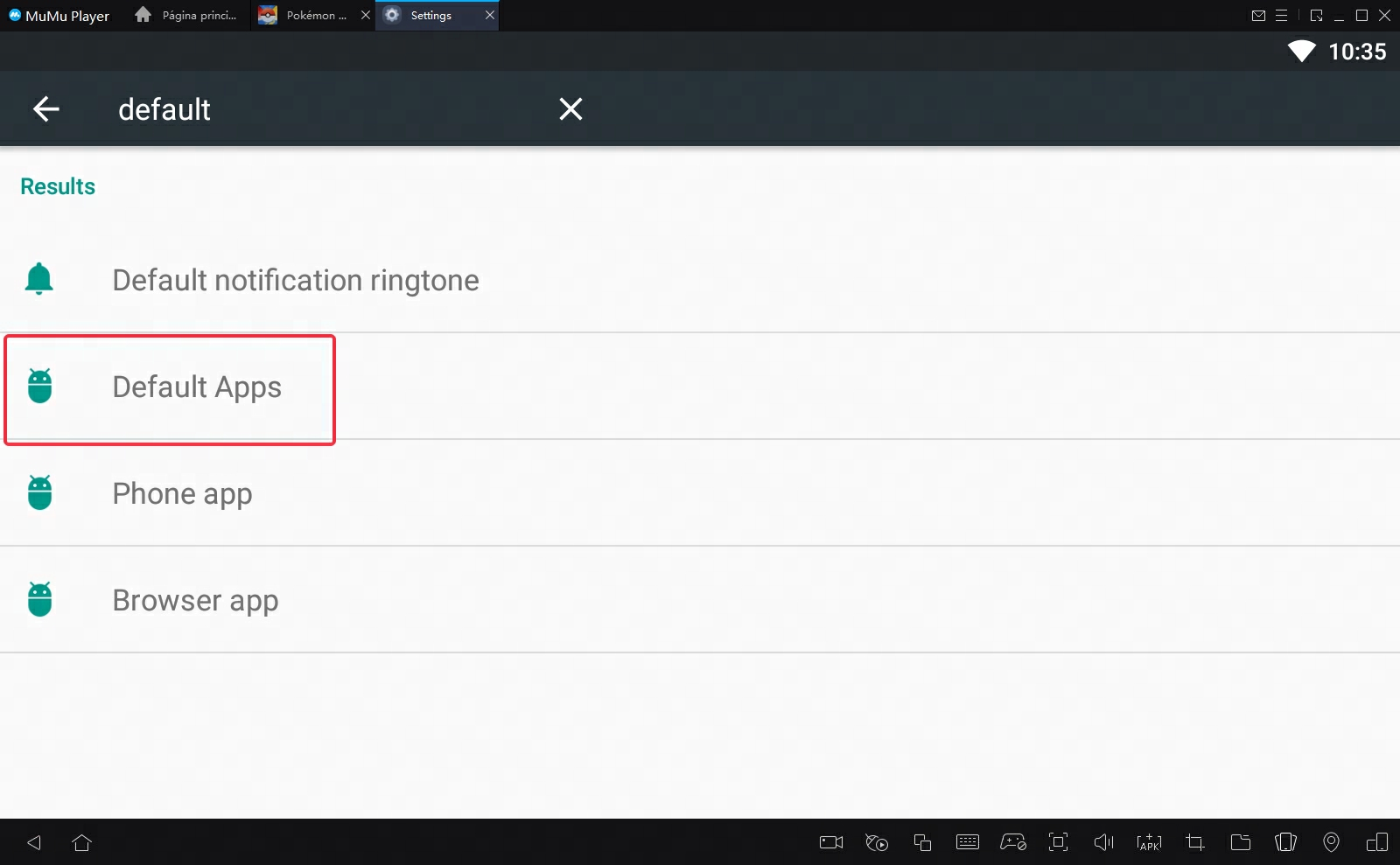
Step 3: Select "Default Apps".
Step 4: Click on "Browser App", and change it to Chrome.
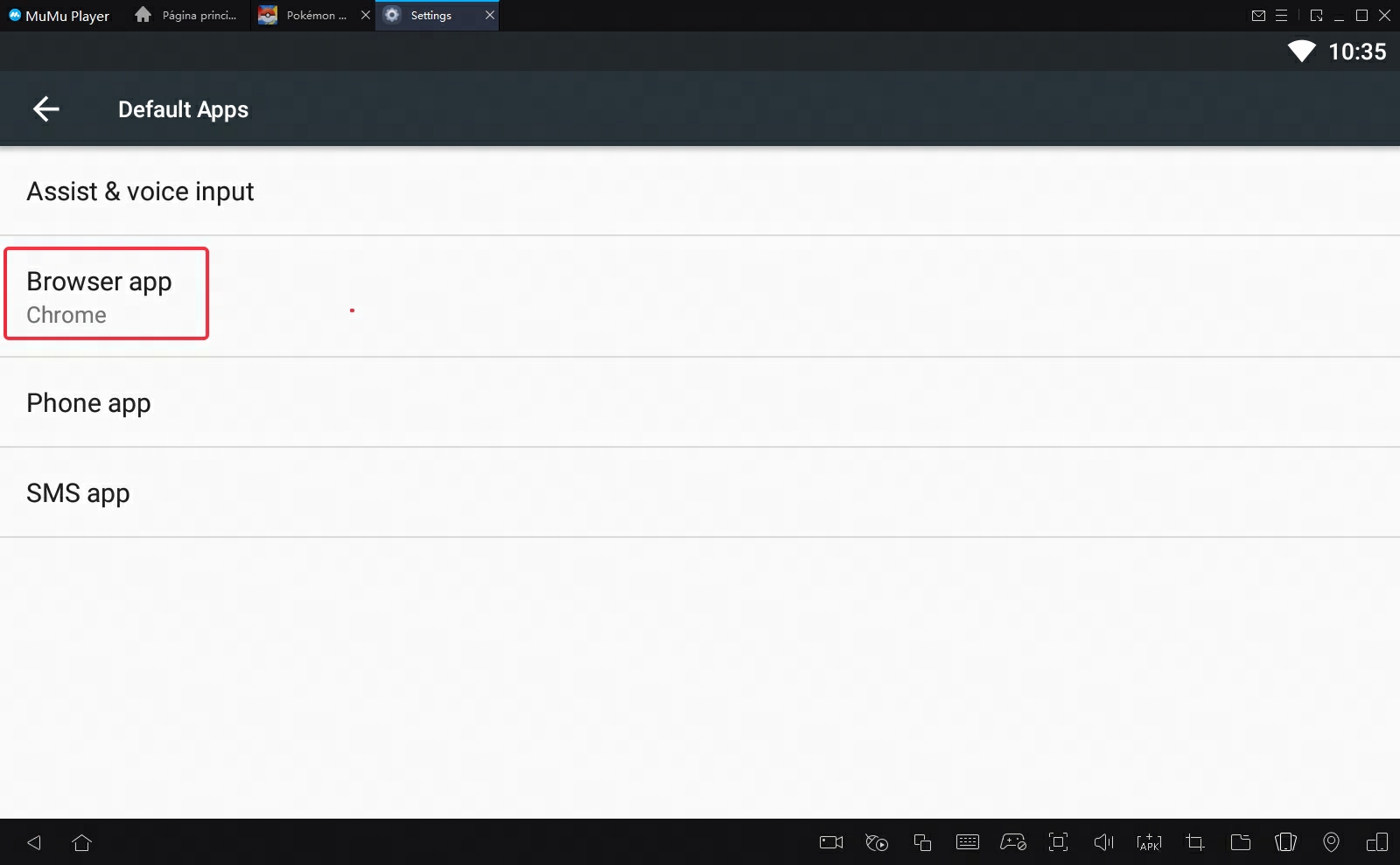
Step 5: Close Settings, restart PGSharp to play normally.
3. How to use Virtual Go Plus function?
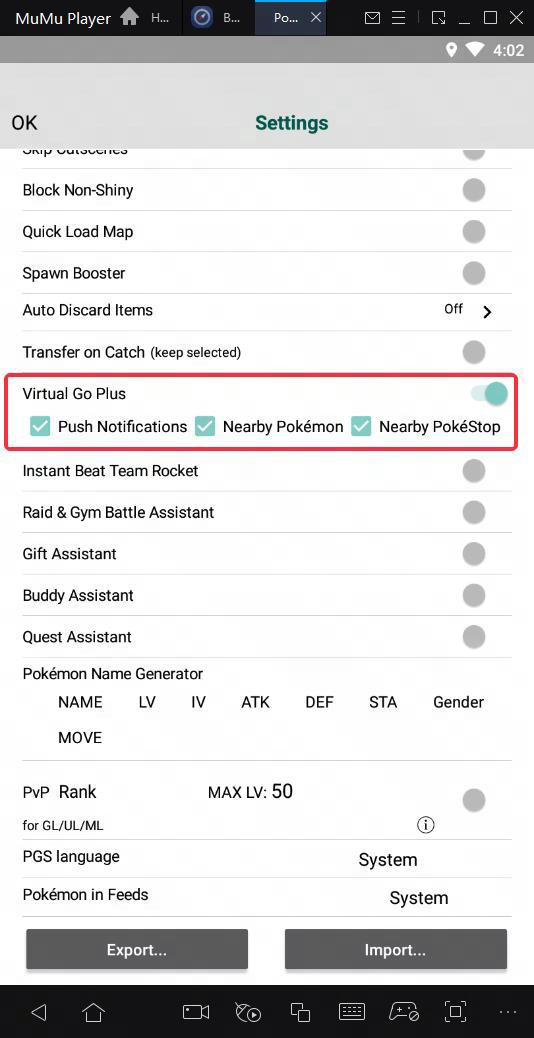
Step 1: Open PGSharp → Settings → Enable Virtual Go Plus function → Check the required content
Step 2: Return to the game interface, click the connect button in the upper right corner, and wait for the connection.
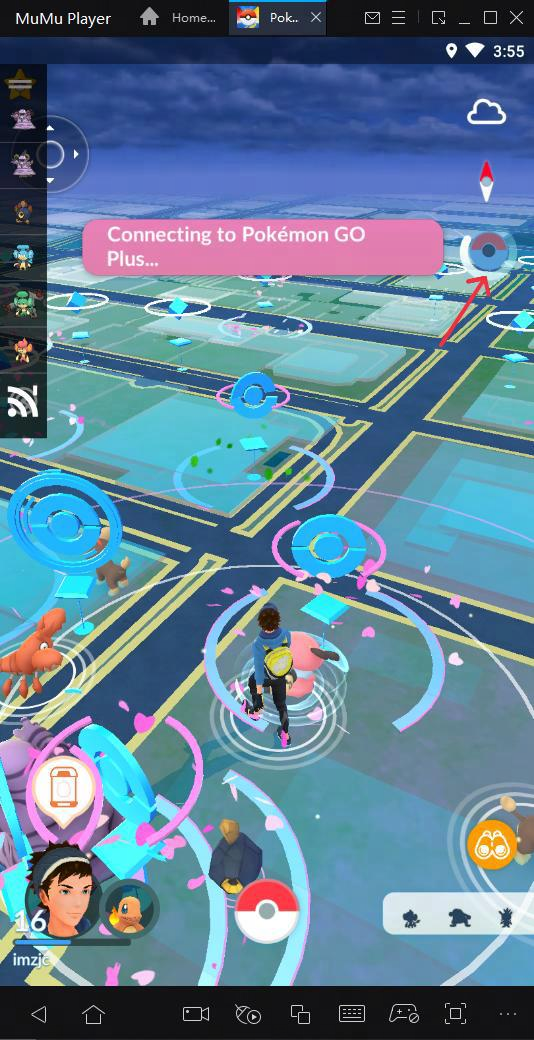
If it still doesn't work, please restart the emulator or game multiple times.
End of Article