How to drag labels and split the screen in MuMuPlayer?
MuMuPlayer now features an application split-screen function. You can drag the labels on the top tab of MuMuPlayer to perform the application split-screen operation. Please refer to the following steps for details.
1. Check MuMuPlayer version
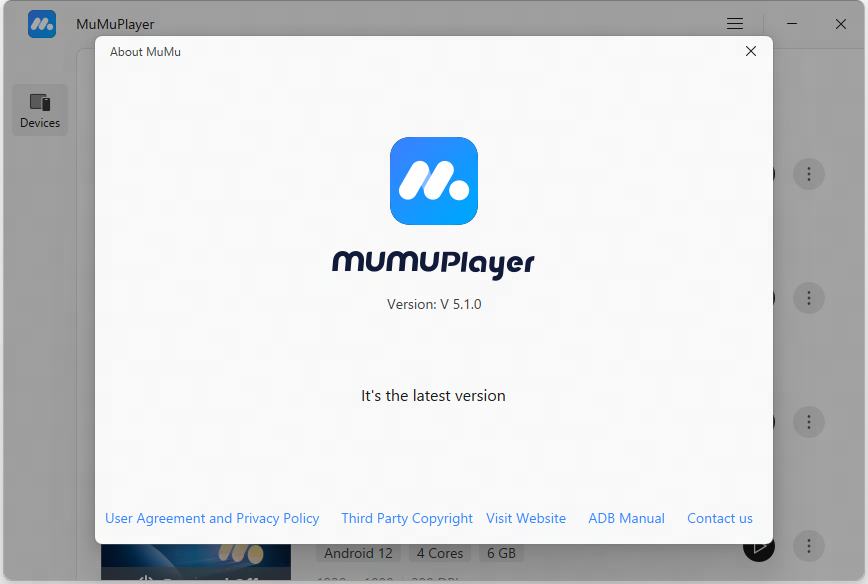
Upgrade MuMuPlayer to the latest version. You can click the Menu icon at the upper right corner of your MuMuPlayer - "About MuMu", check for updates, or >>click here to get the latest version.
2. Turn on the "keep running in the background" function
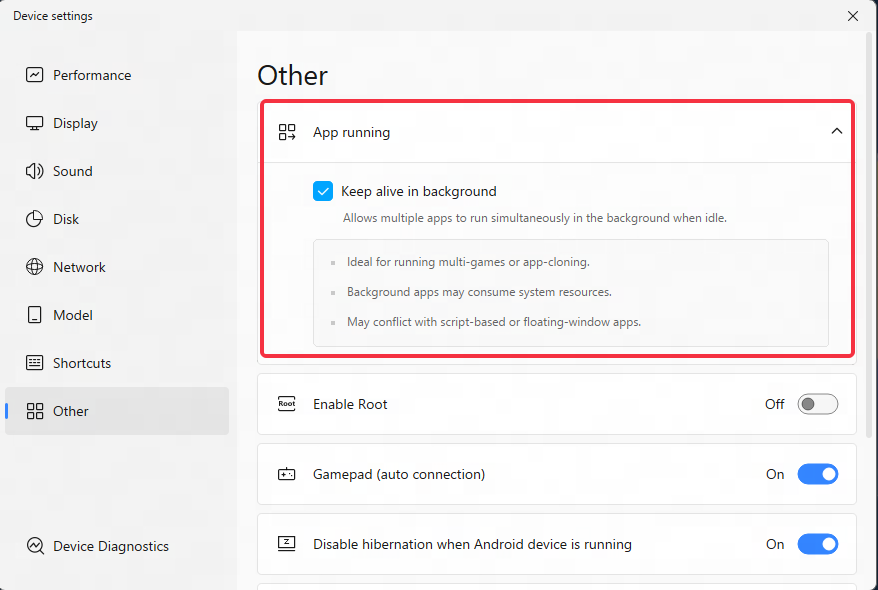
In MuMuPlayer "Settings" - "Other", check the "keep running in the background" function, save the settings, and restart MuMuPlayer to use the split-screen function;
3. Perform the split-screen operation
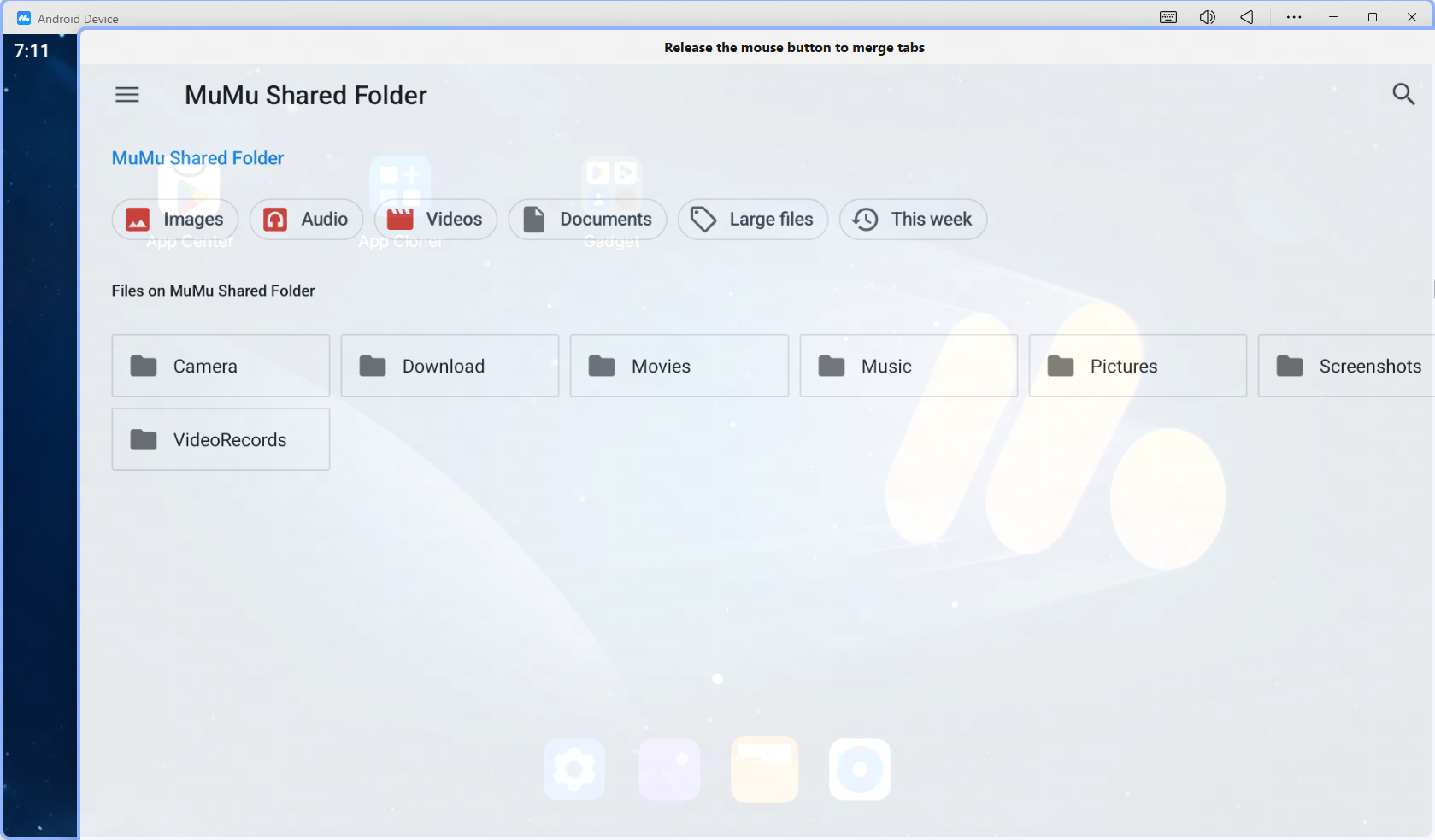
After completing the above settings adjustment, long press the label and drag it out to achieve split screen.
Split screen operation example picture:
4. Functions supported by the split-screen interface
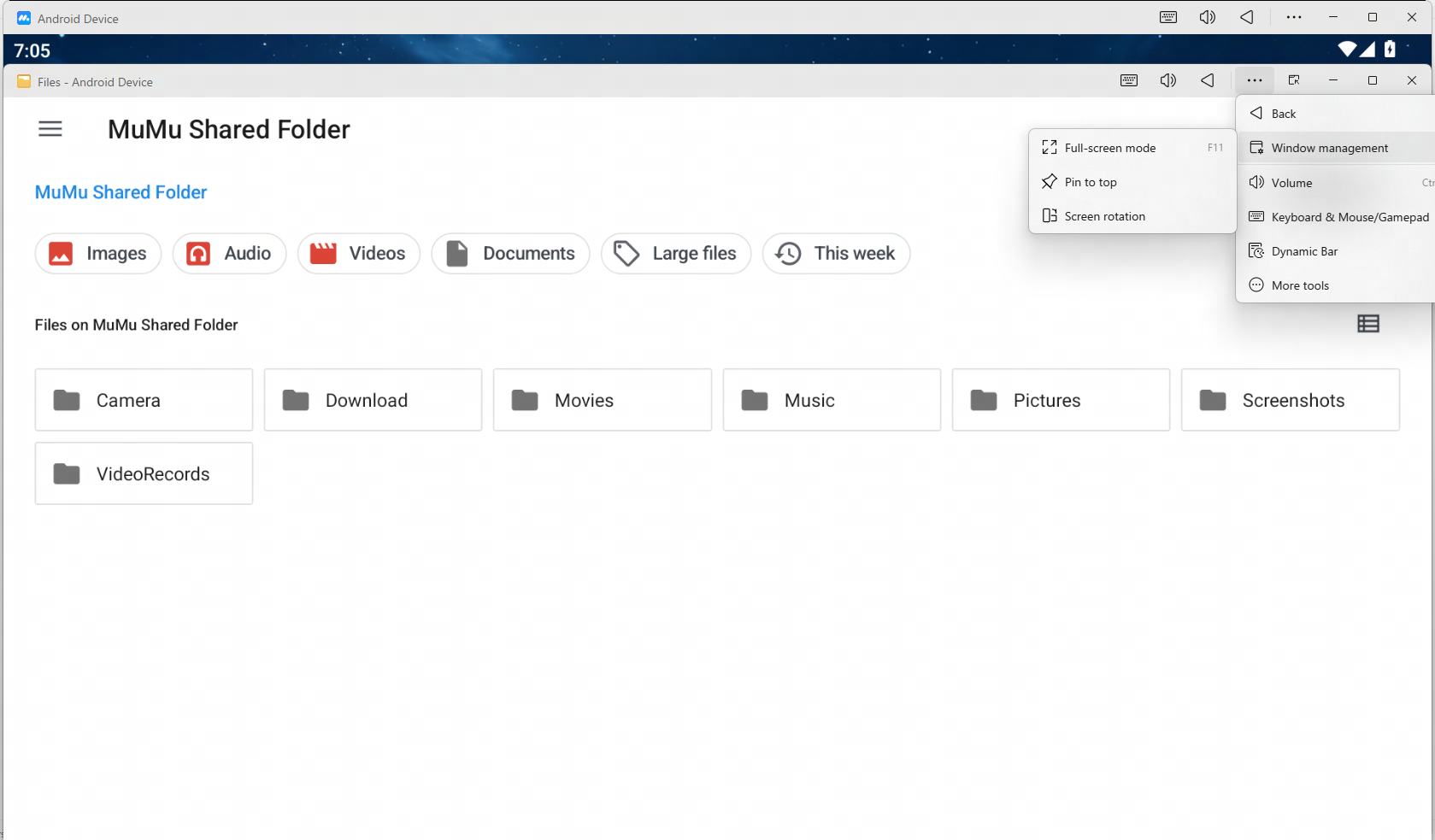
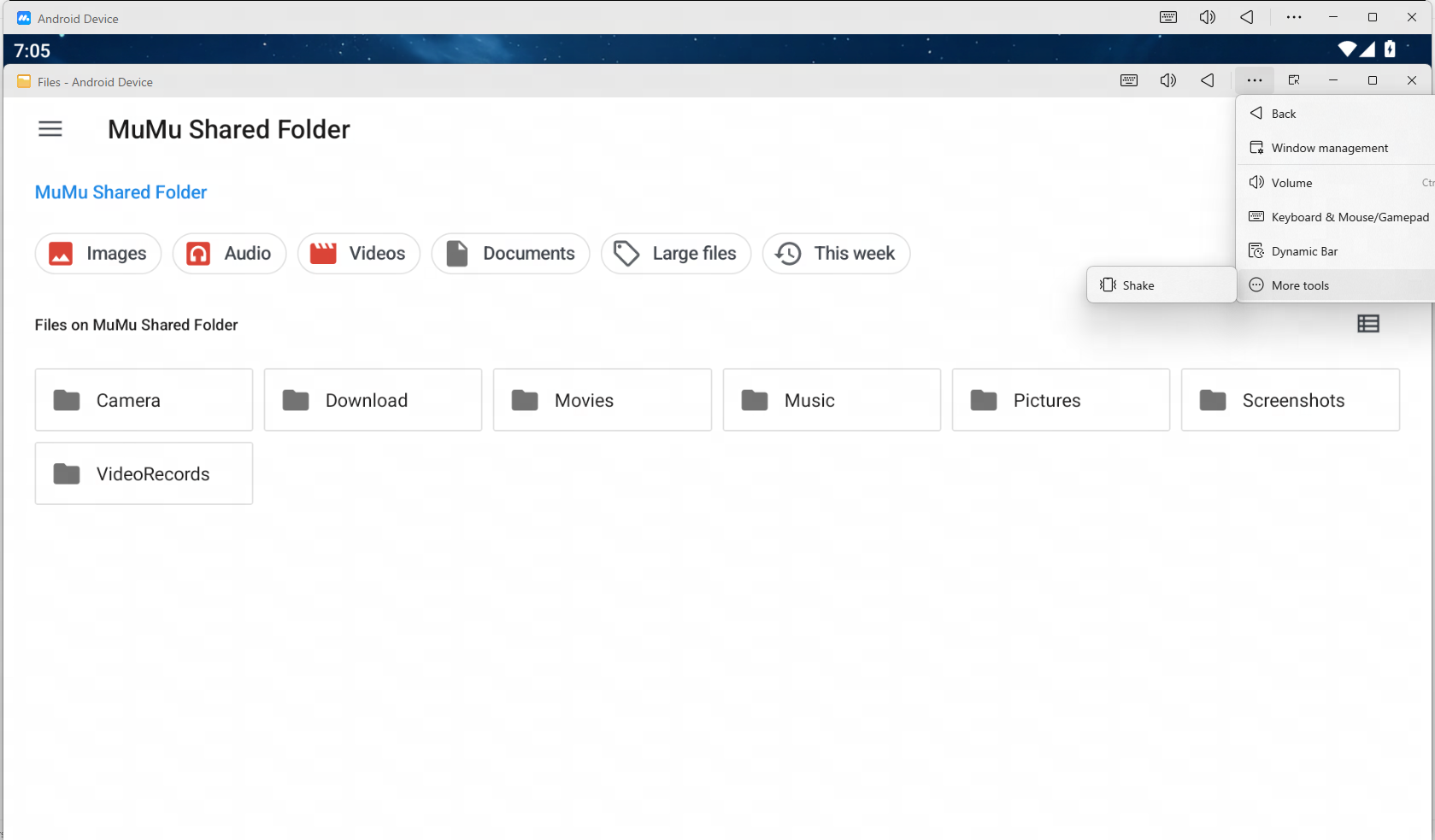
[Return]: Return to the previous interface (the same as the physical key “Back” on Android phones);
Note: Some apps support returning to exit. If the app exits by itself, it will automatically close the split-screen window.
[Window Top]: The selected split-screen window will be independently on top, and clicking it again will cancel the top status;
[Screen Rotation]: Rotate the split-screen windows of all applications that support rotation;
[Full Screen Mode]: The selected split-screen window will be displayed in full screen on the current monitor;
[Keyboard/Handpad]: The selected split-screen window will expand the keyboard/handle mask, and you can set the keys for the current window individually;
Note: The main splits of the same game share the key/mouse/joystick settings, and key modifications will be synchronized and applied to all splits after they are saved.
[Screenshot]: Take a screenshot of the selected split-screen window;
[Shake]: The whole MuMuPlayer triggers one shake operation;
[Volume]: Expand the volume setting window, supporting independent volume level settings for each app.
The above functions support shortcut keys. You can adjust the settings in the upper right corner of the MuMuPlayer menu - Settings Center - Shortcut Keys.
5. Frequently Asked Questions
1. When using the "keep running in the background" function, please pay attention to the following points:
1) After the keep-alive function is enabled, the application will continue running in the background and consume system resources (such as CPU usage). If you do not need this function, you can turn it off in the settings center.
2) The more applications/games running simultaneously in a single MuMuPlayer, the higher the required performance settings. You can adjust the MuMuPlayer performance settings as needed according to your computer's performance.
3) When the keep-alive function is enabled, the floating window function of some applications will be disabled. If you need to use the floating window function, please turn off this feature.
4) When the keep-alive function is enabled, the current version of scripts that use the screenshot function (such as ALAS, key wizard and other auxiliary software) will not work. You need to turn off this function to run the scripts normally.
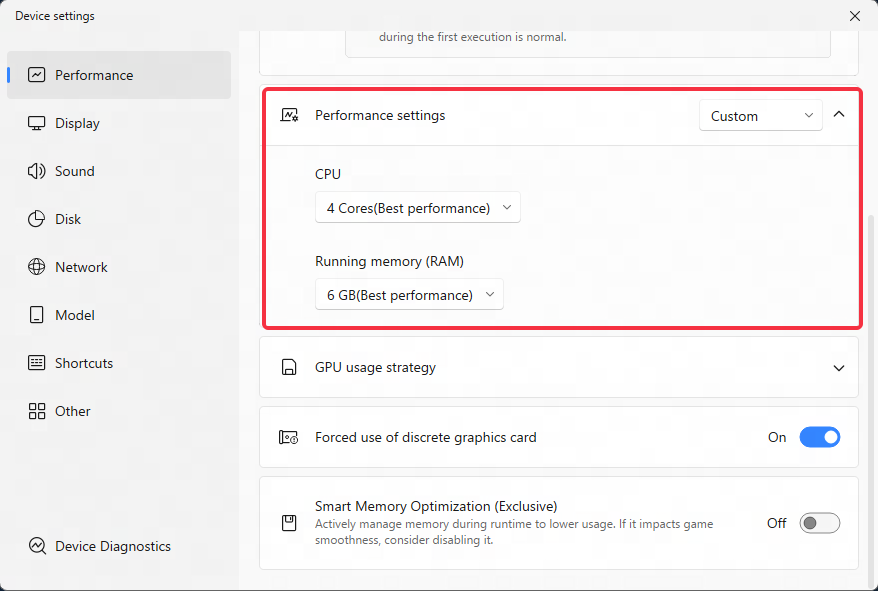
2. When using the split-screen function, please pay attention to the following points:
1) Some functions of certain applications cannot operate in the "keep-alive" state, so split screen cannot be performed;
2) Scripts that use the screenshot function (such as ALAS, BBCChannel, key wizard and other auxiliary software) will be invalid in the "keep-alive" and "split screen" states. You need to turn off this function to run the scripts normally;
3) The synchronizer function only supports use when Multi-instances are opened, and does not support use in the interface dragged out by the split-screen function;
4) The operation recording function is only supported in the main window of MuMuPlayer, not in the split-screen window;
If you need to run operation recording on an app, please make sure that the app is brought back to the main window of MuMuPlayer first;
If you need to run operation recording on multiple apps, please use Multi Opener to open multiple emulators and then run the operation recording;
Note: Operation recording has the following known issues with the current split-screen function:
*When operation recording is executed, the split screen can only be operated by keystrokes and mouse, and it is not possible to input text normally. This problem will be fixed in the subsequent version;
*Operation recording does not support operations containing text input for the time being, and it will conflict with split screen operation. This problem will be fixed in the subsequent version.
5) The exclusive version of MuMuPlayer does not currently support the split screen function. For example, the "Arknights" exclusive MuMuPlayer does not support split screen; please use the official website version of MuMuPlayer.
6) Functions such as separate volume adjustment, split-screen window arrangement, and individual key editing are still under continuous development. Please wait patiently.
End of Article