MuMuPlayer Synchronization Function Tutorial
1. What is a synchronizer
The synchronizer is a control function that synchronizes the operation of a certain MuMuPlayer to other MuMuPlayers. When you need to perform the same actions on different MuMuPlayer windows of the same game, such as auto-play and refresh, you can use the synchronizer to achieve these effects.
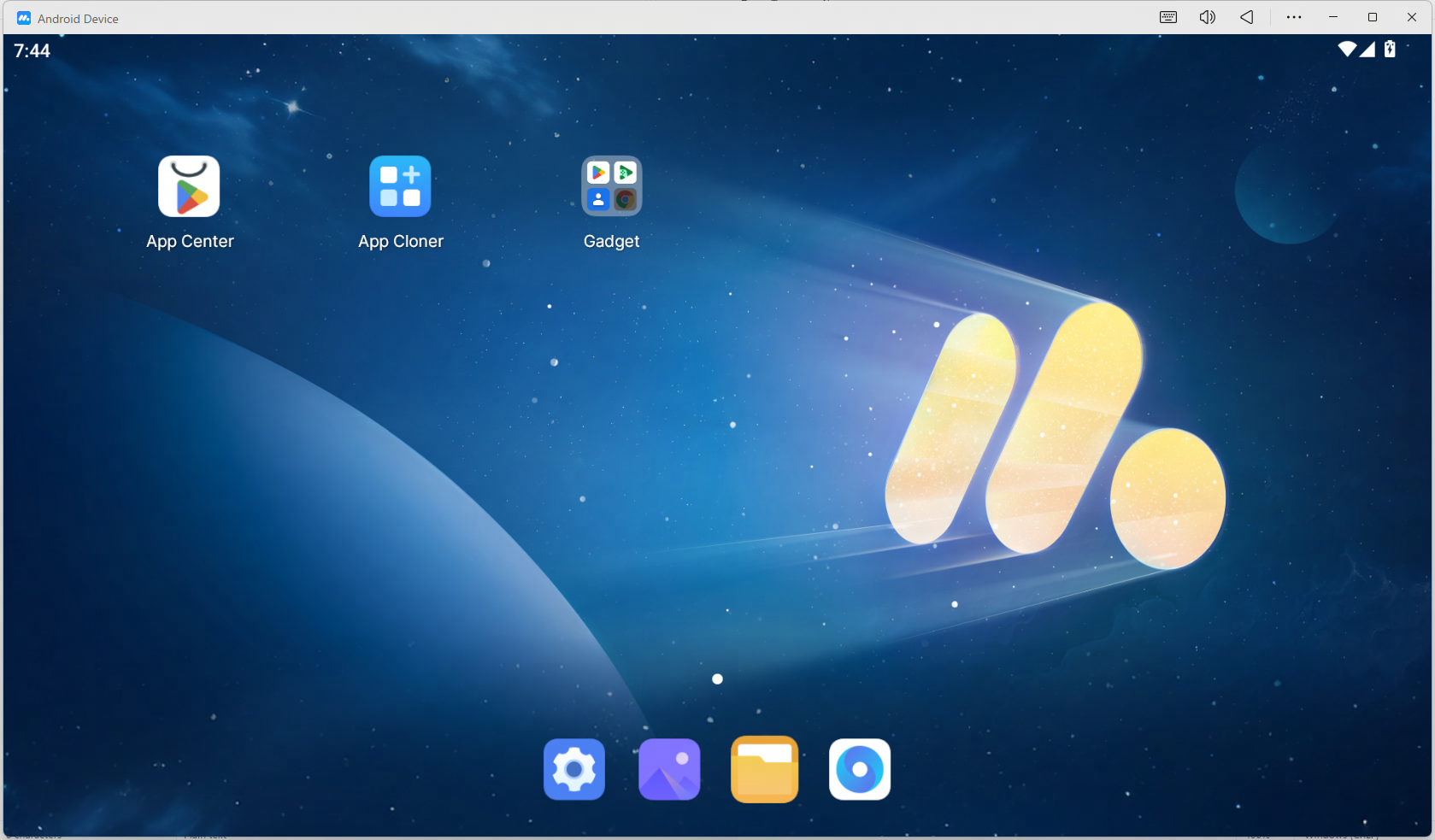
Note: Currently, the synchronizer only synchronizes click and input operations in the desktop area of MuMuPlayer (as shown in the figure below).
Additionally, the synchronization function does not support the MuMuPlayer X version. Please check whether the frame display of MuMuPlayer matches the figure below.
2. How to use the synchronizer
Step 1: Open MuMuPlayer Multi-instance, and batch set the resolution for multiple MuMuPlayers (users who do not need to adjust the resolution can proceed directly to the second step);
Note: If the resolutions of MuMuPlayers are different, there may be errors in the synchronization effect. It is recommended to adjust the settings in advance:
Select the MuMuPlayers you need to use, then click the lower left corner of Multi-instance→Settings→Display→Resolution setting (select or customize any resolution), and finally save the settings
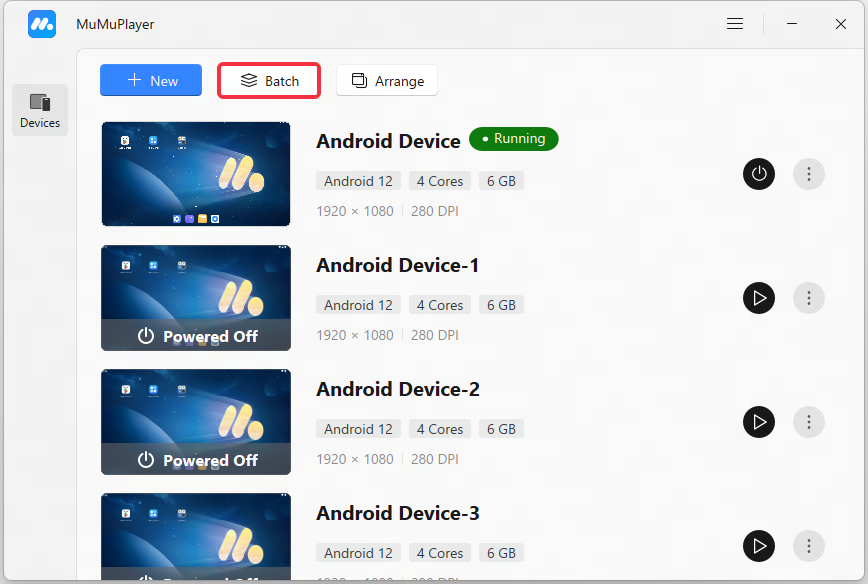
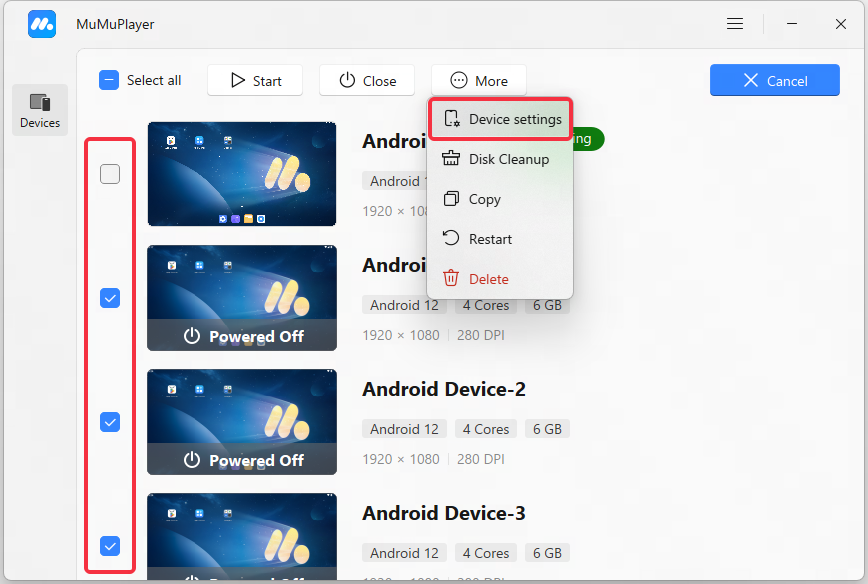
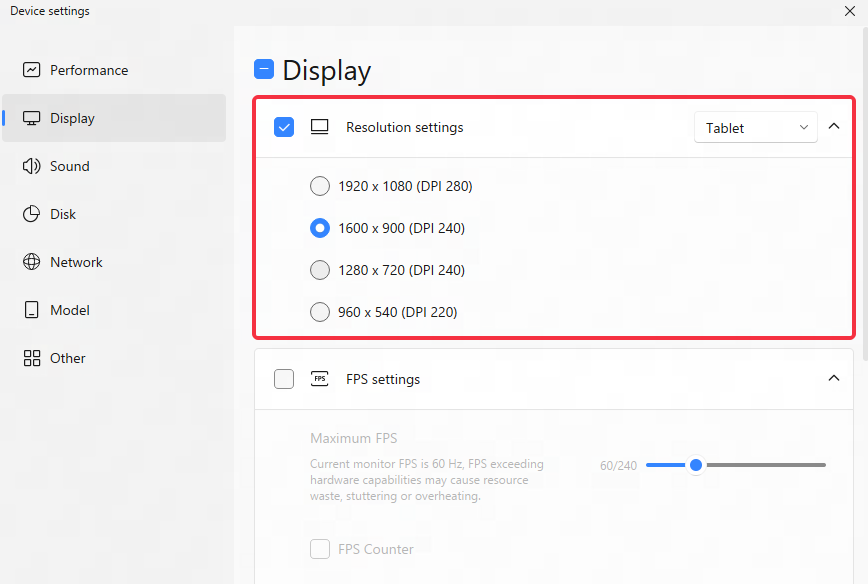
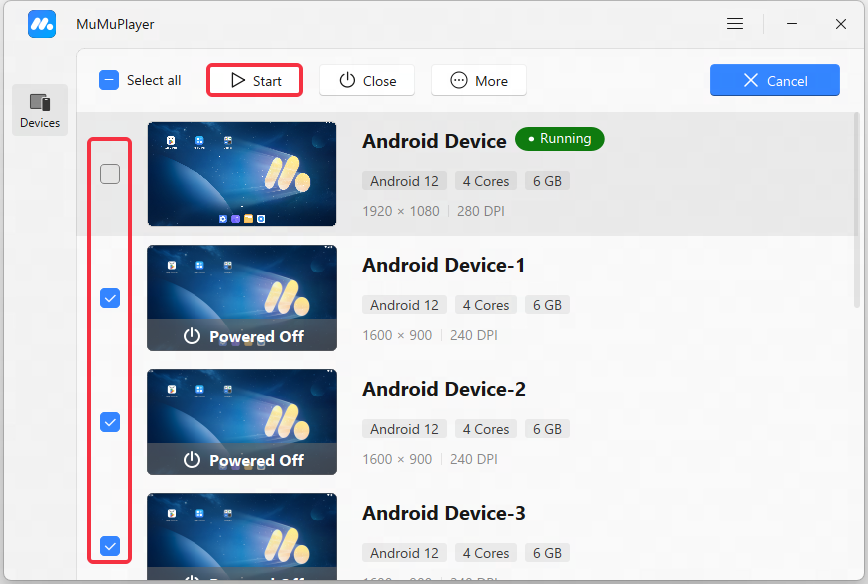
Step 2: Start MuMuPlayer. You can select multiple MuMuPlayers in the MuMuPlayer Multi-instance window and start them with one click (you can also click start on the MuMuPlayers that need to be run in the multi-instance, or send a shortcut to the desktop. Double-click on the desktop to start)
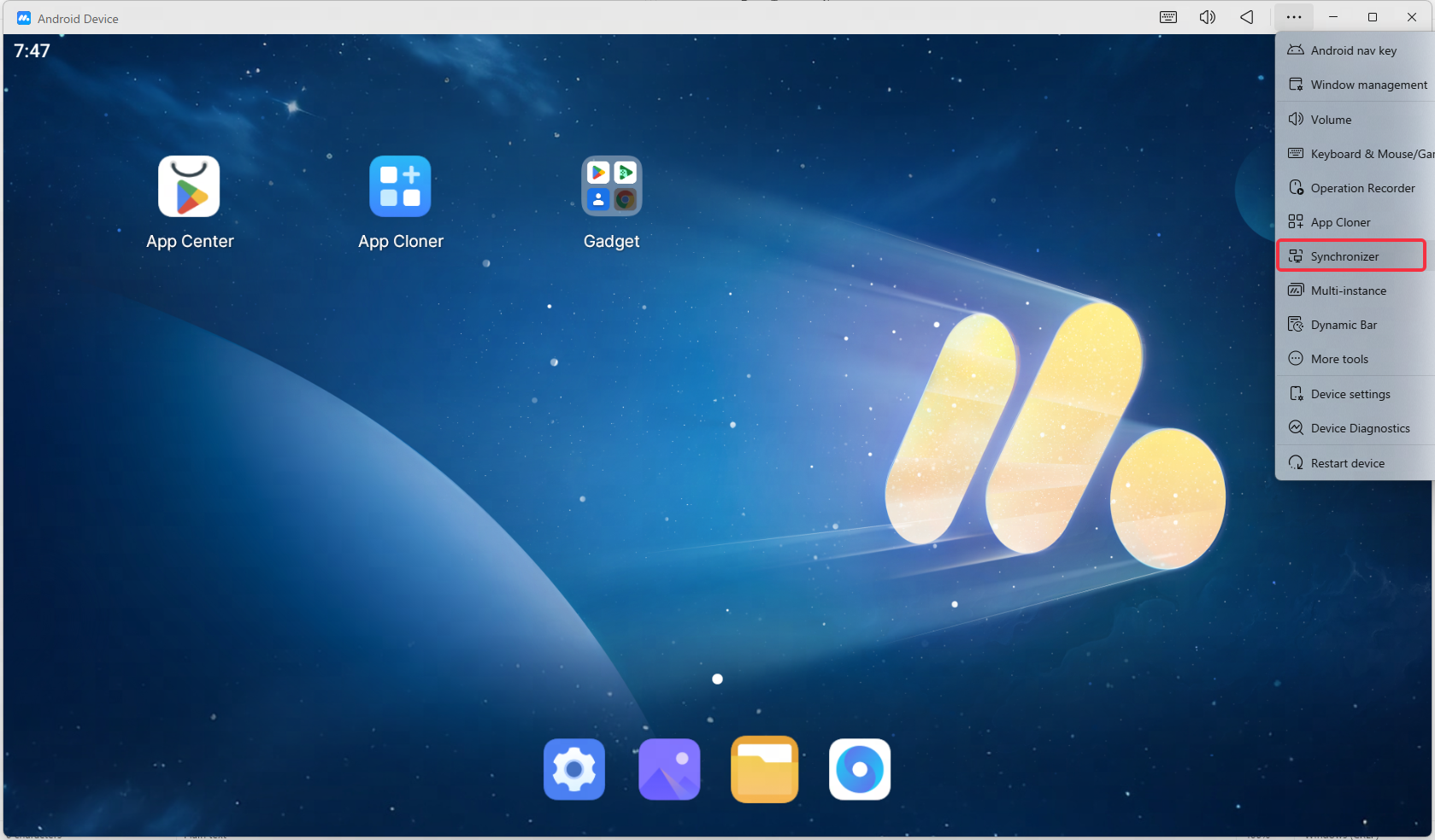
Step 3: Open the synchronizer in the MuMuPlayer you want to operate: select the MuMuPlayer, then click the "Toolbox" icon in the upper right → "Synchronizer" to open the synchronizer interface.
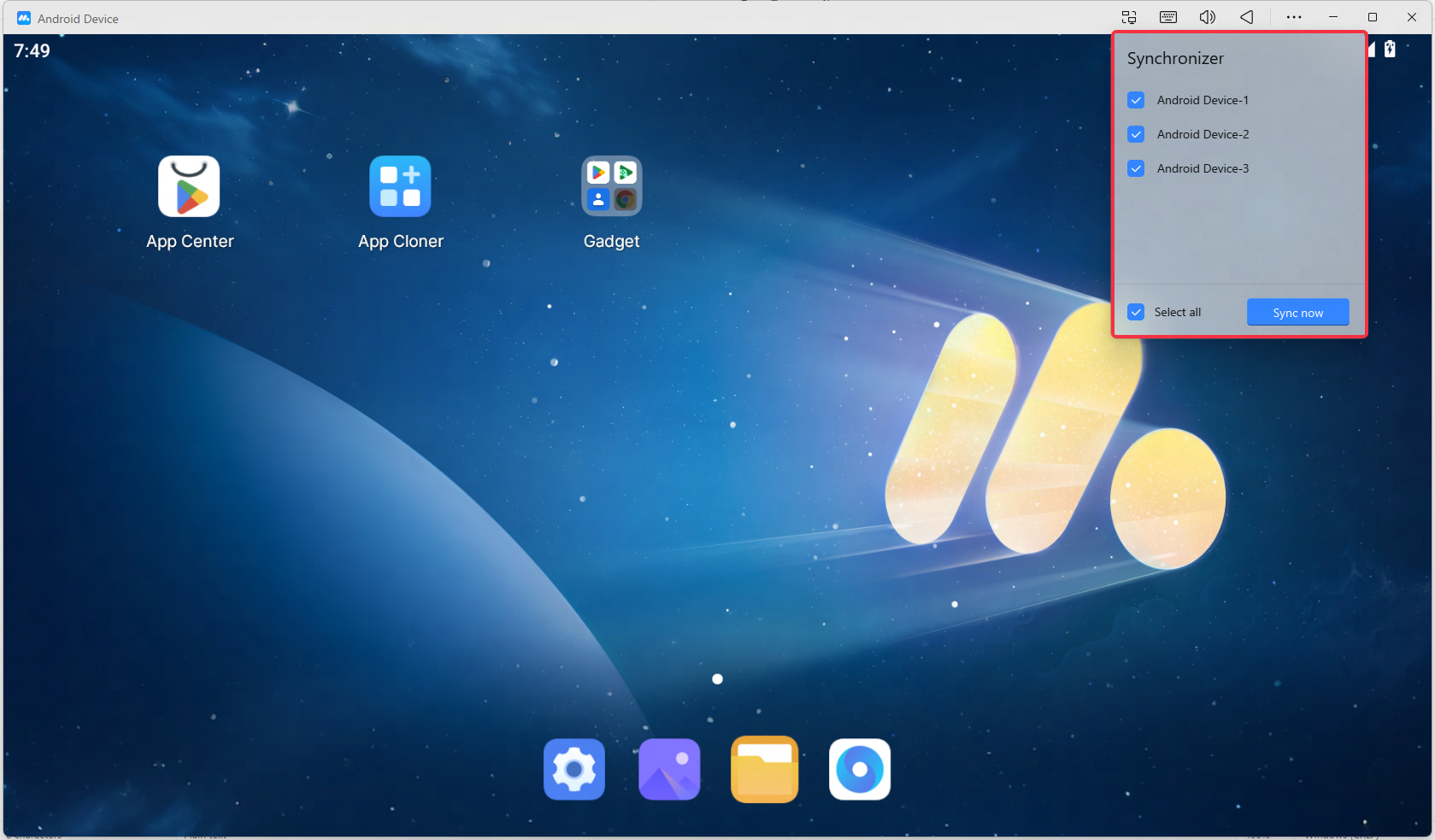
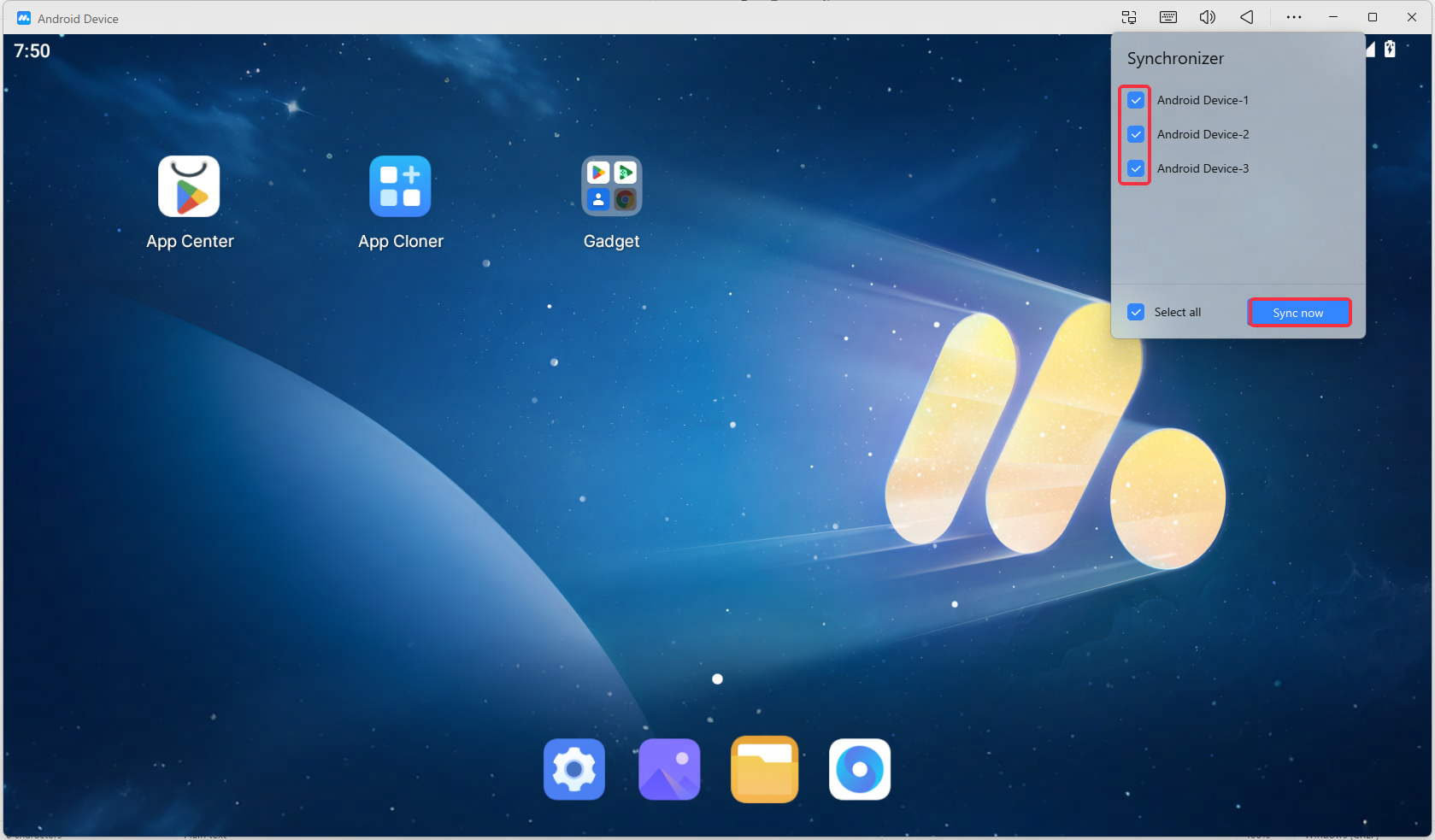
Step 4: Check the MuMuPlayer that needs to be synchronized in the synchronizer, click "Synchronize immediately" to start the synchronization operation, and the click, input, keyboard and mouse operations on the chosen MuMuPlayer will be synchronized to other MuMuPlayers.
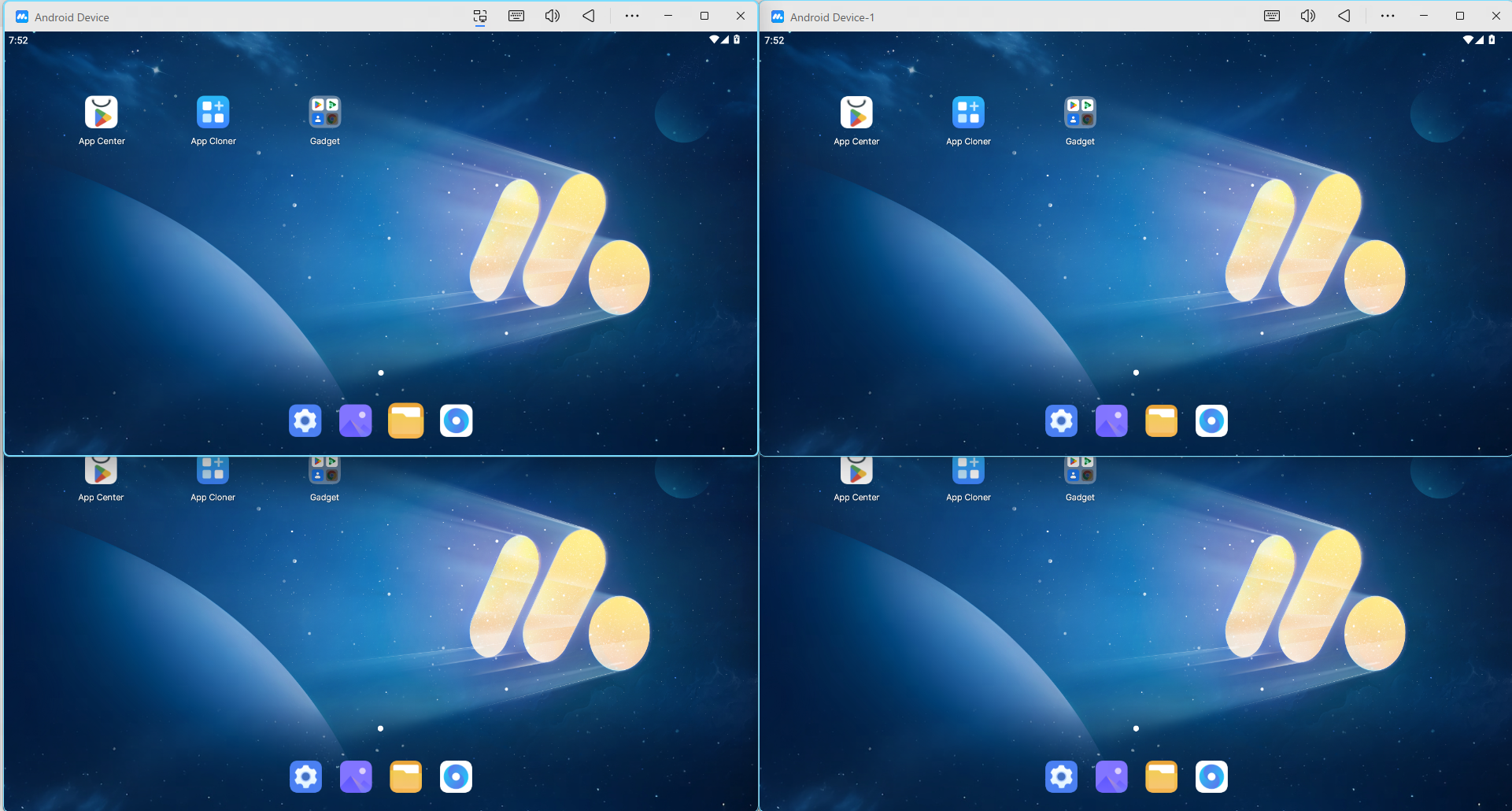
Note: The frame color of MuMuPlayer with synchronization enabled is always bright (randomly one of four colors: blue, yellow, orange, or purple). When the mouse hovers over MuMuPlayer, the frame color of the synchronized MuMuPlayer will change to the corresponding lighter color (for example, if the frame of the MuMuPlayer with synchronization enabled is bright blue, the frame of the synchronized MuMuPlayer will turn light blue). This helps you quickly locate the MuMuPlayer with synchronization enabled and currently being synchronized.
End of Article