How to fix Vulkan mode unavailable error?
When using MuMuPlayer, some users may encounter the issue where the rendering mode of MuMuPlayer cannot be switched to high-performance mode/Vulkan mode (as shown in the figure). You can resolve this problem by following the steps below.
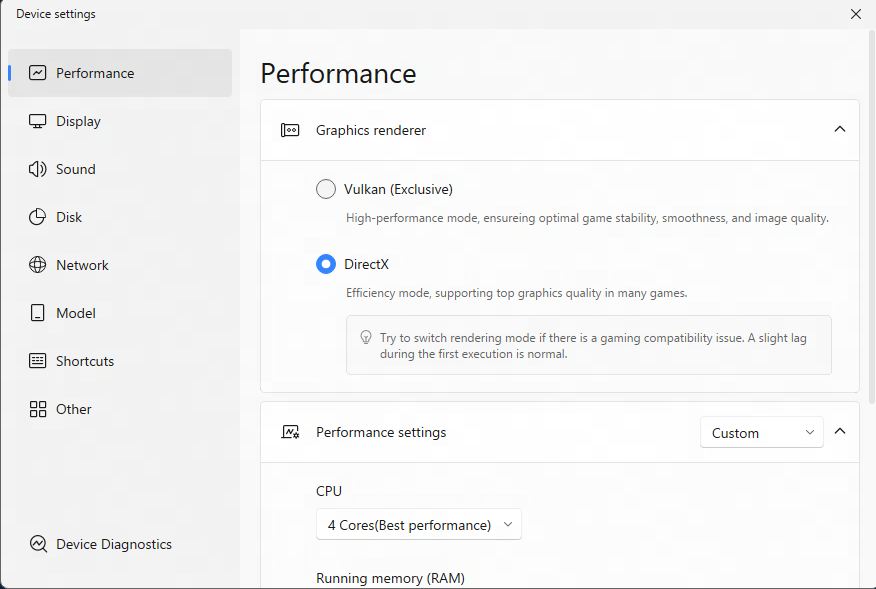
Note: Users with dual-graphics computers should pay attention to the following:
If your computer has dual graphics cards (integrated graphics card + discrete graphics card), and you switch from the discrete graphics card to the integrated graphics card and find that MuMuPlayer does not support high-performance rendering mode, please switch the graphics card back to the discrete graphics card and restart MuMuPlayer.
1. Check if any graphics card is disabled
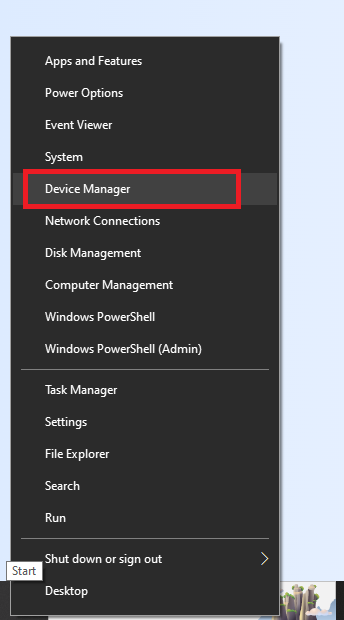
First, press Win+ X on the keyboard, or right-click the system menu button at the bottom left of the computer screen, and click Device Manager in the pop-up menu options;
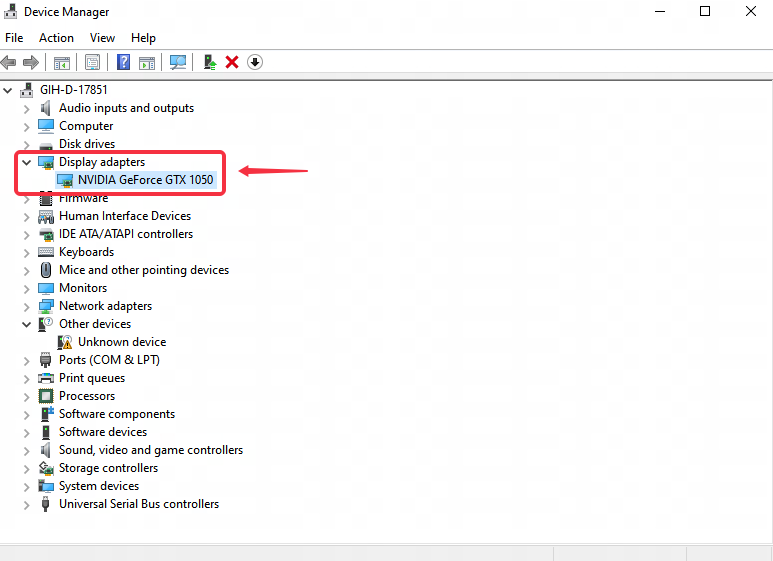
Second, in the Device Manager interface, click Display adapters to check whether there is a disabled graphics card. If there is a disabled graphics card, you can try enabling the graphics card, restarting the computer, opening MuMuPlayer, and trying to switch to high-performance mode;
2. Check whether the graphics card model configured on the computer supports high-performance mode.
For example, Intel(R) Iris(R) Xe Graphics, Intel(R) UHD Graphics 630 and earlier I cards currently do not support high-performance rendering mode.
Some low-end AMD graphics cards are not suitable for high-performance mode and are thus not recommended.
If your computer does not use the graphics card models mentioned above, but you still cannot switch to high-performance rendering mode, you can try the following steps:
2.1 Upgrade the graphics card driver, click to see how to upgrade the graphics card driver;
2.2 After upgrading the graphics card driver, restart the computer, press Win+X on the keyboard, or right-click the system menu button at the bottom left of the computer screen, and click Device Manager in the pop-up interface options;
3. Click on the display adapter in the opened device manager page;
4. Right-click the integrated graphics card/discrete graphics card under the Display adapter (NVIDIA graphics card in the figure below), and then click Disable device;
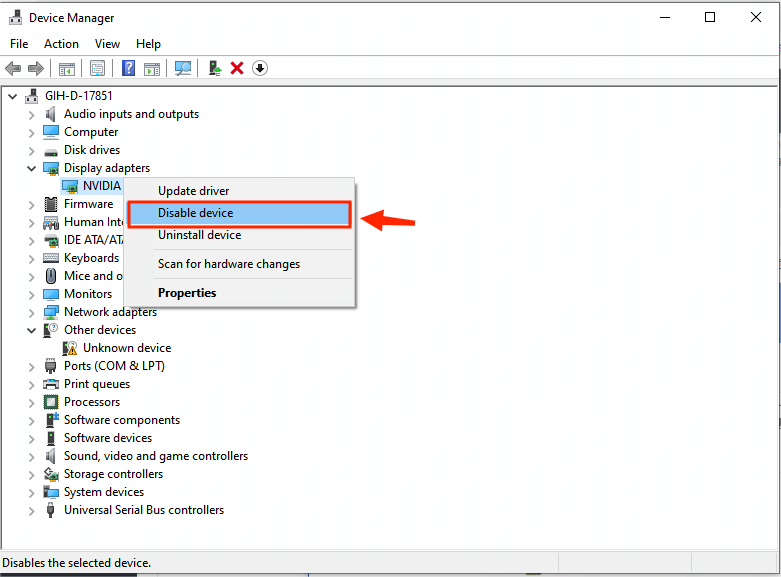
5. Right-click the integrated graphics card/discrete graphics card under the Display adapter, and then click Enable device;
Finally, restart the computer, and after the computer restart is complete, turn on MuMuPlayer to switch to high-performance rendering mode.
End of Article