
Play Ragnarok Arena on PC and Mac
Download Ragnarok Arena on PC or Mac with MuMuPlayer, get a PC like gameplay along with smart control and high graphics performance.
MuMuPlayer, the top Android emulator for PC and Apple silicon Mac, delivers an optimal gaming experience with minimal RAM usage and high FPS. It also allows you to create multiple instances of the emulator and run several games simultaneously, thanks to its Multi-instance feature. Its advanced emulator features ensure smooth gameplay, even on low-end PCs.
Download and play Ragnarok Arena on PC or Mac with MuMuPlayer and start enjoying your gaming experience now.
About the Game
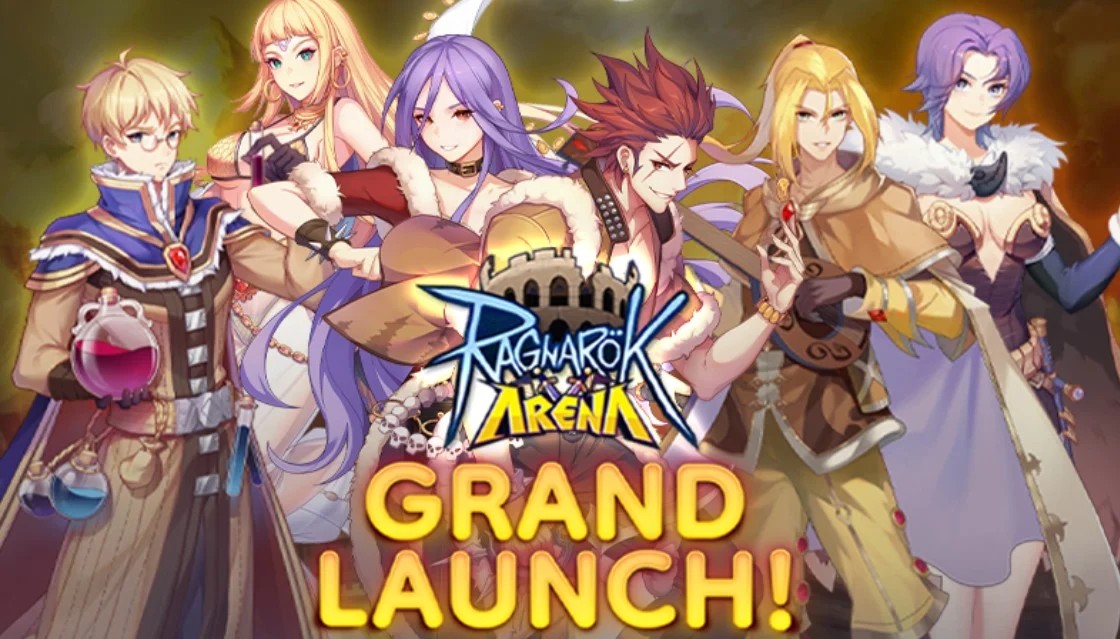
Strategy RPG based on the famous Ragnarok Online IP developed by Gravity


- Main Character & Jobs -

One of Ragnarok Online’s unique feature is the classes and the job change system. The main character can freely switch between 13 unique 2nd Job classes with different combat styles anytime!


- Monsters -

Unlock hundreds of well-known Ragnarok Online monsters such as Baphomet, Turtle General, Orc Hero and more! Collect and cultivate the monsters to form the strongest team and have them battle alongside with you on your Ragnarok Arena Adventure!


- Strategic Gameplay -

Build the strongest team to defeat the enemies! Strategize the invincible team formation to form different team to counter enemy line-up by using strategic unit placement, elemental synergy, and monster with the most suitable roles!


- AFK Farming -

Have your monsters to fight for you automatically, farming of upgrade materials and equipment no longer take up precious time, even if you are offline, you can get a lot of rewards!


Fashionable Well-Known Headwear

You can get the cutest and funniest headwear found in various RO games, Corsair, Eleven Ear, Poo Poo Hat and more! Hurry up and join us to participate in the most fashionable RO carnival!


- Various PVP Content -

Fight for the honor and defeat other guilds! Conquer pinnacle arenas for cross-server competition to achieve the highest glory, siege battles for resource points, etc. Various PVP gameplays are waiting for your challenge!


- Plentiful Game Modes -

Climb the Geffen Tower, explore the Payon Dungeon, solve puzzle in the Artifact Adventure and challenge the world BOSS in the Hidden Forest! Experience the rich game contents with never ending fun and challenges.
Emulator Features

With a smart button scheme and image recognition function, provide a more concise UI, and support custom button mapping to meet different needs.

Run multiple games independently at the same time, easily manage multiple accounts, play games while hanging.

Break through FPS limit, and enjoy a seamless gaming experience without lag and delay!

Get a 3-second startup with 52% less memory usage and 65% more stability.
How to Download and Play Ragnarok Arena on PC and Mac
Installation Guide
① Download and install MuMuPlayer on your PC or Mac. It will identify automatically your current system and download the latest version.
② Start MuMuPlayer and complete Google sign-in to access the Play Store, or do it later.
③ Search Ragnarok Arena in the Play Store.
④ Complete Google sign-in (if you skipped step 2) to install Ragnarok Arena.
⑤ Once installation completes, click the Ragnarok Arena icon on the home page to start the game.
⑥ Enjoy playing Ragnarok Arena on your PC or Mac with MuMuPlayer.
Installation Guide
Recommended computer configuration
For Windows:4-core CPU, 4GB RAM, i5 OS, GTX950+ graphics card
For macOS: 4-core CPU, 4GB RAM
Recommended Android Device performance settings
Graphics renderer mode
Vulkan and DirectX both supported
Performance Settings
Recommended performance settings: 2 cores, 2GB. >>How to adjust performance settings
Recommended Android Device Display Settings
Resolution Settings
Go to Device Settings > Display > Resolution Settings to adjust your device's resolution as needed.
FPS Settings
MuMuPlayer supports up to 240 FPS. >>How to enable high FPS mode
Recommended to enable VT
Enabling VT will significantly improve emulator performance, reduce screen freezing, and make games run more smoothly. >>How to enable VT
(1).png?fop=imageView/0/w/150/h/150)