
How to Run Multiple Roblox Instances: A Complete Guide with MuMuPlayer
Roblox is a globally popular sandbox gaming platform that allows users to create, share, and play millions of user-generated 3D games—ranging from role-playing adventures and simulation games to competitive challenges. For both casual players and creators, running multiple Roblox instances can significantly enhance the gaming experience, and MuMuPlayer offers a seamless, efficient way to do this on both PC and Mac. Whether you want to manage multiple accounts, grind resources across different games, or assist friends, multiple Roblox instances let you handle more tasks at once without constant account switching.
If you’re looking to get more information about Roblox, feel free to check out the related guides below:
- Adopt Me Fresh Fruit Pets Update Guide: All New Pets & How to Get Them
- Roblox Anime Auto Chess Units Tier List – 2026
These guides can help you boost your progress and enhance your overall gameplay experience.
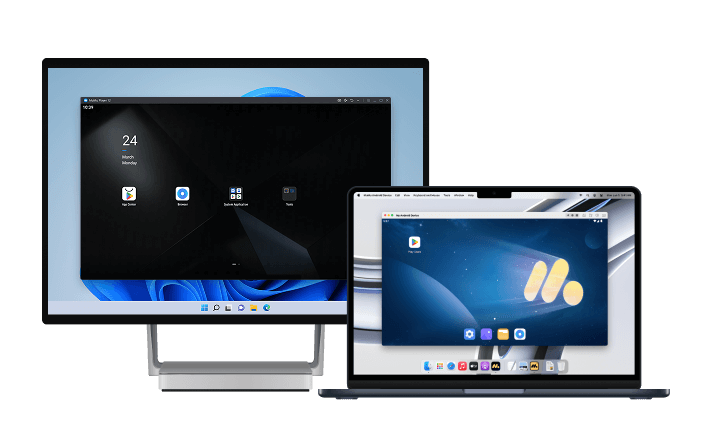
By the way, if you’re already eager to play Roblox, we highly recommend playing Roblox on PC and Mac with MuMuPlayer for a smoother gameplay experience. MuMuPlayer is the top Android emulator that offers optimal gaming performance with smooth keyboard and mouse controls, high FPS, and multi-instance support.
You could also directly download Roblox PC on MuMuPlayer if you don’t want to miss out on the latest game updates.
Key Benefits of Running Multiple Roblox Instances
Running multiple Roblox instances isn’t just a convenience—it unlocks practical advantages that cater to different player needs:
Streamlined Virtual Economy Management
It simplifies virtual economy management. Many players use multiple accounts to trade limited items, transfer in-game currency, or manage group funds, and having multiple instances open makes these processes much more efficient, eliminating the need to log out and log back in repeatedly.
Efficient Multi-Game Grinding
It boosts multi-game grinding. Dedicated players can progress in several Roblox experiences simultaneously—farming resources, completing daily quests, or participating in time-limited events across different games—saving hours of time in the long run.
Enhanced Social & Supportive Play
It supports social and supportive play. Parents can assist their children with game quests using a second account, friends can help each other unlock achievements, and content creators can manage viewer interactions across multiple profiles easily.
Valuable Tool for Roblox Developers
Lastly, it’s a valuable tool for Roblox developers. Creators can test their own games with multiple accounts to verify multiplayer mechanics, user interactions, and game balance, ensuring a smooth experience for other players.
How to Run Multiple Roblox Instances on PC and Mac with MuMuPlayer
While Roblox doesn’t natively support running multiple instances, MuMuPlayer— a powerful Android emulator optimized for gaming—makes it simple and stable. Follow these step-by-step instructions to set up multiple Roblox instances on your PC or Mac:
Step 1: Download and Install MuMuPlayer
Visit the official MuMuPlayer website to download the latest version, which is fully compatible with both Windows PC and Mac.
Step 2: Create Multiple Instances
Open MuMuPlayer and create new devices.
- Option 1: Manually create a new device.
- Option 2: Enter how many devices you want to make (for example, 3–5).
- Option 3: Wait for the creation process to complete — once done, all devices will appear in your list.
Step 3: Enable Multi-Tasking
Click on the device windows and open the Synchronizer tool. This feature mirrors your actions across all open devices — letting you play, summon, and reset multiple accounts at the same time.
Step 4: Download and Install Roblox on Each Instance
Next, download Roblox PC inside MuMuPlayer.
Step 5: Launch Roblox and Start Gaming
Open Roblox on each instance and log in with a different Roblox account (note: you cannot log in to the same account on multiple instances). Once logged in, you can play different games, grind resources, or trade items across all instances simultaneously.
Frequently Asked Questions
Q: Do I need multiple Roblox accounts to run multiple instances?
A: Yes. Roblox does not allow logging in to the same account on multiple devices or instances at the same time. You will need a separate Roblox account for each MuMuPlayer instance you run.
Q: Is MuMuPlayer free to use for running multiple Roblox instances?
A: Yes. MuMuPlayer is completely free to download and use, including its multi-instance feature. There are no hidden fees or premium subscriptions required to run multiple Roblox instances.
Q: Is running multiple Roblox instances against Roblox’s terms of service?
A: No, as long as you are using separate, legitimate Roblox accounts and not using the instances to cheat, exploit, or violate other Roblox rules. Running multiple instances for personal use (grinding, trading, testing) is allowed.
Conclusion
Running multiple Roblox instances is a game-changer for players looking to save time, manage virtual economies, or enhance their gaming experience—and MuMuPlayer makes it the easiest way to do so on PC and Mac. With its user-friendly multi-instance manager, stable performance, and free access, MuMuPlayer eliminates the hassle of managing multiple Roblox accounts and lets you make the most of the platform. Whether you’re a casual player, dedicated grinder, or Roblox creator, following this guide will help you set up multiple Roblox instances in minutes and unlock all the benefits they offer.
End of Article